Free CAD Software for 3D Printing: Where to Start
Six free CAD options for designing your own 3D prints, with the platform, license terms and limits of each, and a simple way to pick where to start.
By Sepehr Sabbagh-pour · Published 10 October 2026 · 8 min read
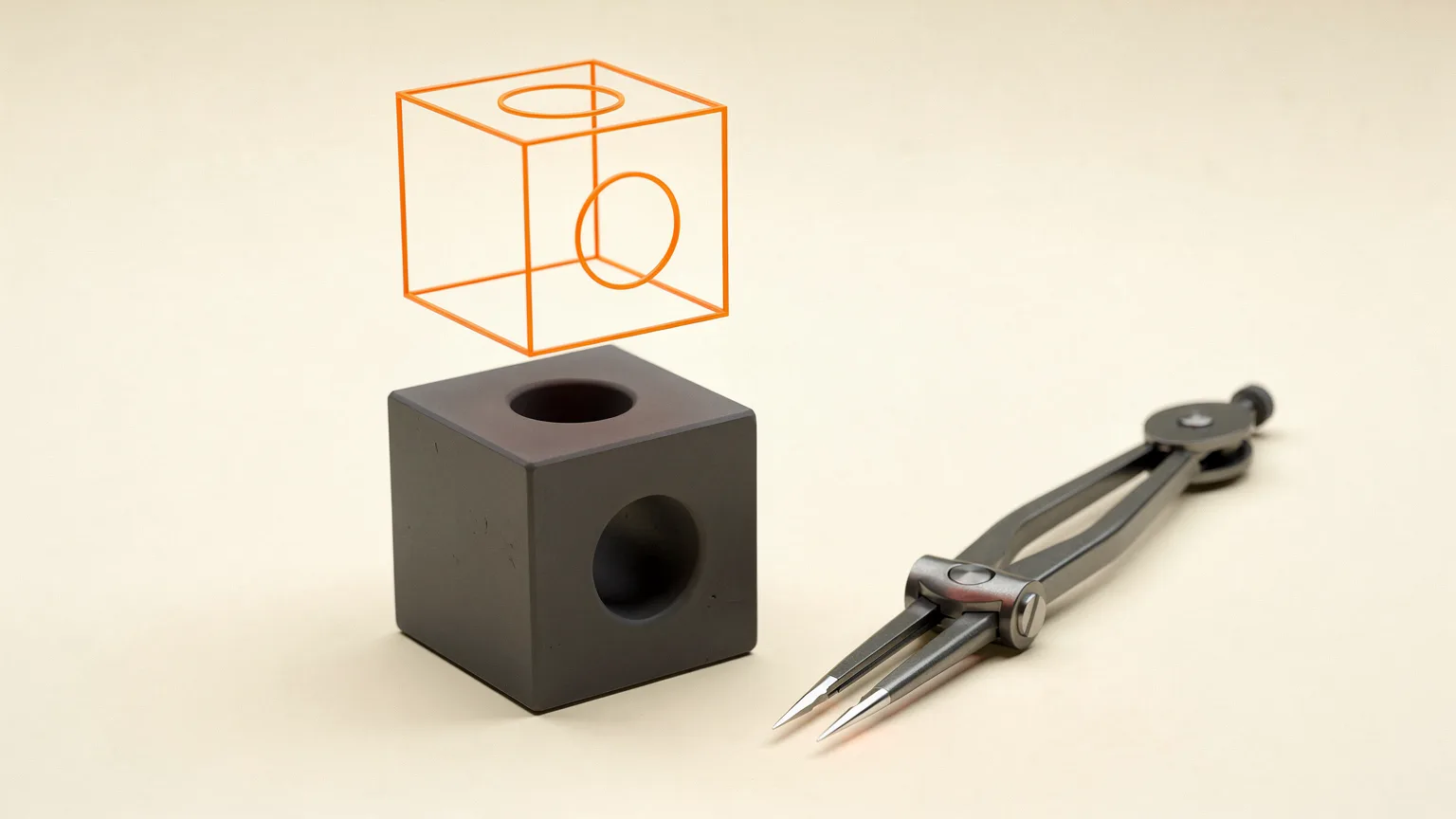
If you want to print your own parts, you need a way to design them. That means CAD (computer-aided design) software, which exports a model that a slicer can turn into G-code. The good news is that several capable CAD programs cost nothing. The harder part is choosing between them. This guide covers six free options, what each is good at, and the limits to know about before you invest time learning one. It is based on each project's own pages, not on hands-on design work, so the recommendations are matched to what the makers describe.
If you only read one thing. Total beginner who wants a first print today: start with Tinkercad. Want to design precise mechanical parts you can edit later: learn FreeCAD or Onshape. Like writing code: try OpenSCAD.
What 3D printing CAD needs to do
For printing you need a program that makes a solid model and exports it in a format your slicer reads. STL is the most common, and many programs also export 3MF or STEP. If you are unsure about formats, see STL vs 3MF vs G-code.
The main split is between two modeling styles:
- Parametric CAD builds a model from sketches and dimensions. Change a number in the history and the model updates. FreeCAD describes this approach as letting you "go back into your model history and change its parameters". It suits functional parts that you will tweak.
- Simple solid shapes (Tinkercad) combine boxes, cylinders and other primitives. It is faster to learn but less precise to edit later.
- Mesh or artistic modeling (Blender) is made for characters and scenes. It can export printable models, but OpenSCAD's own site notes that Blender is not focused on CAD, which matters for exact dimensions.
The six options at a glance
| Program | Runs on | Cost and terms | Style | Best for |
|---|---|---|---|---|
| Tinkercad | Web browser | Free of charge; account needed | Combine solid and hole shapes | Absolute beginners, kids, quick parts |
| Autodesk Fusion (personal use) | Windows, macOS, browser | Free limited edition for home, non-commercial use; commercial use needs a paid subscription | Parametric, full-featured | Hobbyists who want a pro tool |
| FreeCAD | Windows, macOS, Linux | Free, open source (LGPL) | Parametric | Functional parts, no account |
| Onshape Free | Any device with a browser; mobile apps | Free for non-commercial designs that are open-source publicly online | Parametric, cloud | Hobby designers who are happy to share |
| OpenSCAD | Windows, macOS, Linux | Free software (GPL v2) | Script-based | Parametric parts defined in code |
| Blender | Windows, macOS, Linux | Free and open source (GPL) | Mesh and sculpt | Organic shapes and figures |
Terms were checked on 2026-10-10 from the maker or project pages and Wikipedia where noted. Licensing conditions change, so read the current terms before relying on one for anything beyond hobby use.
Tinkercad: easiest start
Wikipedia describes Tinkercad as a free-of-charge online 3D modeling program that runs in a web browser, widely used in schools and by beginner makers. Designs are built from primitive shapes that are either "solid" or "hole", and combining them creates new shapes. It can import STL, OBJ and 2D SVG files, and export STL or OBJ. Owned by Autodesk since the company acquired it, it is the quickest path from nothing to a printable part. Walk through it in your first design in Tinkercad.
Limit: shape-based modeling gets awkward for precise, repeatable engineering parts.
Autodesk Fusion: powerful, with conditions
Wikipedia describes Autodesk Fusion (formerly Fusion 360) as a commercial CAD, CAM, CAE and PCB design application that runs on Windows, macOS and in browsers, with a free limited home-based, non-commercial personal edition. It is the most feature-rich option here, with simulation and manufacturing tools. The catch is the restrictions: the personal edition is limited and for non-commercial use only, and Autodesk can change what it includes. Check Autodesk's current personal-use page before you commit to it for projects you may later sell.
FreeCAD: open and account-free
The FreeCAD site calls it an open-source parametric 3D modeler for real-life objects of any size and says it is "no sign-up, no paywall, no restrictions". It runs on Windows, macOS and Linux, and reads and writes many formats including STEP, STL, OBJ, SVG and DXF. Wikipedia lists the license as LGPL and shows version 1.1, released 2026-03-24. It rewards patience: the workflow of sketch, constrain, pad is different from drag-and-drop tools. Its strength is that models stay editable.
Onshape Free: cloud CAD with a catch
Onshape's free plan is described as a fully featured CAD platform for makers and hobbyists, accessible on PC, Mac, Linux, Chrome, iPad, iPhone and Android. The condition matters: it is meant for non-commercial designs that are open-source publicly online. If you want your designs to stay private, this plan is not for you. Nothing needs installing, and sharing is simple.
OpenSCAD: designs as code
OpenSCAD calls itself the programmer's solid 3D CAD modeller. It is not interactive: it reads a script that describes the object and renders the model, which makes it easy to build designs driven by parameters. It is free software under GPL v2, reads DXF files and can read and create STL files. If you like logic and variables, it is a good fit. If you prefer clicking, it will feel odd.
Blender: for organic shapes
Blender is free and open source under the GPL, and its mission is putting 3D computer graphics tools in artists' hands. That makes it excellent for figures and sculpts. For precise mechanical parts, the CAD tools above are easier to control. Blender can export meshes for printing, but you must check dimensions and that the model is a closed solid before slicing.
How to choose
- Start from the first part you want to make. A phone stand or a bracket? Tinkercad or FreeCAD. A figure? Blender.
- Decide if you need to edit later. If you will revise dimensions often, pick a parametric tool.
- Check terms. If you might sell prints, read the license rules for Fusion and Onshape.
- Do not skip the printing basics. Good CAD still prints badly if the part ignores the printer's limits. Layer lines, nozzle size and wall thickness all shape what is possible.
Still need a printer? See the first printer checklist. And if you would rather download than design, our guide to where to find 3D models.
Everything above comes from the sources listed. We have not designed the same part in all six programs, so this is a map of the options, not a ranking of results.
Frequently asked questions
What is the best free CAD software for 3D printing beginners?
Tinkercad is the usual first choice. It runs in a web browser, is free of charge and builds models from simple solid and hole shapes. When you need precise, editable dimensions, move to a parametric program such as FreeCAD.
Is Fusion free for 3D printing?
Autodesk offers a free limited personal edition for home, non-commercial use. Commercial use needs a paid subscription, and the personal edition's limits can change, so check Autodesk's current terms.
Can I sell prints made from designs in free CAD software?
It depends on the program. FreeCAD and OpenSCAD are open-source with no usage restriction in their descriptions. Fusion's personal edition and Onshape Free are non-commercial, so read their terms first.
Do I need CAD to 3D print?
No. You can download ready-made models and slice them. CAD becomes useful when you want a custom part or need to change an existing design.
Sources

Founder and editor
Software engineer since 2009 and Head of Engineering by day, a maker who has owned several 3D printers, writing practical guides to 3D printers, filament and running costs, with every article saying what was and was not tested.
Keep reading
What Is Klipper? Firmware for 3D Printers Explained
Klipper is 3D printer firmware that splits the work between a small computer and the printer board. Here is how it works, what it adds and what it takes to run it.
10 October 2026 · 4 min read
Brim vs Raft vs Skirt: Which Bed Adhesion Helper to Use
A skirt primes the nozzle, a brim widens the first layer and a raft builds a base. Here is what each does and when to use it, from slicer documentation.
10 October 2026 · 6 min read

Cura for Beginners: Setup and First Slice
A step-by-step beginner guide to Cura: install, add your printer, choose Recommended settings, slice, preview and print your first model.
10 October 2026 · 4 min read