The PrusaSlicer configuration wizard is a short guided setup that runs on first launch and ends with a printer, filament and print preset ready on the Plater. In version 2.9.6 its window is called Configuration Assistant. This lesson walks through every page on a fresh macOS install, using a Creality Ender-3.
What does the PrusaSlicer configuration wizard set up?
It sets up four things: where PrusaSlicer downloads profiles from, which printers you own, which filaments you want in the list, and how much of the interface you see. The left sidebar of the window lists the pages and marks your place, and every page has Back, Next, Finish and Cancel buttons. If you have not met slicers yet, read what a slicer is first, and PrusaSlicer for beginners covers where to download it.
There is no Ender-3 V3 SE profile in this list, so we used the closest Creality entry the wizard really offers, the Creality Ender-3 with a 0.4 mm nozzle. Check your own machine against what a profile says before you trust it.
1. Welcome and the optional login
The first page is headed Welcome to the PrusaSlicer Configuration Assistant and says it helps with the initial configuration so that "just a few settings and you will be ready to print". The next page, Log in with Your Prusa Account (optional), shows a web form with an e-mail box and Continue, Google, Apple and Facebook buttons, plus a cookie banner from the Prusa site. It is there to control printers remotely through Prusa Connect. We ignored it and pressed Next; nothing on it is needed to slice.
2. Configuration Sources
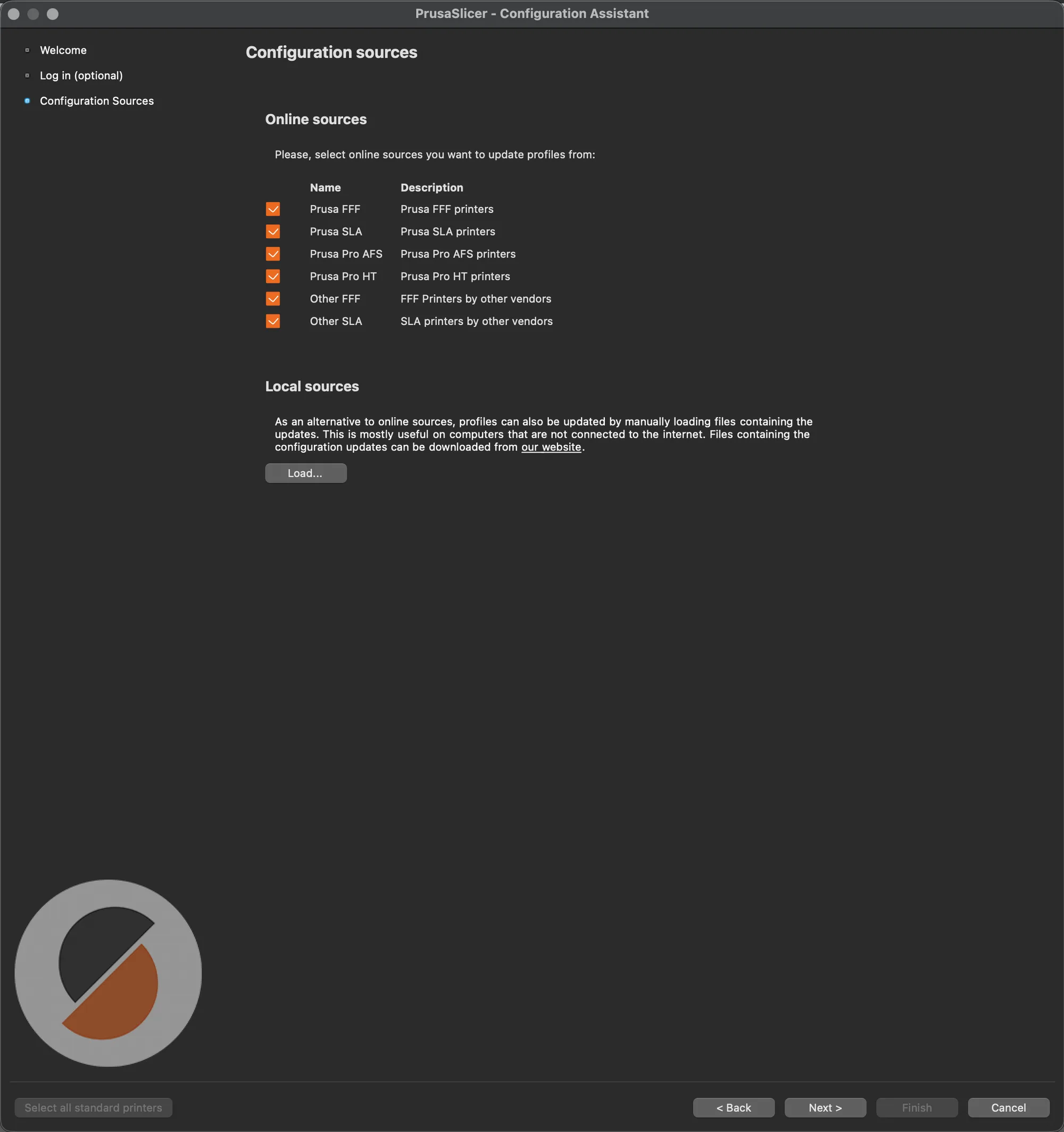
The Configuration sources page lists the online sources PrusaSlicer updates profiles from. All six were ticked by default: Prusa FFF, Prusa SLA, Prusa Pro AFS, Prusa Pro HT, Other FFF and Other SLA. A Local sources box below has a Load... button for installing profile updates from a file on a computer without internet. We left all six ticked and pressed Next, which made PrusaSlicer download resources for a short while (a progress window named Updating Configuration sources appeared, and the printer pages appeared about 40 seconds later).
3. How do you pick a non Prusa printer?
You pick it by vendor. After the sources download, the first printer page is Prusa Research FFF Technology Printers, a long scrolling gallery of Prusa models grouped in families, each with nozzle tick boxes. Further pages for Prusa Pro AFS, Prusa Pro HT and Prusa Research SLA follow, and we pressed Next past all four with nothing ticked.
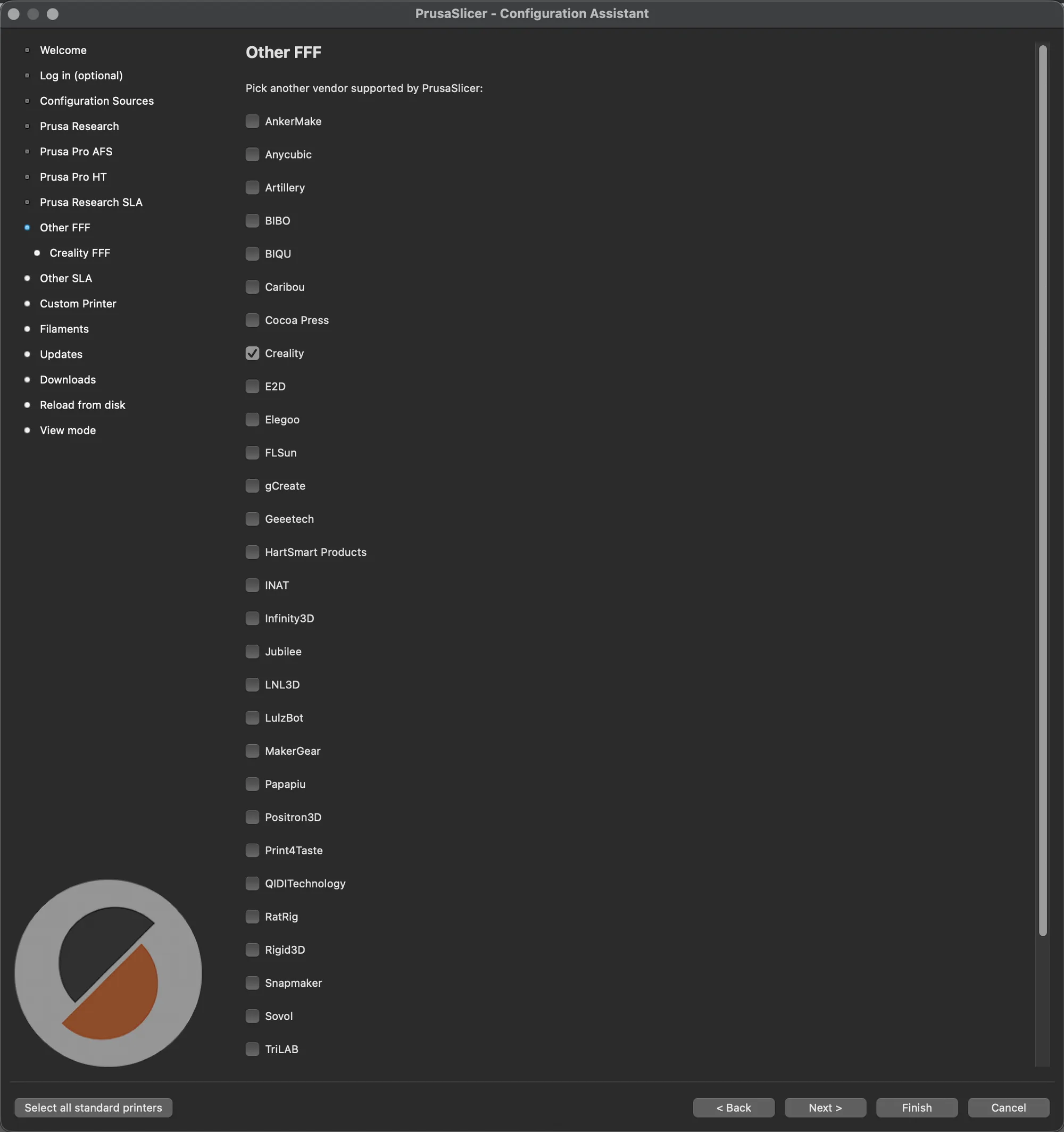
The Other FFF page says "Pick another vendor supported by PrusaSlicer" and lists tick boxes from AnkerMake to TriLAB, including Creality, Elegoo, Artillery, Anycubic and Snapmaker. We ticked Creality. A new sidebar entry, Creality FFF, appeared under it.
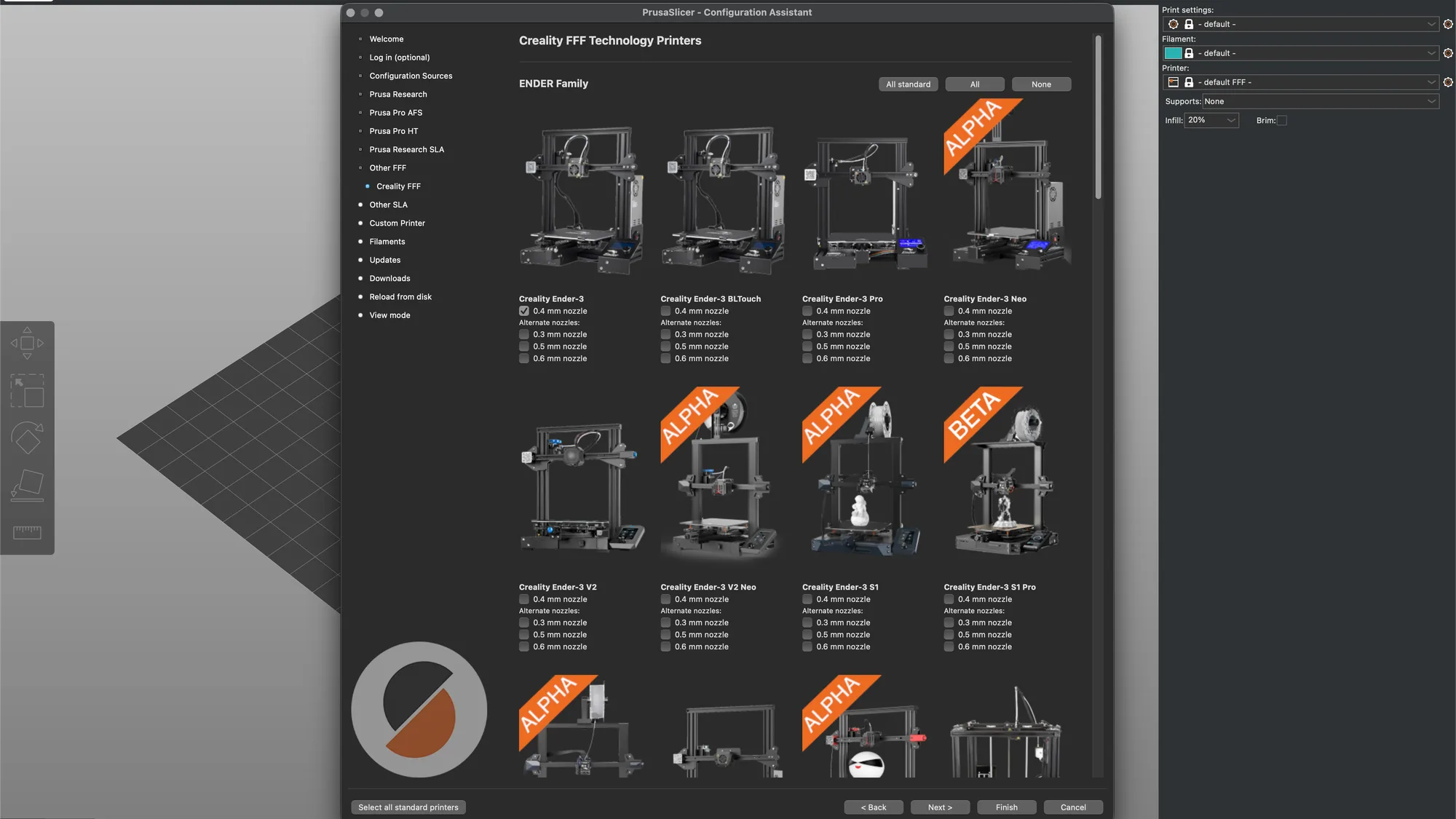
The Creality FFF Technology Printers page opens with an ENDER Family gallery: Ender-3, Ender-3 BLTouch, Ender-3 Pro, Ender-3 Neo, Ender-3 V2, Ender-3 V2 Neo, Ender-3 S1, Ender-3 S1 Pro and more below. Each model has a 0.4 mm nozzle tick box and alternate 0.3, 0.5 and 0.6 mm nozzles. Some carry an ALPHA or BETA banner. The family header has All standard, All and None buttons. On our run the Creality Ender-3 0.4 mm nozzle box was already ticked when the page opened, and we kept just that one.
Do you need the Custom Printer pages?
Not if your printer has a profile. The pages after Other SLA are Custom Printer Setup, Filaments, Updates, Downloads, Reload from disk and View mode. The Custom Printer page has one tick box, Define a custom printer profile, with a profile name box that reads "My Settings".
When we ticked it, five sub pages appeared in the sidebar, and we looked at each before unticking it again:
| Page | What it asks | Default we saw |
|---|---|---|
| Firmware Type | A drop-down of G-code flavors | RepRap/Sprinter |
| Bed Shape and Size | Shape, size (x and y), origin, plus optional Texture and Model files | Rectangular, 200 by 200, origin 0 and 0 |
| Build Volume | Max print height | 200 mm |
| Filament and Nozzle Diameters | Nozzle and filament diameters | 0.4 mm and 1.75 mm |
| Nozzle and Bed Temperatures | Extrusion and bed temperature | Extrusion 200 C, bed box appeared empty |
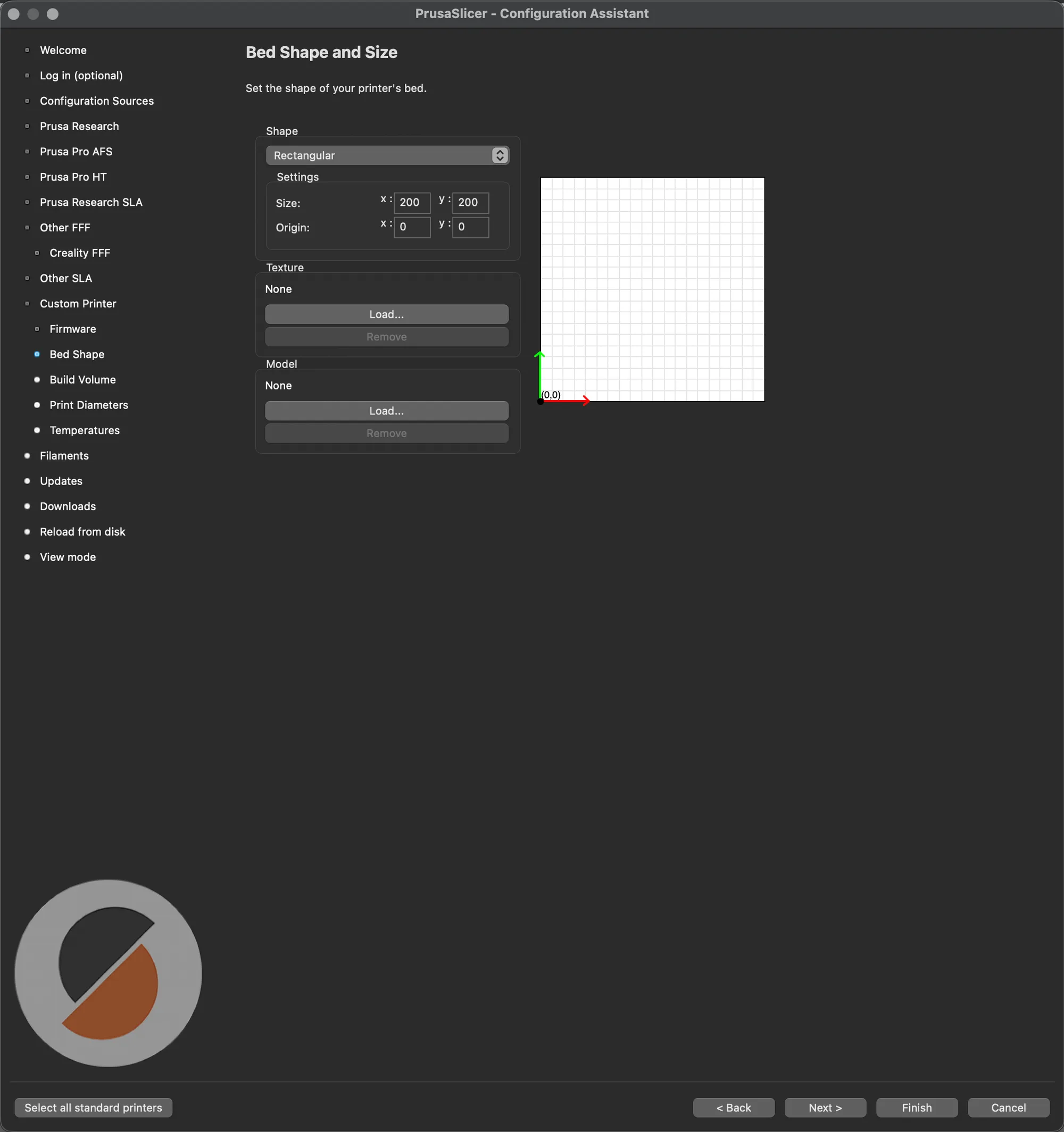
The temperature page notes a rule of thumb of 160 to 230 C for PLA and 215 to 250 C for ABS, and 60 C bed for PLA and 110 C for ABS, and says to leave the bed at zero if you have no heated bed. Use these pages only for a printer with no profile. We unticked the box and went on with the Creality profile, which carries all of these values for you.
4. Filaments, updates, downloads and view mode
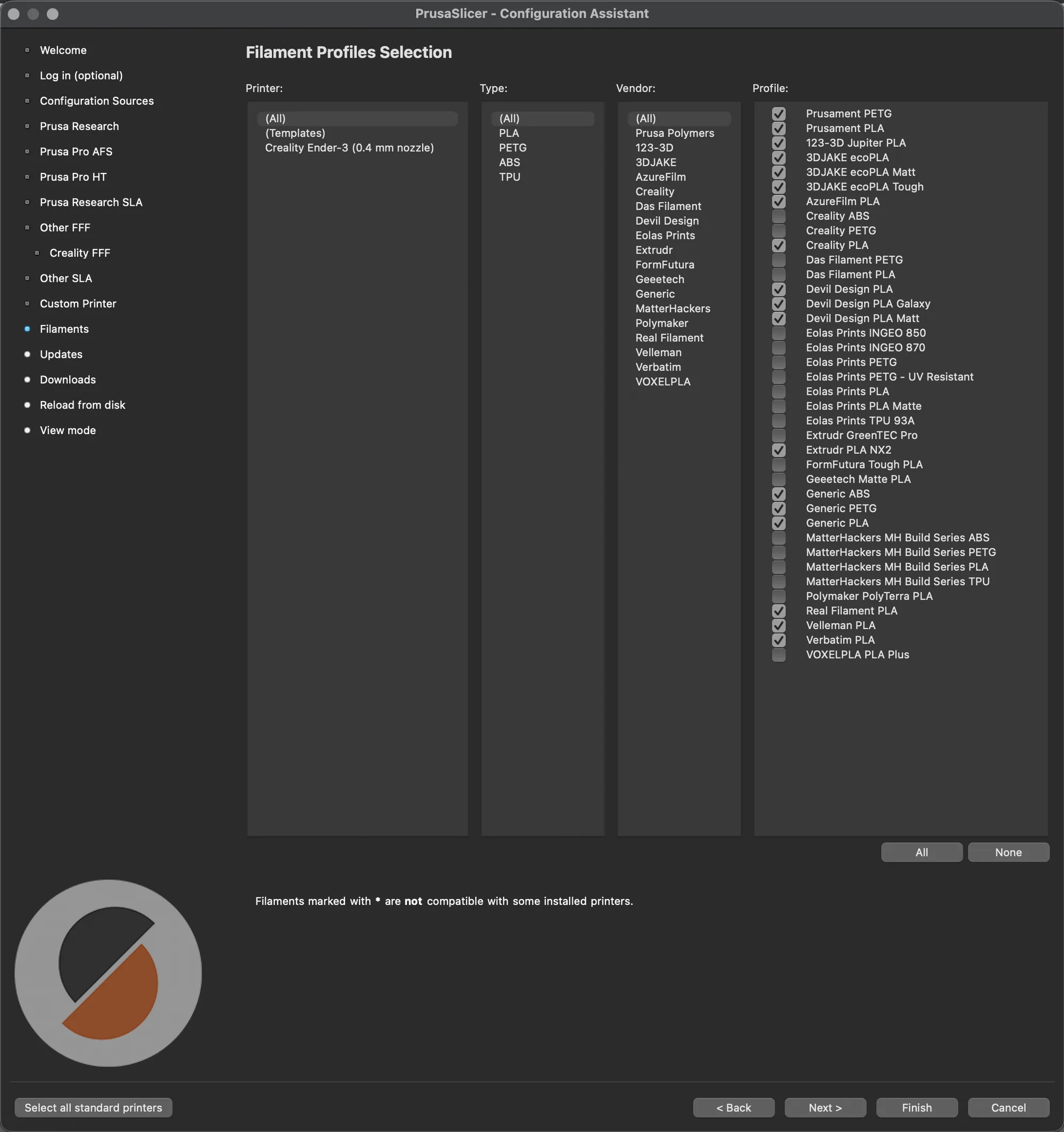
The Filament Profiles Selection page has four columns: Printer, Type, Vendor and Profile. The Printer column offered (All), (Templates) and Creality Ender-3 (0.4 mm nozzle), the Type column offered (All), PLA, PETG, ABS and TPU, and the Profile column listed dozens of filaments with tick boxes. Many were ticked already, including Creality PLA, Generic PLA, Generic ABS and Generic PETG; Creality ABS and Creality PETG were not. All and None buttons sit below, and a note says filaments marked with an asterisk are not compatible with some installed printers. We kept the defaults.
The Automatic updates page has two boxes, both ticked: Check for application updates and Update built-in Presets automatically. Its text says updates are never applied without your consent and a backup snapshot is made before an update. Downloads from URL has Allow built-in downloader ticked, for opening models from sites such as Printables with one click, and a download path that was our Downloads folder. Reload from disk has one unticked box about exporting full pathnames into 3mf and amf files.
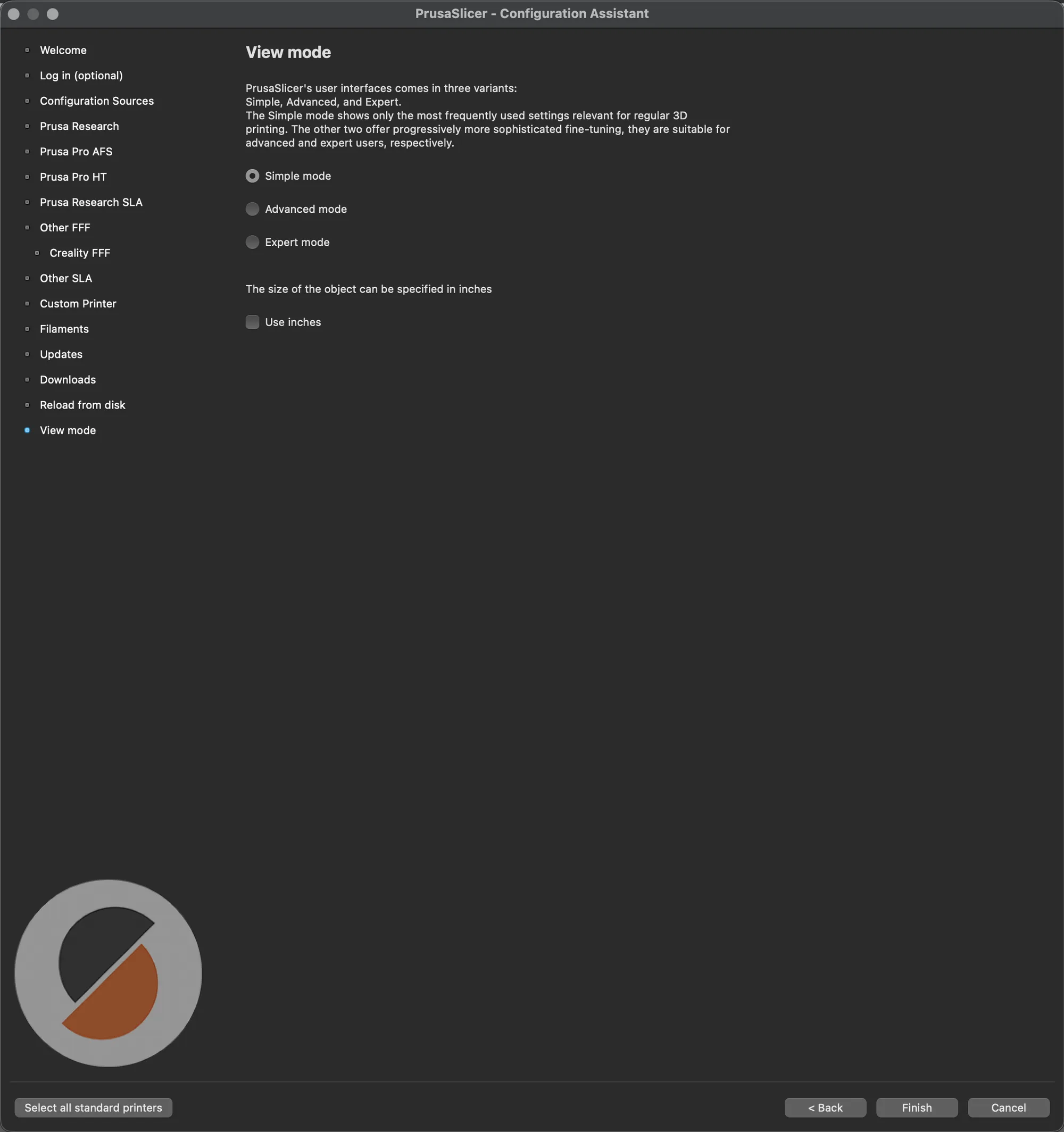
The last page, View mode, says the interface comes in three variants called Simple, Advanced and Expert, and offers radio buttons for each plus a Use inches box. Simple mode was selected by default. Press Finish.
5. Check what you ended up with
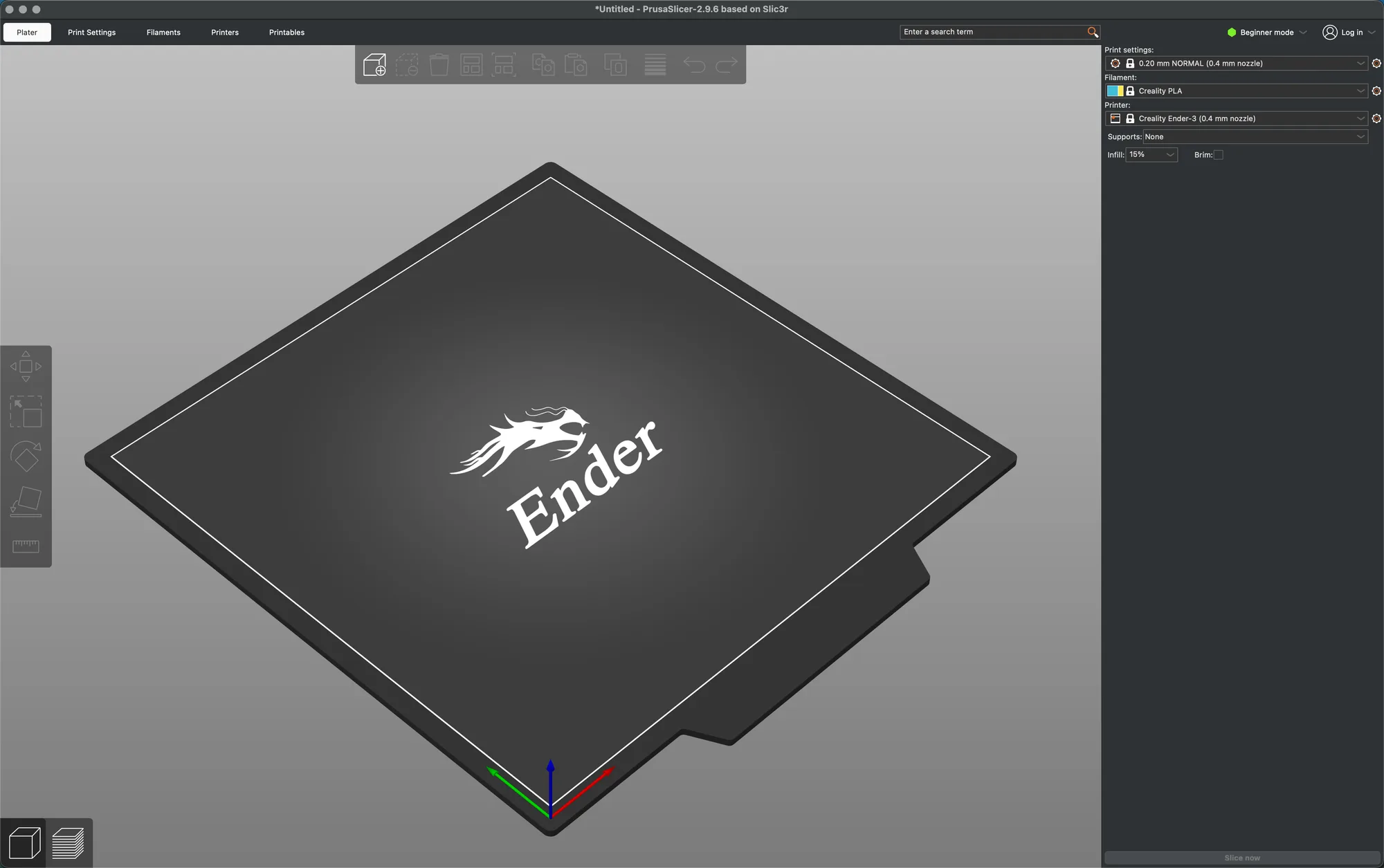
The Plater opens with the title "*Untitled - PrusaSlicer-2.9.6 based on Slic3r", an Ender logo on the bed and the three drop-downs at the top right. One mismatch is worth knowing: the wizard calls the first mode Simple, but the mode button on the Plater read Beginner mode, and its menu lists Beginner mode, Normal mode and Expert mode. The labels differ between the two places even though the Plater stayed on the first, simplest level after we chose Simple.
The drop-downs also did not match what we would pick ourselves. The print preset was 0.08 mm SUPERDETAIL (0.4 mm nozzle) and the filament was 123-3D Jupiter PLA, the first filament in the list, while the printer read Creality Ender-3 (0.4 mm nozzle). The print drop-down lists system presets from 0.08 mm SUPERDETAIL to 0.28 mm SUPERDRAFT SPEED. We chose 0.20 mm NORMAL (0.4 mm nozzle) and, from the filament list, Creality PLA. Below the drop-downs the sidebar showed Supports None, Infill 15% and an unticked Brim box.
In short, the whole setup is:
- Press Next through Welcome, the optional login and Configuration Sources.
- Open Other FFF, tick your maker, then tick your exact model and nozzle on its page.
- Leave Define a custom printer profile unticked if your printer has a profile.
- Keep the default filaments, updates and downloads, choose a view mode and press Finish.
- Set the print and filament drop-downs on the Plater to the presets you want.
The next lesson, the PrusaSlicer interface tour, goes through the rest of the window. If you are still choosing between programs, see Cura vs OrcaSlicer vs PrusaSlicer.
Next lesson: PrusaSlicer Interface Tour: Plater, Tabs and Sidebar.