The PrusaSlicer interface is built from a handful of zones: a tab bar, a mode button, a toolbar, a tool column, the 3D view and a sidebar. This tour of PrusaSlicer 2.9.6 on macOS names every control we found, using the tooltips and labels the program itself shows.
How is the PrusaSlicer window laid out?
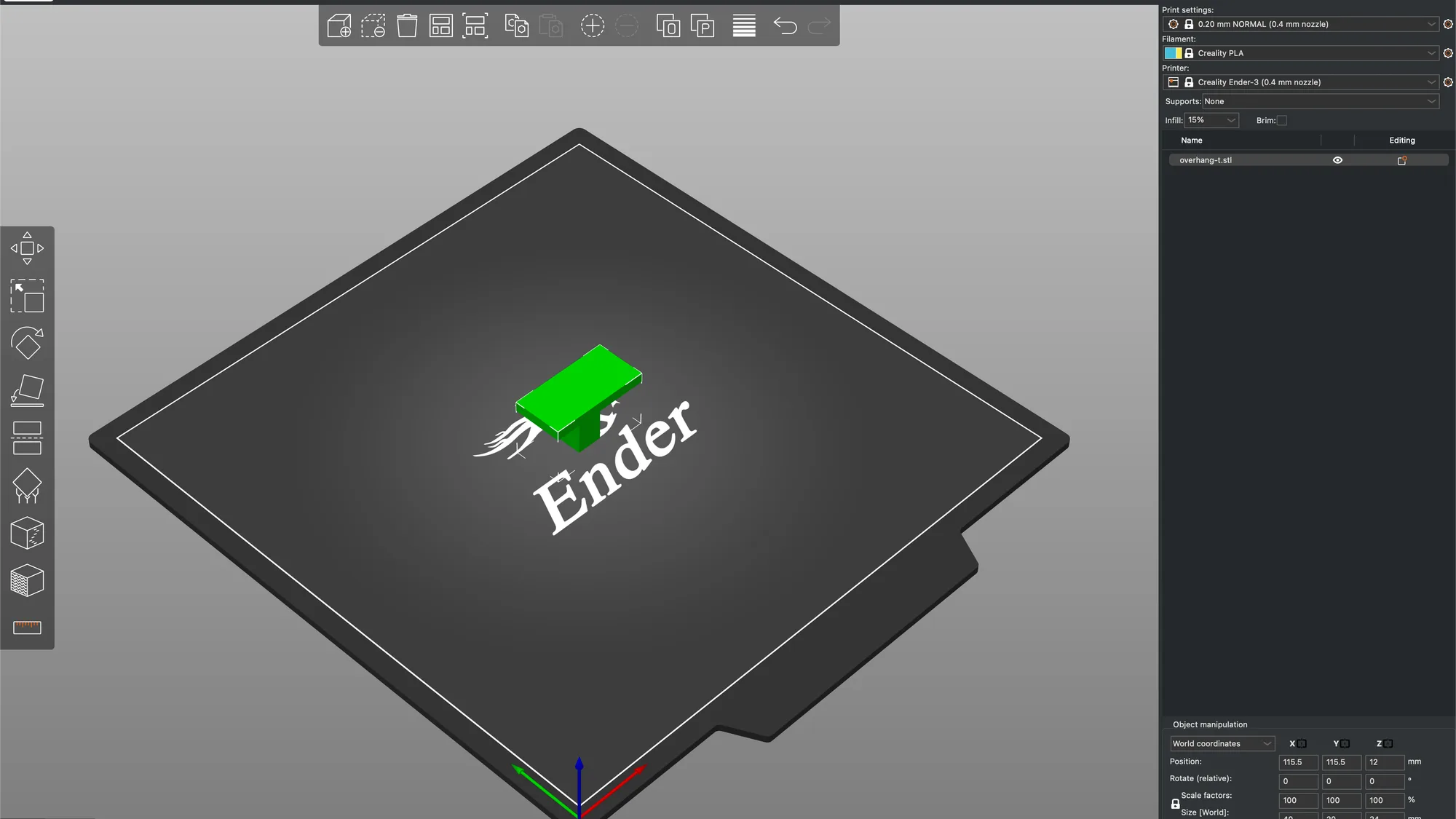
The window has six zones. A tab bar runs along the top, with a search box, the mode button and a Log in button on its right. Below it the big 3D view shows the print bed. A toolbar floats at the top of that view, a column of tool icons sits on its left edge, and two view buttons sit at its bottom left. The sidebar fills the right edge. If you have not set up a printer yet, start with the PrusaSlicer configuration wizard lesson, and for the bigger picture read what a slicer is.
We loaded a small T shaped test file called overhang-t, 40 by 20 by 24 mm, on a Creality Ender-3 profile with Creality PLA and the 0.20 mm NORMAL preset. Without a model the left tool column showed greyed icons and the sidebar showed no Object manipulation box, so a model makes the tour easier to follow.
What do the top tabs do?
The tab bar has five entries: Plater, Print Settings, Filaments, Printers and Printables. The Window menu calls them by longer names: Plater Tab, Print Settings Tab, Filament Settings Tab and Printer Settings Tab, but the tab bar itself says Filaments and Printers.
- Plater is where you place the model and slice it.
- Print Settings holds the print preset: layer height, perimeters, infill, supports, speed and more. Its left list showed Layers and perimeters, Infill, Skirt and brim and Support material in Beginner mode.
- Filaments holds the filament preset: colour, diameter, density, cost, temperatures and cooling.
- Printers holds the machine: bed shape, maximum print height, extruder and, in higher modes, machine limits and custom G-code.
- Printables loaded the Printables.com model site inside the program, with categories and a Search box. It is a browser, not a settings page.
Each settings page has a preset drop-down at the top left, a save icon, a question mark, and a lock icon beside each setting. A coloured dot in front of each setting name tells you which mode it belongs to. We saw green dots on Layer height and Perimeters, yellow on Ensure vertical shell thickness and red on Extra perimeters if needed, matching the green, yellow and red marks on the mode button.
What is the difference between Beginner, Normal and Expert mode?
The mode button sits at the top right, next to Log in. Clicking it opened a three item menu: Beginner mode (green), Normal mode (yellow) and Expert mode (red). The wizard calls the first level Simple and the second Advanced, but the main window uses Beginner and Normal. The mode changes what you see, not what PrusaSlicer can do. The table lists what we saw in each mode.
| Place | Beginner | Normal | Expert |
|---|---|---|---|
| Plater sidebar | Three presets, Supports, Infill and Brim, Object manipulation. No object list | Adds an object list with Name and Editing columns, and a World coordinates drop-down in Object manipulation | Adds an Info box: Size 40.00 x 20.00 x 24.00, Volume 5200.00, Facets 24 (2 shells), No errors detected |
| Toolbar | 11 buttons with a Split to objects button | Adds Add instance, Remove instance and Split to parts | Same buttons as Normal |
| Left tool column | Move, Scale, Rotate, Place on face, Measure | Adds Cut, Paint-on supports, Seam painting and Paint-on fuzzy skin | Same icons as Normal |
| Print Settings pages | 4: Layers and perimeters, Infill, Skirt and brim, Support material | 10: adds Speed, Multiple Extruders, Advanced, Output options, Notes, Dependencies | Same 10 pages with more settings on each |
| Filaments pages | 3: Filament, Cooling, Filament Overrides | 6: adds Advanced, Notes, Dependencies | 7: adds Custom G-code |
| Printers pages | 3: General, Extruder 1, Dependencies | 5: adds Machine limits, Notes | 6: adds Custom G-code |
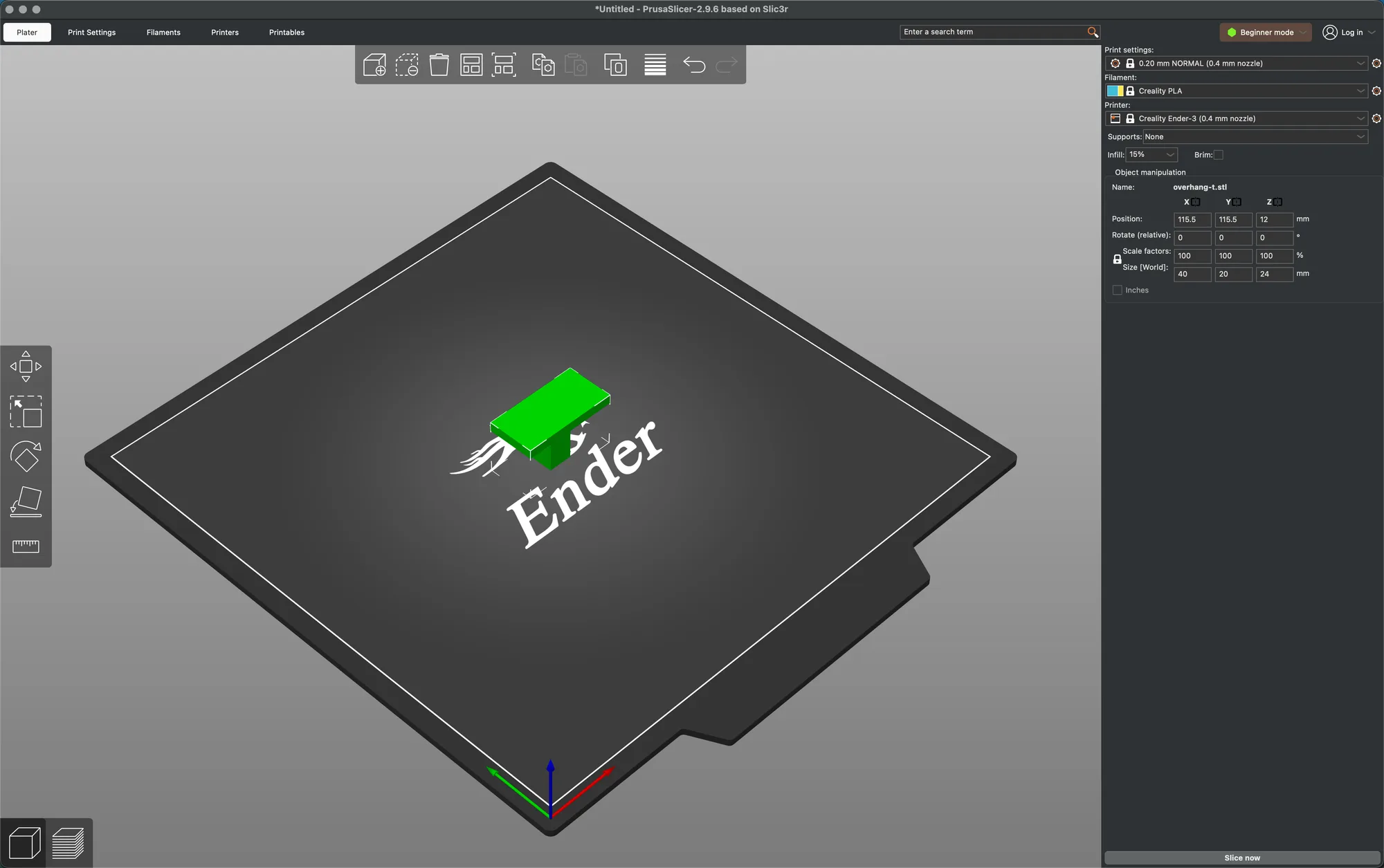
For learning we suggest Normal mode, because the object list is useful once you have more than one model. Expert is for when you want every setting. We left the program in Beginner mode when we finished, as we found it.
What is in the Plater sidebar?
From top to bottom the sidebar holds:
- Print settings, Filament and Printer drop-downs. Each has a lock icon beside the preset name, and a cog button to its right whose tooltip read Click to edit preset. Hovering a drop-down shows the full name, for example 0.20 mm NORMAL (0.4 mm nozzle) @CREALITY.
- Supports, a drop-down that read None, Infill, a drop-down that read 15%, and a Brim tick box. These are shortcuts to settings you can also find on the Print Settings tab, and they are covered in supports explained and infill explained.
- The object list (Normal and Expert): our model appeared as overhang-t.stl, with an eye icon to hide it and an editing icon.
- Object manipulation with Position, Rotate (relative), Scale factors and Size [World] fields, and an Inches tick box. We read Position 115.5, 115.5, 12 and Size 40, 20, 24 mm.
- The big button at the bottom, Slice now, which becomes Export G-code once a slice exists.
In Beginner mode we did not see Add or Remove buttons for objects in the sidebar, so adding and deleting is done with the toolbar, the menus and the keyboard in this version. The file Export G-code writes is explained in what G-code is.
What does each toolbar button do?
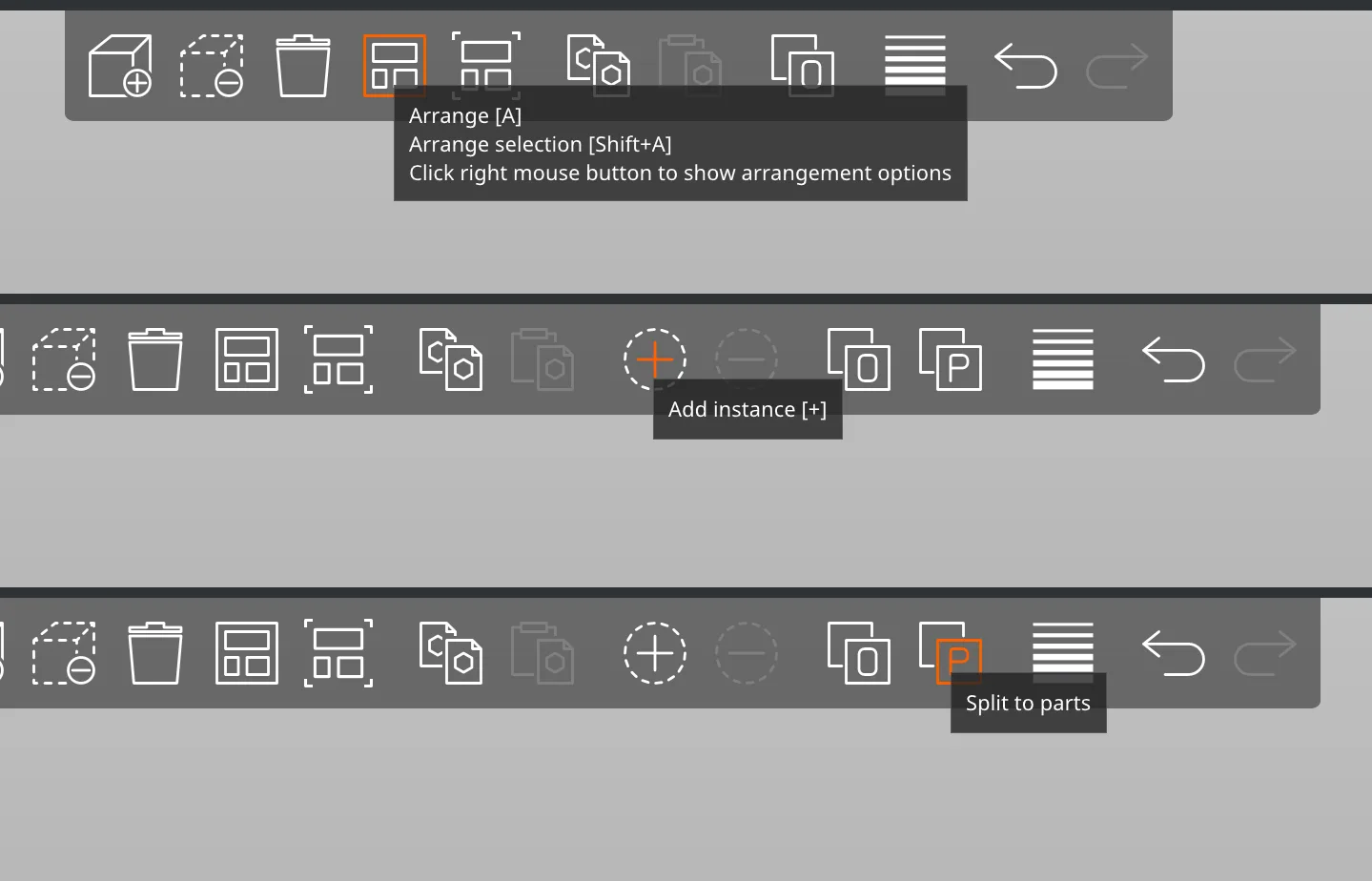
The floating toolbar shows a tooltip with a shortcut when you hover. These are the exact tooltips we read in 2.9.6:
| Button | Tooltip |
|---|---|
| Add | Add... [Cmd+I] |
| Delete | Delete [Del] |
| Delete all | Delete all [Cmd+Del] |
| Arrange | Arrange [A], Arrange selection [Shift+A], and a note that a right click shows arrangement options |
| Arrange current bed | Arrange current bed [D], Arrange selection on current bed [Shift+D] |
| Copy and Paste | Copy [Cmd+C] and Paste [Cmd+V]. Paste is greyed until something is copied |
| Add instance and Remove instance | Add instance [+] and Remove instance [-] (Normal and Expert) |
| Split to objects, Split to parts | Split to objects (all modes) and Split to parts (Normal and Expert) |
| Variable layer height | Variable layer height |
| Undo and Redo | Undo [Cmd+Z] and Redo [Cmd+Y]; a right click opens the history |
The left tool column has its own tooltips. In Beginner mode we read Move [M], Scale [S], Rotate [R], Place on face [F] and Measure [U]. Normal mode adds Cut [C], Paint-on supports [L], Seam painting [P] and Paint-on fuzzy skin [H]. We did not see a Hollow tool in this FFF profile, and the next lesson uses Move, Scale, Rotate and Place on face in practice.
The search box at the top of the window, labelled Enter a search term, finds settings by name across all tabs, and Search is also in the Edit menu.
How do the 3D and Preview views differ?
Two buttons at the bottom left of the view switch between them. Their tooltips read 3D editor view [Cmd+5] and Preview [Cmd+6]. The 3D view is where you edit. Preview shows the sliced result. When we clicked Preview, PrusaSlicer had already sliced the model in the background: a Legend appeared with Feature type rows such as Perimeter and Internal infill, a vertical layer slider read 24.00 (120), and the sidebar gained a Sliced Info box with the used filament and an estimated printing time. The sidebar button had changed from Slice now to Export G-code.
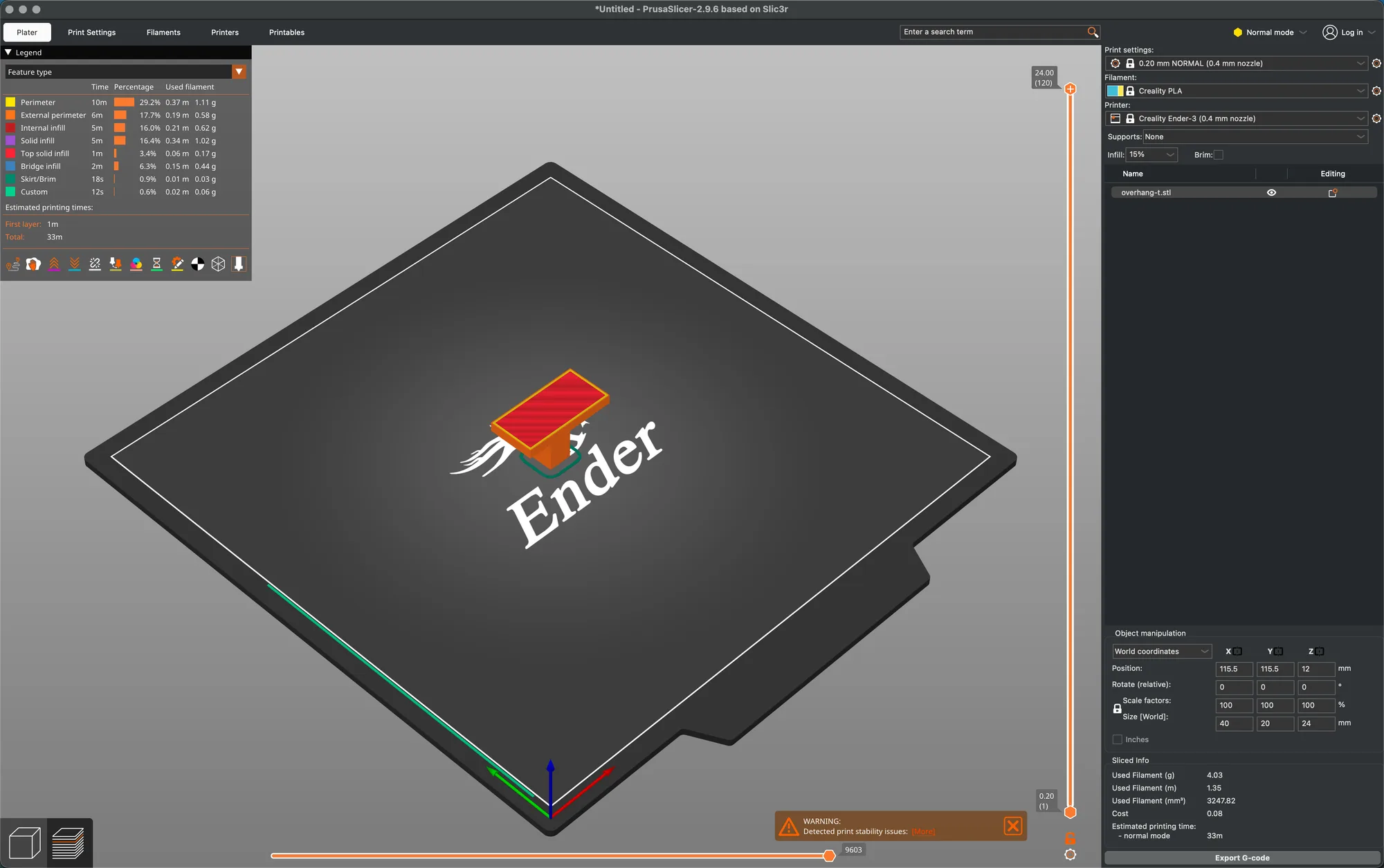
These readouts are slicer estimates, 33 minutes and 4.03 g for our model on this profile, not a print result. A warning bubble also said it had detected print stability issues, which is expected for a model with an overhang. Press the 3D button to go back and edit.
What is in the PrusaSlicer menu bar?
The macOS menu bar has File, Edit, Window, View, Configuration and Help after the PrusaSlicer menu. We read each one in Normal mode.
| Menu | Items we saw |
|---|---|
| File | New Project, Open Project, Recent projects, Save Project, Save Project as, Import, Export, Convert, Eject SD Card / Flash Drive, (Re)Slice Now, Repair STL file, G-code Preview |
| Edit | Select All (Cmd+A), Deselect All (Esc), Delete Selected, Delete All, Undo, Redo, Copy, Paste, Reload from Disk, Reload Web Content, Search |
| Window | Plater Tab, Print Settings Tab, Filament Settings Tab, Printer Settings Tab, 3D, Preview, Shape Gallery, Print Host Upload Queue, Open New Instance, Compare Presets |
| View | Iso (0), Top (1), Bottom (2), Front (3), Rear (4), Left (5), Right (6), Show Labels (E), Show Legend (L), Collapse Sidebar (Shift+Tab) |
| Configuration | Configuration Assistant, Configuration Snapshots, Take Configuration Snapshot, Check for Configuration Updates, Check for Application Updates, Preferences, Language, Flash Printer Firmware, Wi-Fi Configuration File |
| Help | PrusaSlicer Website, Quick Start, Sample G-codes and Models, Prusa 3D Drivers, Software Releases, System Info, Show Configuration Folder, Report an Issue, Show Tip of the Day, Keyboard Shortcuts (?) |
View has seven camera presets and Collapse Sidebar, which gives the 3D view more room. The wizard from the first lesson is reached through Configuration, Configuration Assistant. For a wider comparison of programs see Cura vs OrcaSlicer vs PrusaSlicer, and PrusaSlicer for beginners covers the basics.
The next lesson, PrusaSlicer import, move, scale and rotate, puts the Plater tools to work on a model.
Next lesson: PrusaSlicer Import Model: Place, Resize and Turn Parts.