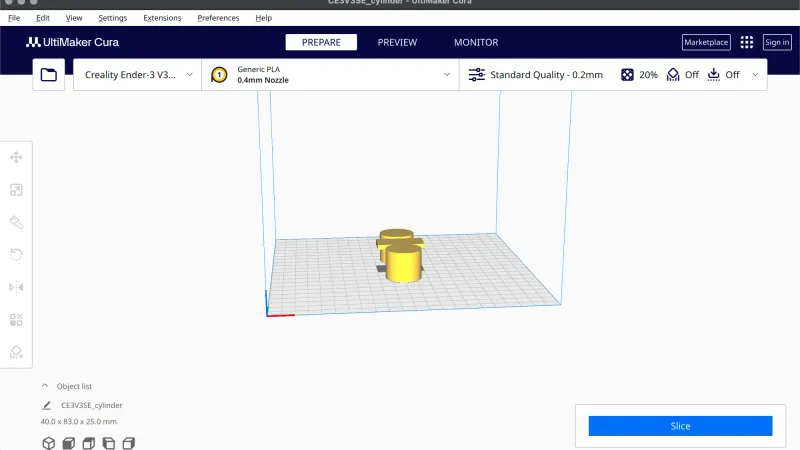
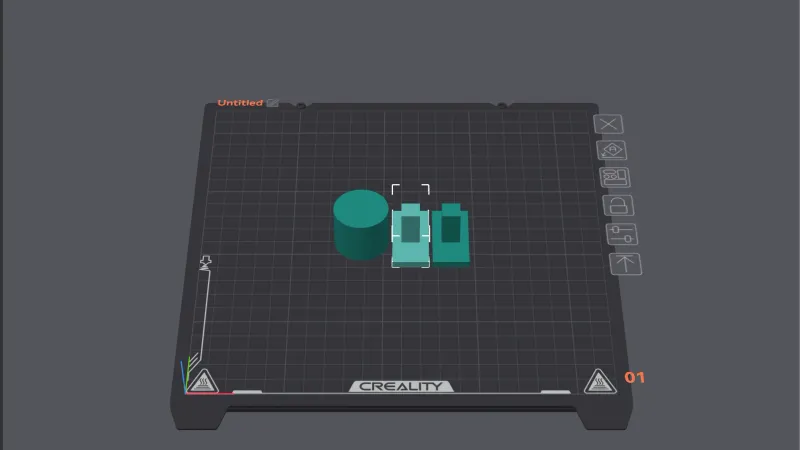
A PrusaSlicer import model step is quick: press Cmd+I, pick a file, and it lands on the bed. This lesson, tested in PrusaSlicer 2.9.6 on macOS in Normal mode, imports a test part, then moves, scales, rotates, lays it on a face, copies and arranges it, using typed numbers wherever PrusaSlicer offers fields.
We used the Creality Ender-3 profile with Creality PLA from the first launch wizard lesson, and the T shaped overhang-t test file, 40 by 20 by 24 mm. The previous lesson, the PrusaSlicer interface tour, names every zone of the window. We pressed the mode button and chose Normal mode so the object list is visible. If you want the wider picture first, read what a slicer is.
How do you import a model in PrusaSlicer?
Press Cmd+I. We read the File menu with System Events and confirmed that File, Import, Import STL/3MF/STEP/OBJ... carries Cmd+I. The same submenu also lists Import STL (Imperial Units), Import SLA Archive..., Import ZIP Archive... and three config import items. The toolbar button at the far left of the toolbar has the tooltip Add... [Cmd+I]. For help choosing a file type, see STL vs 3MF vs G-code.
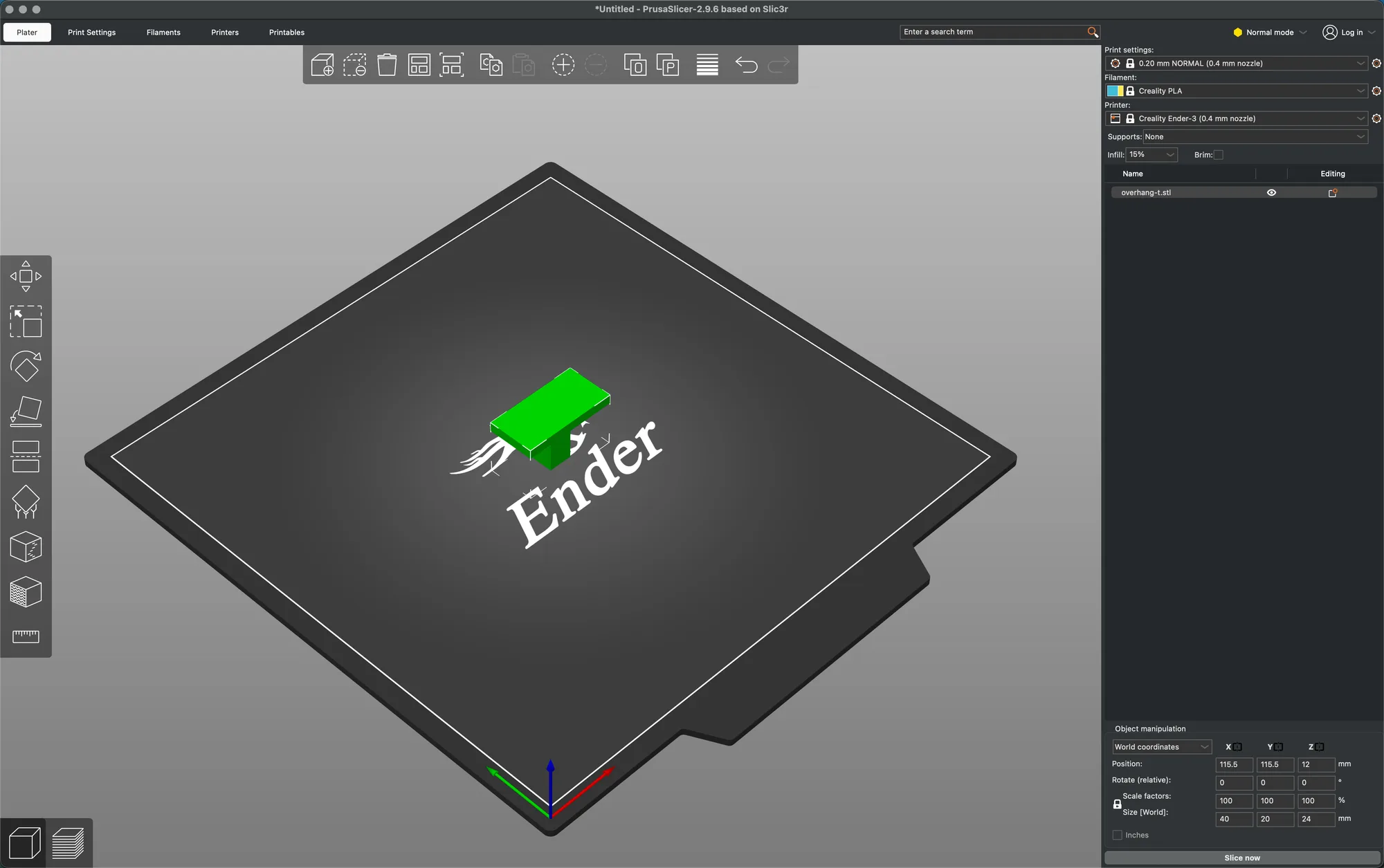
The file chooser is titled Choose one or more files (STL/3MF/STEP/OBJ/AMF/SVG):. We chose overhang-t.stl. Three things happened at once:
- The model appeared at the middle of the bed, tinted green. Green marks the selected object.
- A row named overhang-t.stl appeared in the object list, which has a Name column and an Editing column.
- The sidebar grew an Object manipulation box with the Position reading 115.5, 115.5 and 12.
We also tried the question of what happens with several files. In the same chooser we selected cylinder.stl and tall-post.stl together and pressed Open. PrusaSlicer added them as two separate objects, with no dialog asking whether they were parts of one object. We cannot say what a multi-extruder printer profile would do, because we only tested this single extruder profile. Imports always land at the bed center, so the two new objects sat on top of the T. Select both and the panel title changes to Group manipulation with Translate, Rotate, Scale and Size fields. Press A and they spread out, as shown in the arrange section below.
What is in the Object manipulation panel?
This panel is the most exact way to place a model. In Normal mode it has, top to bottom:
- A coordinates drop-down with two choices, World coordinates and Object coordinates. We expected the second to be called Local, but PrusaSlicer 2.9.6 says Object. With it chosen, the first row is renamed Translate (relative) [World] and shows 0, 0, 0, so it moves by an offset instead of showing an absolute position.
- Three small icons beside the X, Y and Z column heads. Hovering the X one showed the tooltip Mirror along X axis.
- Position in mm, Rotate (relative) in degrees, Scale factors in percent and Size [World] in mm, plus an Inches checkbox.
- A padlock to the left of the Scale factors and Size rows.
In Beginner mode the panel is shorter: we saw no coordinates drop-down and no object list. Position Z reads 12 for our 24 mm tall part, so the Position is the center of the model, not the bottom corner.
To type a value, click a field, select its text with Cmd+A, type the number and press Return. We typed 60 into Position X and pressed Tab, but the model did not move. Return applied it at once and the T slid towards the left of the view.
How do you move a model with the Move tool?
Select the model and press M, or click the top button in the left tool column, whose tooltip reads Move [M]. Colored arrows appear on the model. We hovered the red X arrow and dragged it up and to the right. A small label followed the pointer reading X: 17.96, and the Position X field changed live from 60 to 77.96. Y and Z stayed put. The typed method and the drag method change the same numbers, so use the drag for a rough placement and the fields for an exact one.
How do you scale a model, and what does the lock do?
With the padlock closed, scaling is uniform. We typed 150 into the first Scale factors field and pressed Return. All three fields went to 150, the Size row became 60, 30 and 36 mm, and Position Z moved from 12 to 18 so the model still sat on the bed. A circular orange arrow appeared at the right end of the row. Typing a size does the same job: with the lock closed, 60 in Size X gave 150 percent everywhere.
Click the padlock and it turns orange and opens. We typed 200 into Scale X only, and the size became 80 x 30 x 36 mm while Y and Z stayed at 150. The orange arrow is the reset: one click returned all three factors to 100 and the size to 40 x 20 x 24 mm. The lock stayed open afterwards, so close it again if you want uniform scaling.
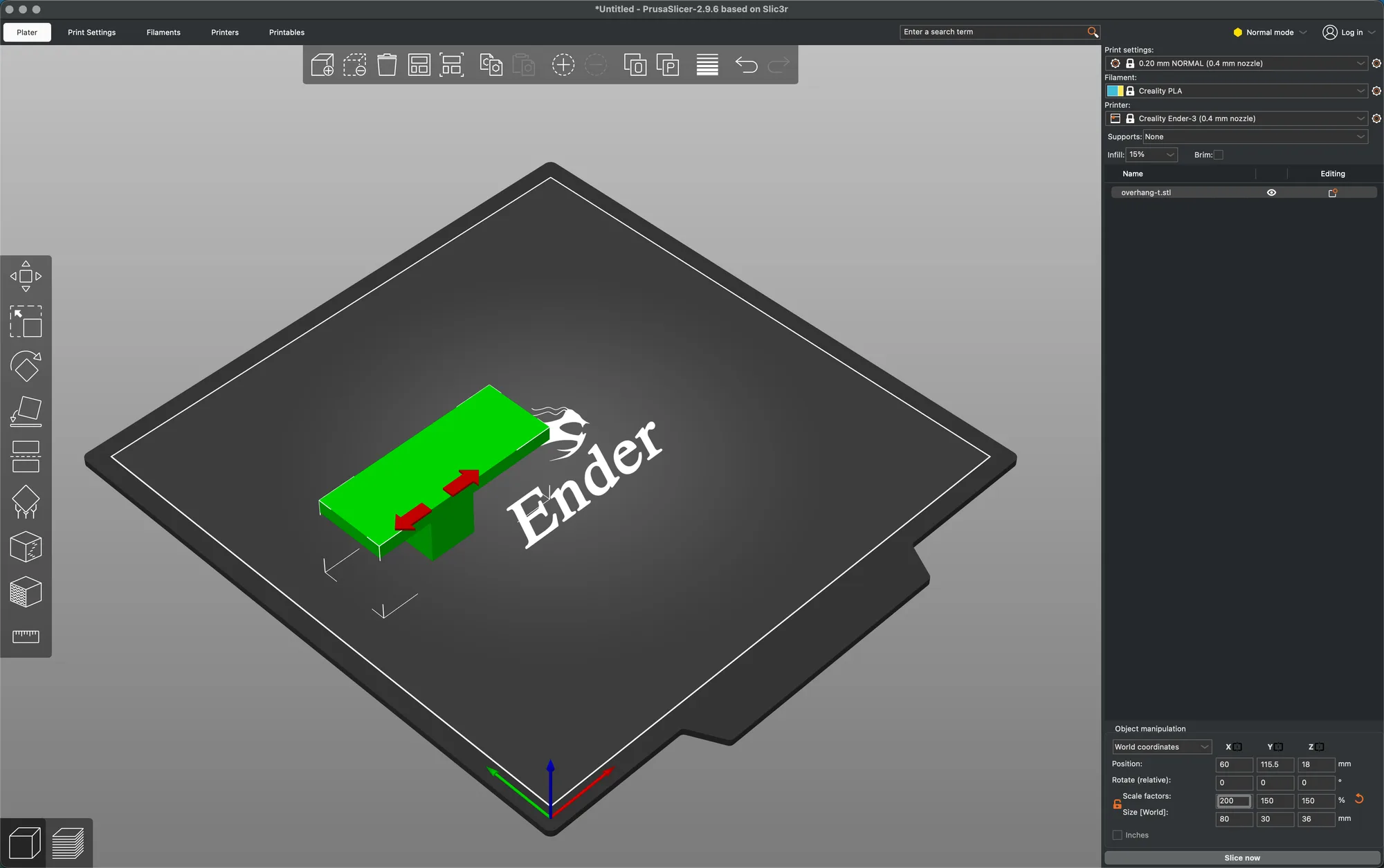
The Scale tool, Scale [S], does it by dragging. It draws red, green and blue cube handles for single axes and orange cubes at the corners. We dragged a corner outward: a label read X, Y and Z at 149.2648 percent, the panel showed 149.26 for all three and the size 59.71 x 29.85 x 35.82 mm. Corner handles scale uniformly. Scaling changes wall thickness and overhang geometry, so recheck supports after a large change.
How do you rotate a model and put it on a face?
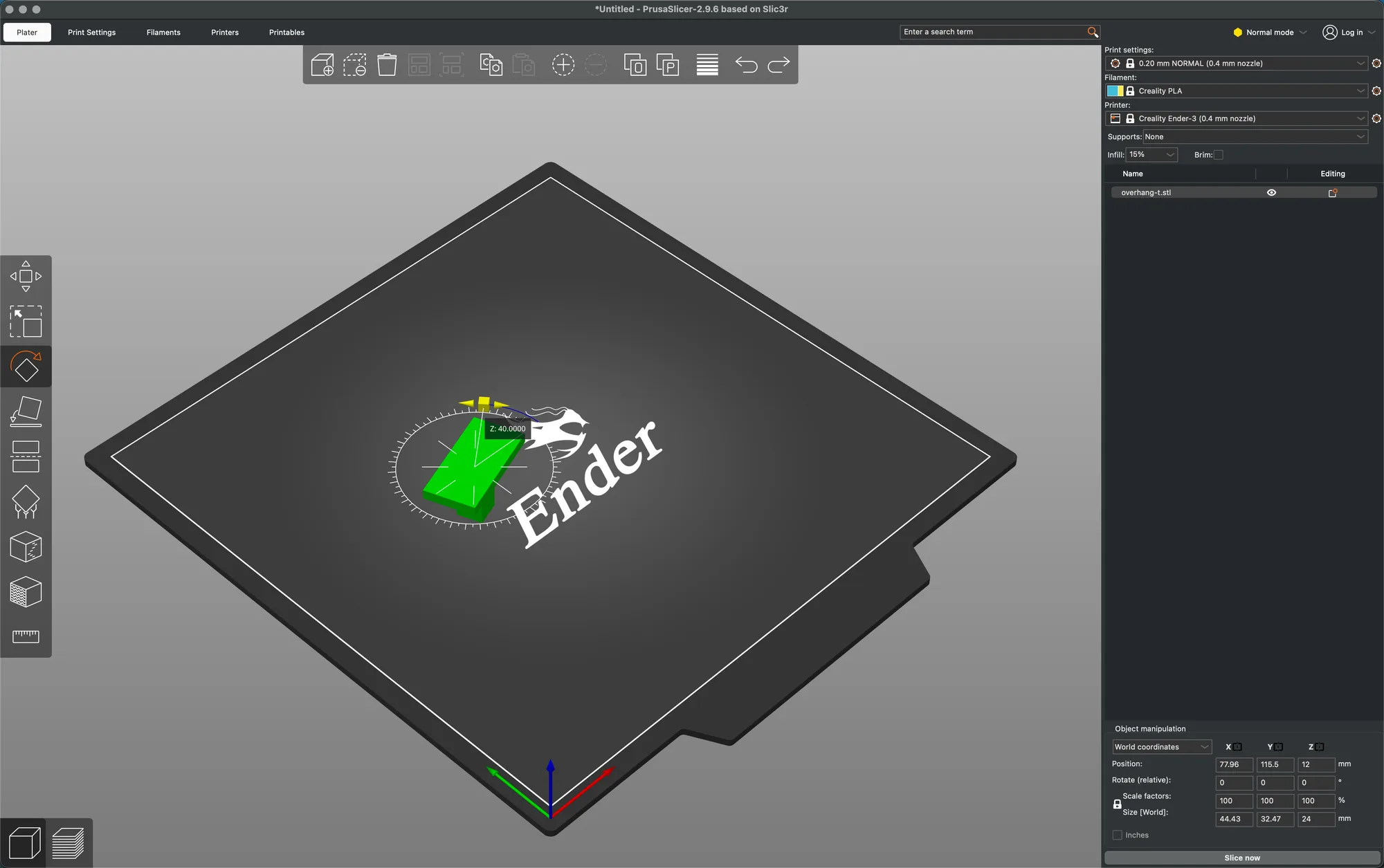
Press R, tooltip Rotate [R]. Three colored rings surround the model, red, green and blue, each with a small handle. We dragged the blue handle along its ring. A protractor scale with tick marks appeared and a label read Z: followed by the angle. After release the Rotate fields still read 0, because they are relative, but an orange reset arrow appeared beside them and the Size row changed to 43.5 x 41.03 x 24 mm for the turned bounding box.
Typing works too. Entering 45 in Rotate Z gave a size of 42.43 x 42.43 x 24 mm, and the field returned to 0 after we pressed Return. Entering 90 in Rotate X laid the T on its side, size 40 x 24 x 20 mm, with Position Z 10. The orange arrow resets the rotation, and we confirmed it restored 40 x 20 x 24 mm.
To fix an awkward orientation, press F for Place on face. Hovering the model highlights a flat face as a pale patch. We clicked a side face of the lying T and the T stood upright again at 40 x 20 x 24 mm, Position Z back to 12. Press F again to leave the tool. We looked for a Drop to bed button in Normal mode, but typing 40 into Position Z for a single object just snapped back to 12, so we could not make that button appear.
How do you arrange, copy and delete objects?
Hover tooltips on the toolbar gave the real shortcuts:
- Arrange [A], with Arrange selection [Shift+A] and a note that a right click shows arrangement options. We pressed A with the three overlapping objects and they spread out. We did not open the options.
- Arrange current bed [D], with Arrange selection on current bed [Shift+D]. We read the tooltip but did not test it, because we only had one bed.
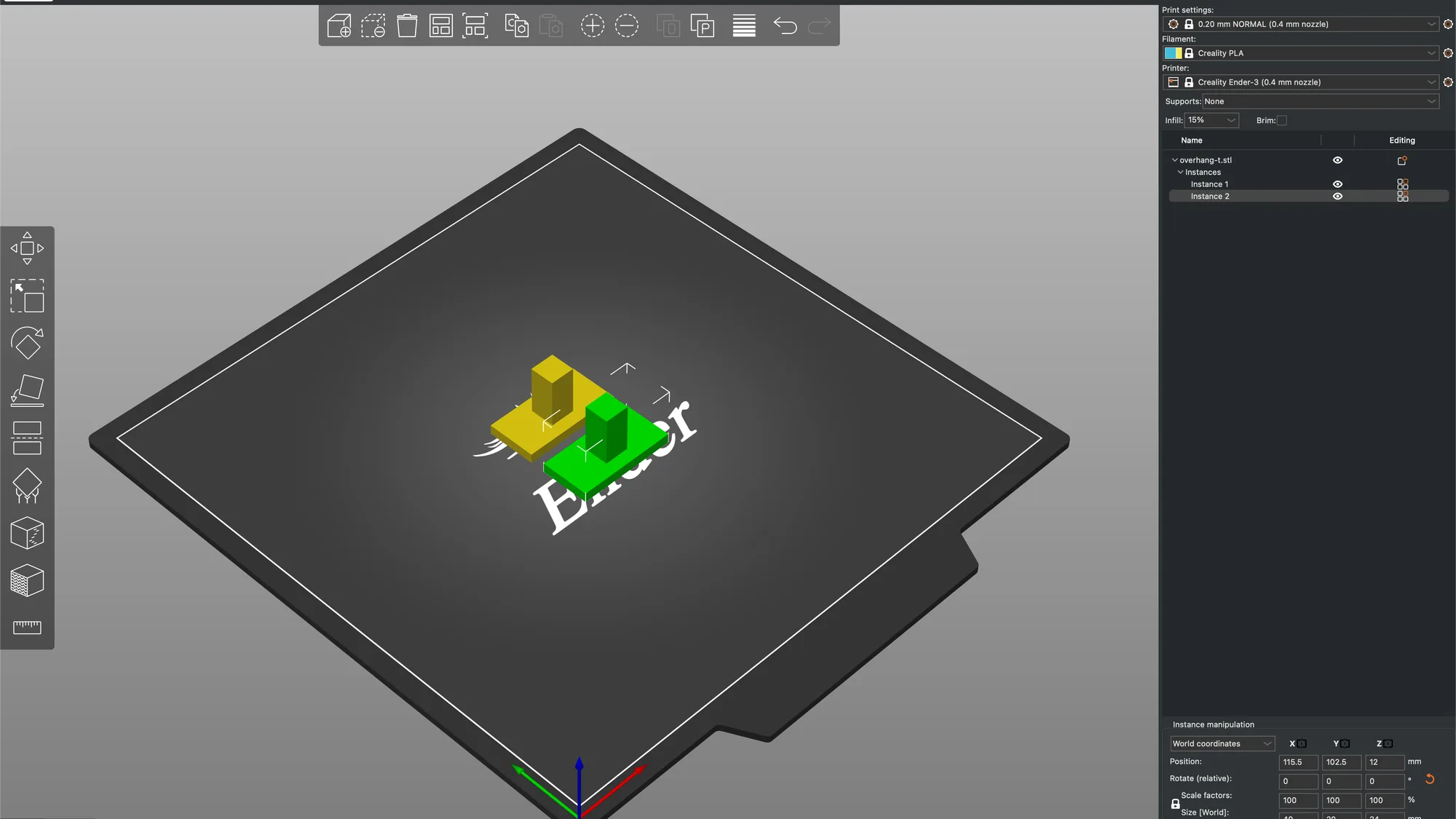
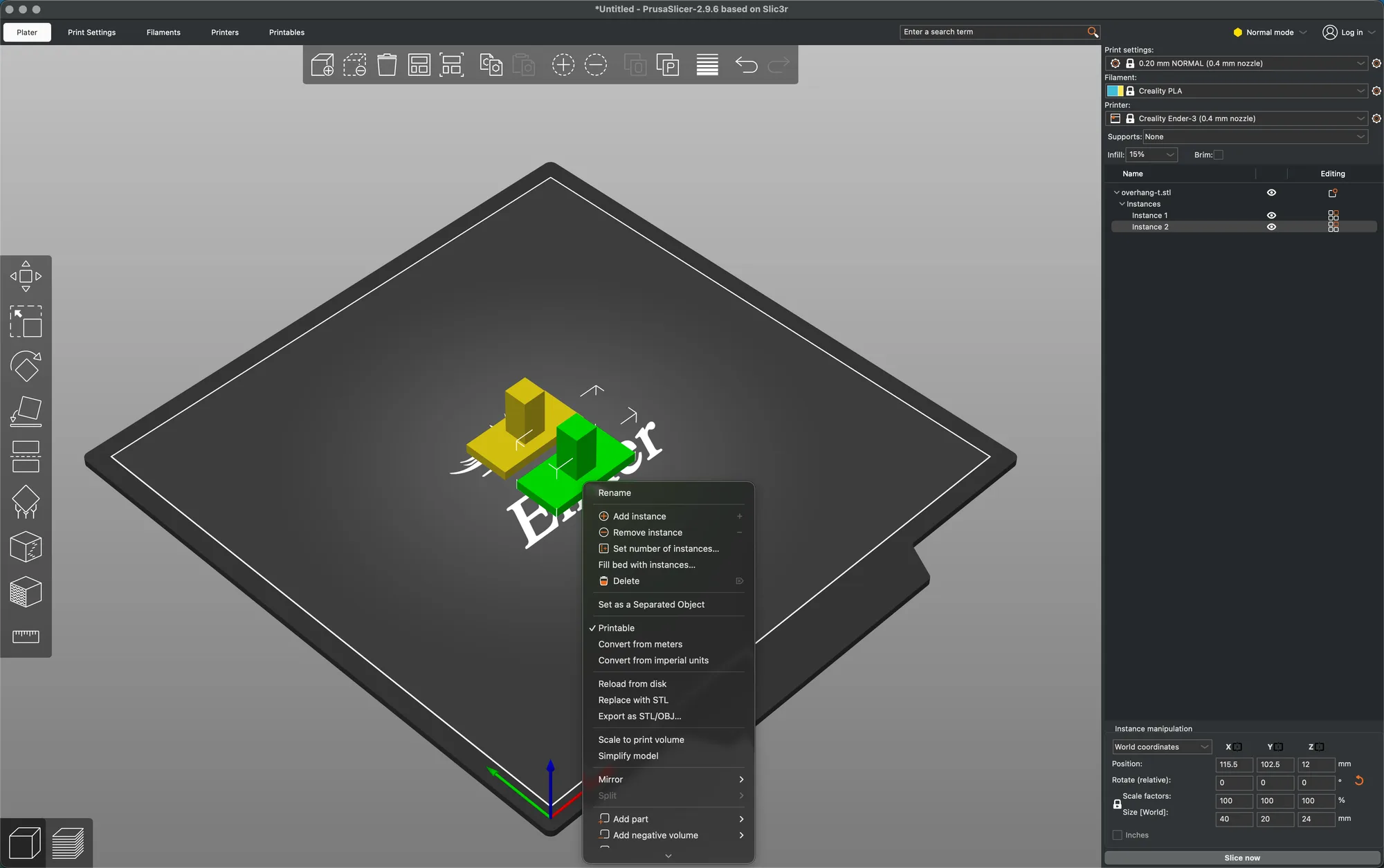
- Add instance [+] and Remove instance [-]. After pressing the add button the list showed overhang-t.stl with an Instances group holding Instance 1 and Instance 2, and the panel was retitled Instance manipulation. The new copy appeared offset 11.25 mm in X and Y from the first, overlapping it, and A separated the pair. An instance shares the same model and settings.
- Delete [Del] and Delete all [Cmd+Del]. The Backspace key removed the selected object and Cmd+Backspace cleared the bed.
- Copy [Cmd+C] and Paste [Cmd+V], which we read but did not run.
Right click a model for the context menu. With an instance selected, ours listed: Rename, Add instance, Remove instance, Set number of instances..., Fill bed with instances..., Delete, Set as a Separated Object, Printable (ticked), Convert from meters, Convert from imperial units, Reload from disk, Replace with STL, Export as STL/OBJ..., Scale to print volume, Simplify model, Mirror, Split (greyed out), Add part, Add negative volume, Add modifier, Add support blocker, Add support enforcer, Height range Modifier, Infill, Layers and Perimeters and Support material. We opened none of the submenus.
Mistakes are cheap. The toolbar Undo tooltip reads Undo [Cmd+Z], adds that a right click opens the History, and names the next undo action, which was Gizmo-Place on Face in our run. Redo is Cmd+Y. We dragged a model from X 60 to 77.96, pressed Cmd+Z and saw 60, then Cmd+Y brought 77.96 back.
The next lesson, PrusaSlicer print settings basics, covers layer height, perimeters and infill for the model you just placed. Compare the same steps in other programs in Cura vs OrcaSlicer vs PrusaSlicer.
Next lesson: PrusaSlicer Print Settings: Layers, Walls and Infill.