STL vs 3MF vs G-code: 3D Printing File Types Explained
STL and 3MF describe a model; G-code tells the printer what to do. Learn what each file contains and which one to use at each step of a print.
By Sepehr Sabbagh-pour · Published 11 October 2026 · 6 min read
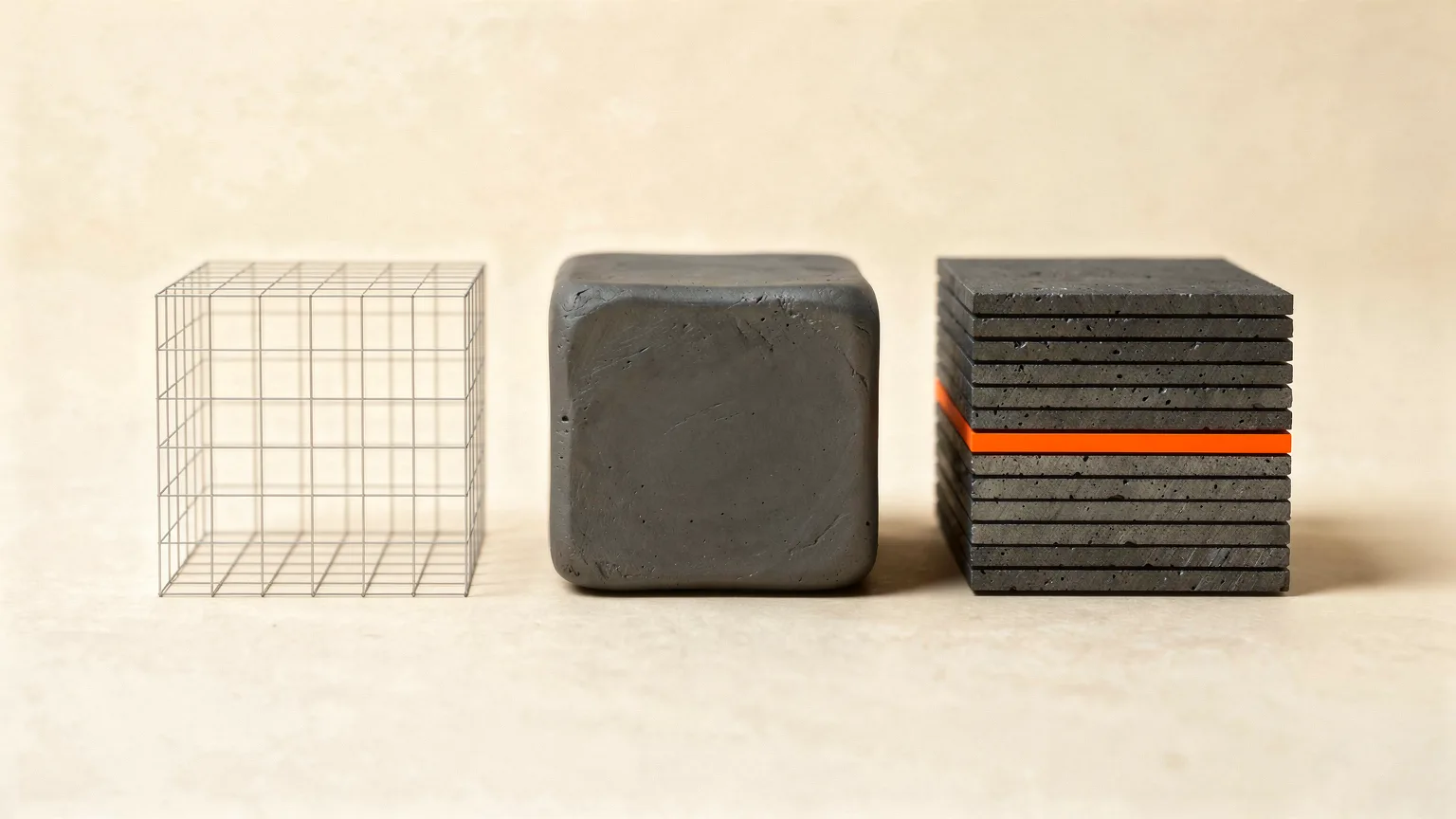
Three file types show up in almost every 3D printing workflow: STL, 3MF and G-code. They sound alike but do different jobs. STL and 3MF describe a model. G-code is the set of instructions a printer follows. Mixing them up is why people download a model and cannot print it, or send a file to the printer that it refuses. This explainer is based on Wikipedia, the 3MF Consortium, Prusa's documentation and the Marlin G-code index.
The short version
- STL: the oldest and most common model file. Shape only. No units, no color, no settings.
- 3MF: a newer model format that can also carry print settings, multiple materials and more. Slicers use it to save projects.
- G-code: the output of the slicer. Your printer reads it line by line. You cannot slice it again.
The usual flow is: design or download an STL or 3MF, open it in a slicer, then export G-code. If you have not picked a slicer yet, read what a slicer is.
STL: the shape and nothing else
STL was created for the stereolithography software of 3D Systems; Wikipedia dates the format to 1987. An STL file describes a raw surface made of triangles, each defined by its corner points and a direction it faces. Two details matter in daily use:
- No scale information. Wikipedia notes that STL files contain no scale information and the units are arbitrary. Slicers usually assume millimeters. If a model imports tiny or huge, the units are the first thing to check.
- No color or texture. STL describes only surface geometry, so it cannot hold color, materials or print settings.
STL files come in ASCII and binary versions; binary is more common because it is more compact. Almost every slicer and model site supports STL, which is why it remains the default for sharing a single part.
3MF: a model plus context
3MF (3D Manufacturing Format) is an open standard published by the 3MF Consortium. Wikipedia describes it as XML-based and designed for additive manufacturing, and says it differs from STL because manufacturing features such as hotend and bed temperatures, feed rate, part regions with multiple materials and support structures can be embedded in the file. The consortium has included CAD and manufacturing companies since 2015, including Autodesk, Dassault Systemes, HP and Microsoft.
In practice, this means a 3MF can hold more than one object, the position of each on the bed and, depending on the slicer, your chosen settings. Slicers use it as a project file. Prusa's Configuration Wizard even has an option to associate 3MF and STL files with PrusaSlicer, and notes that 3MF project files by default do not store the full path to the source models, because that could be a security risk when sharing a file.
Caution. What gets stored in a 3MF depends on the program that wrote it. A 3MF saved by one slicer may open in another with the geometry intact but the settings ignored. Check your slicer's documentation before relying on it to move settings between programs.
G-code: the printer's instructions
G-code is a programming language used to control CNC machines and 3D printers; Wikipedia says it is standardized in ISO 6983-1 and that it has many variants. Each line tells the machine where to move, how fast and what to do next. The Marlin firmware documentation indexes the commands: for example G0 and G1 are linear moves, G28 is auto home, G29 is bed leveling and G90 sets absolute positioning.
A slicer writes thousands of these lines, one set per layer. An illustrative line looks like G1 X50 Y50 F3000: move in a straight line to X 50, Y 50 at a feed rate of 3000. Your slicer sets every number.
Because the file is tied to the settings you chose, G-code is specific to one printer, nozzle, filament and profile. Treat it as a finished product: if you need a change, adjust the settings in the slicer and export again, rather than editing the file by hand.
Binary G-code (bgcode)
Some newer Prusa printers use a binary version. Prusa's open-source libbgcode project describes it as a block-structured format with separate blocks for metadata and G-code, compression for smaller files and a checksum for data validity. PrusaSlicer's first-print guide refers to exporting either G-code or bgcode. Check which one your printer accepts before choosing the export option.
Comparison table
| STL | 3MF | G-code | |
|---|---|---|---|
| Contains | Triangle surface only | Model data plus optional manufacturing features | Machine instructions |
| Color and materials | No | Yes, per the 3MF standard | Only as commands |
| Units | Arbitrary, not stored | Check the size after import | Set by commands (for example G21 for millimeters) |
| Opened by | Slicers, CAD, viewers | Slicers and CAD | Printers, G-code viewers |
| Editable in a slicer | Yes, as a model | Yes, as a model or project | No |
G21 appears in the Marlin G-code index as the millimeter-units command.
Which should you use?
- Sharing or downloading a single part: STL is the safest choice for compatibility.
- Saving your work in a slicer: use the slicer's project format, often 3MF, so you do not lose object placement.
- Multi-color or multi-material models: choose 3MF, since STL cannot hold the information.
- Sending to the printer: export G-code (or bgcode, if your printer needs it) from the slicer.
Common mistakes
- Trying to open G-code in a slicer to edit the model. It holds toolpaths, not a model. Go back to the STL or 3MF.
- Printing at the wrong size. Unit confusion in STL files is common. Check the dimensions after import.
- Reusing G-code on a different printer. It was sliced for one machine. Re-slice with the right profile.
- Expecting settings to travel inside every 3MF. It depends on the program.
If your model comes from your own design, see designing your first print in Tinkercad for how to export. Once a print starts, how to 3D print covers the rest of the process.
This page is research from the sources listed, not from print tests.
Frequently asked questions
Is 3MF better than STL?
For multi-material work and saving projects, yes, because 3MF can carry more information. STL is simpler and supported almost everywhere, so it is still the safest format for sharing one part.
Can I convert G-code back to STL?
Not in a useful way. G-code holds toolpaths for one printer and profile, not the model. Keep the original STL or 3MF and re-slice it.
Why does my STL import at the wrong size?
STL files do not store units, so the slicer guesses, usually millimeters. Check the model dimensions after import and scale if needed.
What file does my 3D printer need?
Most printers read G-code. Some newer Prusa printers use binary G-code (bgcode), and some printers read a sliced 3MF from their own slicer. Check your printer maker's documentation.
Sources

Founder and editor
Software engineer since 2009 and Head of Engineering by day, a maker who has owned several 3D printers, writing practical guides to 3D printers, filament and running costs, with every article saying what was and was not tested.
Keep reading
Print Speed vs Quality: How Fast Can You Print?
Faster prints are limited by how much plastic the hotend can melt, not the box number. Learn the limits and how to speed up without losing quality.
11 October 2026 · 7 min read
PrusaSlicer for Beginners: Setup and First Slice
A step-by-step PrusaSlicer guide for beginners: install it, pick your printer and filament, set layer height, supports and infill, preview and export your first print.
11 October 2026 · 6 min read
Retraction Settings Explained
Retraction pulls filament back before travel moves to stop ooze and stringing. Learn each setting, typical starting values and how to tune them.
11 October 2026 · 7 min read