The PrusaSlicer print settings sit on one tab, and a few of them decide most of how a part is built. This lesson, tested in PrusaSlicer 2.9.6 on macOS, opens the Print Settings tab, compares the three modes, reads the layers, perimeters and infill options, then slices the same part with different values.
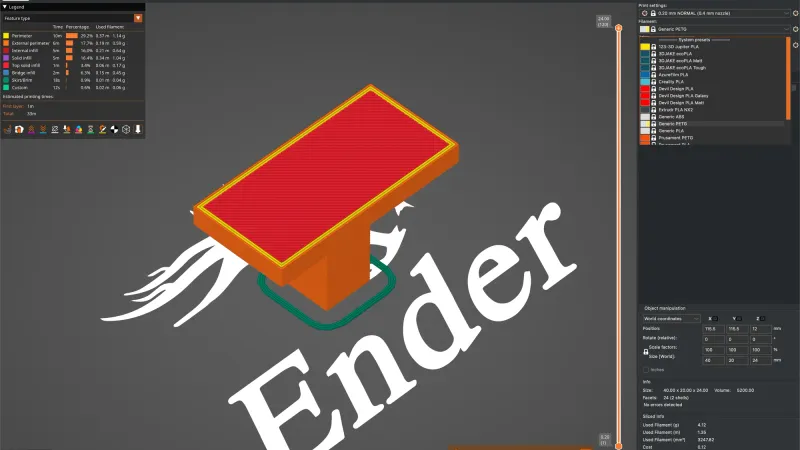
We used the setup from the first launch wizard lesson: a Creality Ender-3 with a 0.4 mm nozzle and Creality PLA. The overhang-t test part, 40 by 20 by 24 mm, was already placed from the previous lesson on importing, moving and scaling. If you are new to the idea, read what a slicer is first.
What does the Print Settings tab show in each mode?
Click Print Settings in the tab row at the top left. The mode button at the top right offers three entries in the main window: Beginner mode, Normal mode and Expert mode. The setup wizard and the colour legend call the same levels Simple, Advanced and Expert. We switched through all three and read the page list on the left of the tab.
- Beginner: 4 pages: Layers and perimeters, Infill, Skirt and brim, Support material.
- Normal: 10 pages: the four above plus Speed, Multiple Extruders, Advanced, Output options, Notes and Dependencies.
- Expert: the same 10 pages in our check, with more options on each page. On the Infill page Expert added rows such as Solid infill every, Solid infill threshold area and the ironing Flow rate.
Every option has a coloured dot beside its label. The colour legend, which opens from the orange question mark above the page list, lists green for Simple, yellow for Advanced and red for Expert. A green dot means the option already appears in Beginner mode. On the Layers and perimeters page in Beginner mode we saw Layer height, First layer height, Perimeters, Spiral vase, both Solid layers rows, both Minimum shell thickness rows, Seam position and Fuzzy Skin. Normal mode added rows such as Ensure vertical shell thickness, Thick bridges and Fill gaps. The rest of this lesson stays in Normal mode, which matches the sidebar from the previous lessons.
The sidebar on the Plater tab carries quick controls too: the Print settings preset drop-down, an Infill combo box (15% in our run), a Brim checkbox and a Supports drop-down set to None. They edit the same values as the Print Settings tab. We changed infill through the tab, and the sidebar combo followed it, reading 40% and then 15% again.
Which layer and perimeter settings matter first?
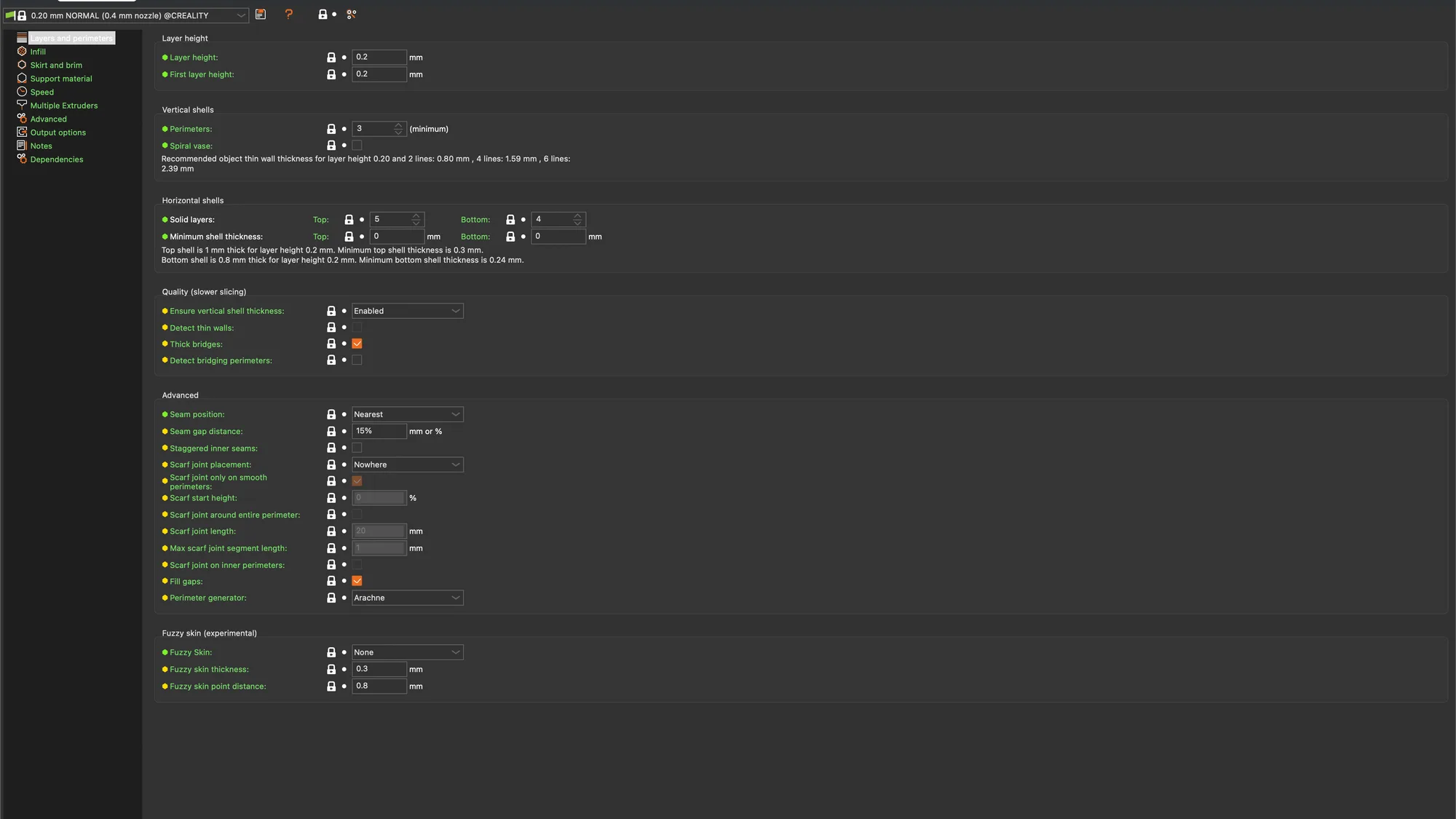
Open Layers and perimeters. On the 0.20 mm NORMAL (0.4 mm nozzle) @CREALITY preset we read these values:
- Layer height: 0.2 mm. The tooltip says it controls the height, and so the total number, of the layers, and that thinner layers give better accuracy but take more time. Read layer height explained for the theory.
- First layer height: 0.2 mm. The tooltip talks about printing a thicker bottom layer when layer heights are very low, to improve adhesion.
- Perimeters: 3, followed by the label (minimum). The tooltip adds that PrusaSlicer may raise the number automatically when it detects sloping surfaces and the Extra Perimeters option is on.
- Solid layers: Top 5, Bottom 4. The tooltips read Number of solid layers to generate on top surfaces and on bottom surfaces.
Under the Horizontal shells box a grey note reads Top shell is 1 mm thick for layer height 0.2 mm and Bottom shell is 0.8 mm thick. That is 5 and 4 layers of 0.2 mm, so the note turns the layer counts into millimetres. Another note under Perimeters gives the recommended thin wall thickness: 0.80 mm for 2 lines and 1.59 mm for 4 lines. For the wall theory see walls and perimeters explained.
Hovering any field shows its tooltip, ending with a default value line and a parameter name line. Read the default value with care. The Layer height tooltip said default value 0.3 and the First layer height tooltip said 0.35, while the preset holds 0.2 for both. Perimeters said 3, but the Top and Bottom solid layers tooltips said 3 where the preset holds 5 and 4. These are PrusaSlicer's built-in defaults, not the preset's values, so trust the field.
What do the infill options offer?
Click Infill. The first box lists Fill density, Fill pattern, Length of the infill anchor, Maximum length of the infill anchor, Top fill pattern and Bottom fill pattern. The preset gives Fill density 15%, Fill pattern Grid and both top and bottom patterns Monotonic. The Fill density tooltip reads Density of internal infill, expressed in the range 0 % to 100 % and lists a built-in default of 20%. The Fill pattern tooltip reads Fill pattern for general low-density infill and lists a default of Line. Background reading: infill explained.
Open the Fill pattern drop-down and it offers 18 choices, in this order: Rectilinear, Aligned Rectilinear, Grid, Triangles, Stars, Cubic, Line, Concentric, Honeycomb, 3D Honeycomb, Gyroid, Hilbert Curve, Archimedean Chords, Octagram Spiral, Adaptive Cubic, Support Cubic, Lightning and Zig Zag. The list scrolls, so the last entries are hidden until you scroll it.
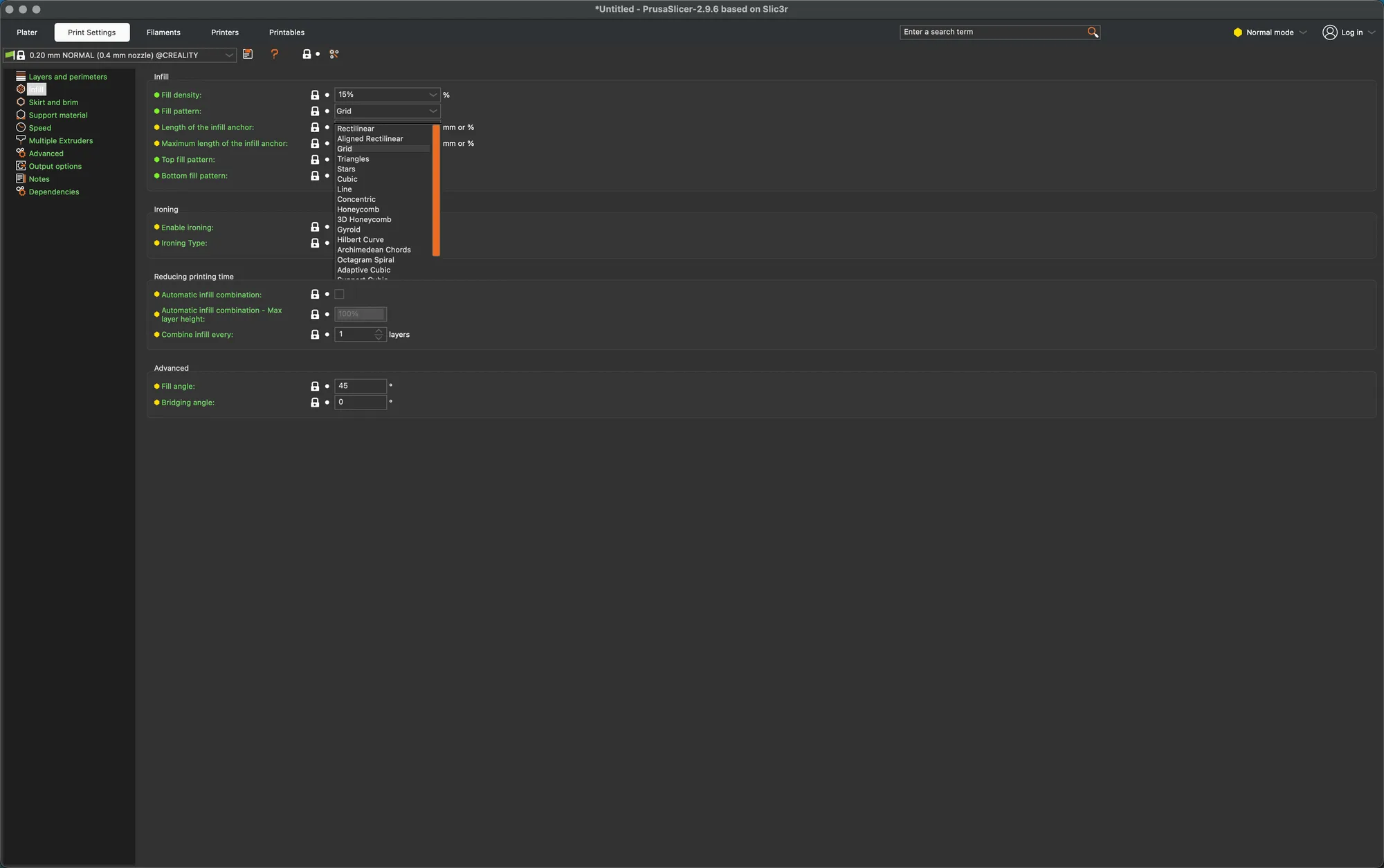
The Top fill pattern drop-down is shorter, with 8 choices: Rectilinear, Monotonic, Monotonic Lines, Aligned Rectilinear, Concentric, Hilbert Curve, Archimedean Chords and Octagram Spiral. Its tooltip says it only affects the top visible layer, not the adjacent solid shells, with a default of Monotonic. In Beginner mode the infill page shrinks to Fill density, Fill pattern, Top fill pattern and Bottom fill pattern, with no anchor rows.
A warning from our test: after we scrolled the open Fill pattern list with the mouse wheel and pressed Escape, the pattern had changed to Line, an entry the pointer had been over. We cannot say exactly which action did it, so click the choice you want, or click the current one, to close the list.
What do the preset names, locks and dots mean?
The preset drop-down at the top left of the tab, and the matching one in the sidebar, lists the system presets for the Creality Ender-3 at 0.4 mm: the list shows 0.08 mm SUPERDETAIL, 0.10 mm HIGHDETAIL, 0.12 mm DETAIL, 0.16 mm OPTIMAL, 0.16 mm OPTIMAL SPEED, 0.20 mm NORMAL, 0.20 mm NORMAL SPEED, 0.24 mm DRAFT, 0.24 mm DRAFT SPEED, 0.28 mm SUPERDRAFT and 0.28 mm SUPERDRAFT SPEED. The list is headed System presets. There is no 0.05, 0.07, 0.15 or 0.30 preset for this printer, so for 0.30 mm we typed the layer height ourselves below. The SPEED variants are separate presets, and we did not compare their other values with the plain ones.
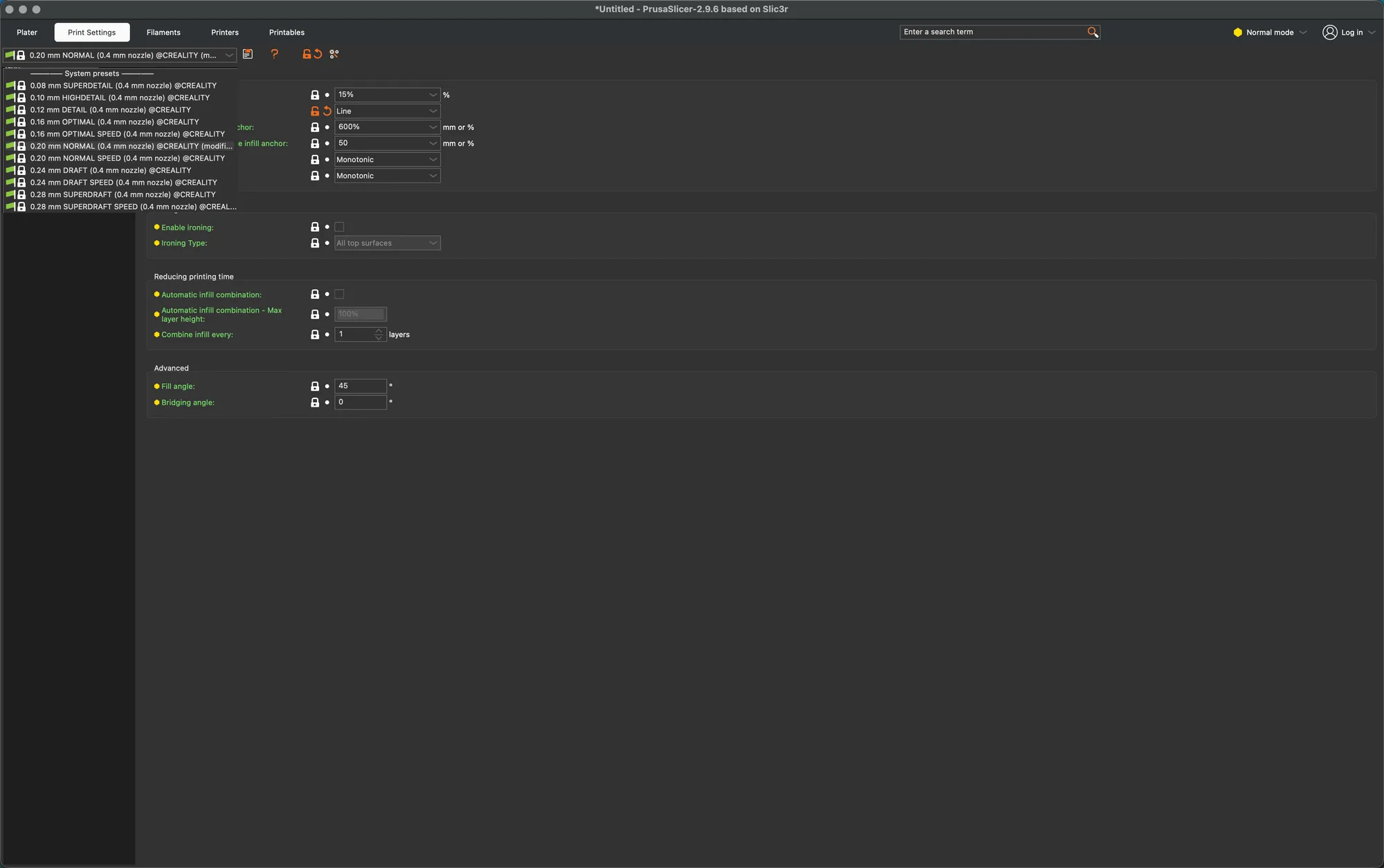
The icons next to each value, confirmed by hovering and by the legend:
- Closed lock: the value is the same as the system (or default) value for the current option group. Green label text means the same thing.
- Open orange lock: some settings changed and no longer equal the system value. Clicking the orange lock resets that value to the system one. The label text turns orange too.
- White bullet: on the left button it marks a non-system preset, and on the right button it says the setting is the same as in the last saved preset.
- Orange back arrow: the value differs from the last saved preset. Clicking it resets to the last saved preset.
We changed the Fill pattern to Line on purpose. The Fill pattern label turned orange, its lock opened and a back arrow appeared, the Infill page entry in the left list turned orange, the toolbar icons at the top of the tab showed the same pair, and the preset name became 0.20 mm NORMAL (0.4 mm nozzle) (modified) on the Plater sidebar.
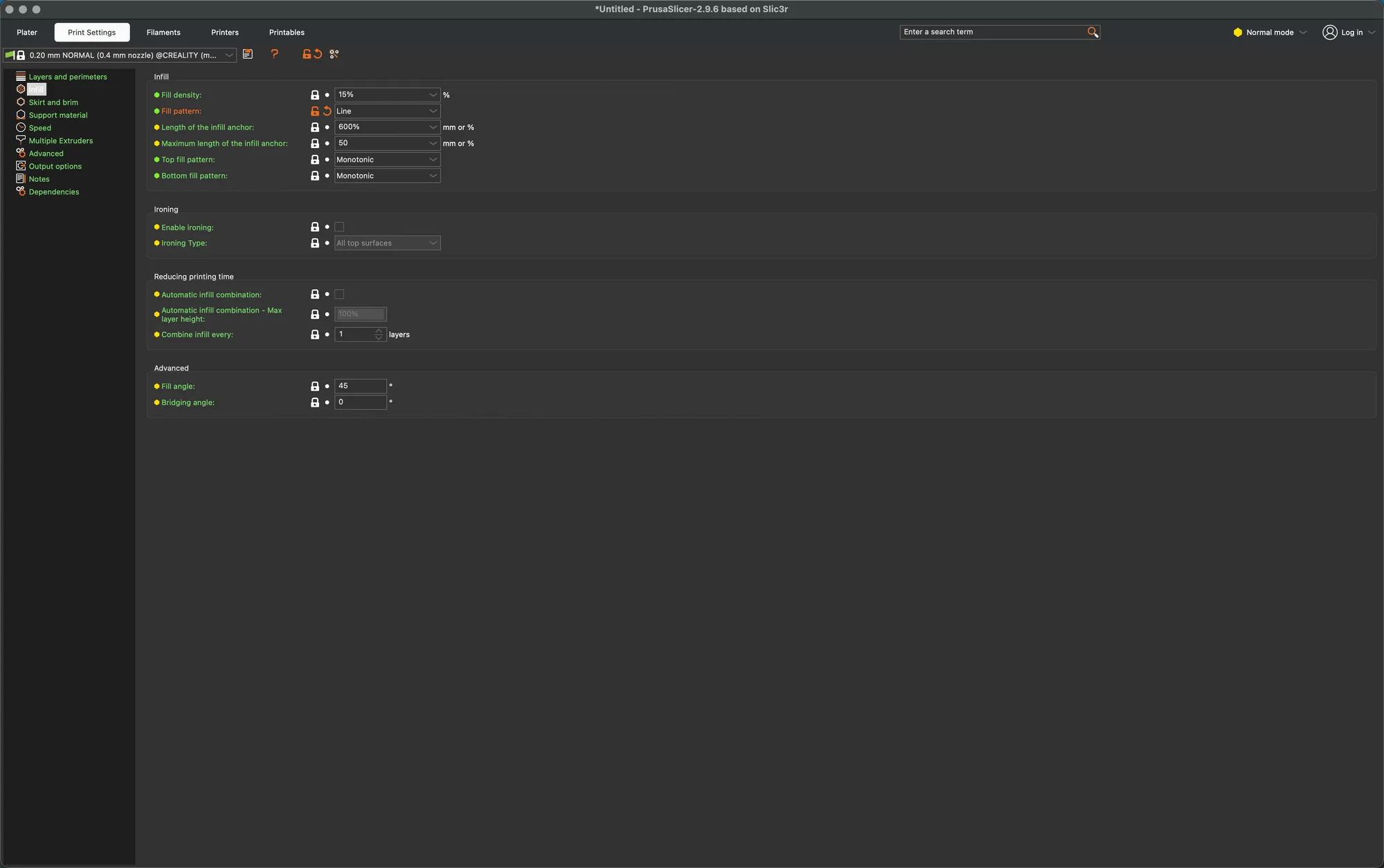
Choosing a preset in the drop-down while changes exist opens Switching Presets: Unsaved Changes. It lists the changed option, here Infill, Fill pattern, Original value Grid and modified value Line, with four buttons: Keep, Discard, Save and Cancel, and a Remember my choice checkbox. The floppy disk icon next to the drop-down is Save preset. It opened a small Save preset dialog proposing the name 0.20 mm NORMAL (0.4 mm nozzle) @CREALITY - Copy, with a green tick, a drop-down arrow, Cancel and OK. We pressed Cancel and saved nothing, so we cannot say how a user preset looks in the list. Finally we clicked the orange lock, Fill pattern went back to Grid and the (modified) tag disappeared.
How do these settings change the slicer estimate?
We sliced the overhang-t part (40 x 20 x 24 mm, one object, no supports, no brim) seven times, changing one value at a time from the 0.20 mm NORMAL defaults. Each time we returned to the Plater tab, pressed Slice now and read the Sliced Info box in the sidebar: Used Filament in grams, metres and cubic millimetres, Cost, and Estimated printing time (normal mode). The Preview legend showed Total 33m and 120 layers for the baseline. These are slicer estimates only and nothing was printed.
| Setting changed | Layer height / perimeters / infill | Estimated time | Estimated filament |
|---|---|---|---|
| None (preset defaults) | 0.20 / 3 / 15% | 33m | 4.03 g (1.35 m) |
| Layer height 0.10 | 0.10 / 3 / 15% | 57m | 3.64 g (1.22 m) |
| Layer height 0.30 | 0.30 / 3 / 15% | 26m | 4.43 g (1.48 m) |
| Perimeters 2 | 0.20 / 2 / 15% | 31m | 3.71 g (1.24 m) |
| Perimeters 4 | 0.20 / 4 / 15% | 36m | 4.37 g (1.47 m) |
| Fill density 40% | 0.20 / 3 / 40% | 40m | 4.86 g (1.63 m) |
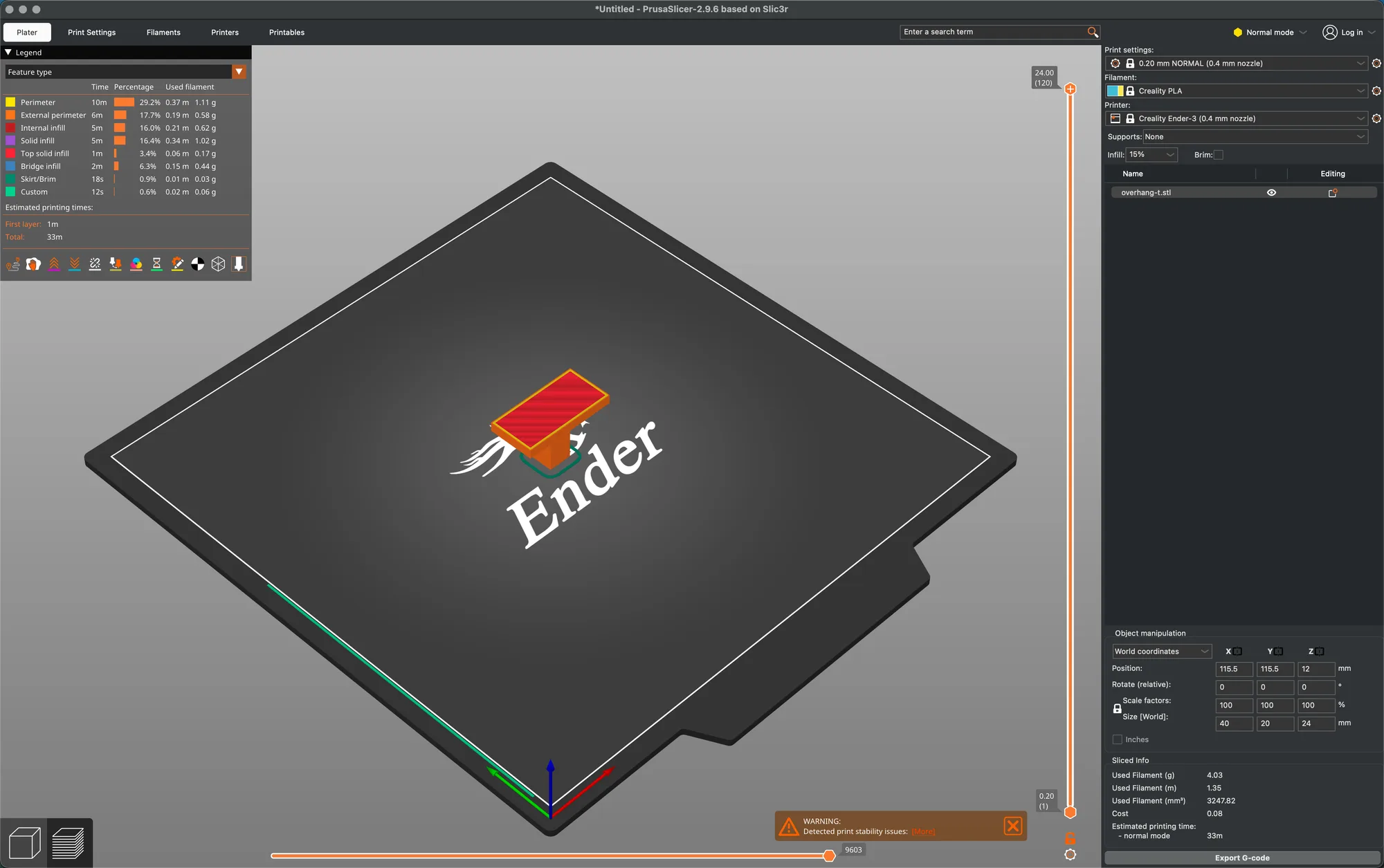
Reading the table: halving the layer height from 0.20 to 0.10 added about 73 percent to the estimated time, and going to 0.30 cut it by about 21 percent. Filament moved the opposite way from what many people expect, with 0.10 estimated lighter than 0.20 and 0.30 heavier. We did not dig into why. One possible reason is that Top and Bottom solid layers are counted in layers, so thinner layers make thinner shells on this small part. Treat it as one data point on one part. Perimeters 2 versus 3 versus 4 moved the time by about minus 6 and plus 9 percent and the filament by about minus 8 and plus 8 percent. Fill density 40% added about 21 percent to both. The Preview legend at the baseline listed Perimeter 10m, Internal infill 5m and Solid infill 5m, so on this small part the shells matter as much as the infill.
The Preview also showed a banner reading Detected print stability issues for this T shaped part, which is the overhang we meet in the next lesson, PrusaSlicer supports. Compare these settings with other programs in Cura vs OrcaSlicer vs PrusaSlicer. At the end we reset everything to 0.20 mm NORMAL with no modified settings, in Normal mode.
Next lesson: PrusaSlicer Supports: Enable, Organic and Paint-On.