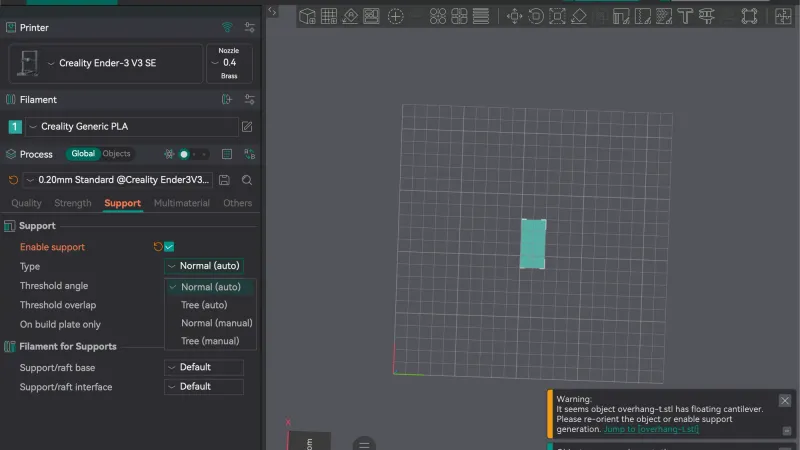
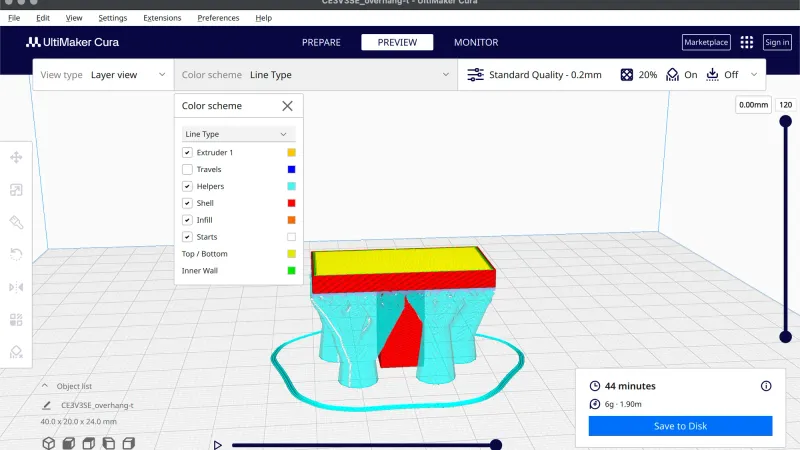
An overhang needs something under it, and PrusaSlicer calls that something support material. This lesson, tested in PrusaSlicer 2.9.6 on macOS, turns supports on in two ways, reads every option on the Support material page, compares three support styles by slicer estimate, and then paints supports by hand.
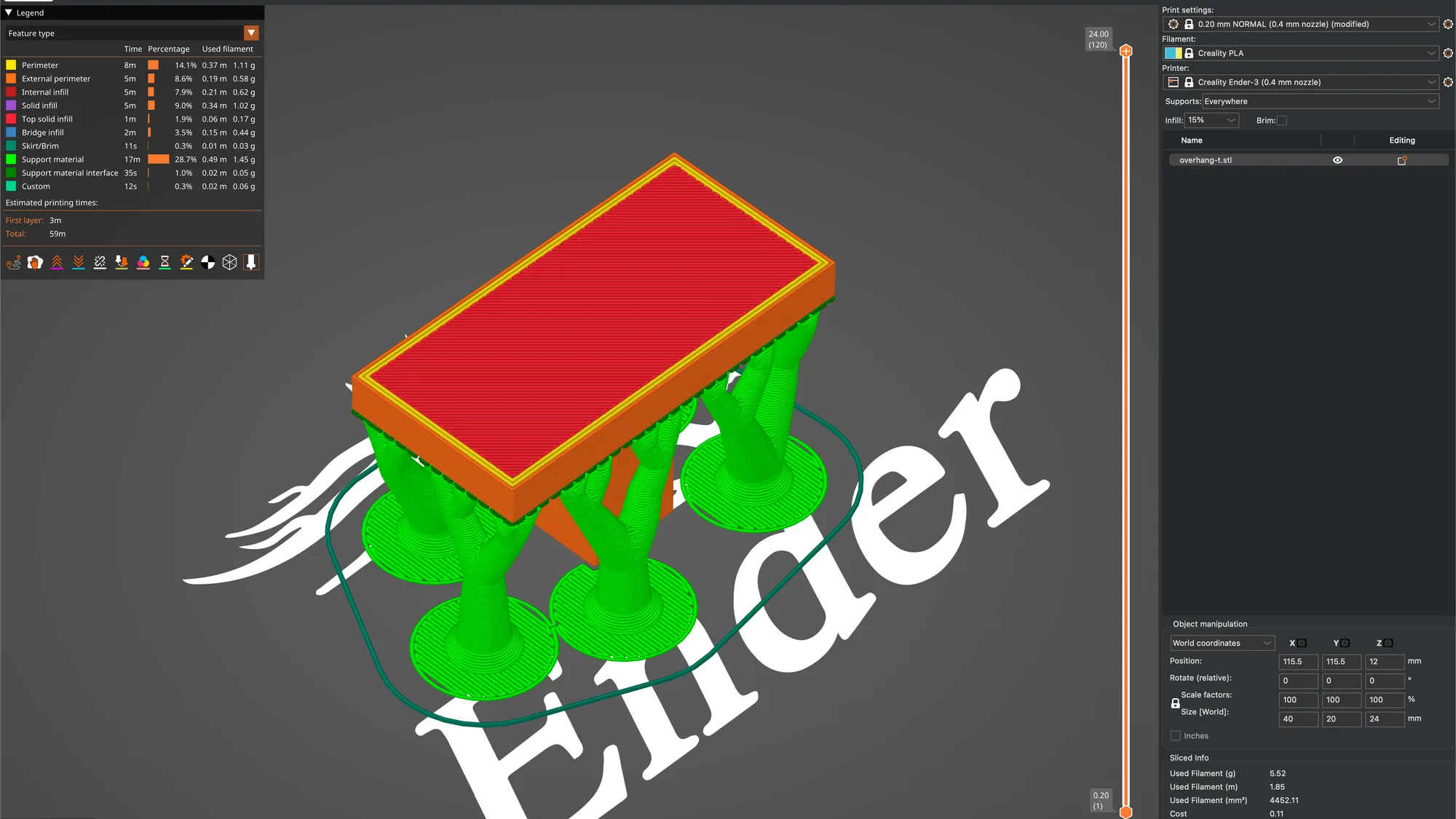
We continue from the print settings lesson: a Creality Ender-3 with a 0.4 mm nozzle, Creality PLA and the 0.20 mm NORMAL preset, with the overhang-t part (40 by 20 by 24 mm, a T shape with a wide bar on a narrow stem) on the plate. For the theory behind supports read supports explained. We worked in Normal mode, and say so where Expert mode shows more.
How do you turn on supports in PrusaSlicer?
Supports are off in the preset. With them off, the sidebar Supports combo reads None, and slicing the T part gave a banner reading Detected print stability issues. There are two ways to switch supports on, and they edit the same settings.
The quick way is the Supports drop-down on the Plater sidebar, under the Printer preset. Its four entries are None, Support on build plate only, For support enforcers only and Everywhere. We chose Everywhere and the preset name changed to 0.20 mm NORMAL (0.4 mm nozzle) (modified). A dialog titled Support Generator then appeared: Supports work better, if the following feature is enabled: Detect bridging perimeters. Shall I adjust those settings for supports? with No and Yes buttons. We pressed No each time, so every number below uses the preset's own bridging setting.
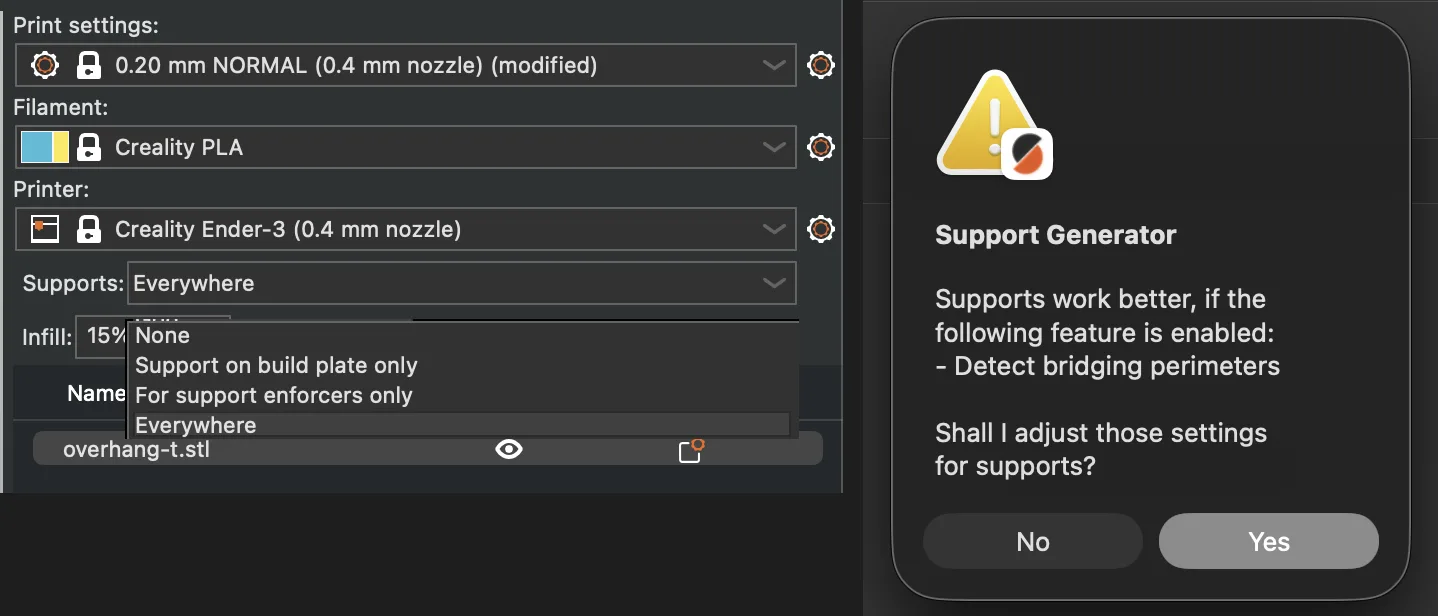
The same combo works backwards. Choosing None unticked both Generate support material and Auto generated supports in the Print Settings tab, so the preset stayed modified until we reset it with the lock icon at the top of the tab. The other route is the Print Settings tab, page Support material, where you tick Generate support material yourself.
What is on the Support material page?
Open Print Settings and click Support material in the page list. In Normal mode the page has four boxes: Support material, Raft, Options for support material and raft, and Organic supports. Most fields are greyed out until Generate support material is ticked. Only three options carry a green dot, meaning they show in Beginner mode: Generate support material, Auto generated supports and Support on build plate only.
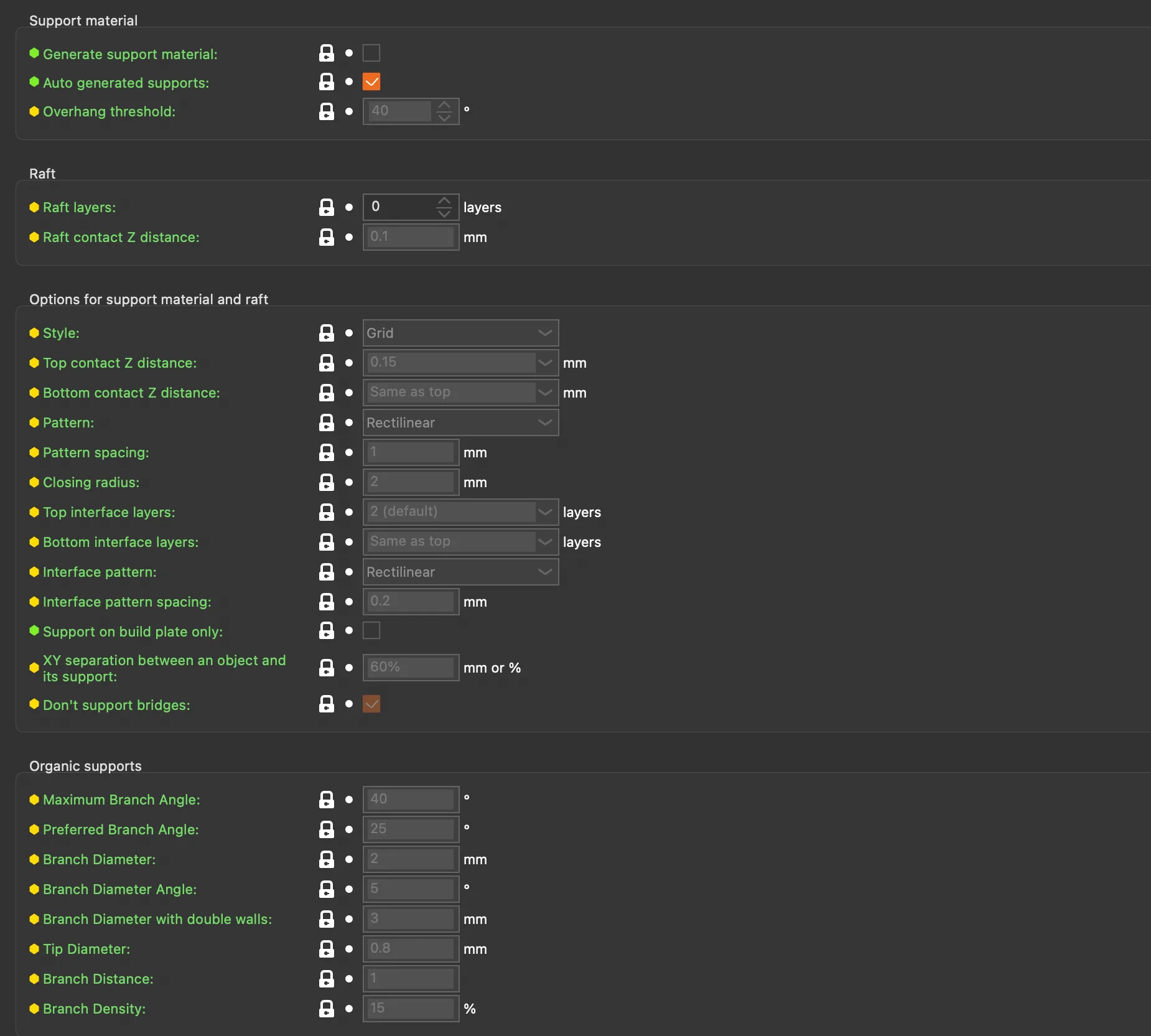
These are the values on the 0.20 mm NORMAL preset, with the tooltip text where we read it by hovering:
- Generate support material: unticked. Tooltip: Enable support material generation.
- Auto generated supports: ticked. The tooltip says supports are then generated automatically from the overhang threshold. If unticked, supports are generated inside the support enforcer volumes only.
- Overhang threshold: 40 degrees. The tooltip says no support is generated for overhangs whose slope angle, with 90 degrees as vertical, is above the threshold, and that zero means automatic detection, which it calls recommended.
- Raft layers: 0. The object will be raised by this number of layers, and support material will be generated under it. Raft contact Z distance is 0.1 mm.
- Style: Grid. The list offers Grid, Snug and Organic. The tooltip says a regular grid makes more stable supports, while snug towers save material and reduce object scarring.
- Top contact Z distance: 0.15 mm, Bottom contact Z distance: Same as top. The tooltip calls it the vertical distance between object and support material interface, and says 0 stops PrusaSlicer using bridge flow and speed on the first object layer.
- Pattern: Rectilinear, with Rectilinear grid and Honeycomb as the other entries. Pattern spacing: 1 mm. Closing radius: 2 mm, greyed out with Grid.
- Top interface layers: 2 (default), Bottom interface layers: Same as top, Interface pattern: Rectilinear, Interface pattern spacing: 0.2 mm.
- Support on build plate only: unticked. Only create support if it lies on a build plate. Don't create support on a print.
- XY separation between an object and its support: 60%, and Don't support bridges: ticked.
The Organic supports box lists Maximum Branch Angle 40, Preferred Branch Angle 25, Branch Diameter 2 mm, Branch Diameter Angle 5, Branch Diameter with double walls 3 mm, Tip Diameter 0.8 mm, Branch Distance 1 and Branch Density 15%. Those fields stayed greyed out while the style was Grid. We changed none of them.
Switch to Expert mode and more rows appear, marked with red dots: Enforce support for the first (0 layers), First layer density (90%), First layer expansion (3 mm), Raft expansion (1.5 mm), With sheath around the support, Pattern angle, Interface loops and Synchronize with object layers. The Enforce tooltip says it generates support for that many layers counting from the bottom, whatever the angle threshold, which helps objects with a very thin footprint. Raft layers and rafts are covered again in the brim, raft and skirt article.
How much do the support styles change the slicer estimate?
We sliced the overhang-t part four times, changing only the support choice, and read the Preview legend and the Sliced Info box. In the legend the supports appear as two rows: Support material in bright green and Support material interface in dark green. Everything below is a slicer estimate, and nothing was printed.
| Setting | Estimated time | Estimated filament |
|---|---|---|
| Supports None | 33m | 4.03 g (1.35 m) |
| Support on build plate only, Grid | 49m | 6.82 g (2.29 m) |
| Everywhere, Grid | 49m | 6.82 g (2.29 m) |
| Everywhere, Snug | 47m | 5.49 g (1.84 m) |
| Everywhere, Organic | 59m | 5.52 g (1.85 m) |
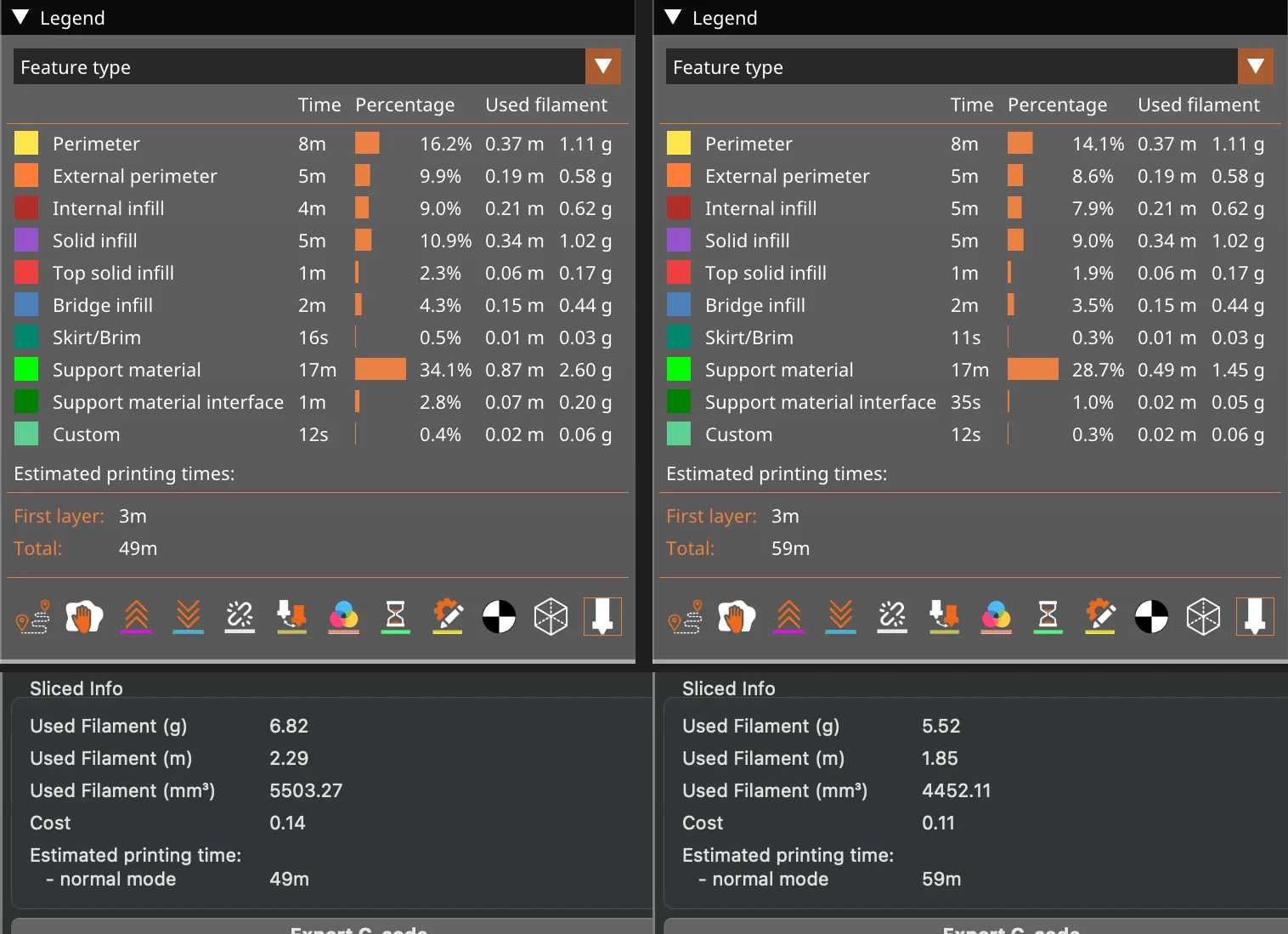
Build plate only and Everywhere gave identical numbers here, which makes sense on this part: the stem stands on the plate and nothing else sits underneath the bar, so every support column reaches the bed. A part with an overhang over its own lower surface would show a difference. Grid added about 2.8 g of filament over the part alone, 2.60 g of Support material and 0.20 g of interface. Snug estimated about 1.3 g less than Grid and 2 minutes less. Organic estimated almost the same filament as Snug but 10 minutes more than Grid, with 1.45 g of Support material in the legend. The Preview shows why: Organic builds a few branches that grow from round bases on the bed and touch the bar underside at several points, instead of a solid block. For another program's take on the same question see OrcaSlicer supports and Cura supports.
How do you paint supports by hand?
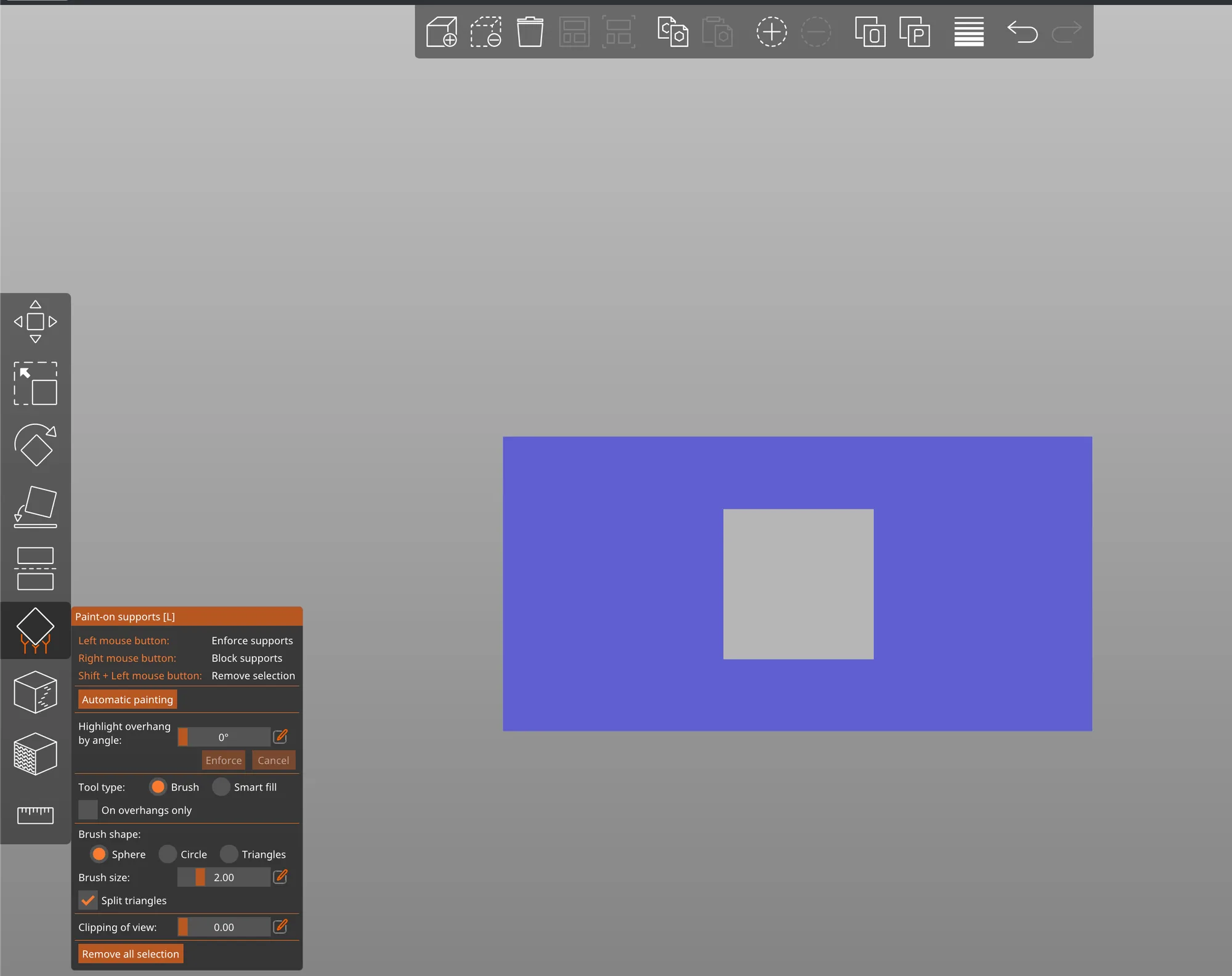
Click the part on the Plater, hover the 3D view and press L. The toolbar icon with orange legs does the same. The Paint-on supports [L] panel opens and lists the mouse buttons: left button enforces supports, right button blocks supports, Shift plus left button removes the selection. Below that we found:
- An Automatic painting button, which we did not press.
- Highlight overhang by angle, a slider at 0 degrees with Enforce and Cancel buttons that stay greyed out until the angle is above 0. The pencil icon beside it lets you type a value.
- Tool type: Brush or Smart fill, and an On overhangs only checkbox.
- Brush shape: Sphere, Circle or Triangles, Brush size 2.00, a ticked Split triangles, Clipping of view 0.00 and a Remove all selection button.
We typed 45 into the highlight field, pressed key 2 over the view to look at the part from below, and the whole underside of the bar was tinted. Clicking Enforce turned it blue, leaving the stem footprint in the middle grey, and the object list gained a Paint-on supports row under overhang-t.stl. With the sidebar Supports combo on For support enforcers only and the Organic style, the estimate became 1h12m and 6.67 g, so the enforcer covered the same area as the automatic supports and then some. We did not use the Brush, Smart fill or the right mouse button, so we cannot say how they behave beyond what the panel states.
Remove all selection cleared the paint and the Paint-on supports row disappeared. We then set Supports back to None, pressed the lock at the top of the Print Settings tab to reset the preset, and ended with an unmodified 0.20 mm NORMAL in Normal mode. Next in the course is the brim, skirt and seam lesson, and for a wider comparison of the programs see Cura vs OrcaSlicer vs PrusaSlicer.
Next lesson: PrusaSlicer Brim, Skirt and Seam Position Explained.