A brim, a skirt and a seam are three small settings that decide how a print starts and where each layer begins. This lesson, tested in PrusaSlicer 2.9.6 on macOS, reads the Skirt and brim page, compares no skirt, a skirt and a brim by slicer estimate, then moves the seam by setting and by painting.
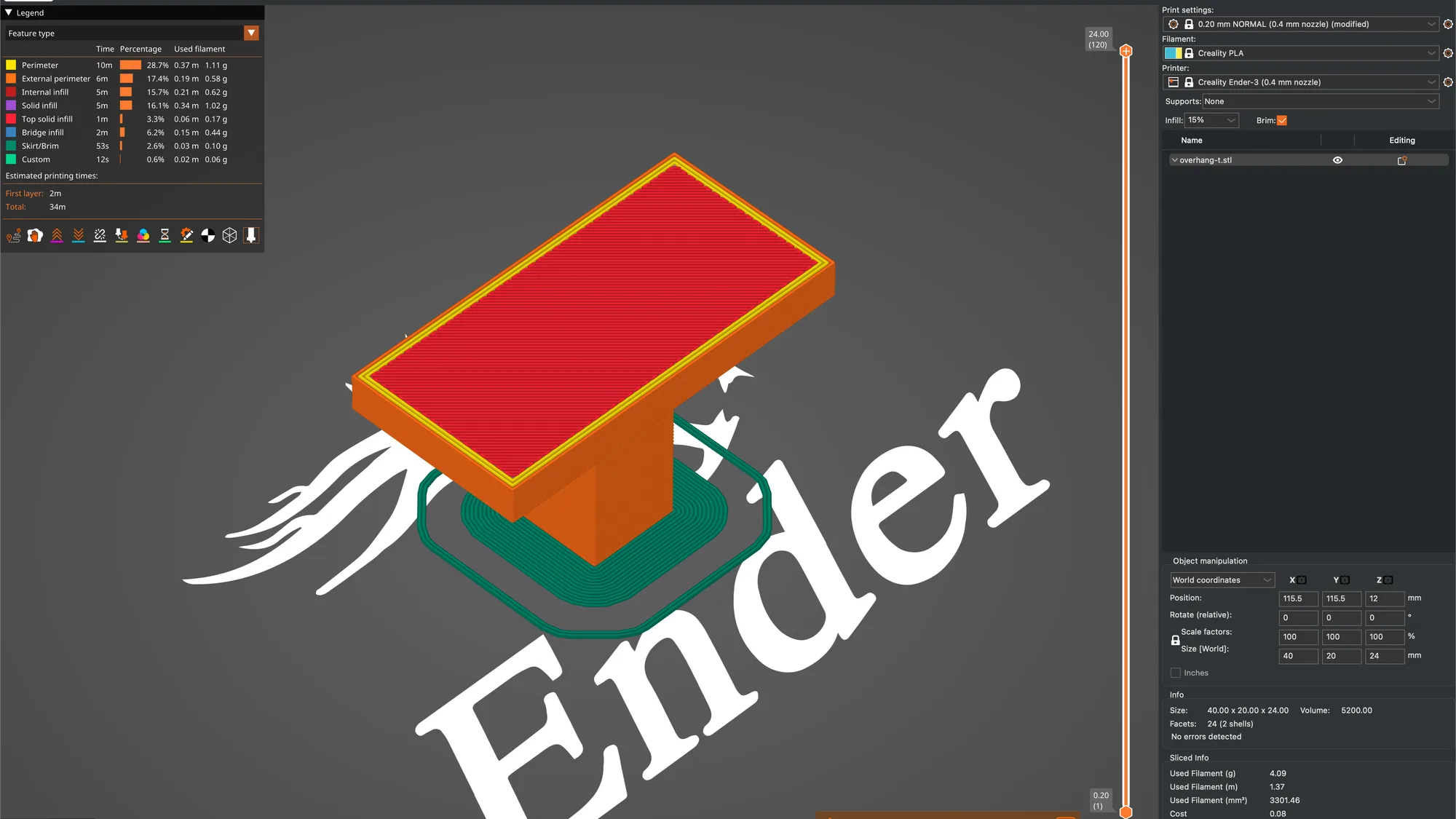
We continue from the supports lesson: a Creality Ender-3 with a 0.4 mm nozzle, Creality PLA and the 0.20 mm NORMAL preset, with the overhang-t part (40 by 20 by 24 mm, a T shape on a small footprint) on the plate. For the theory read brim vs raft vs skirt and seam position explained. We started in Normal mode and switched to Expert mode where noted, then went back to Normal.
What is on the Skirt and brim page?
Open the Print Settings tab and click Skirt and brim in the page list. In Normal mode the page has two boxes. The Skirt box lists four options and the Brim box lists three. Expert mode adds one more row to the Skirt box. These are the values on the 0.20 mm NORMAL preset, with the tooltip text where we read it by hovering over each field:
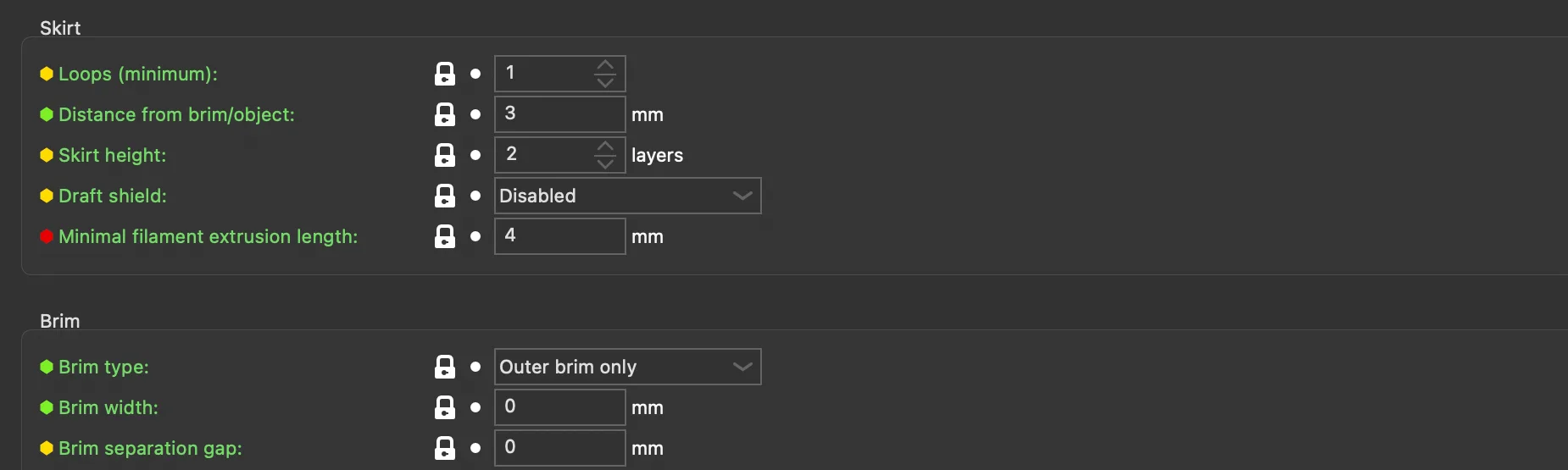
- Loops (minimum): 1. Tooltip: Number of loops for the skirt. If the Minimum Extrusion Length option is set, the number of loops might be greater than the one configured here. Set this to zero to disable skirt completely. The tooltip lists the default as 1.
- Distance from brim/object: 3 mm on this preset. Tooltip: Distance between skirt and brim (when draft shield is not used) or objects. The tooltip lists the default as 6, so the preset has chosen a closer skirt.
- Skirt height: 2 layers. Tooltip: Height of skirt expressed in layers. The tooltip lists the default as 1.
- Draft shield: Disabled. The tooltip says that with the shield active the skirt is printed at the skirt distance from the object, possibly intersecting the brim. Enabled makes the skirt as tall as the highest printed object, Limited makes it as tall as Skirt height, and the tooltip says this helps protect an ABS or ASA print from drafts.
- Minimal filament extrusion length (Expert mode only, red dot): 4 mm. Tooltip: Generate no less than the number of skirt loops required to consume the specified amount of filament on the bottom layer. For multi-extruder machines, this minimum applies to each extruder. The tooltip lists the default as 0.
- Brim type: Outer brim only. Tooltip: The places where the brim will be printed around each object on the first layer. The list has four entries: No brim, Outer brim only, Inner brim only and Outer and inner brim.
- Brim width: 0 mm. Tooltip: The horizontal width of the brim that will be printed around each object on the first layer. When raft is used, no brim is generated.
- Brim separation gap: 0 mm. Tooltip: Offset of brim from the printed object. The offset is applied after the elephant foot compensation.
The coloured dots beside the labels show the mode: Loops is yellow (Normal), Distance and the three Brim rows other than the gap are green (Beginner), and Minimal filament extrusion length is red (Expert). A brim type of Outer brim only with a width of 0 means no brim is generated, which is why the sidebar checkbox is the usual way to switch one on. The Raft layers option lives on the Support material page, covered in the supports lesson, and we did not change it here.
How do you add a brim in PrusaSlicer?
The quickest way is the Brim checkbox on the Plater sidebar, next to the Infill box. We ticked it, and the preset name changed to 0.20 mm NORMAL (0.4 mm nozzle) (modified). Back on the Skirt and brim page, Brim width had changed from 0 to 5 mm and carried an orange unlocked icon with a reset arrow. Brim type stayed on Outer brim only. Clicking the reset arrow returned the width to 0, which is the same as unticking the checkbox.
You can also type a width yourself on the Skirt and brim page. Choosing Inner brim only or Outer and inner brim puts brim inside holes in the first layer, which this solid T part does not have, so we did not test those two choices and cannot say how they look. The brim separation gap is only useful when you want the brim to peel away cleanly, and we left it at 0.
What do a skirt and a brim change in the slicer estimate?
We sliced the overhang-t part three times with supports off and read the Preview legend and the Sliced Info box. In the legend the skirt and the brim share one row, Skirt/Brim, in dark green. For the first run we set Loops to 0 and the brim off, for the second we used the preset as shipped, and for the third we ticked the sidebar Brim checkbox for a 5 mm width. Everything below is a slicer estimate, and nothing was printed.
| Setting | Estimated time | Estimated filament | Skirt/Brim legend row |
|---|---|---|---|
| No skirt, no brim (Loops 0) | 33m | 3.99 g (1.34 m) | row absent |
| Default skirt (1 loop, 3 mm, 2 layers) | 33m | 4.03 g (1.35 m) | 18s, 0.03 g |
| 5 mm outer brim plus the skirt | 34m | 4.09 g (1.37 m) | 53s, 0.10 g |
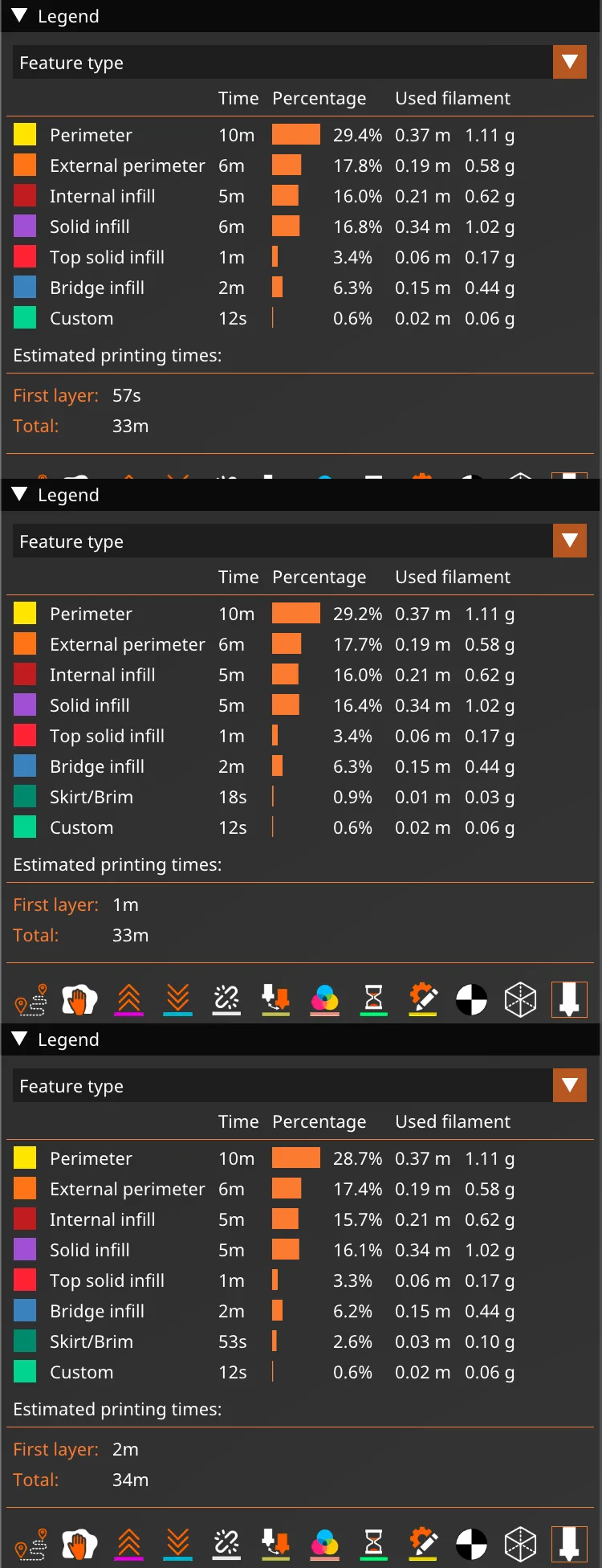
The skirt costs about 0.04 g and the brim about 0.10 g of Skirt/Brim material on this part, so the totals move by a gram fraction, and the brim adds roughly a minute. The first layer time in the legend moved too: 57s with no skirt, 1m with the skirt and 2m with the brim, because the brim is a lot of extra first layer length. In the Preview the skirt is the thin green loop a few millimetres out from the stem, drawn only two layers tall, while the brim is a wide filled band touching the stem with the skirt loop outside it. Because the stem footprint here is small, this is the kind of part where a brim is often considered, but we cannot say how it would hold in a real print. For how other programs handle the same choice see OrcaSlicer brim, skirt and seam and Cura adhesion.
Where does PrusaSlicer put the seam?
Click Layers and perimeters in the page list and scroll to the Advanced box. The seam options are at the top of it:
- Seam position: Nearest on this preset. Tooltip: Position of perimeters starting points. The tooltip lists the default as Aligned, so this preset differs from the program default. The list has four entries: Random, Nearest, Aligned and Rear.
- Seam gap distance: 15%. Tooltip: The distance between the endpoints of a closed loop perimeter. Positive values will shorten and interrupt the loop slightly to reduce the seam. Negative values will extend the loop, causing the endpoints to overlap slightly. When percents are used, the distance is derived from the nozzle diameter. Set to zero to disable this feature.
- Staggered inner seams: unticked. Tooltip: This option causes the inner seams to be shifted backwards based on their depth, forming a zigzag pattern.
- Scarf joint placement: Nowhere, with several scarf joint options below it that were greyed out while it stayed on Nowhere. These are new in this version and we did not change them.
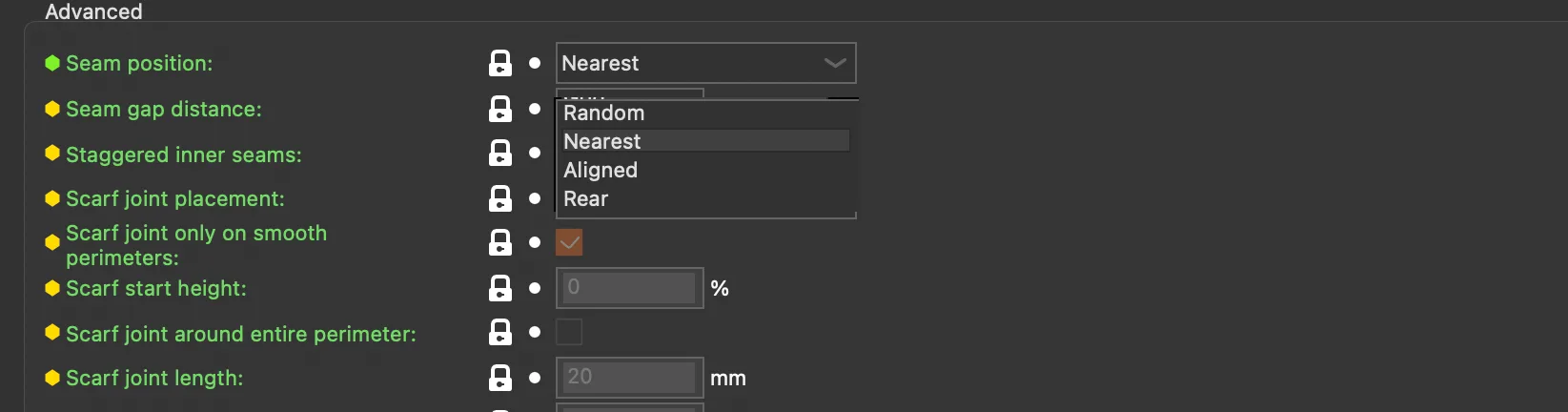
All of the seam rows have a yellow dot except Seam position, which is green, so Seam position shows in Beginner mode and the rest from Normal mode up. We did not slice with each of the four choices and compare the seam by eye, so we make no claim here about how Random, Aligned or Rear look on this part. The seam position article explains the trade offs in general.
How do you paint the seam in PrusaSlicer?
Select the part on the Plater, hover the 3D view and press P. The toolbar icon of a cube with orange marks does the same. A Seam painting [P] panel opens and lists the mouse buttons: left mouse button enforces the seam, right mouse button blocks the seam, Shift plus left mouse button removes the selection. Below that the panel has:
- Brush size: a slider at 2.00.
- Brush shape: Sphere (selected) or Circle.
- Clipping of view: a slider at 0.00.
- A Remove all selection button.
Unlike the Paint-on supports panel, this one has no tool type or automatic painting buttons. We held the left mouse button and dragged one stroke across the top face of the bar near its front edge. The stroke turned blue and the object list gained a Paint-on seam row under overhang-t.stl. We did not use the right mouse button, so we cannot show what a blocked area looks like, and we did not slice with the painted seam to check where PrusaSlicer put it.
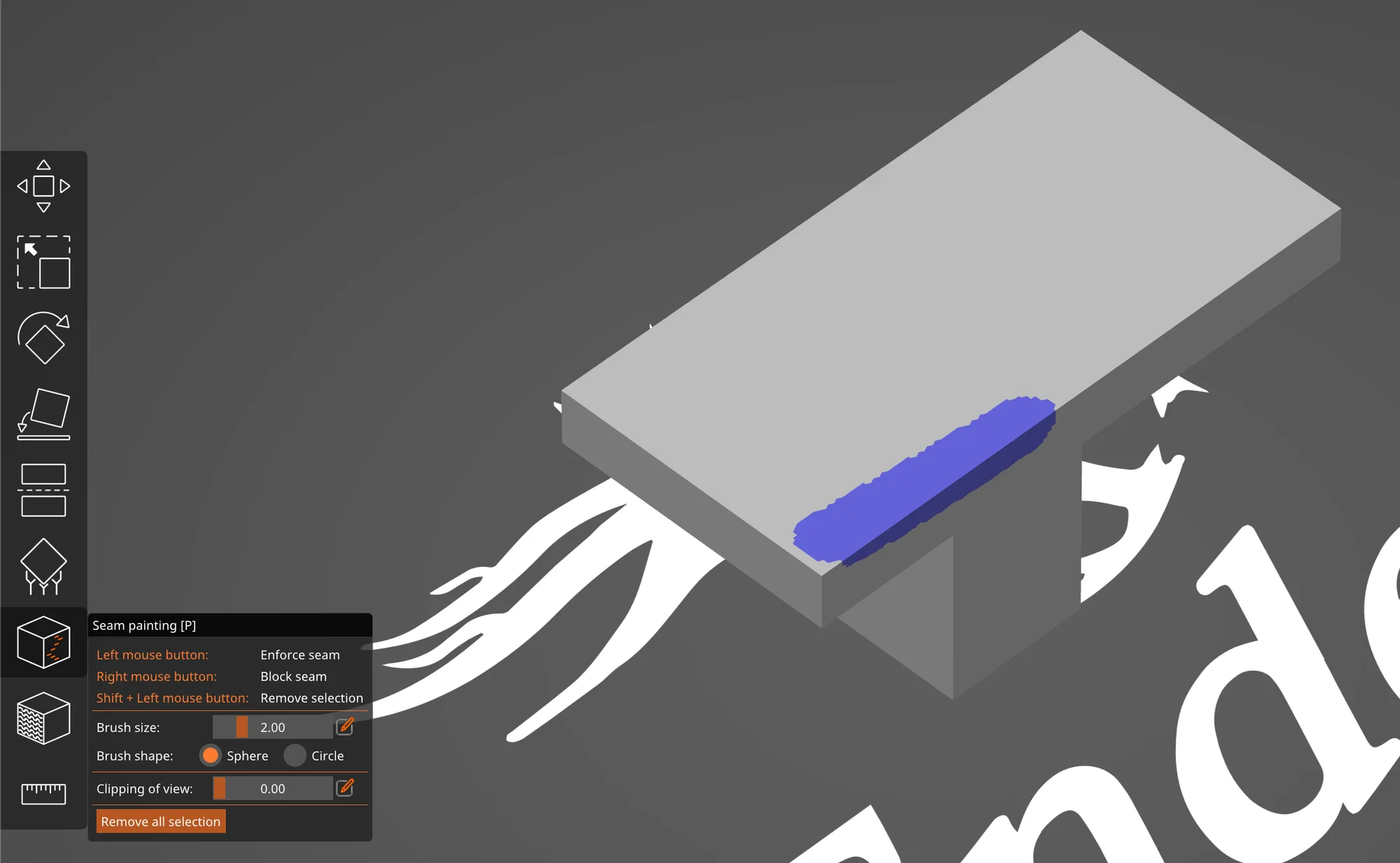
Pressing Remove all selection cleared the stroke and the Paint-on seam row disappeared. We closed the tool with P, reset the preset with the lock at the top of the Print Settings tab so it read 0.20 mm NORMAL (0.4 mm nozzle) with no modified tag, and switched back to Normal mode. Next in the course is the Preview and layers lesson, and for a wider comparison of the programs see Cura vs OrcaSlicer vs PrusaSlicer.
Next lesson: PrusaSlicer Preview: Layers, Sliders and View Types.