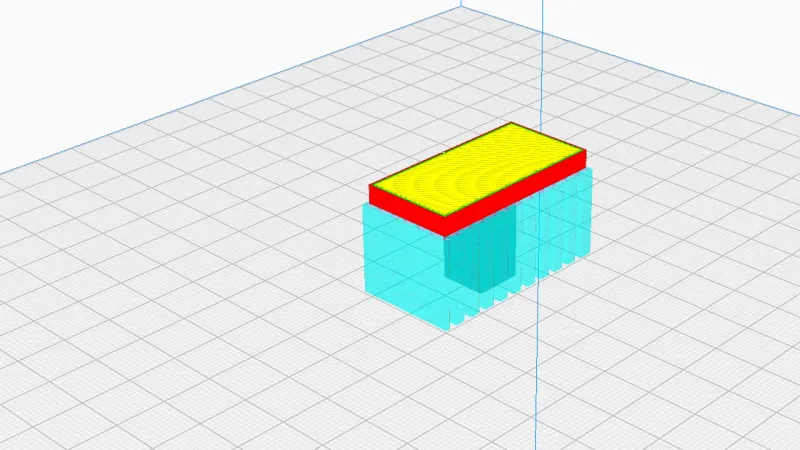
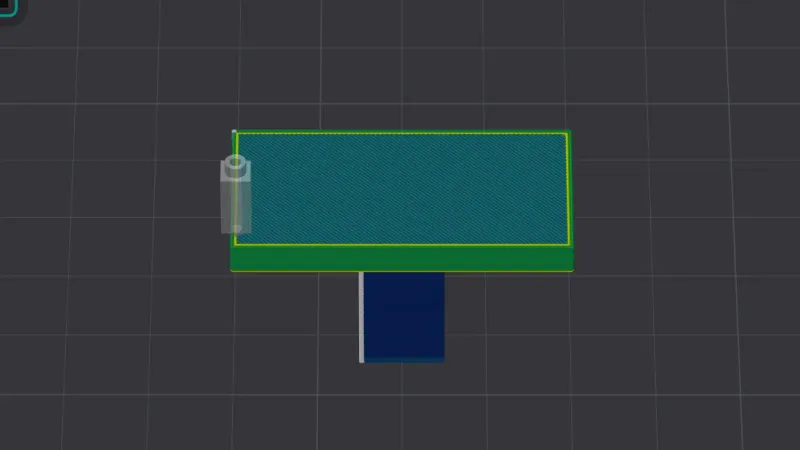
The PrusaSlicer preview is the tab where you check a slice layer by layer before exporting anything. This lesson, tested in PrusaSlicer 2.9.6 on macOS in Normal mode, slices the overhang-t part, then works through the layer sliders, the view drop-down, the legend and the camera keys.
We continue from the brim, skirt and seam lesson: a Creality Ender-3 with a 0.4 mm nozzle, Creality PLA and the 0.20 mm NORMAL preset, with Supports set to None and Brim unticked. The overhang-t part is 40 by 20 by 24 mm. For what the slicer is doing, see what is a slicer. Other programs have the same tool, covered in Cura preview and OrcaSlicer preview.
How do you slice and open Preview in PrusaSlicer?
With the part on the plate in the 3D view, click Slice now, the button at the bottom of the sidebar. When the slice finished, PrusaSlicer opened the Preview by itself, and the button changed to Export G-code. We did not test the background processing option in Preferences, so we make no claim about slicing on every change. The Keyboard shortcuts list under Help (Keyboard Shortcuts, or the ? key) shows the keys for this:
- Cmd+R: (Re)slice.
- Cmd+5: Switch to 3D. We used it at the end to go back to the editor.
- Cmd+6: Switch to Preview. This is the listed shortcut, though our preview opened automatically after slicing, so we did not press it ourselves.
- Tab: Switch between Editor/Preview, from the Plater list.
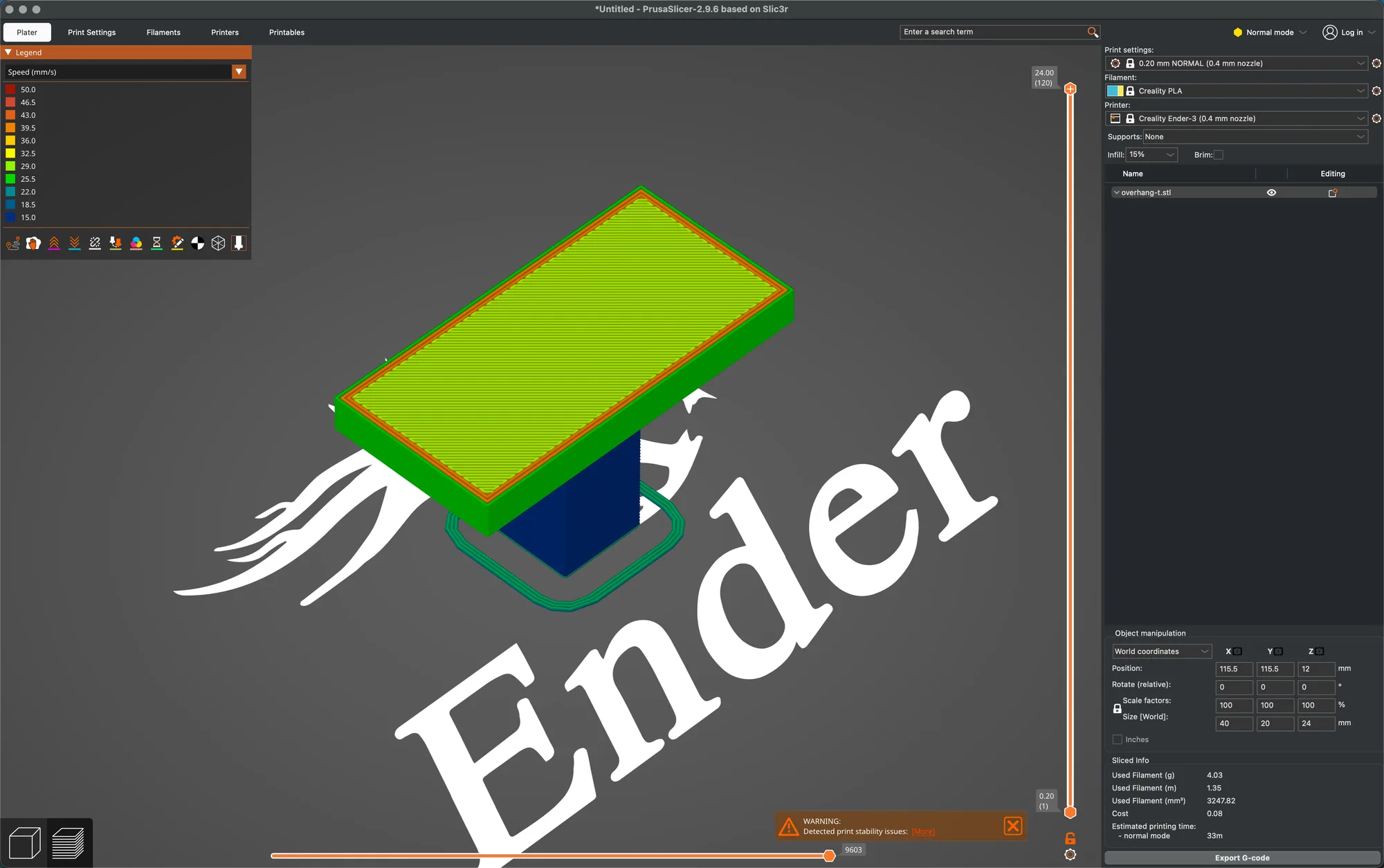
The two icons at the bottom left of the canvas, a cube and a stack of layers, are the clickable versions. The Preview is empty until a slice exists. If you change a setting or add a colour change, the slice is thrown away and the button goes back to Slice now, which we saw first hand below. A banner at the bottom right read Detected print stability issues with a More
What does the vertical layer slider do?
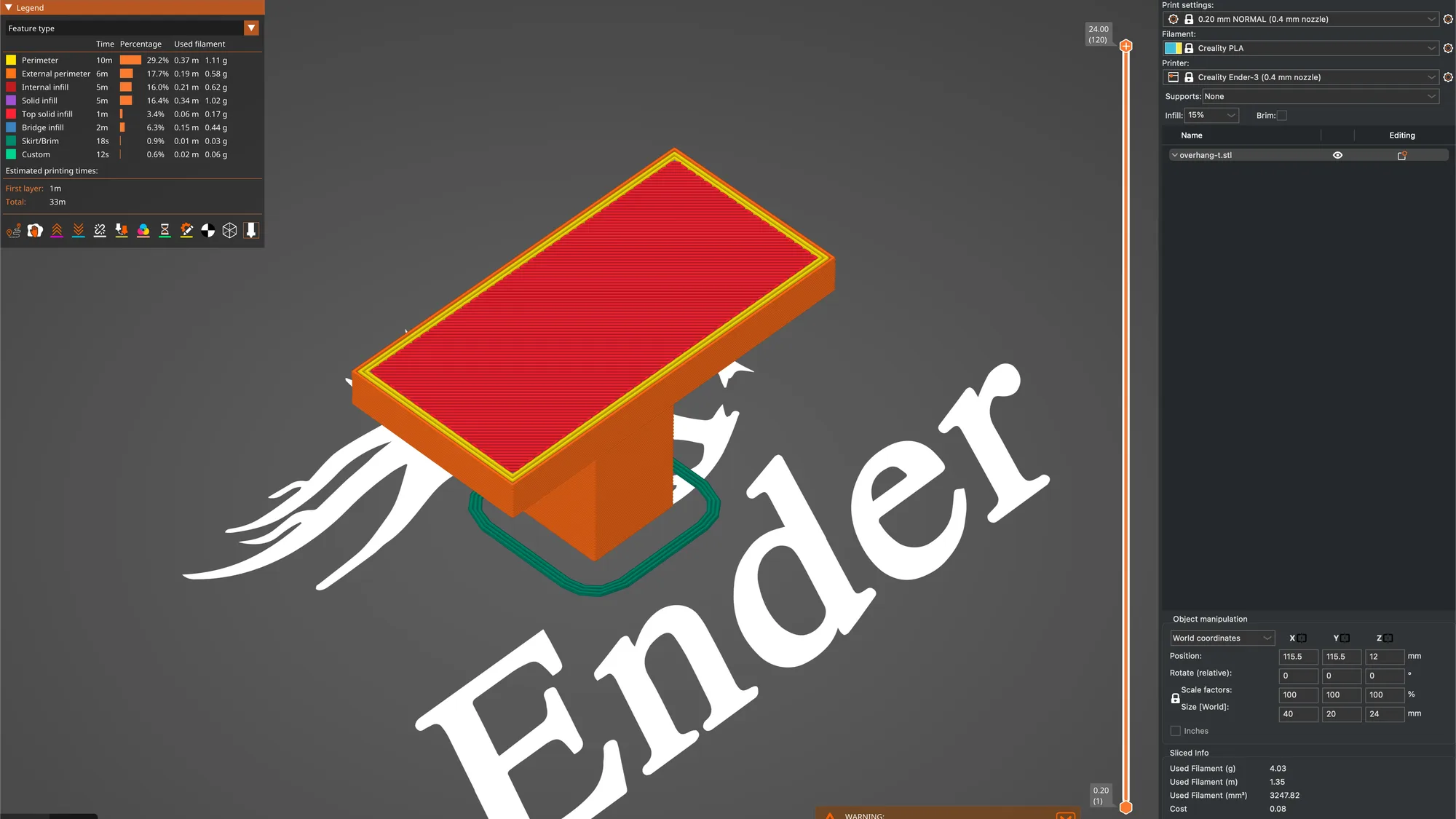
The slider down the right edge has two round handles. The upper handle labels read 24.00 (120), a height in millimetres and a layer number, and the lower handle read 0.20 (1). Our 24 mm part in 0.2 mm layers has 120 layers. Everything between the handles is shown, so you can scrub up to see inside the part. Hovering a handle also shows an estimated time in a small box, because the cog menu has Show estimated print time on hover ticked. At layer 60 the box read 11m 51s, and at layer 100 it read 18m 51s, both slicer estimates.
Three ways to move a handle, all tested:
- Drag it with the mouse.
- Arrow keys. The shortcut list says Arrow Up and Arrow Down move the active thumb, with W and S as alternatives, and that Shift or Cmd speeds it up five times. With the pointer over the slider, three presses of Up took the label from 12.00 (60) to 12.60 (63). Our first attempt with a command line key tool did nothing, and a system key event worked, so if the keys seem dead click the canvas first.
- Jump to height. Click the cog at the bottom of the slider and choose Jump to height, or press Shift+G. A small box says Enter the height you want to jump to with an OK button. We typed 12 and the handle went to 12.00 (60), then 20 for 20.00 (100).
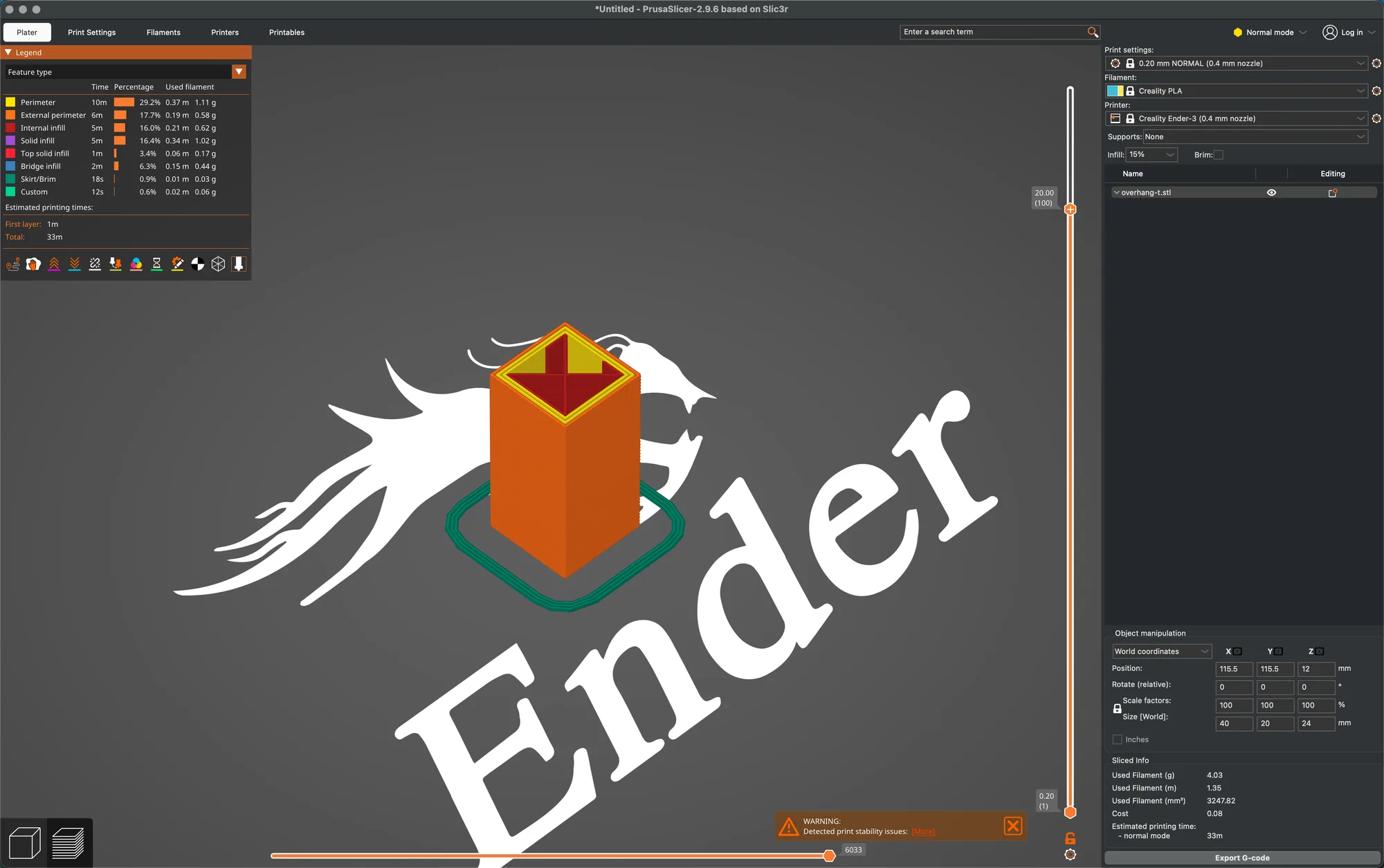
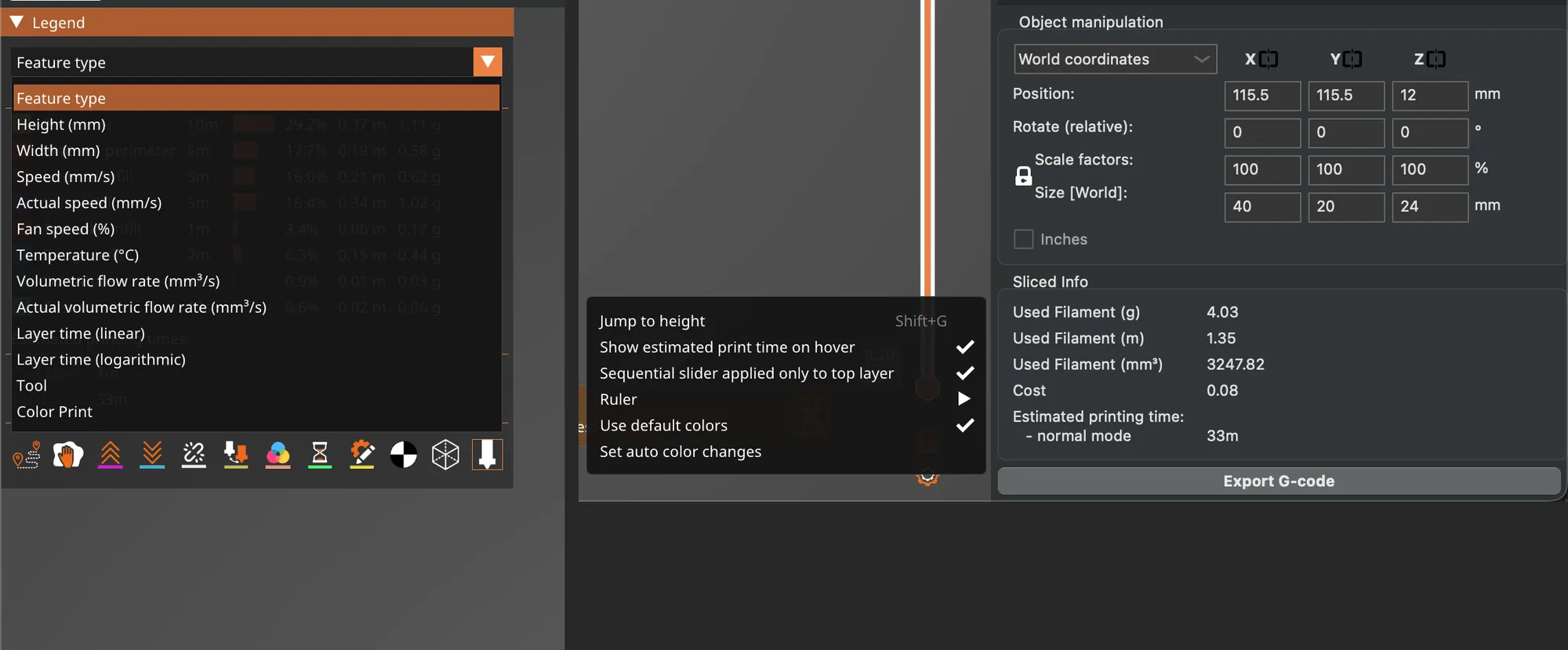
The cog menu has six rows: Jump to height (Shift+G), Show estimated print time on hover (ticked), Sequential slider applied only to top layer (ticked), Ruler (a submenu), Use default colors (ticked) and Set auto color changes. The small lock icon under the slider has the tooltip One layer mode, and the shortcut list gives X to toggle it. We did not use the Ruler submenu or the auto colour changes, so we cannot describe them.
What is the plus icon on the slider handle?
The orange plus on the handle adds a colour change at that layer. We clicked it at layer 100. The tooltip read Color change ("M600") followed by Edit current color and Right click the colored slider segment, the slider below the mark turned yellow, the model showed as a colour print, and a new orange arrow appeared above the slider with the tooltip Discard all custom changes. The sliced info vanished and the button went back to Slice now, because a colour change edits the G-code. We clicked the discard arrow, which removed it, and sliced again. The shortcut list also gives + and minus keys to add and delete a colour change for the current layer. We did not export a colour change or run it on a printer, so how the printer handles it is outside this test.
What does the horizontal slider show?
The thin slider along the bottom edge has one number on its handle. With the top layer selected it read 9603. We pressed Left arrow five times with the pointer over the canvas and the number dropped to 3953, and a G-code window opened down the left side listing lines of G-code with line 3953 outlined, such as 3953 G1 E5 F2400 and a ;TYPE:Internal infill comment at line 3954. So the horizontal slider is a G-code line position. A grey nozzle marker showed on the part, and a box at the bottom read Position: X: 116.818, Y: 119.200, Z: 12.600. The Preview shortcuts list C for Show/Hide G-code window. Arrow Left and Right move the thumb, Up and Down pick which thumb is active, and Shift or Cmd moves five times faster. We did not press C ourselves, so we only report it from the list.
For what those lines mean see what is G-code.
What views are in the View drop-down?
The legend panel has a drop-down that starts on Feature type. We opened it and counted thirteen entries, in this order:
- Feature type
- Height (mm)
- Width (mm)
- Speed (mm/s)
- Actual speed (mm/s)
- Fan speed (%)
- Temperature (C) (shown with a degree sign)
- Volumetric flow rate (mm3/s)
- Actual volumetric flow rate (mm3/s)
- Layer time (linear)
- Layer time (logarithmic)
- Tool
- Color Print
We tested two views on the same slice. Feature type is covered next. Speed (mm/s) swaps the legend for a colour scale running from 15.0 at dark blue to 50.0 at dark red. On overhang-t the stem was dark blue, the long sides of the bar green, the big top face yellow green and the outline loops orange. We did not open the other eleven views, so we only list them. For the settings behind speed see print speed vs quality, and for layer thickness see layer height explained.
How do you read the Feature type legend?
In Feature type view, the legend lists a colour swatch for each type that exists in this slice, with its time, share and filament. These are the rows on overhang-t, which had no supports:
| Feature | Time | Share | Filament |
|---|---|---|---|
| Perimeter | 10m | 29.2% | 0.37 m, 1.11 g |
| External perimeter | 6m | 17.7% | 0.19 m, 0.58 g |
| Internal infill | 5m | 16.0% | 0.21 m, 0.62 g |
| Solid infill | 5m | 16.4% | 0.34 m, 1.02 g |
| Top solid infill | 1m | 3.4% | 0.06 m, 0.17 g |
| Bridge infill | 2m | 6.3% | 0.15 m, 0.44 g |
| Skirt/Brim | 18s | 0.9% | 0.01 m, 0.03 g |
| Custom | 12s | 0.6% | 0.02 m, 0.06 g |
Below the table, Estimated printing times gave First layer 1m and Total 33m. There was no Overhang perimeter, Support material or Gap fill row on this slice. Rows for other types appear only when the slice contains them, so a supported part would show more. The Bridge infill row is the flat area under the wide bar, and supports explained covers why that area matters. Pressing L hid the whole legend and pressing it again brought it back.
Under the table sits a row of twelve small icons. We hovered each and read its tooltip, left to right: Travel, Wipe, Retractions, Deretractions, Seams, Tool changes, Color changes, Print pauses, Custom G-codes, Center of gravity, Shells and Tool marker. They switch extra markers on and off over the toolpaths. The tooltips are only the names, and we did not turn each one on and check its look, so we describe none of them beyond that. We found no separate Show menu in the Preview, so these toggles are the show options.
What is in the Sliced Info box?
Back on the sidebar, a Sliced Info box sits under Object manipulation. It listed Used Filament (g) 4.03, Used Filament (m) 1.35, Used Filament (mm3) 3247.82, Cost 0.08, and Estimated printing time with one line, normal mode, 33m. There was no silent mode line, and no total line beyond that. These are the slicer's numbers from the filament profile, not measurements, and nothing was printed.
Which camera keys work in the Preview?
The Commands list shows 0-6 as Camera view. With the pointer over the canvas we pressed each one. 0 gave the angled isometric view and 1 looked straight down on the top face. 2 looked up from underneath, with the text on the bed mirrored. Keys 3, 4, 5 and 6 gave four side-on views of the T. We did not work out which side is which, so check each key yourself. In the Plater list, Z zooms to the object, B zooms to the bed and K changes the camera type between perspective and orthographic.
We finished with Cmd+5 back in the 3D view, Normal mode, the overhang-t part loaded and the preset reading 0.20 mm NORMAL (0.4 mm nozzle) unmodified. Next in the course is exporting G-code, and for a comparison of the three slicers see Cura vs OrcaSlicer vs PrusaSlicer.
Next lesson: PrusaSlicer Export Gcode: Files, Projects and Config.