PrusaSlicer export gcode is a short job: slice, then click Export G-code and pick a folder. This lesson, tested in PrusaSlicer 2.9.6 on macOS in Normal mode, covers the button, the Save dialog, the File menu export entries and what the exported files hold. We exported to a scratch folder and did not print.
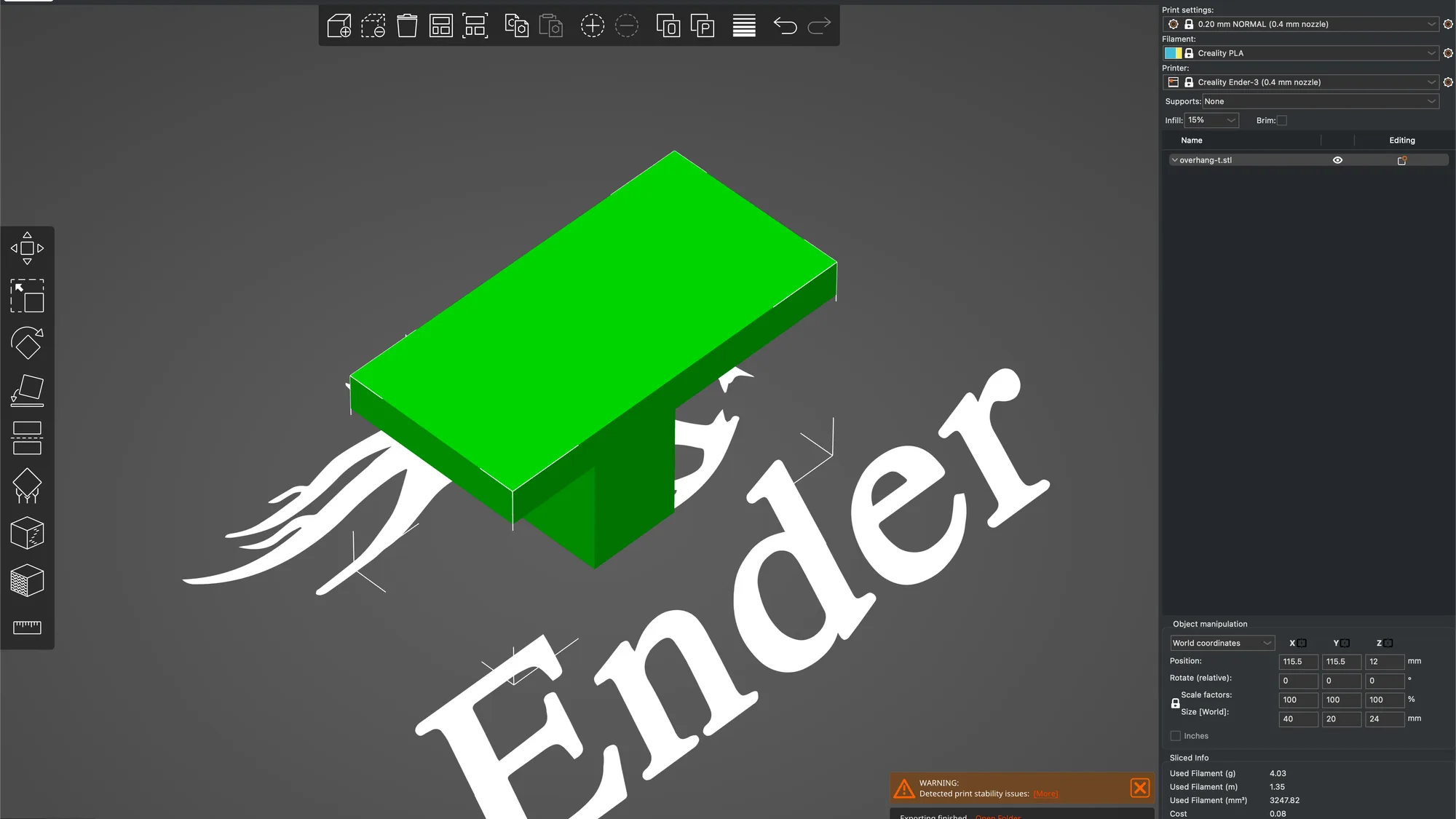
We continue from the Preview and layers lesson, so the setup is the same: a Creality Ender-3 with a 0.4 mm nozzle, Creality PLA, the 0.20 mm NORMAL preset and the 40 by 20 by 24 mm overhang-t part, with Supports set to None. If G-code is new to you, what is G-code explains the format first.
How do you export G-code in PrusaSlicer?
The big button at the bottom of the sidebar changes with the slice state. It says Slice now before a slice exists and Export G-code once the plate is sliced. Our plate was already sliced, so we clicked Export G-code. You can also use File, Export, Export G-code, where the menu shows Cmd+G.
A macOS dialog titled Save opened with the prompt Save G-code file as:. The Where menu offered the folder models, which is where we had imported the part from, and the file type menu read G-code files with a list of extensions beginning *.gcode, *.gco and *.bgcode. The suggested name was:
overhang-t_33m_0.20mm_200C_PLA_ENDER3Reading it against our slice: overhang-t is the model name, 33m the estimated time, 0.20mm the layer height, 200C the nozzle temperature, PLA the filament type and ENDER3 the printer model. We did not change the naming pattern, so we cannot say where it is edited. Look at the folder before you press Save.
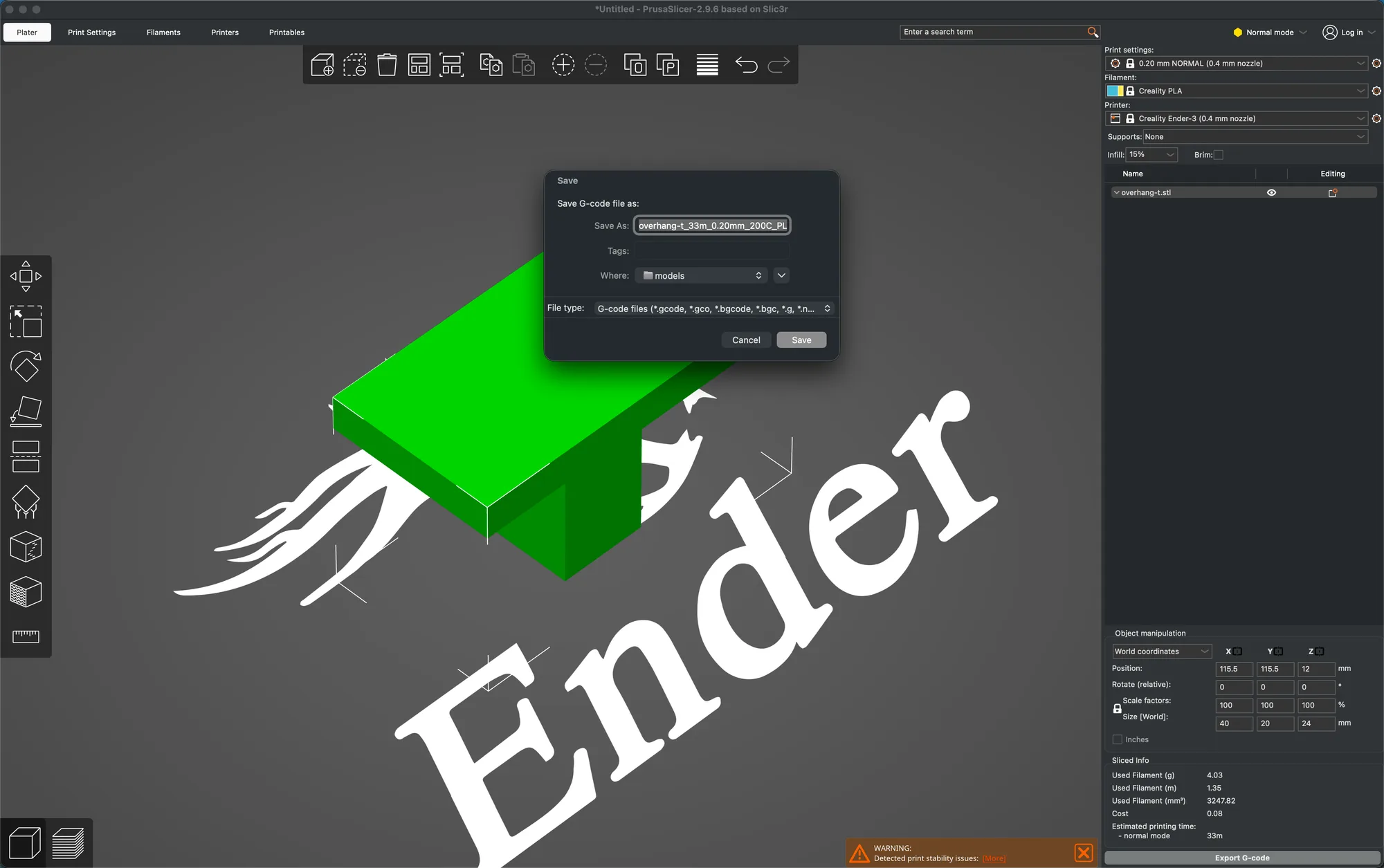
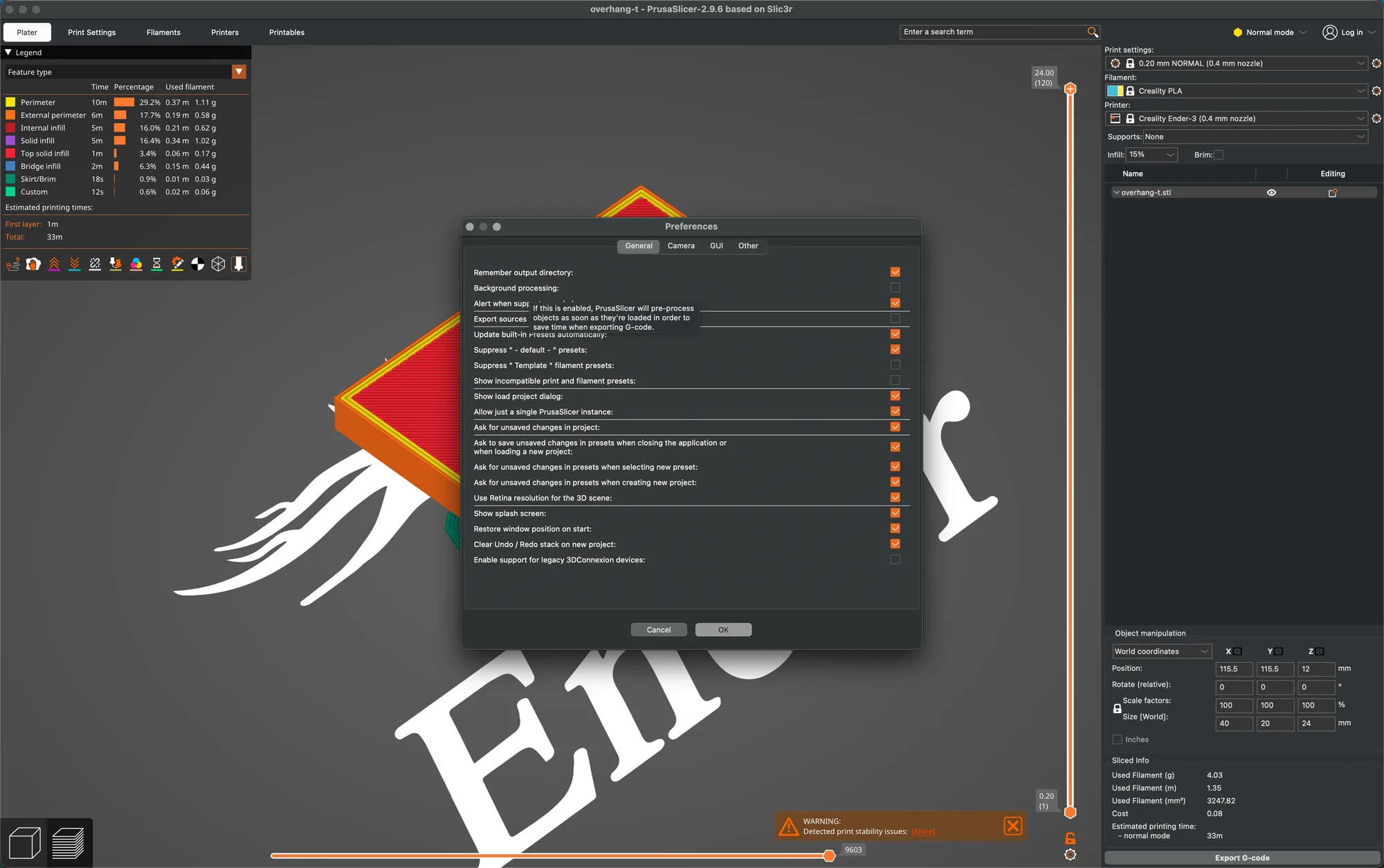
We pressed Cmd+Shift+G in the dialog, typed our scratch folder path and pressed Save. A notice appeared at the bottom right of the canvas: Exporting finished. with an Open Folder. link and the full path of the file. No warning dialog stopped us. The orange Detected print stability issues banner was already there from the earlier lessons, and it is a notice, not a dialog. Preferences also has Remember output directory ticked in our install, which is why the dialog can start in the last folder you used.
Slice now or background processing?
Without background processing, you click Slice now yourself, and Cmd+R is shown for (Re)Slice Now in the File menu. In Configuration, Preferences, General there is a Background processing checkbox, unticked in our install. Hovering it showed this tooltip: If this is enabled, PrusaSlicer will pre-process objects as soon as they're loaded in order to save time when exporting G-code. We did not tick it, so we cannot say how it behaves with a larger plate.
What does the File menu offer for saving and exporting?
The File menu is in the macOS menu bar. These are the entries we read, with the shortcut the menu shows in brackets:
- Save Project (Cmd+S) and Save Project as (Cmd+Shift+S)
- Export, Export G-code (Cmd+G)
- Export, Send G-code (Cmd+Shift+G), greyed out for us
- Export, Export G-code to SD Card / Flash Drive (Cmd+U), greyed out for us
- Export, Export Plate as STL/OBJ and Export Plate as STL/OBJ Including Supports (the second was greyed out, and our plate had no supports)
- Export, Export Toolpaths as OBJ
- Export, Export Config (Cmd+E), Export Config Bundle and Export Config Bundle With Physical Printers
- Convert, with Convert ASCII G-code to binary and Convert binary G-code to ASCII, which we did not run
The items that were greyed out need hardware. Send G-code needs a print host, and the SD card entry needs a removable drive, and we had neither. Export Toolpaths as OBJ was greyed out while we were in the 3D view and became active after we switched to the Preview with Window, Preview (Cmd+6), so it needs the Preview to be showing.
What is the difference between a project and G-code?
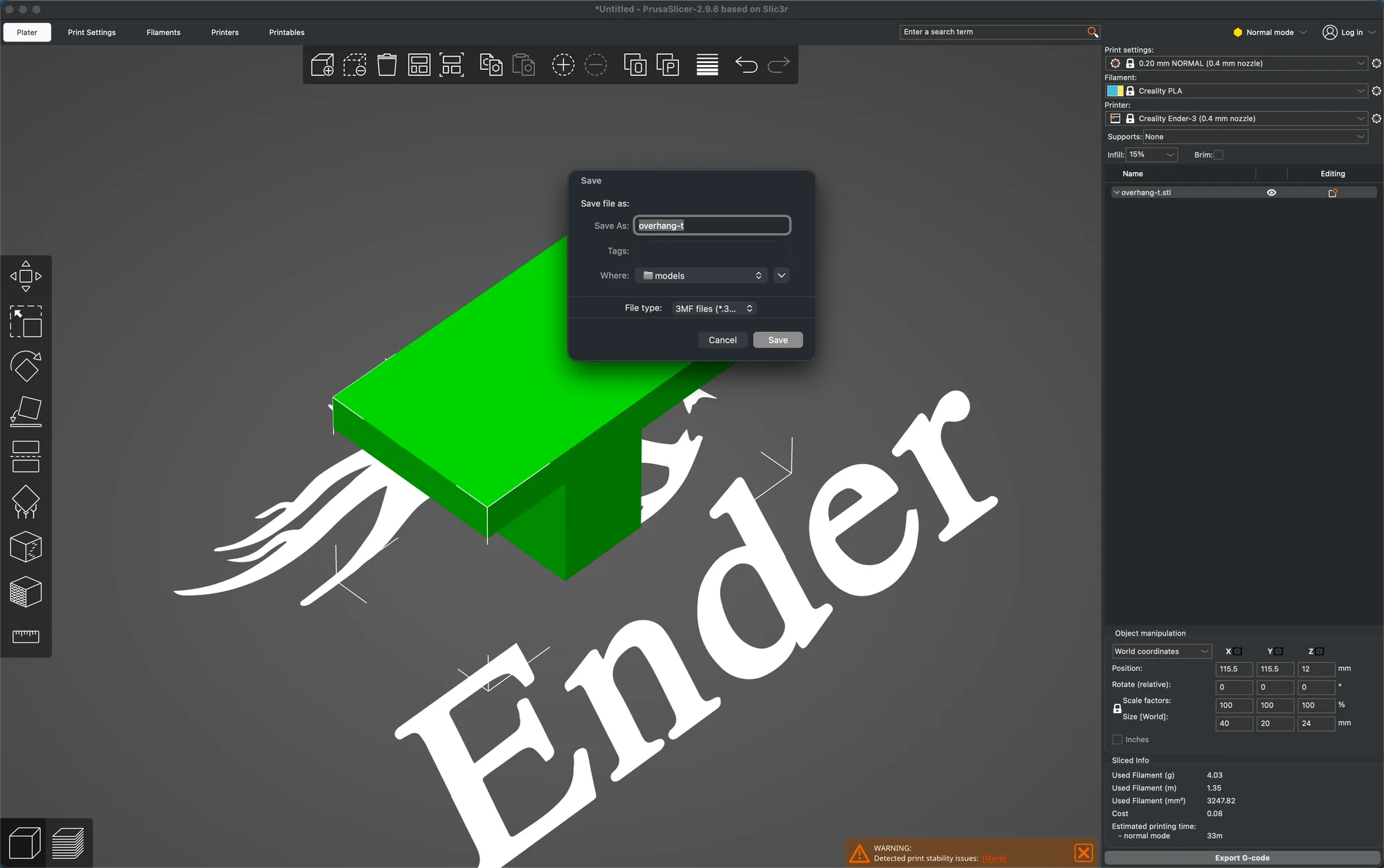
We chose Save Project as. The dialog said Save file as:, suggested the name overhang-t and set the file type to 3MF. After saving, the asterisk in the window title went away and the title read overhang-t. A project keeps the model and the settings so you can reopen it and keep editing, and G-code is the finished instruction file. See STL vs 3MF vs G-code for the wider comparison.
Which files did we end up with?
We exported each entry once into the same scratch folder and read the folder afterwards:
| File | Made by | Size |
|---|---|---|
| overhang-t_33m_0.20mm_200C_PLA_ENDER3.gcode | Export G-code | 216,547 bytes |
| overhang-t.3mf | Save Project as | 17,965 bytes |
| overhang-t.stl | Export Plate as STL/OBJ | 1,284 bytes |
| overhang-t.obj and overhang-t.mtl | Export Toolpaths as OBJ | 10,104,888 and 586 bytes |
| config.ini | Export Config | 12,615 bytes |
| PrusaSlicer_config_bundle.ini | Export Config Bundle | 229 bytes |
The STL is tiny because our part is a simple 24 triangle shape. The toolpath OBJ is large because it models every extrusion move. The config bundle is small because it only held the names of the selected presets: its [presets] section listed the print, printer and filament names, and we had no user presets of our own to bundle.
What is inside the exported G-code?
We only read the file and did not run it. It is plain text, 10,013 lines. The first line is the comment ; generated by PrusaSlicer 2.9.6 followed by the date and time. Next come extrusion width comments, then machine limit lines such as M201 and M203, and the start sequence with heating and homing (M104, M140, G28, M190, M109). The first layer begins at a ;LAYER_CHANGE comment followed by ;Z:0.2. In total the file has 7,009 lines beginning with G1.
Near the end the file has a summary block of comments. It lists filament used as 1350.29 mm, 3.25 cm3 and 4.03 g, a filament cost of 0.08 and estimated printing time (normal mode) = 33m 18s, plus an estimated first layer time of 1m 2s. These are the slicer's estimates and match the Sliced Info box.
The last part of the file is the config block. It begins with the line ; prusaslicer_config = begin (line 9637 for us) and finishes with ; prusaslicer_config = end on the final line, with about 375 settings between them such as layer_height = 0.2, temperature = 200, filament_type = PLA and gcode_flavor = marlin. So the G-code carries a copy of how it was sliced. It is a record, not a substitute for the project file.
What is inside the 3MF project?
A 3MF is a zip archive. Listing ours with unzip -l showed seven entries:
[Content_Types].xml_rels/.rels3D/3dmodel.model, the mesh (2,455 bytes)Metadata/thumbnail.pngMetadata/Prusa_Slicer_wipe_tower_information.xmlMetadata/Slic3r_PE.config, the print, filament and printer settings (13,382 bytes)Metadata/Slic3r_PE_model.config, the object and volume details (913 bytes)
The settings file starts with ; generated by PrusaSlicer 2.9.6 and includes lines such as print_settings_id = 0.20 mm NORMAL (0.4 mm nozzle) @CREALITY. There is no G-code in the project, which is the opposite of the G-code file: the project holds the model and the settings, and the G-code holds toolpaths. To see the model and settings you can open the project again in PrusaSlicer.
Where is the print host section?
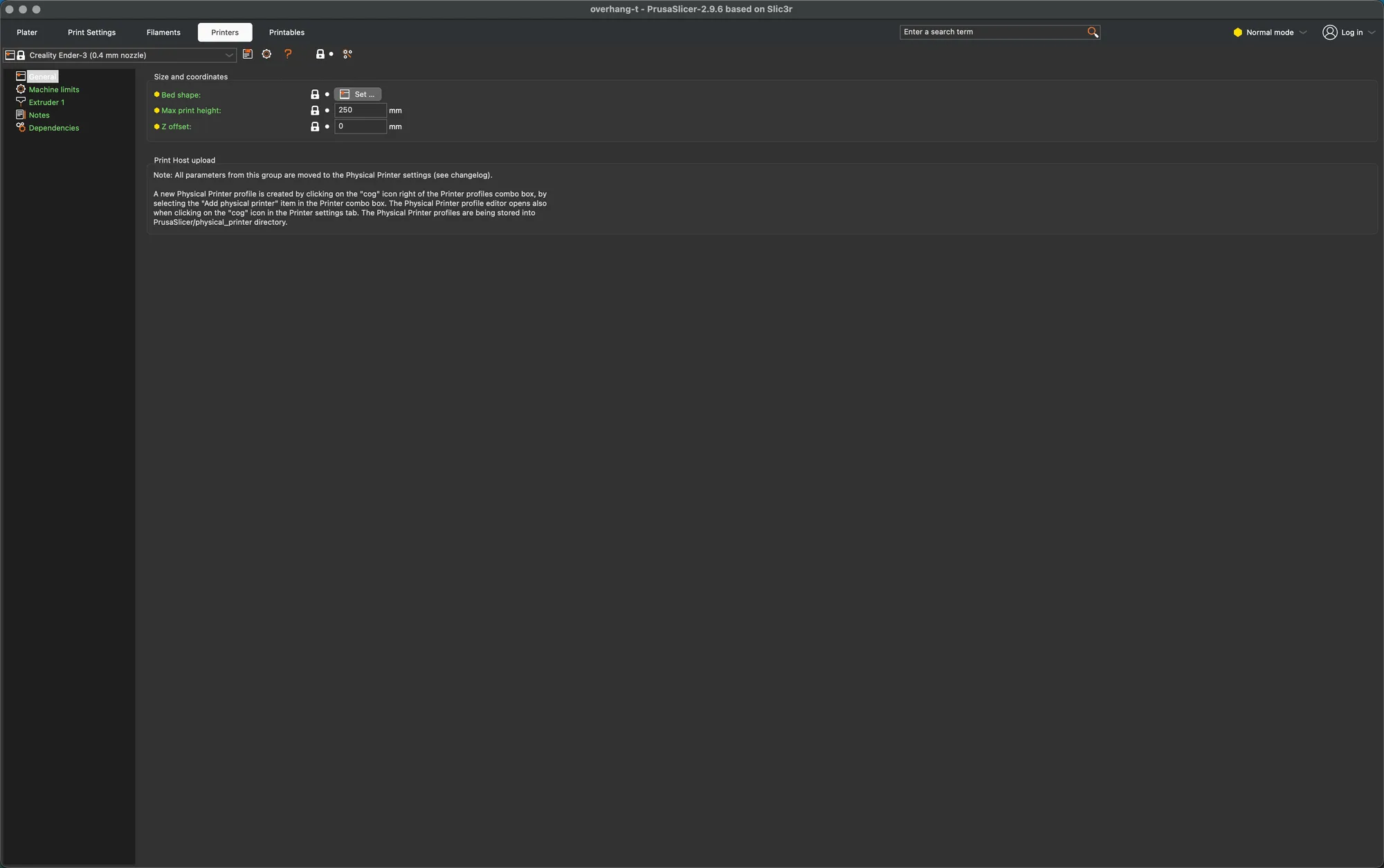
PrusaSlicer can send G-code straight to a networked printer, which is what Send G-code is for. We did not connect anything. In Normal mode, on the Printers tab, General page, there is a Print Host upload group. In 2.9.6 it holds only a note saying that all of its parameters moved to the Physical Printer settings, and that a physical printer profile is created from the cog icon beside the printer combo box or from the Add physical printer item in that combo box. We did not open that editor, so we do not describe its fields. Window, Print Host Upload Queue is listed with the shortcut Cmd+J.
We finished back on the Plater in the 3D view, Normal mode, with overhang-t loaded and the preset unchanged. Next in the course is filament and printer profiles, and for how the three slicers compare see Cura vs OrcaSlicer vs PrusaSlicer.
Next lesson: PrusaSlicer Filament Profiles and Printer Settings.