PrusaSlicer filament profiles live on the Filaments tab, and the machine itself lives on the Printers tab. This lesson, tested in PrusaSlicer 2.9.6 on macOS, walks both tabs with the real Creality values, then covers Compare Presets and saving a preset. We used Normal mode for the filament pages and Expert mode for the rest, and did not print.
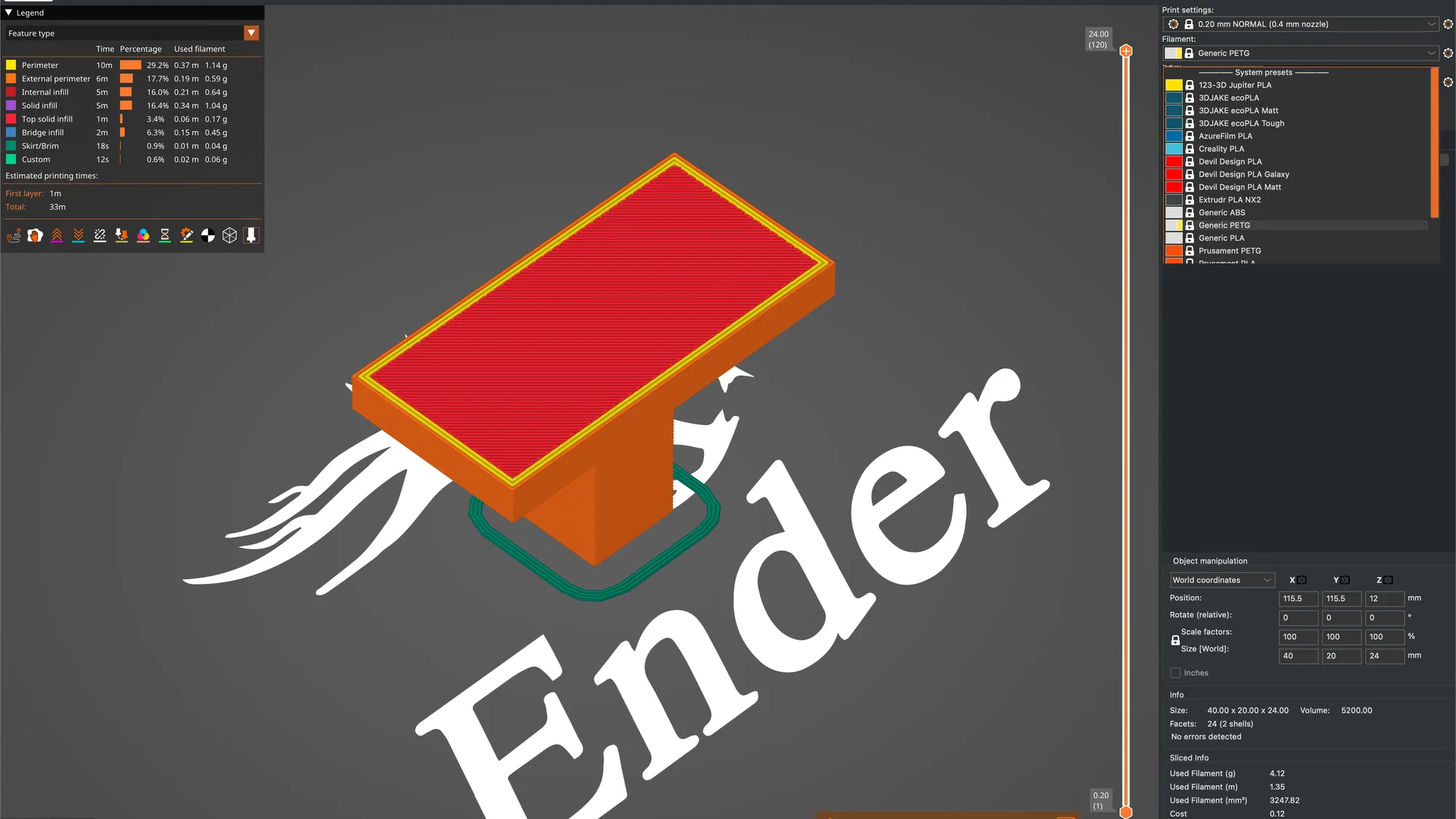
We continue from the export G-code lesson, with a Creality Ender-3 (0.4 mm nozzle), Creality PLA, the 0.20 mm NORMAL preset and the 40 by 20 by 24 mm overhang-t part. For how Cura handles the same idea, see Cura materials and profiles.
What does the Filaments tab contain?
Click Filaments in the top bar. A preset combo box sits at the top left, with the page list underneath. In Normal mode we saw six pages: Filament, Cooling, Advanced, Filament Overrides, Notes and Dependencies. Switching to Expert mode added Custom G-code between Filament Overrides and Notes. We did not test Beginner mode on this tab.
On the Filament page, Creality PLA @CREALITY showed these values:
- Diameter 1.75 mm, Extrusion multiplier 1, Density 1.24 g/cm3, Cost 20 money/kg, Spool weight 0 g
- Idle temperature 150 C (ticked)
- Nozzle: First layer 205 C, Other layers 200 C
- Bed: First layer 60 C, Other layers 60 C
- Chamber, Nominal 0 and Minimal 0, which only appeared in Expert mode
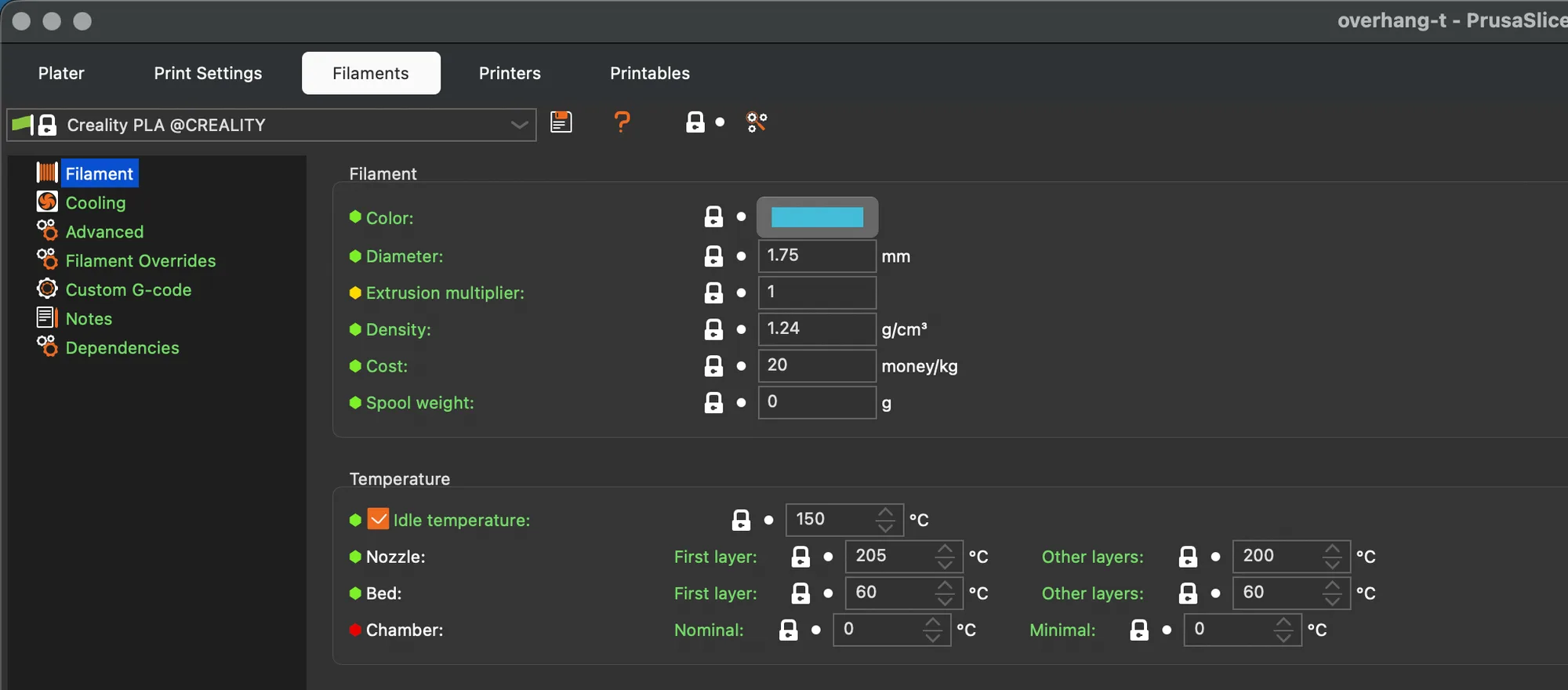
The two nozzle boxes matter. A higher first layer temperature is a common way to help a layer stick, and the slicer reads the first box for layer one and the second box for the rest. Diameter must match the spool, because the slicer works out how much plastic to push from it. Density and cost only feed the filament weight and cost numbers in the Sliced Info box, which showed 4.03 g and a cost of 0.08 for our part.
What do the Cooling, Advanced and Overrides pages do?
In Normal mode the Cooling page showed Keep fan always on and Enable auto cooling both ticked, Cooling slowdown logic set to Uniform cooling, and a note that fan runs at 100 percent except for the first layer. Expert mode added more groups, and for Creality PLA we read:
- Fan speed Min 100 percent and Max 100 percent, Bridges fan speed 100 percent
- Disable fan for the first 1 layers, Full fan speed at layer 0
- Dynamic fan speeds, unticked
- Enable fan if layer print time is below 100 seconds, slow down if below 20 seconds, Min print speed 15 mm/s
The Advanced page shows Filament type PLA, a Soluble material box, and a Max volumetric speed of 15 mm3/s. Expert mode added an Abrasive material box and the wipe tower and multi material groups, which a single extruder printer does not use. Shrinkage compensation XY and Z were both 0 percent.
The Filament Overrides page lists travel lift, retraction and seam gap settings, each with a tick box. Every box was unticked for Creality PLA and the fields read N/A, meaning the filament does not override the printer. If you tick one, for example Retraction length, the filament value wins over the printer value. For what the retraction numbers do, read retraction settings explained.
In Expert mode, Custom G-code has Start G-code, End G-code and Custom parameters boxes. For Creality PLA the start box held only the comment ; Filament gcode. Notes was empty. Dependencies said this is a system preset, that it cannot be deleted or modified, that changes should be saved as a new preset, gave vendor Creality, ver 1.1.0, and offered a Detach from system preset button. We did not press that button.
How do you choose or add other filaments?
Open the filament combo, either on the Plater sidebar or at the top of the Filaments tab. It starts with a heading, System presets, then the profiles. Visible entries included 123-3D Jupiter PLA, 3DJAKE ecoPLA, Creality PLA, Devil Design PLA, Extrudr PLA NX2, Generic ABS, Generic PETG, Generic PLA and Prusament PETG. The list scrolls, and we only read the part that was visible. The Plater drops the @CREALITY suffix, and the Filaments tab shows it.
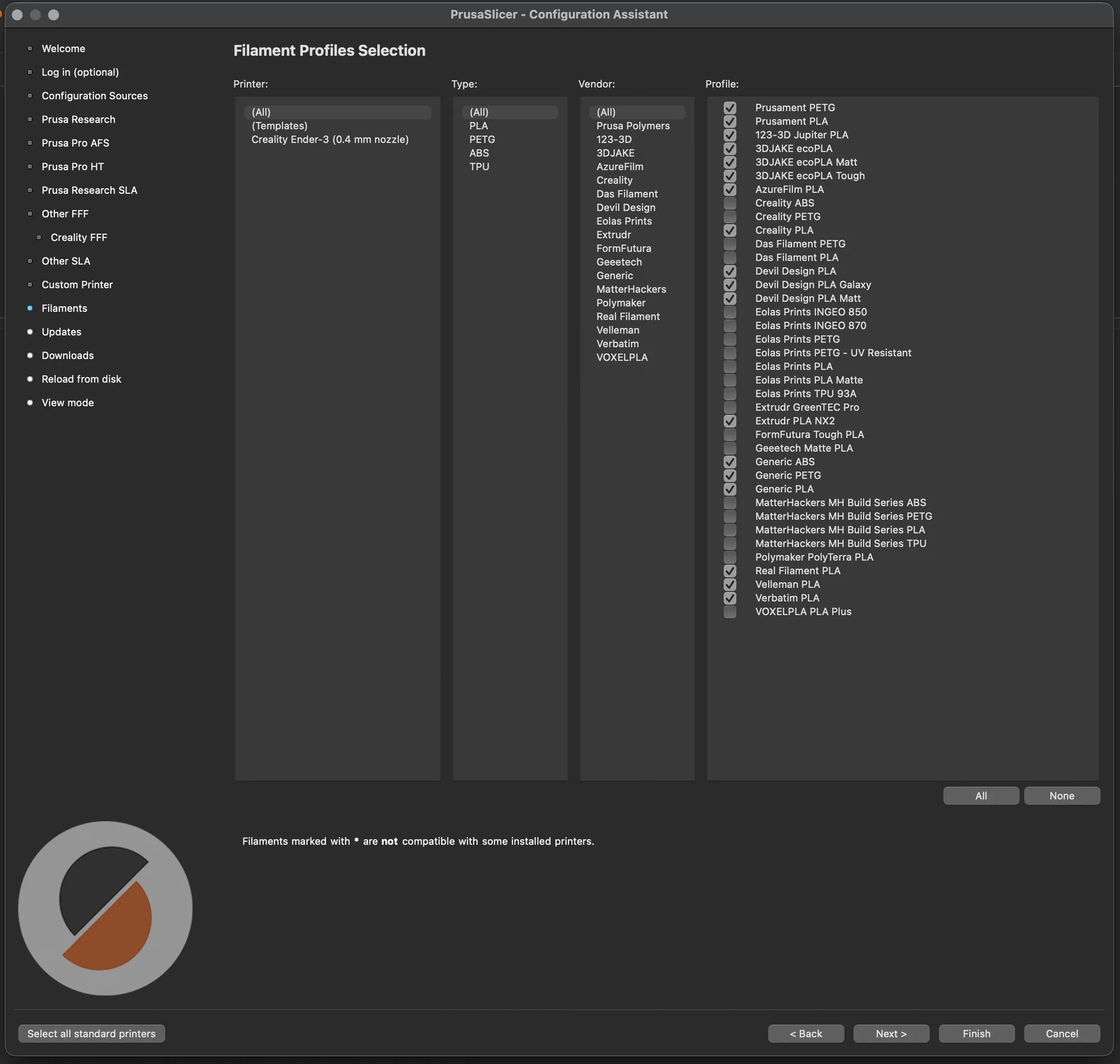
The list is short because only some profiles are installed. The menu entry Configuration, Configuration Assistant opens the wizard (the menu says Assistant, and a progress box titled Opening Configuration Wizard appeared first while it downloaded resources). Its Filaments page has Printer, Type (PLA, PETG, ABS, TPU) and Vendor columns and a Profile checklist with All and None buttons. We counted 38 profiles with 19 ticked. Creality ABS and Creality PETG were listed but unticked, which fits their absence from the combo. We cancelled without changing anything.
What is in the Printer Settings tab?
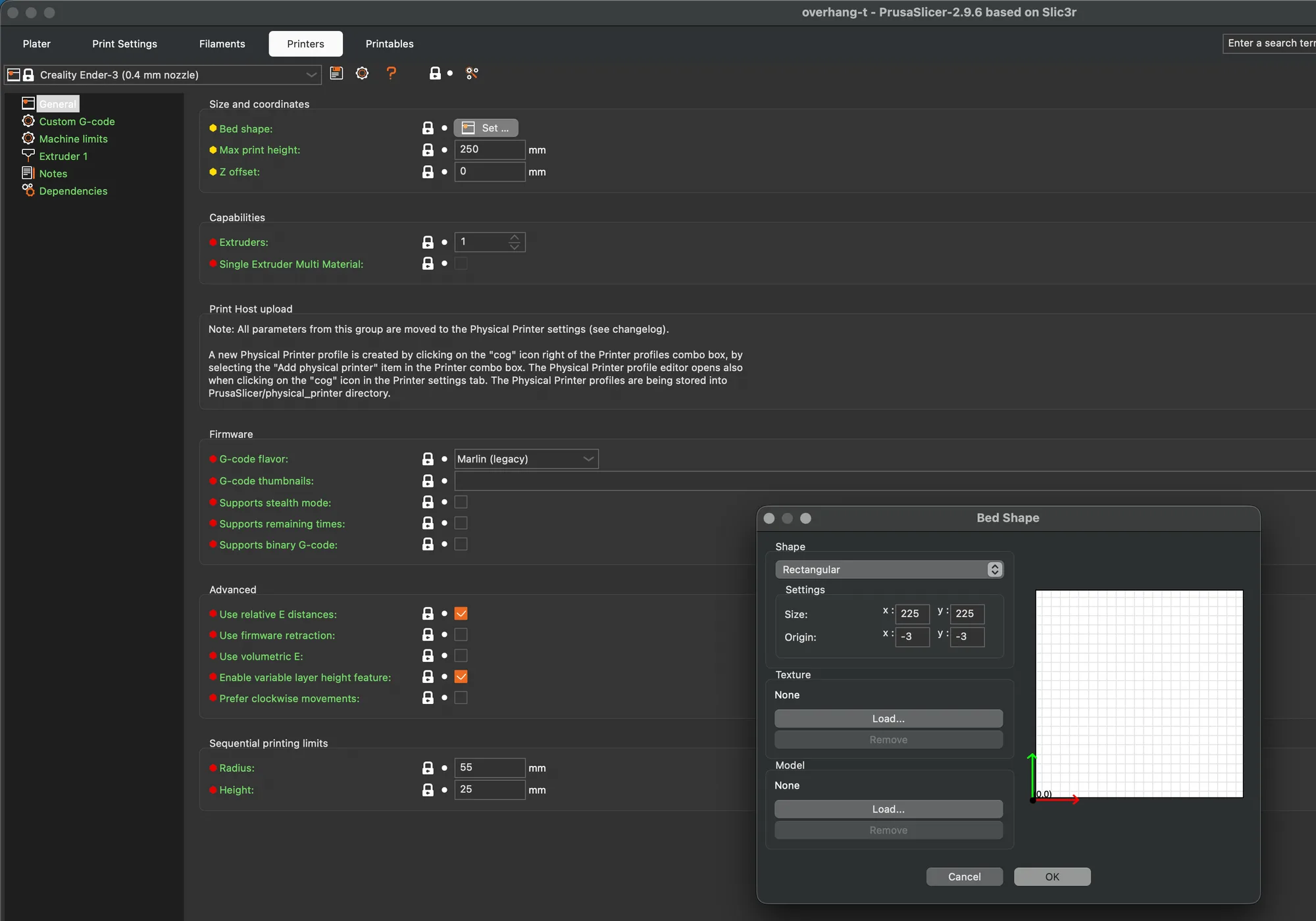
The Printers tab has its own pages. In Expert mode we saw General, Custom G-code, Machine limits, Extruder 1, Notes and Dependencies. For the Creality Ender-3 (0.4 mm nozzle) profile, the General page showed:
- Bed shape with a Set button, Max print height 250 mm, Z offset 0 mm
- Extruders 1, Single Extruder Multi Material unticked
- G-code flavor Marlin (legacy), Use relative E distances ticked, Enable variable layer height feature ticked
- Sequential printing limits, Radius 55 mm and Height 25 mm
The Bed shape Set button opened a dialog titled Bed Shape: Rectangular, Size 225 by 225 and Origin minus 3 by minus 3. We pressed Cancel.
The Extruder 1 page holds the nozzle: Nozzle diameter 0.4 mm, a High flow nozzle box (unticked), and layer height limits of 0.06 mm minimum and 0.32 mm maximum. Retraction was length 5 mm, speed 60 mm/s, deretraction speed 40 mm/s, minimum travel after retraction 2 mm, with Retract on layer change and Wipe while retracting both ticked and 70 percent retracted before wipe. That is the printer value that a filament override would replace.
The Custom G-code page starts with Start G-code. Ours began with G90 and M83, set a temporary nozzle temperature, homed with G28 and then primed the nozzle with two lines. It uses placeholders such as first_layer_temperature[0], so the temperatures come from the filament page. The End G-code box moved the head, then turned off heater, nozzle and fan and ran M84 X Y E. The page also has a Before layer change box, and Emit temperature commands automatically was ticked. For the language behind these lines, see what is G-code.
The Machine limits page said Machine limits will be emitted to G-code and used to estimate print time. Values were max feedrate X 500, Y 500, Z 10, E 60 mm/s, max acceleration X 500, Y 500, Z 100, E 5000 mm/s2, extruding 500 and retracting 1000, and jerk X 8, Y 8, Z 0.4, E 5. Treat these as a profile default, not a measurement of your own machine.
How do you compare presets?
Choose Window, Compare Presets. A dialog titled Compare Presets shows three rows of combo boxes for print, filament and printer, with the same preset on both sides at first and the message Presets are the same. A Show all presets (including incompatible) box widens the lists. We set the right filament to Generic PETG, and a table appeared with a Left and a Right column.
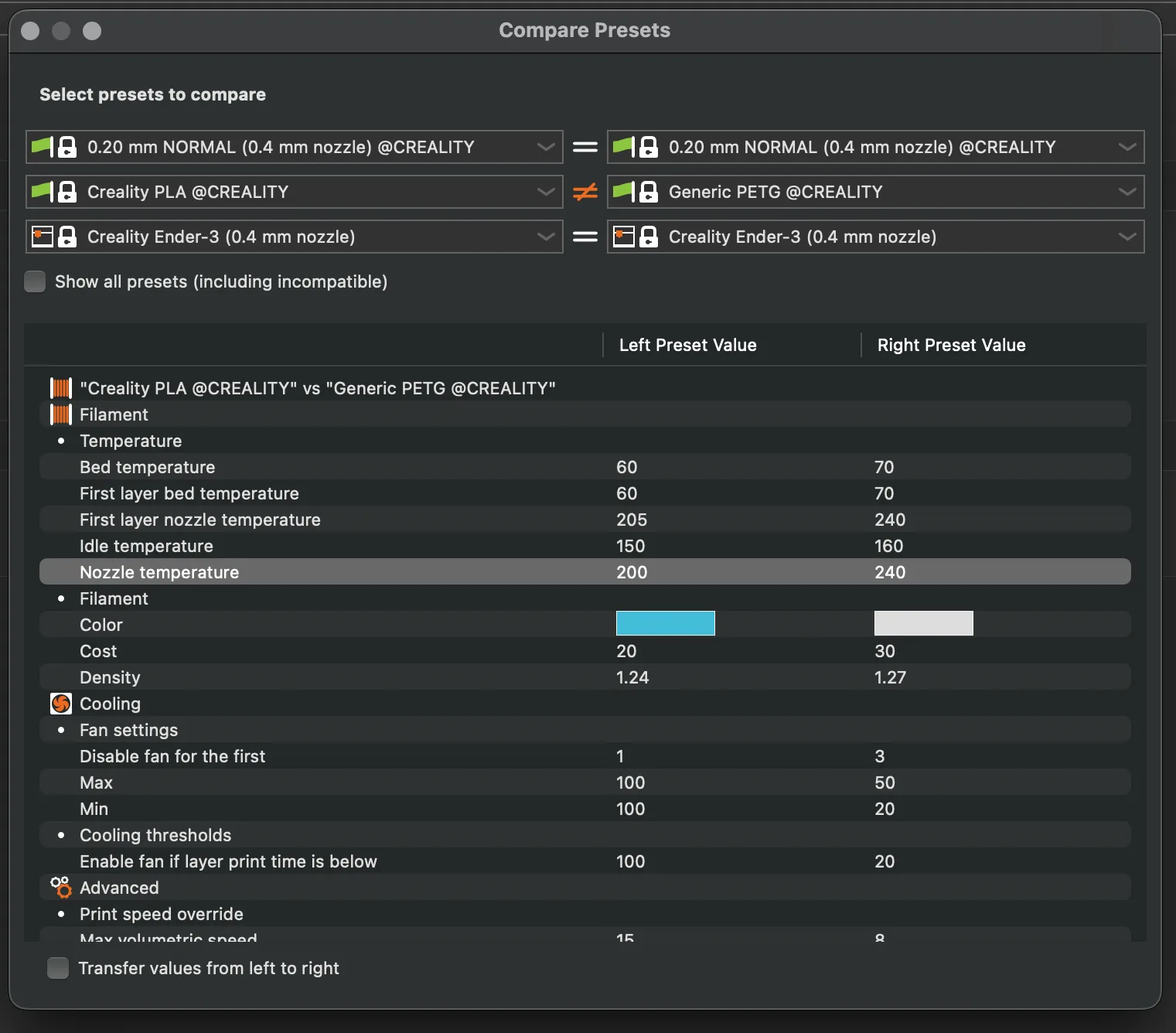
The differences listed were bed temperature 60 against 70, first layer nozzle 205 against 240, nozzle 200 against 240, idle 150 against 160, cost 20 against 30, density 1.24 against 1.27, fan minimum 100 against 20 and maximum 100 against 50, and fan disabled for the first 1 layer against 3. That table is a quick way to see what a profile really does.
How do you save and delete a user preset?
System presets are locked. On the Filaments tab we set Nozzle, Other layers to 205. The title became Creality PLA @CREALITY (modified), the lock beside that field turned orange with a reset arrow, and the window title gained an asterisk. We clicked the save icon next to the combo, and a Save preset dialog opened with the name Creality PLA @CREALITY ending in the word Copy. We typed lesson-test, saw a green tick, and confirmed.
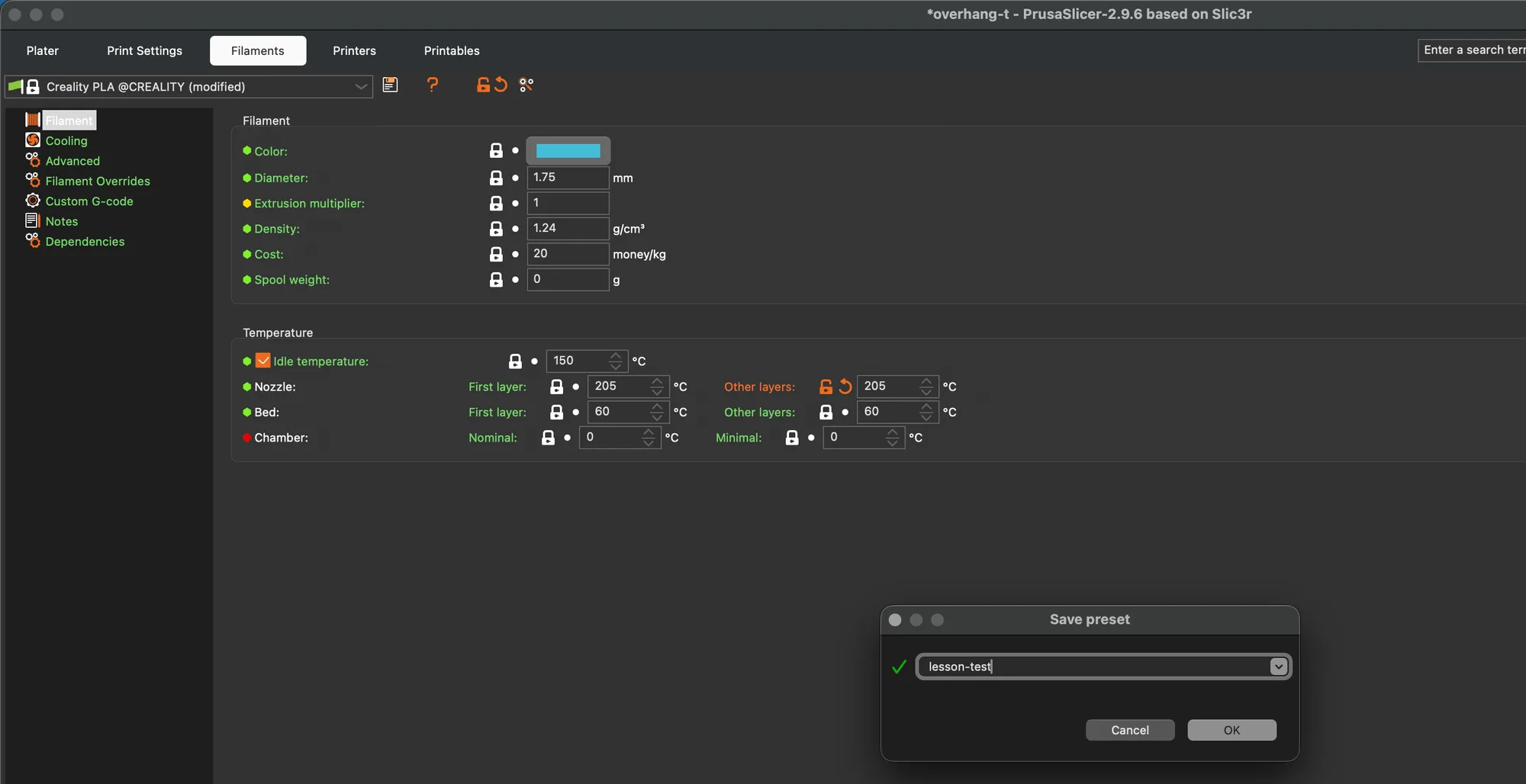
The combo now showed lesson-test with no lock, and two new icons appeared beside the save icon: a rename pencil and a red X. Hovering the X showed the tooltip Delete preset. We clicked it, a dialog asked Are you sure you want to delete the selected preset?, and we pressed Yes. PrusaSlicer fell back to another preset (Verbatim PLA), and we picked Creality PLA again. The user filament folder in the PrusaSlicer data directory was empty afterwards. User presets are stored there as files, and system presets are not.
We left the Configuration, Configuration Snapshots entry as a look only. It opened an empty Configuration Snapshots window with a Close button, which fits a fresh install. The menu also has Take Configuration Snapshot, which we did not run because it writes a snapshot to disk.
Does the filament choice change the estimate?
We sliced overhang-t with three filaments through the Plater combo in Expert mode. Everything else stayed the same:
| Filament preset | Nozzle and bed | Time | Weight | Cost |
|---|---|---|---|---|
| Creality PLA | 200 C and 60 C | 33m | 4.03 g | 0.08 |
| Generic PETG | 240 C and 70 C | 33m | 4.12 g | 0.12 |
| Generic ABS | 245 C and 90 C | 26m | 3.38 g | 0.07 |
The length used was 1.35 m in all three, so the weight and cost follow the density and price on the Filament page (1.24, 1.27 and 1.04 g/cm3). ABS was faster in the estimate. Its Cooling page had Keep fan always on and Enable auto cooling both unticked and the slowdown fields greyed out, but we did not test which setting caused the 7 minute gap. Next in the course is variable layer height and modifiers. We finished back on the Plater in Normal mode with Creality PLA selected.
Next lesson: PrusaSlicer Variable Layer Height and Modifiers.