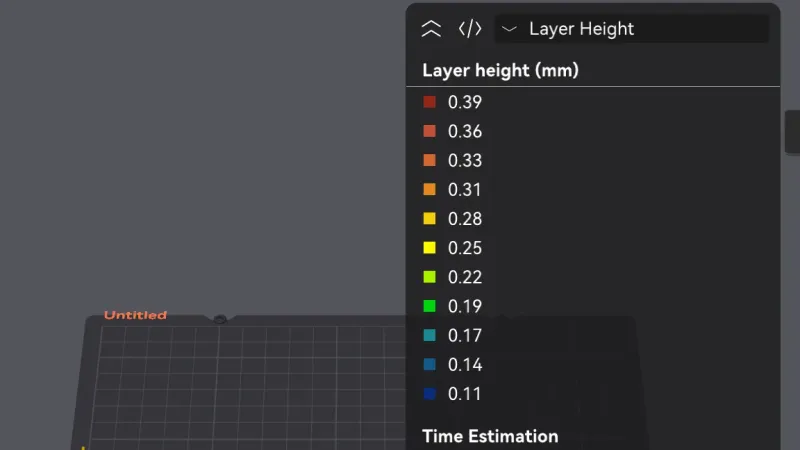
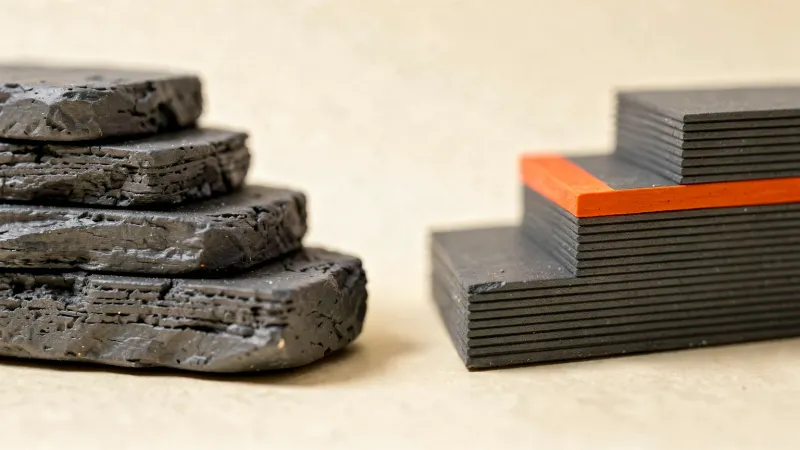
PrusaSlicer variable layer height and modifiers let one part use different layer heights and different settings in different places. This lesson, tested in PrusaSlicer 2.9.6 on macOS, uses a curved dome, the Variable layer height tool, the object list menus, a sphere modifier and a height range. We worked in Expert mode and only sliced. We did not print.
We continue from the filament and printer profiles lesson, with a Creality Ender-3 (0.4 mm nozzle), Creality PLA and the 0.20 mm NORMAL preset. The part is dome.stl from our test set, 40 by 40 by 24 mm. For the basics of layer height, read layer height explained.
Where is the variable layer height tool in PrusaSlicer?
Select the object, then look at the toolbar above the plate. The icon is a stack of horizontal lines, and hovering it shows the tooltip Variable layer height. The tooltip did not show a keyboard shortcut, so we used the icon. The icon was present in Normal mode as well as Expert mode. We did not check Beginner mode. The Printers tab also has an Enable variable layer height feature box, which was ticked for our Ender-3 profile in the previous lesson.
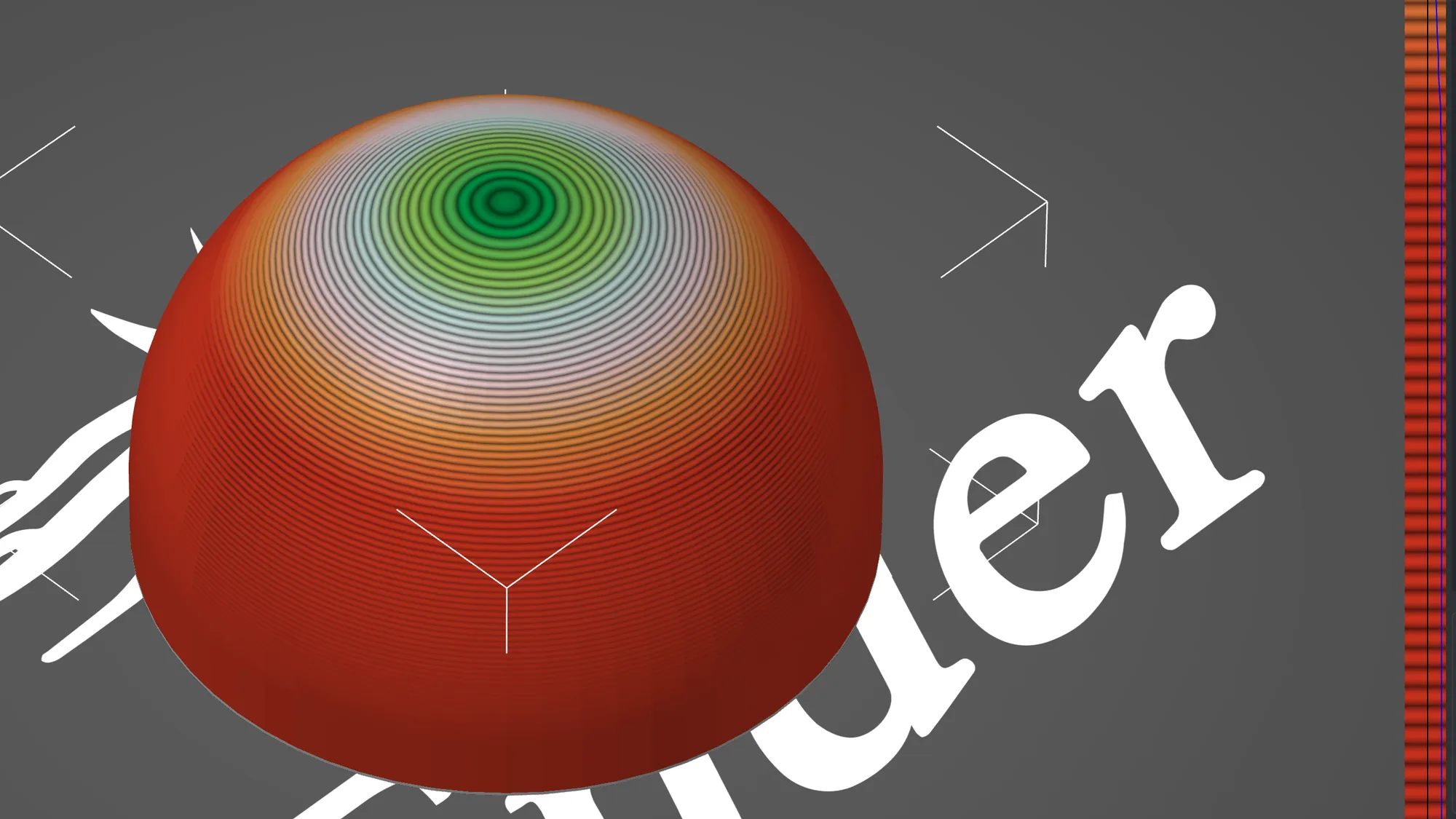
Clicking the icon changes three things at once. The dome is recoloured, a narrow strip of coloured bars appears at the right edge of the 3D view with a blue profile curve drawn on it, and a row named Variable layer height appears under the object in the list. Red means thicker layers and green means thinner ones, so a fresh object is all red at the base layer height of 0.2 mm.
A panel opens at the bottom right of the view. Its help lines read: Left mouse button, Add detail. Right mouse button, Remove detail. Shift plus Left mouse button, Reset to base. Shift plus Right mouse button, Smoothing. Mouse wheel, Increase or decrease the edit area. Below the help are the controls we used:
- Adaptive with a Quality / Speed slider, which showed 0.50, and a small edit icon next to it
- Smooth with a Radius slider (5) and a Keep min tick box
- Reset
What does the Adaptive button do to a dome?
We pressed Adaptive with the slider at 0.50. The bottom of the dome stayed red, the steep sides turned orange, and the flatter top turned pale and then green, which means the tool chose thin layers near the top where the surface is almost flat. The strip at the right edge showed the same change as a curve. That is the reason this tool is tied to curved parts: on a vertical wall, thin layers add time and little else, while on a shallow slope the steps are visible.
We closed the tool by clicking the icon again and pressed Slice now. The layer slider in the preview ran to 24.01 mm at layer 88. With a fixed 0.20 mm layer and no profile, the same part sliced to 120 layers. We did not test the other slider positions or the manual Add detail brush.
The estimates, read from the Sliced Info box, were these:
| Setup | Layers | Time | Weight |
|---|---|---|---|
| Fixed 0.20 mm, 15% infill | 120 | 53m | 9.38 g |
| Adaptive profile, quality 0.50 | 88 | 41m | 9.83 g |
The time dropped by 12 minutes while the filament rose by 0.45 g. We did not test why the weight rose, so treat that as an observation, not an explanation. The tool also changes how many layers the slicer has to plan, which is where the shorter time comes from. The PrusaSlicer print settings basics lesson covers the global layer height this profile departs from.
When we were done we opened the tool again and pressed Reset. The Variable layer height row disappeared from the object list and the object returned to a plain 0.20 mm layer.
How do you add per object settings in PrusaSlicer?
Per object settings live in the object list, not in a separate mode. In Expert mode we right clicked dome.stl and read the menu from the top: Rename, Add instance, Remove instance (greyed out), Set number of instances..., Fill bed with instances..., Delete, Set as a Separated Objects (greyed out), Printable (ticked), Convert from meters, Convert from imperial units, Reload from disk, Replace with STL, Export as STL/OBJ..., Scale to print volume, Simplify model, Mirror, Split, then Add part, Add negative volume, Add modifier, Add support blocker, Add support enforcer and Height range Modifier. Three quick entries followed, Infill, Layers and Perimeters and Support material, and the last entry was Add settings.
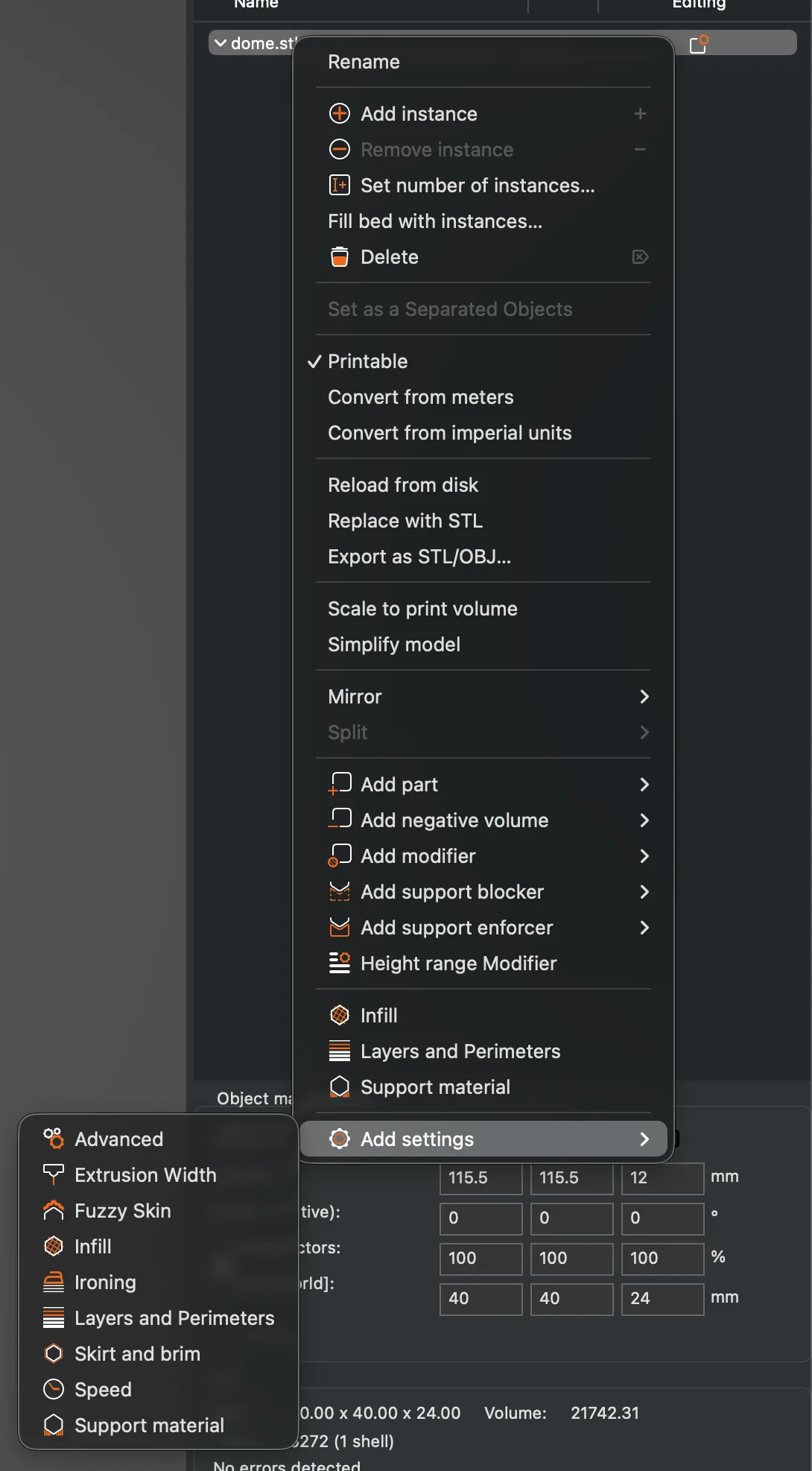
The Add settings submenu listed nine categories: Advanced, Extrusion Width, Fuzzy Skin, Infill, Ironing, Layers and Perimeters, Skirt and brim, Speed and Support material. We did not test what the menu looks like in Normal mode, so we cannot say which of these appear there.
We chose Infill. A dialog titled Infill opened with the heading Select showing settings and a checklist of eleven settings: Automatic infill combination, Automatic infill combination Max layer height, Bottom fill pattern, Bridging angle, Fill angle, Fill density, Fill pattern, Combine infill every n layers, Solid infill threshold area, Solid infill every and Top fill pattern. We ticked Fill density and pressed OK.
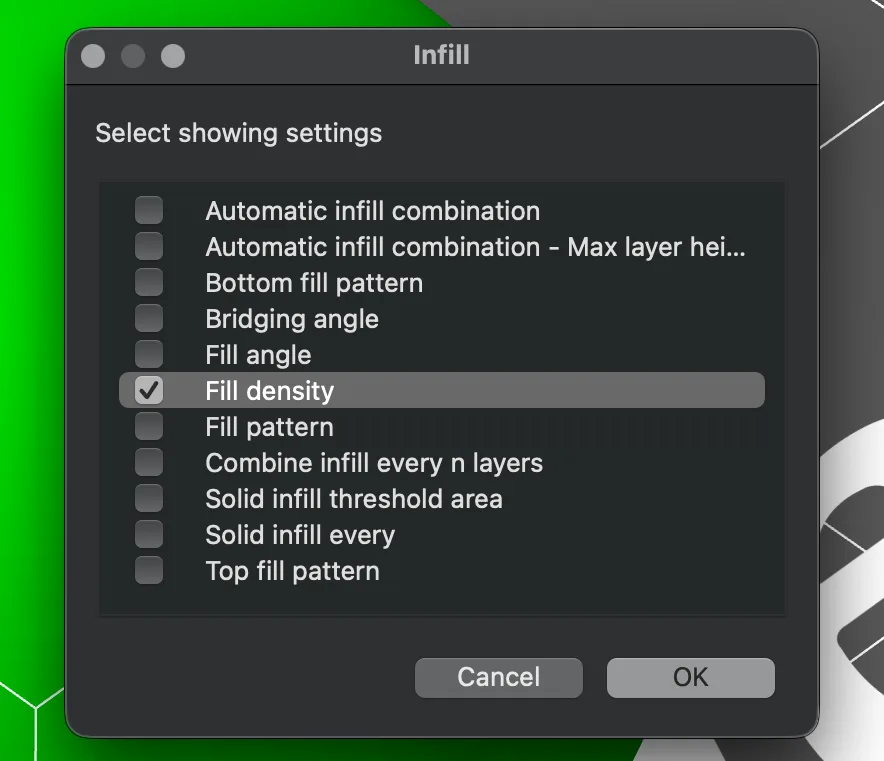
An Infill row appeared under dome.stl, and the area at the bottom of the sidebar was titled Object Settings to modify. It held one row, Fill density, with an orange X at its left and the value 15%. We typed 5% and pressed Tab. The value stuck, while the global Infill box at the top of the sidebar still said 15%. Our slicer estimate for 5% infill on the object was 49 minutes and 7.25 g, against 53 minutes and 9.38 g for the global 15%. For what the percentage does, see infill explained.
Clicking the orange X removes that one setting from the object. We used it to clear the override once we were done.
How do you add a modifier part in PrusaSlicer?
A modifier is a shape that does not print by itself. Where it overlaps the object, it can carry its own settings. We chose Add modifier and a submenu opened with Load ..., Box, Cylinder, Sphere, Slab, Text, SVG and Gallery.
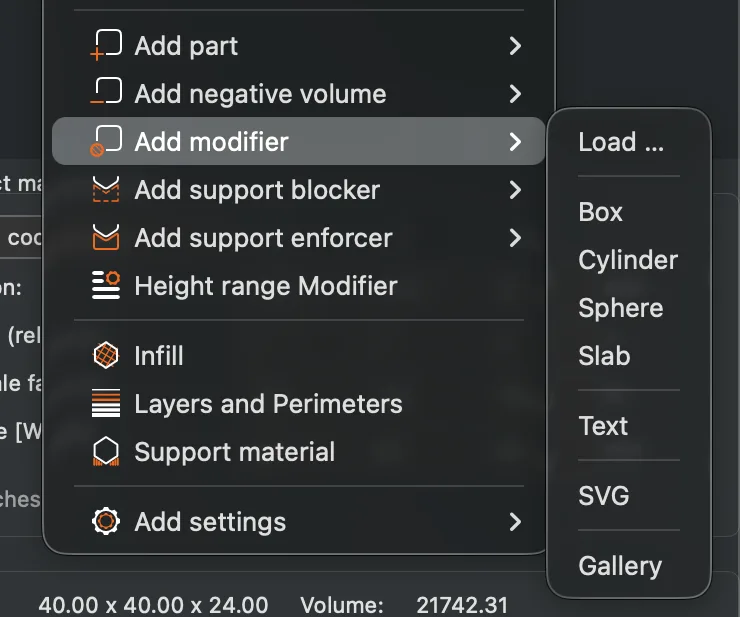
We picked Sphere. A new child row named Generic-Sphere appeared next to a row for the dome itself, and the 3D view showed a green sphere of 27.9 mm sitting off to one side of the dome. In Part manipulation we set its position to 115.5, 115.5 and 10 mm, which moved it inside the dome. We then right clicked Generic-Sphere. This menu is shorter, with Rename, Convert from meters, Delete, Replace with STL, Simplify model, Mirror, Change type, then Infill, Layers and Perimeters and Add settings.
Choosing Infill from that menu added two rows under Generic-Sphere, Fill density at 15% and Fill pattern as Grid, in a box titled Part Settings to modify. We typed 100% for the density. A message titled Infill said The Grid infill pattern is not supposed to work at 100% density. We pressed OK and the pattern changed to Rectilinear by itself.
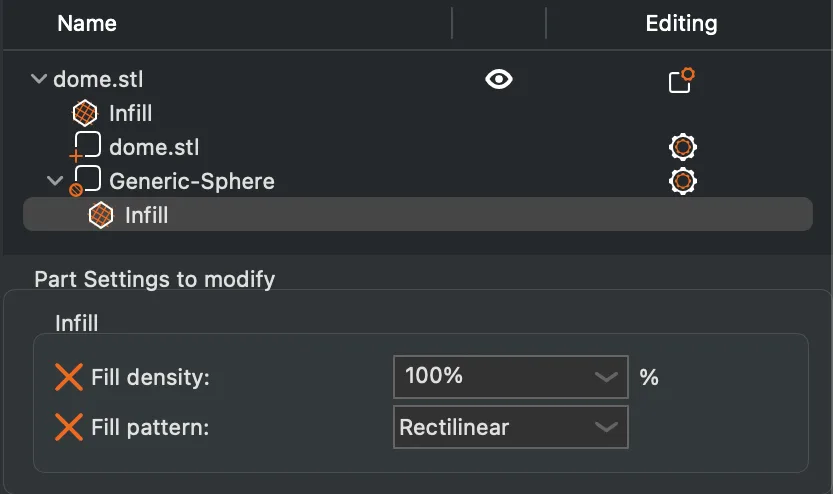
With the 5% object override and the 100% sphere both in place, the estimate was 1 hour 35 minutes and 19.66 g. The Feature type legend put Internal infill at 58 minutes and 13.92 g of that. That is a good way to see that a small solid region can cost more than the whole rest of the part.
How does a height range modifier work?
A height range changes the layer height for part of the object, by Z, with no shape to place. We cleared the other overrides first, then right clicked the object and chose Height range Modifier. A Layers item appeared with a child row named Range 0.00 to 2.00 (mm). The Height ranges panel at the bottom had three boxes, Start at height, Stop at height and Layer height, with the defaults 0, 2 and 0.2, plus a minus and a plus button at the right.
We set stop to 24, start to 12 and layer height to 0.1, in that order, and the row relabelled itself Range 12.00 to 24.00 (mm). Clicking the range row showed a similar box titled Settings for height range. Slicing gave 180 layers and the preview colour showed the top half finer than the bottom. The estimate was 1 hour 13 minutes and 9.01 g, with the global 15% infill, against 53 minutes and 9.38 g for the plain 0.20 mm slice.
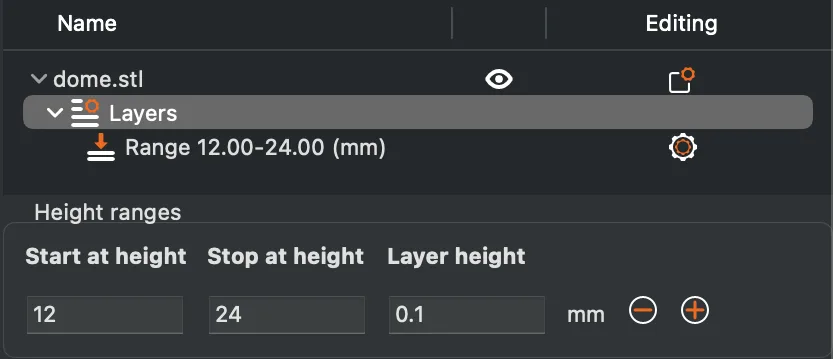
We removed the range with its minus button. This differs from the variable layer height tool in one way that matters. A height range is typed in, exact and easy to repeat, while the tool is painted or computed from the shape. We did not test using both on the same object, and PrusaSlicer may warn about that, so check before you combine them. If you prefer the Orca version of these ideas, we covered it in Orca Slicer per object settings.
What did we leave behind?
After the tests we removed the sphere, the Layers item and every override, deleted the dome, loaded the usual overhang test part, and switched back to Normal mode. The app finished on the Plater with Creality PLA selected and no dialogs open. Next in the course is the cut tool and the other advanced tools.
Next lesson: PrusaSlicer Cut Tool and Advanced Tools.