The PrusaSlicer cut tool slices a model into two pieces inside the slicer, with optional pegs for gluing the halves back together. This lesson, tested in PrusaSlicer 2.9.6 on macOS, covers that gizmo and the others in the left toolbar: Measure, Place on face and paint-on fuzzy skin. We worked in Normal mode and did not slice or print.
We continue from the variable layer height and modifiers lesson, with a Creality Ender-3 (0.4 mm nozzle), Creality PLA and the 0.20 mm NORMAL preset. The part is overhang-t.stl from our test set, a T shape of 40 by 20 by 24 mm. If a slicer is still a new idea, start with what is a slicer.
What tools are in the PrusaSlicer toolbar?
The left toolbar sits beside the plate. In Normal mode we hovered over every icon and read the tooltips. From the top the icons were Move, Scale, Rotate, Place on face [F], Cut [C], Paint-on supports [L], Seam painting [P], Paint-on fuzzy skin [H] and Measure [U]. We did not hover Move, Scale or Rotate in this lesson, they were covered earlier in the course. We did not see a multi material painting icon, and a hollowing gizmo was not in the toolbar either. We did not test other modes or a resin printer profile, so we cannot say what changes there.
Each of these opens a panel on the left of the 3D view. Press the icon again, or the key in square brackets, to close it. The keys only work while the 3D view has focus, so click the plate first.
How do you use the PrusaSlicer cut tool?
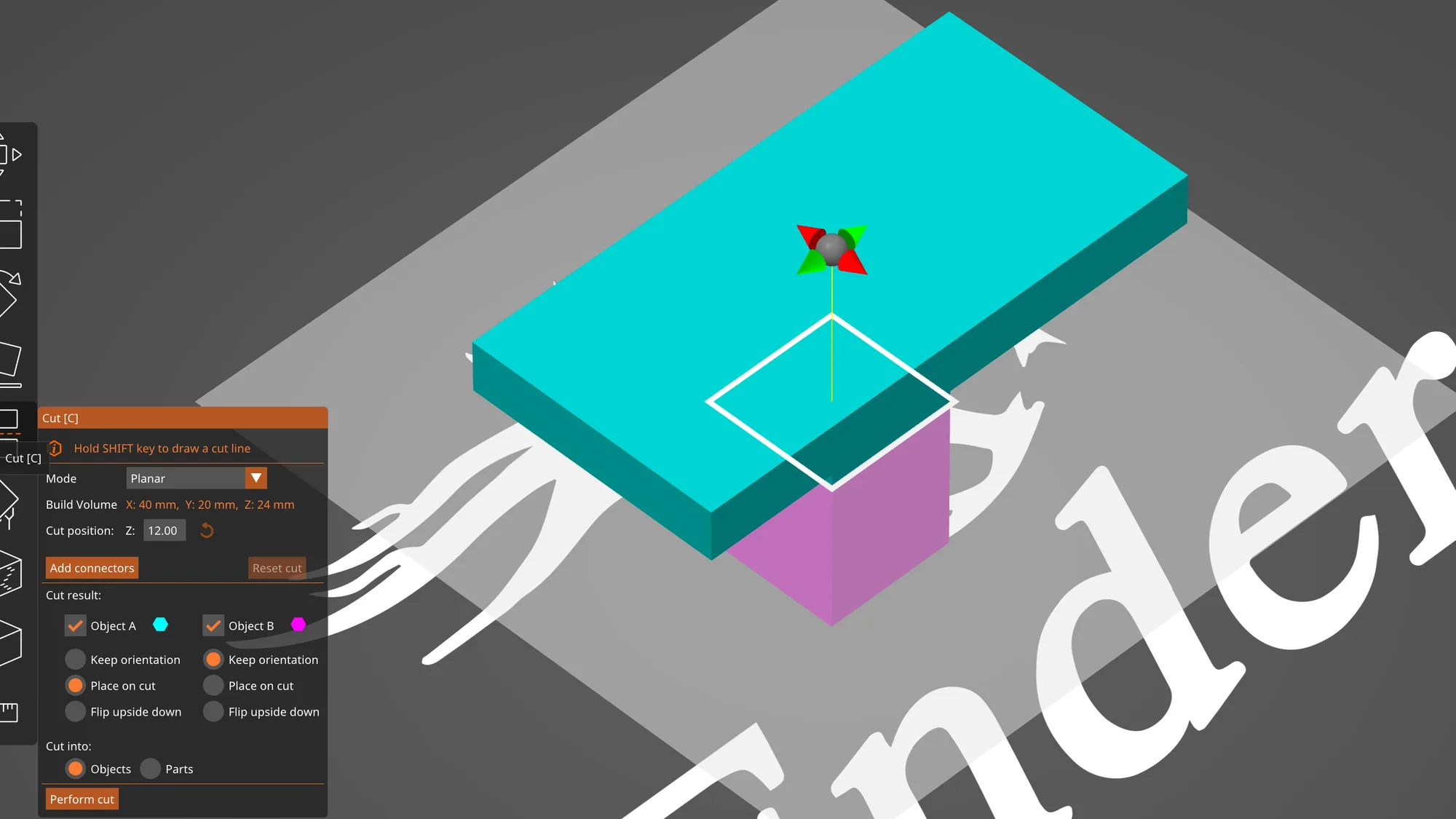
Select the object and click the Cut icon. A semi transparent plane appears across the model, with a small gizmo and a yellow line above it. The model splits visually into a cyan upper part, called Object A, and a magenta lower part, Object B. The panel header is titled Cut [C] and the first line says Hold SHIFT key to draw a cut line. We did not try the Shift drawing method.
The panel listed these controls:
- Mode, a dropdown with Planar and Dovetail
- Build Volume, which read X: 40 mm, Y: 20 mm, Z: 24 mm
- Cut position with a Z box. It started at 12.00, the middle of the part, and has a small reset arrow beside it
- Add connectors and Reset cut
- Cut result, with a tick box for each of Object A and Object B
- Cut into, with Objects or Parts
- Perform cut
Under each object are three radio choices, Keep orientation, Place on cut and Flip upside down. By default Object A was set to Place on cut and Object B to Keep orientation, so the top half lands cut face down on the bed. We did not test unticking either object to discard it, so we cannot say how that is labelled afterwards. You can move the plane by dragging its arrows or by typing a value in the Z box. We left Z at 12.00, which passes through the stem of the T and leaves the wide top as a separate slab.
Switching Mode to Dovetail replaced the plane with a groove. The panel gained a Groove section with Depth (1.40 mm and 0.10 mm), Width (5.60 mm and 0.10 mm), Flap Angle (60 degrees) and Groove Angle (0 degrees), and the Cut into choice turned grey. We went back to Planar.
What are cut connectors in PrusaSlicer?
Connectors are pegs or sockets added at the cut face so two halves can be glued or pressed together after printing. Clicking Add connectors flattens the view to the cut plane and replaces the panel with a Connectors editor. Its buttons read Flip cut plane, Confirm connectors and Cancel.
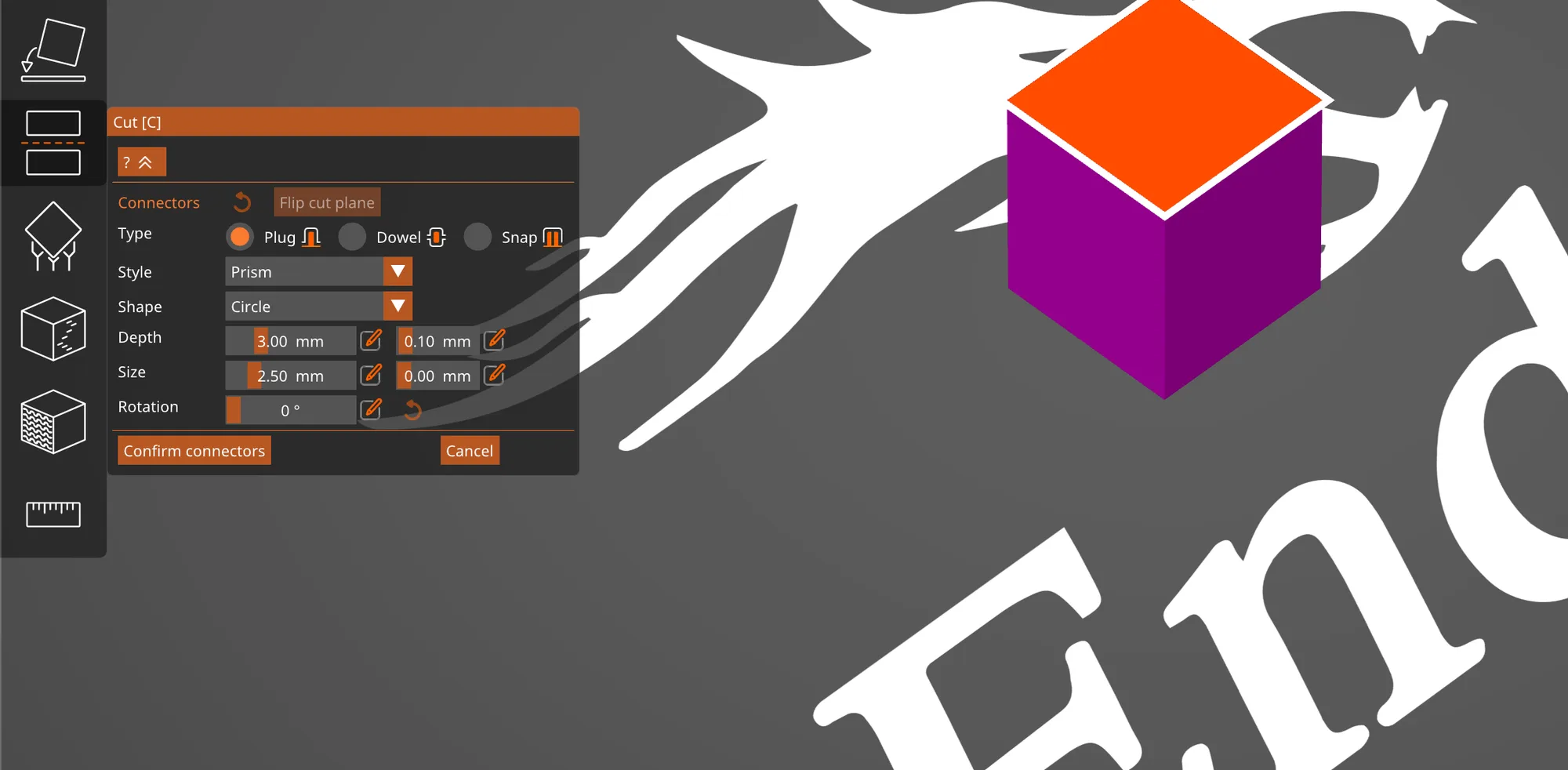
The Type row had three round buttons:
- Plug, with Style (Prism or Frustum) and Shape (Triangle, Square, Hexagon or Circle). The defaults were Prism and Circle, Depth 3.00 mm and Size 2.50 mm, each with a second small box at 0.10 mm and 0.00 mm, and Rotation 0 degrees.
- Dowel, where Style turned grey but Shape stayed available.
- Snap, where Style and Shape both turned grey and two extra sliders, Bulge (15%) and Space (30%), appeared below Rotation.
We clicked once on the cut face and a cyan cylinder appeared. When we switched Type to Dowel the same peg stayed in place as a dowel, so the buttons change the selected connector. We switched back to Plug and pressed Confirm connectors. The main panel returned with the button now labelled Edit connectors, and the Mode dropdown, the Object A and B tick boxes and Cut into were all greyed out. We did not inspect the matching socket on the other half or measure any clearance, so check the fit with a test print before relying on it.
We pressed Perform cut. The part split into a flat slab and a short block with a post on top, standing apart on the bed. The object list showed two rows, both named overhang-t.stl, each with a child row named Connectors. The Group manipulation box read 40 by 36 by 15.05 mm.
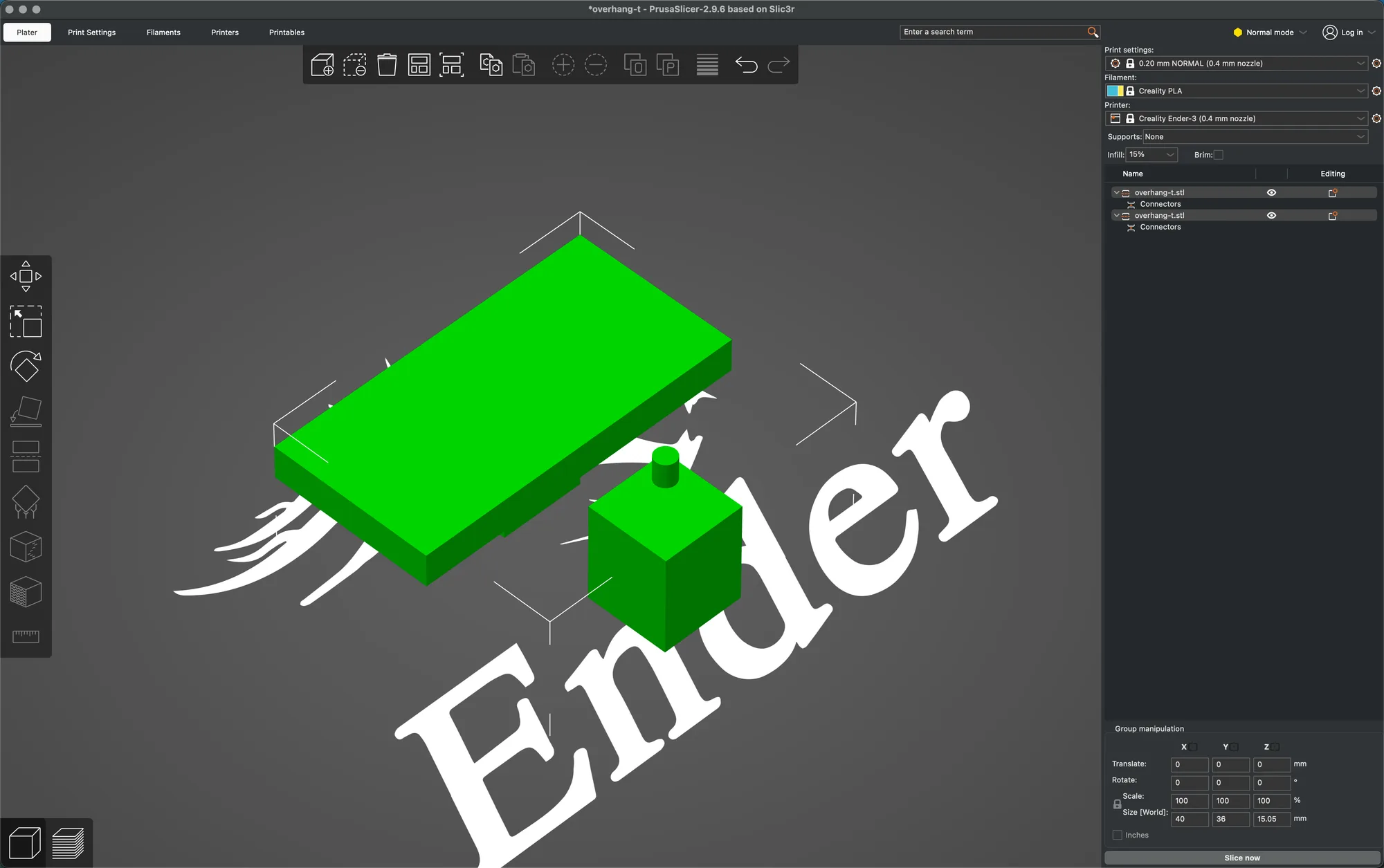
We then pressed undo once, and the original single part came back with one row in the list. If you need more than one slab on a bed for printing, see supports explained for what a flat cut face saves you.
How does the Measure gizmo work?
Click Measure [U]. The panel says Left mouse button, Select feature, and lists Selection 1 and Selection 2, both None at first, with a Restart selection button below. Hovering over the model highlights a feature, a face, an edge or a point, in a colour. Shift, according to the help line, enables point selection, which we did not use.
We clicked the top of the T and then the stem face. The Selection rows read Plane and Plane, and the Measure section showed Angle 90.000 degrees with a small copy icon. We then restarted and picked the long front face of the slab and the parallel face of the stem. The readout was Distance 5.000 mm, with an arrow drawn on the model and an edit icon beside the value. That is the overhang of the slab past the stem.
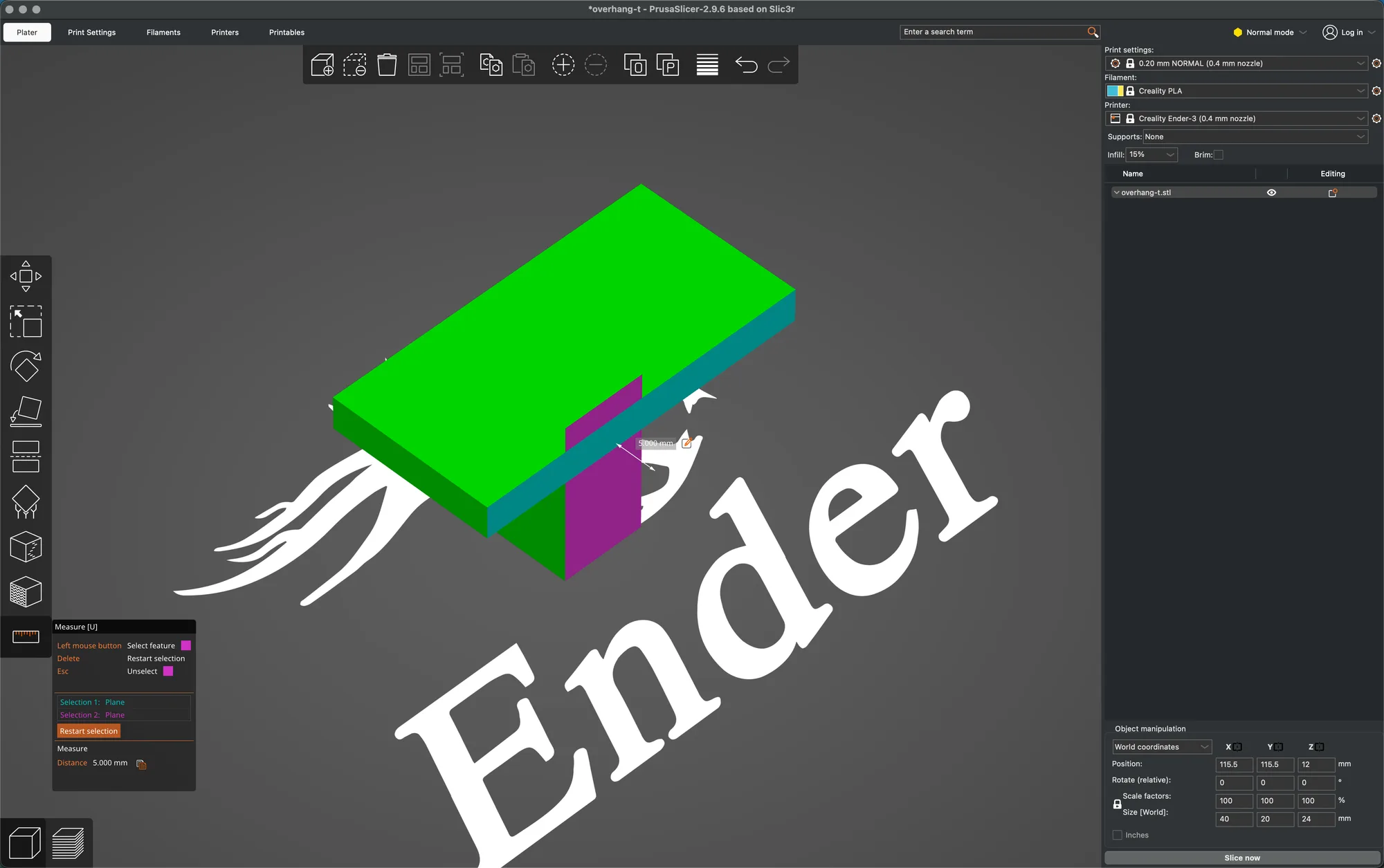
The edit icon is how you would move one object by a measured gap, but we did not use it. Esc unselects, and Delete restarts the selection according to the on screen help. Measure only reads values and does not change the model.
What do Place on face, Split and fuzzy skin do?
Place on face [F] lays the model down on a face you click, which is the quick fix for a part exported at an awkward angle. We confirmed the tooltip but did not click a face in this lesson. The import, move, scale and rotate lesson covers the other orientation tools.
Split lives in the object list. Right click the object, and the menu in Normal mode ran from Rename through Mirror and Split to Add part and Height range Modifier. Hovering Split opened a small submenu with To objects and To parts. We did not run it because overhang-t.stl is a single solid, so it has nothing to separate. It is meant for a file that contains several separate shells.
Paint-on fuzzy skin [H] roughens the outer wall of the painted area. The panel header read Paint-on fuzzy skin [H], with the help lines Left mouse button: Add fuzzy skin and Right mouse button: Remove fuzzy skin. Controls were Tool type (Brush or Smart fill), Brush shape (Sphere, Circle or Triangles), Brush size (2.00), a Split triangles tick box, Clipping of view (0.00) and a Remove all selection button.
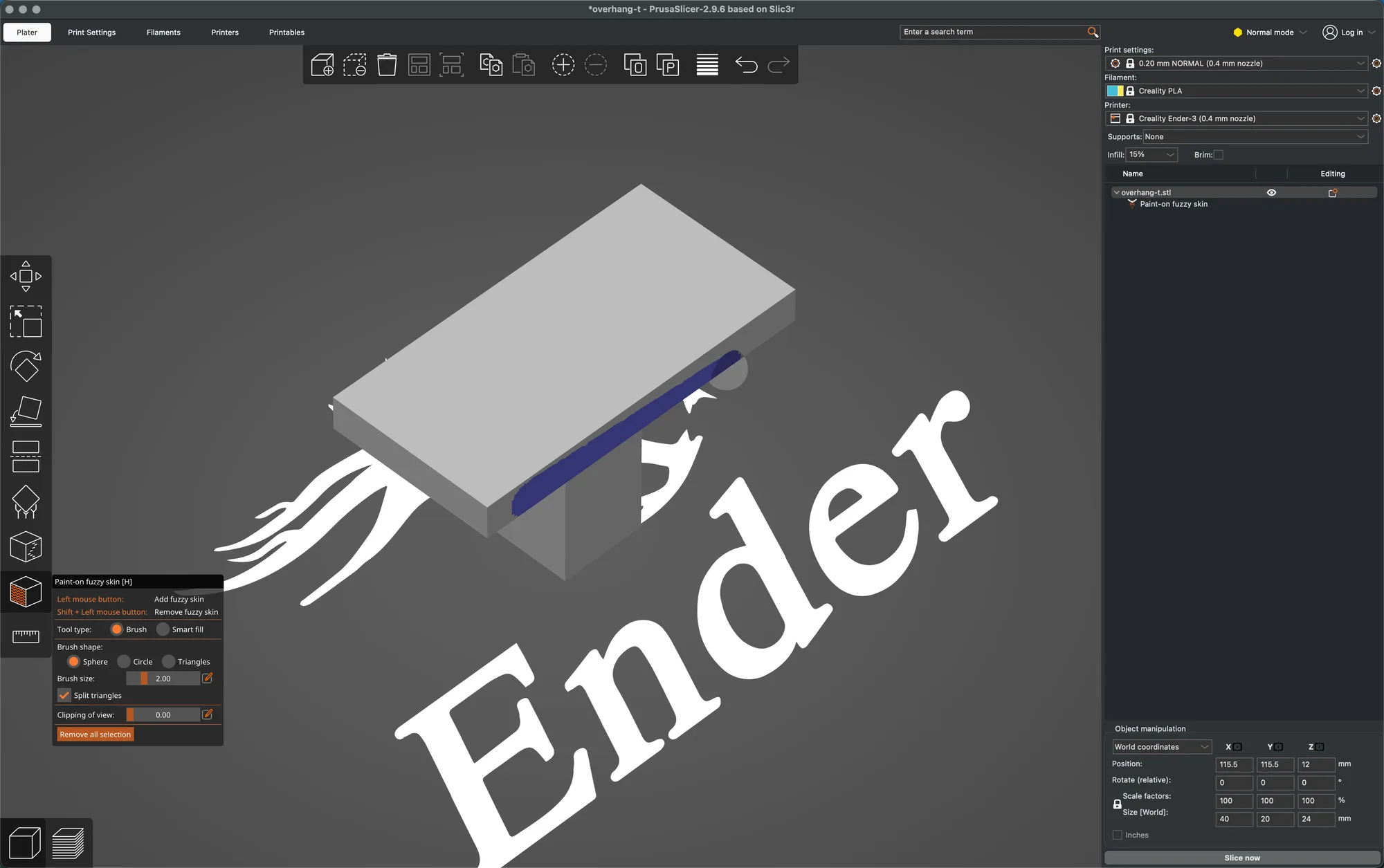
We dragged once along the side of the slab and a dark blue stroke appeared. We did not slice it, so we can not say how the surface looks or how long the print takes. After that we pressed Remove all selection. The object list then showed an empty expand arrow beside the object, so we deleted the part and loaded a clean copy.
Can PrusaSlicer print in more than one colour?
Only with matching hardware, and we have none, so we only read the setting. In Expert mode, Printers, General, Capabilities, there is an Extruders box and a Single Extruder Multi Material tick box. They read 1 and unticked for our Creality Ender-3 profile. We changed nothing there. For the full picture of how PrusaSlicer compares with other slicers, see Cura vs Orca Slicer vs PrusaSlicer.
What did we leave behind?
We closed every gizmo, removed the cut and the painted part, loaded a clean overhang-t.stl, and set the mode back to Normal. The app finished on the Plater with one object and no dialogs. Next in the course is the hands on PrusaSlicer review.
Next lesson: PrusaSlicer Review: Hands On With Version 2.9.6.