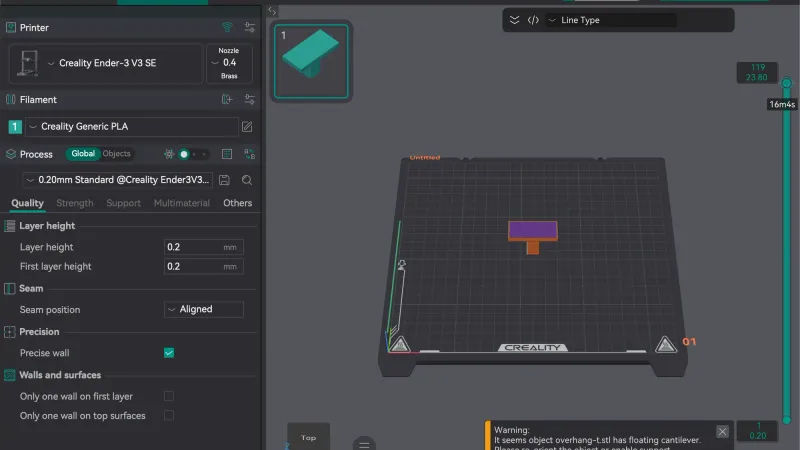
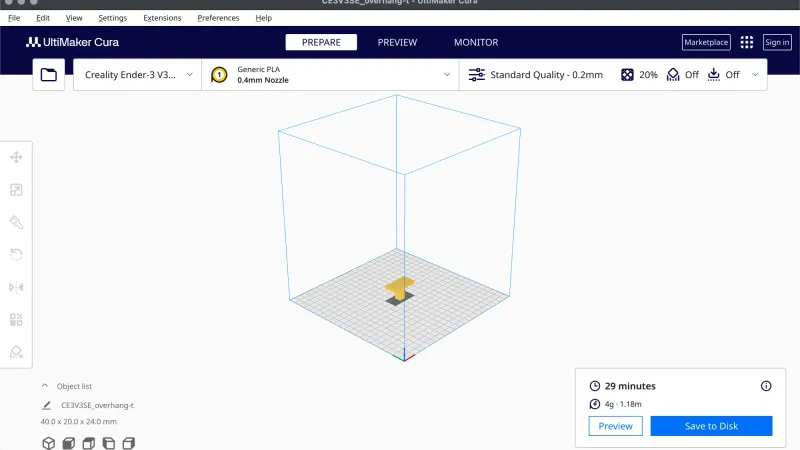
This PrusaSlicer review comes from a hands on test of version 2.9.6 on macOS. We worked through 11 lessons, from the Configuration Assistant to the Cut tool, on a Creality Ender-3 profile. We sliced and exported files. We did not print anything.
What is PrusaSlicer?
PrusaSlicer is a slicer: the program that turns a 3D model into the G-code a printer follows. If that idea is new, read what is a slicer first. The project's GitHub page describes it as a G-code generator for 3D printers and says it supports both FDM and mSLA printers, including machines from other makers. Our PrusaSlicer for beginners guide covers the download and the first slice from Prusa's documentation, while this page is about what we saw in the running app.
Who is PrusaSlicer for?
It suits people who want one slicer with a short list of settings on day one and a very long one later. The mode button hides or shows settings, and the program ships profiles for makers other than Prusa. We did not test with a first time user, and we did not load any Prusa printer profile, so that is our judgement from a Creality profile. If you are still choosing between programs, see Cura vs Orca Slicer vs PrusaSlicer.
How much does PrusaSlicer cost, and which licence and platforms?
The GitHub page does not state a price. It shows the licence as AGPL-3.0. It says Windows and macOS installers are on the releases page, Linux is distributed through Flathub, and the program can be built from source. In our run nothing asked for payment. The wizard offered an optional Prusa Account login for controlling printers through Prusa Connect, and we ignored it. We only used a Mac, so every observation below is for 2.9.6 on macOS.
What was the first run like?
Orderly, with one wait. The Configuration Assistant opens with a Welcome page and the optional login, then a Configuration Sources page with six online sources ticked. Pressing Next made PrusaSlicer download resources, and the printer pages appeared about 40 seconds later. Non Prusa printers sit on the Other FFF page, where you tick the maker and then your model. See the first launch wizard lesson for each page.
There is no Ender-3 V3 SE profile in the list, so we used the closest Creality entry the wizard really offers, the Creality Ender-3 with a 0.4 mm nozzle. Check your own machine against a profile before you trust it. The Plater then opened with drop downs that were not what we would pick: the print preset read 0.08 mm SUPERDETAIL and the filament read 123-3D Jupiter PLA, so we chose 0.20 mm NORMAL and Creality PLA ourselves.
How does the interface feel?
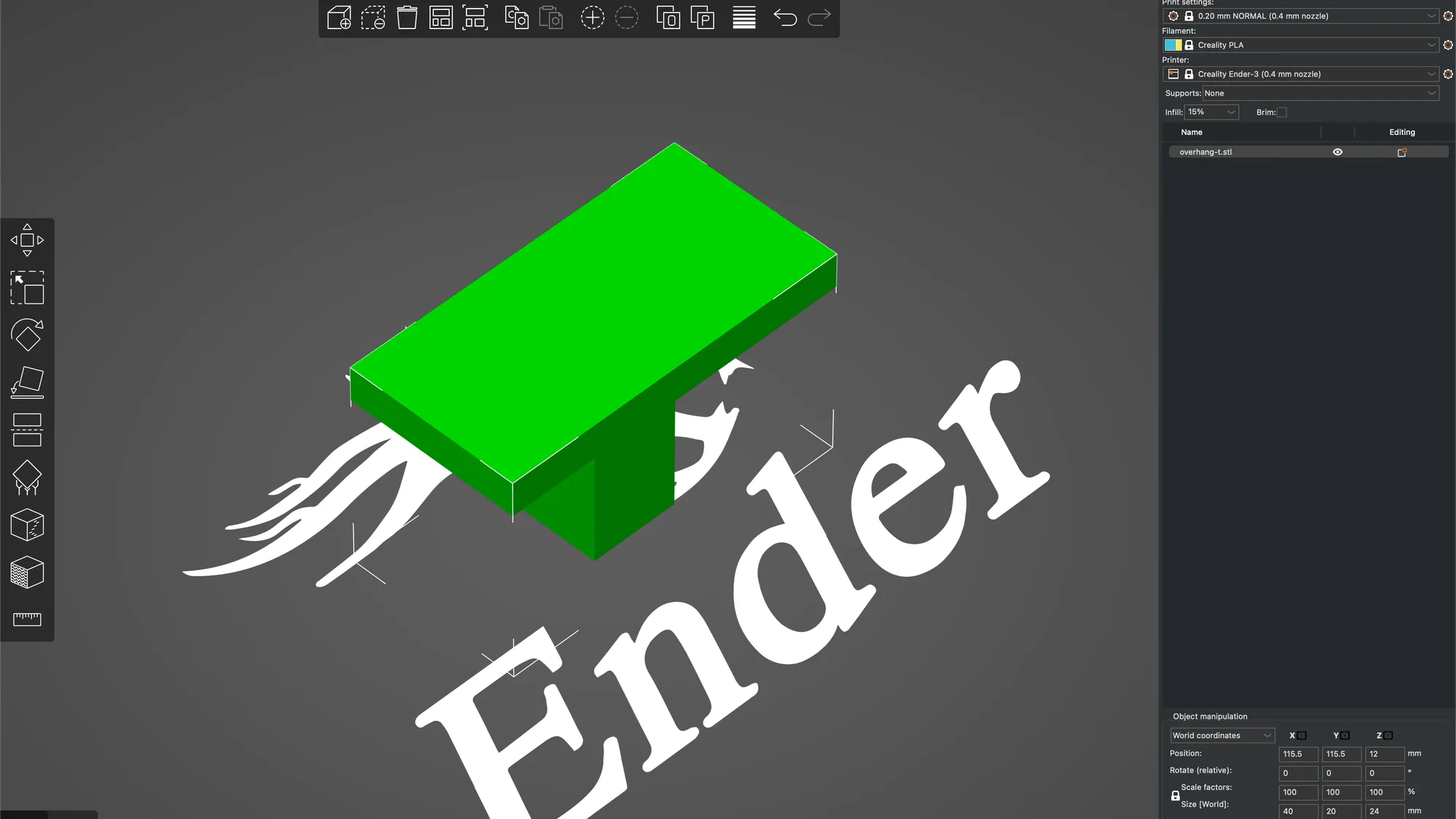
Dense but labelled. The tab bar holds Plater, Print Settings, Filaments, Printers and Printables, with a search box, the mode button and a Log in button at its right. Printables loads the Printables.com model site inside the program. A floating toolbar sits above the plate, a column of tools on the left and the sidebar on the right. See the interface tour.
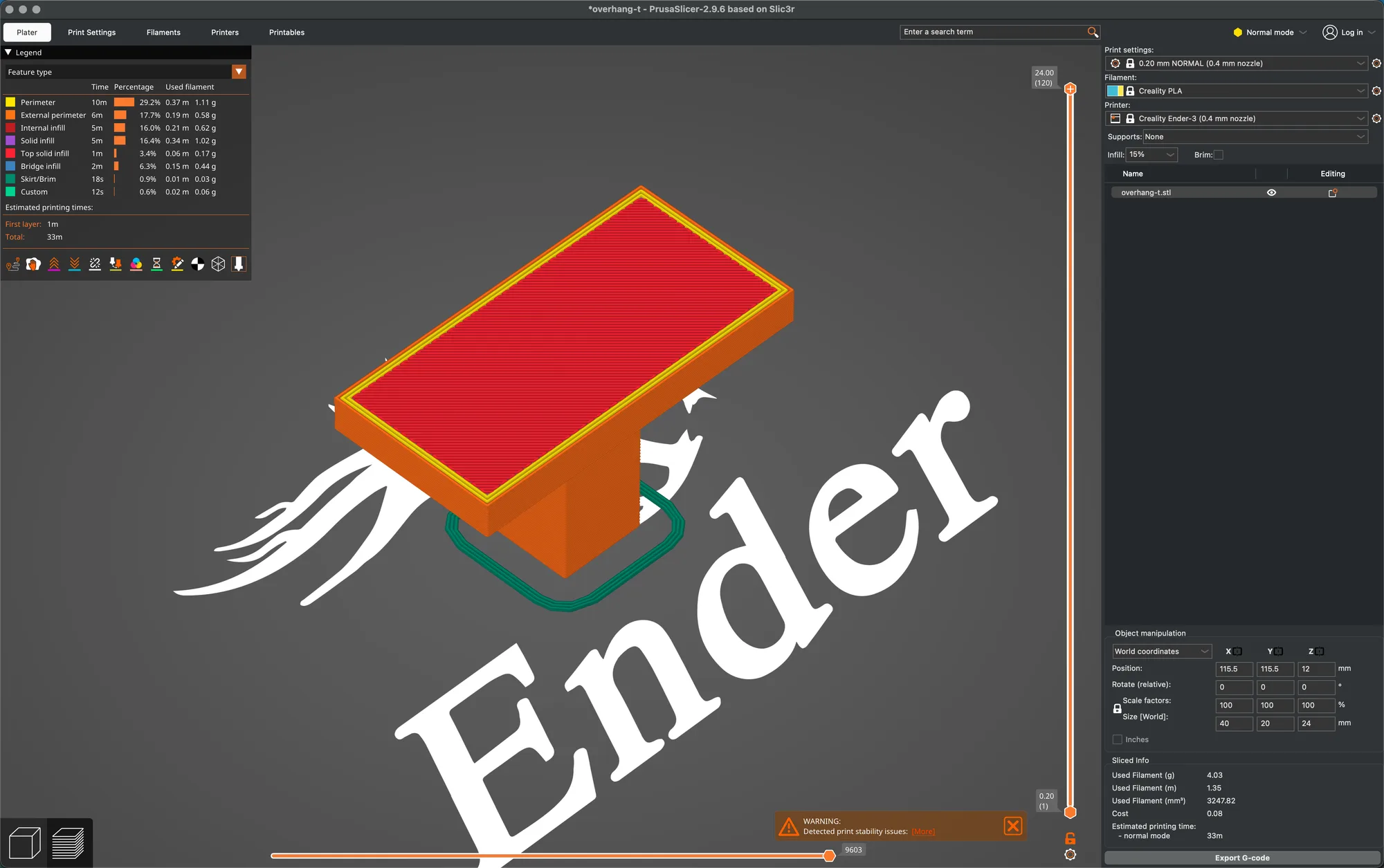
The mode button offers Beginner, Normal and Expert, but the wizard calls the first two Simple and Advanced. That mismatch confused us for a moment, even though the levels are the same. Beginner showed 4 Print Settings pages, and Normal and Expert showed 10. The mode changes what you see, not what the program can do. After slicing, the Sliced Info box read 4.03 g and 33 minutes for our test part, which is a slicer estimate and not a print result.
What are PrusaSlicer's strengths?
These are things we confirmed in the running app, each with a lesson behind it.
- Mode colour dots. Every setting has a green, yellow or red dot telling you which mode shows it, so you can tell what Beginner mode hides. See print settings basics.
- Choice of infill. The Fill pattern list held 18 patterns, including Gyroid, Lightning and Adaptive Cubic. For what infill does, see infill explained.
- Several kinds of support. Grid, Snug and Organic styles, plus painting supports by hand. Organic estimated about the same filament as Snug and more time than Grid on our part. See supports and supports explained.
- Per object settings and modifiers. A right click menu on the object adds settings, a sphere modifier or a height range, and a typed height range of 12 to 24 mm at 0.1 mm layers sliced to 180 layers. See variable layer height and modifiers.
- Cut with connectors. The Cut tool offered Plug, Dowel and Snap connectors, and Measure read 5.000 mm between two parallel faces. See the Cut tool and advanced tools.
- Painting tools. Supports, seam and fuzzy skin can all be painted on the model. See brim, skirt and seam.
- A thorough Preview. The view drop down held 13 entries, the layer slider showed an estimated time on hover, and the horizontal slider opened a G-code window. See preview and layers.
- Presets you can inspect. Compare Presets showed what differed between Creality PLA and Generic PETG, and Export Config Bundle is on the File menu. See filament and printer profiles.
What annoyed us about PrusaSlicer?
Nothing stopped us slicing. We list these so you are not surprised.
- Tooltip defaults differ from the preset. The Layer height tooltip said default value 0.3 and First layer height said 0.35, while the preset held 0.2 for both. These are the program's built in defaults, so trust the field and not the tooltip.
- Mode names differ. The wizard says Simple and Advanced, while the main window says Beginner and Normal.
- The wizard's starting presets. The first print preset was 0.08 mm SUPERDETAIL and the first filament was 123-3D Jupiter PLA, which we changed.
- No Ender-3 V3 SE profile. We used the Creality Ender-3 instead, and the profile list had no 0.05, 0.07, 0.15 or 0.30 mm print presets for it, so for 0.30 mm we typed the layer height ourselves.
- A Support Generator dialog. Choosing Everywhere in the sidebar opened a dialog suggesting Detect bridging perimeters and asking whether to adjust the settings. We pressed No each time. See supports.
- A drop down that changed value. After we scrolled the open Fill pattern list with the mouse wheel and pressed Escape, the pattern read Line. We could not say which action did it, so click your choice.
- Drop to bed. We looked for a Drop to bed button in Normal mode but could not make it appear. Typing a Position Z for a single object snapped back. See import, move, scale and rotate.
What did we not test?
A lot, so treat this as a software review and not a print review.
- Printing results. We did not print. Every time and weight here is a slicer estimate, and we say nothing about quality, strength or accuracy.
- Print hosts. We connected nothing. Send G-code was greyed out and we never opened the Physical Printer editor, so OctoPrint and similar hosts are untested. See export G-code.
- Multi material hardware. We only read the Extruders setting, which was 1 on our profile.
- Prusa printer profiles. We ticked none on the Prusa pages, so the most natural use of the program is untested.
- Prusa Account and resin printers. We skipped the login and used no mSLA profile.
Is PrusaSlicer worth using?
As software, yes, with the caveat that we tested only part of it. It is open source under AGPL-3.0, the mode dots make the settings list less scary, and the tools we tried (modifiers, height ranges, Cut, Measure, painting and Compare Presets) were easy to find and behaved as their panels described. The costs are some confusing labels and defaults. It suits people who like to see exactly what a profile does. We give no star rating, because without printing we cannot rate the result.
Where should you start? The 11 lesson course
These lessons are the evidence behind this review. Take them in order:
- First launch wizard
- Interface tour
- Import, move, scale and rotate
- Print settings basics
- Supports
- Brim, skirt and seam
- Preview and layers
- Export G-code
- Filament and printer profiles
- Variable layer height and modifiers
- Cut tool and advanced tools
Before exporting, make sure you know STL vs 3MF vs G-code.