How to Clean a 3D Printer Nozzle and Fix a Clog
How to spot a clogged nozzle and clear it, from a hot push and needle clean to a cold pull, plus prevention tips. Steps follow Prusa's documentation.
By Sepehr Sabbagh-pour · Published 10 October 2026 · 7 min read
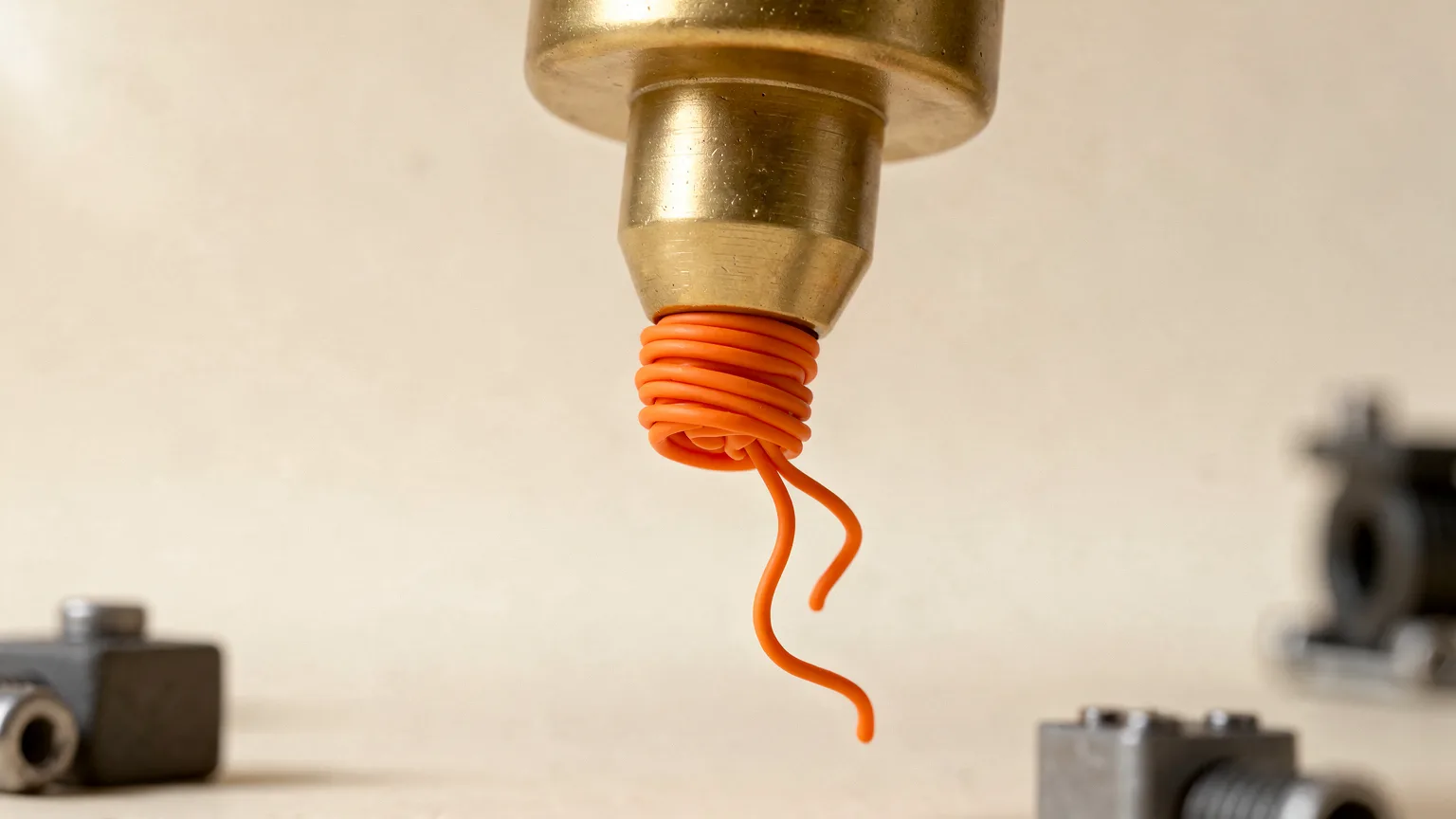
Research-based guide. The detailed steps below follow Prusa's Knowledge Base for its own printers; other makers publish their own procedures. Temperatures are Prusa's and are not universal. Nozzle Notes has not tested these methods.
A clogged nozzle is partly or fully blocked, so filament cannot flow out properly. Prusa's guide describes the cause as damage to the nozzle or impurities in the filament that make it stick in the hotend. This guide covers how to spot a clog, how to clear it, and how to stop it coming back.
Safety first. The nozzle can cause severe burns. Prusa warns not to touch the hotend while it is hot, to use protective gloves, and to heat the nozzle only through the printer's menu, never with an external heat source, which it says can cause damage. Always follow your printer maker's instructions.
How to tell if the nozzle is clogged
Prusa lists the signs:
- Filament does not come out of the nozzle when loading, even though it reaches the extruder gear.
- A partial clog shows as gaps and missing layers, or as filament that curls up and sticks to the nozzle.
- Clicking from the extruder. Prusa says loud clicking most likely points to a clogged or deformed nozzle, while light clicking may point to the gearing. Skipping gears can also grind the filament.
See fix extruder clicking and fix under-extrusion for the related symptoms.
Step 0: Rule out the extruder
Before you blame the nozzle, check the feed. Prusa says debris can build up in the grooves of the feeding gear and cause insufficient extrusion. It suggests lifting the idler and cleaning the gear with compressed air, a brass brush or a toothpick. Check that the filament is not ground or kinked above the extruder.
Step 1: Try a hot push with new filament
Prusa's procedure for its printers (applies to high-flow and standard nozzles) is:
- Open the extruder idler and remove any fittings on top so you can reach the filament path.
- Heat the nozzle through the printer menu. Prusa gives 260 °C if you were printing PLA, or 280 °C for PETG or ASA.
- Wait 2 minutes, then push new filament in by hand and see if it flows or drips.
- If it flows, load filament and run a short test print to confirm.
Prusa adds that if flow does not return, the nozzle most likely needs replacing, with the blockage further up. Check your own filament's allowed range before heating beyond it. These temperatures are for Prusa hotends.
Step 2: Clean a standard nozzle with a needle
For non-high-flow nozzles only, Prusa describes heating to the temperature for the material, introducing the filament, then inserting an acupuncture needle (supplied with the printer) or a thin wire of 0.3 to 0.35 mm into the nozzle from below to a depth of about 1 to 2 cm. Prusa warns that material may start to flow suddenly, so use protective gloves. Then load filament and check it flows, repeating several times. Prusa says these steps do not apply to high-flow nozzles because of their internal geometry.
Step 3: Cold pull
A cold pull pulls a plug of cooled filament out of the nozzle, taking residue with it. Prusa notes that its printers have a dedicated cold pull procedure (and an automatic one on some models), and that it recommends trying it if available even when the push method failed. Follow the exact steps for your printer, because temperatures and technique vary. This is also covered by the maker's guide if you have a printer from another brand.
Step 4: Pull the filament out with pliers
If a bit of filament is visible at the top of the nozzle tube, Prusa says you can heat the nozzle to 280 °C and firmly grab the filament with needle-nose pliers, then slowly pull it upward until it is fully removed. It recommends following this with a cold pull.
When to replace the nozzle
If none of the methods works, replace the nozzle. Prusa says that if flow is not restored after the push method, the nozzle most likely needs replacing. See hotends and nozzle materials and nozzle sizes explained.
How to prevent clogs
| Cause | Prevention (from Prusa) |
|---|---|
| Heat creep with PLA in an enclosure or a very warm room | Open enclosure doors or top vents when printing PLA; heat can travel up the hotend and soften filament before the melt zone |
| Wet or low-quality filament | Store filament dry, for example in a dry box with desiccant; cheap filament can have inconsistent diameter or impurities |
| Wrong slicer profile for the nozzle | Use the high-flow profile with a high-flow nozzle and the standard profile with a standard nozzle |
See how to store filament and how to dry filament, and keep up with the routine in the maintenance checklist. For temperature ranges that stay safe for your material, see PETG print temperature.
Order to try. Check the extruder gear, try a hot push with fresh filament, use a needle on a standard nozzle, attempt a cold pull, then replace the nozzle.
Frequently asked questions
How do I know if my nozzle is clogged?
Common signs are filament not coming out when loading, gaps and missing layers, filament curling and sticking to the nozzle, and loud clicking from the extruder, according to Prusa.
How do you clean a 3D printer nozzle?
Prusa describes heating the nozzle through the printer menu and pushing new filament through, then using the needle or thin wire (0.3 to 0.35 mm) on standard nozzles, and then a cold pull. Follow your own maker's steps.
Can I use a needle on any nozzle?
No. Prusa says the needle method is for non-high-flow nozzles and does not apply to high-flow nozzles because of their internal shape.
What is heat creep?
Prusa describes it as heat travelling up the hotend and softening filament before it reaches the melt zone, causing it to swell and clog. It can happen with PLA in a closed enclosure or a very warm room.
Sources

Founder and editor
Software engineer since 2009 and Head of Engineering by day, a maker who has owned several 3D printers, writing practical guides to 3D printers, filament and running costs, with every article saying what was and was not tested.
Keep reading
How to Fix a Nozzle That Is Too Close to the Bed (Z Offset)
A nozzle set too close squashes the first layer and can scrape the plate. Here is how to recognise it, raise the Z offset safely and make the setting stick.
10 October 2026 · 4 min read
3D Printer Problems and Fixes: A Troubleshooting Guide
A symptom-first guide to common 3D printer problems: what causes them and what to try first, based on manufacturer troubleshooting documentation.
10 October 2026 · 7 min read
How to Stop PETG Stringing
PETG is prone to stringing. Fix it in this order: dry the spool, lower the nozzle temperature, tune retraction, shorten travel moves, then check cooling and the nozzle.
10 October 2026 · 4 min read