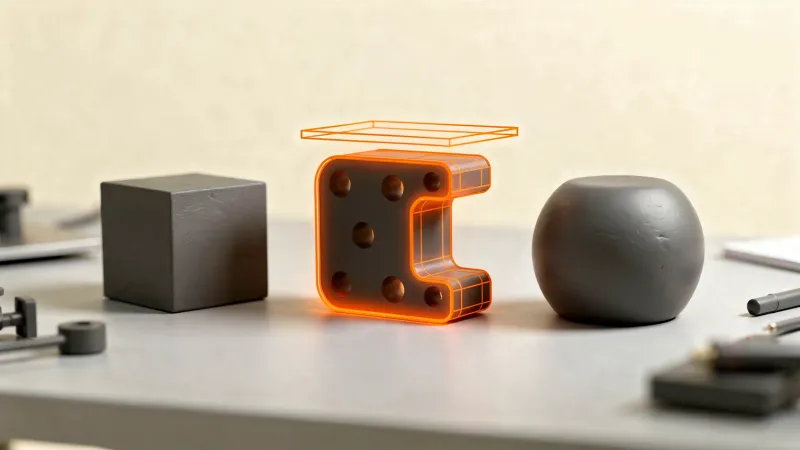
Fusion 360 3D printing means designing a part in Autodesk's Fusion (the product was renamed from Fusion 360), exporting it as a mesh file such as 3MF or STL, and opening that file in your slicer. The path is model, Save As Mesh, slicer. The free personal edition covers hobby use, with limits you should check.
Not sure Fusion is the right tool? FreeCAD vs Fusion 360 vs Tinkercad compares the three on cost, limits and export.
This guide covers the first hour: what Fusion is, what the free edition allows, how a simple part is built, and exactly how to get it out of Fusion and into a slicer. Everything about Fusion's menus and licence comes from Autodesk's own help pages or from reporting on Autodesk's announcements, listed in the Sources section. Autodesk's product pages were not reachable when this was written, so the licence section says what to re-check.
What is Fusion 360 and is it good for 3D printing?
Fusion is a cloud-enabled CAD, CAM and CAE program that runs on Windows and macOS and in a web browser. For 3D printing you only use the design side: you draw a 2D sketch, extrude it into a solid body, and export that body as a mesh for a slicer. It is parametric, which means you can go back and change a dimension later instead of redrawing the part.
That makes it a good fit for functional parts such as brackets, enclosures and adapters, where you will want to adjust a hole size after a first print. It is heavier to learn than a block-based tool. If you only need simple shapes, the Tinkercad first design walkthrough is a faster start, and the free CAD software comparison shows where Fusion sits next to FreeCAD, Onshape and OpenSCAD.
Is Fusion 360 free for 3D printing?
Yes for personal use, with conditions. Autodesk offers a free personal edition for non-commercial work that is described as having limited functionality, while commercial use needs a paid licence. When Autodesk announced the change in 2020, reporting listed a cap of ten active documents, 2D drawings limited to one sheet, and the removal of several export formats. Autodesk then reversed the STEP decision and kept STEP export, and STL export was retained.
Those details date from 2020 and Autodesk can change them. Before you rely on the free edition, read Autodesk's current personal-use page, especially if you might sell what you print or use it for paid work.
| Question | Answer | Where it comes from |
|---|---|---|
| Free for hobby use? | Yes, personal edition, limited functionality | Wikipedia, Hackaday |
| Free for selling prints? | No, commercial use needs a paid licence | Wikipedia, Hackaday |
| Active document cap | Ten, as reported in 2020 | Hackaday (re-check) |
| STL export kept? | Yes, as reported in 2020 | Hackaday (re-check) |
How do you design a simple part for 3D printing in Fusion?
Start with one simple part, such as a rectangular plate with a hole, and follow the same loop every time: sketch, constrain, extrude, check. The order below is general CAD practice, not a Fusion-specific setting, so adapt it to your part.
- Sketch the profile on a flat plane, such as the base outline of the part.
- Add dimensions to the sketch, so the size is a number you can edit later.
- Extrude the sketch into a solid body.
- Add features one at a time, such as holes, fillets and chamfers, so you can undo a single step.
- Name your dimensions if you plan to reuse the design, for example a hole diameter you may tune after a test fit.
Design with the printer in mind: put the largest flat face on the bottom so it sits on the bed, and think about which faces will need support. The supports explainer covers when overhangs need them, and where to find 3D models is the alternative when you do not need a custom part at all.
How do you export from Fusion 360 to your slicer?
Right-click the body or component in the Browser and choose Save As Mesh. Autodesk's help lists the formats as 3MF, STL (Binary), STL (ASCII) and OBJ. Pick a unit, pick whether all bodies go in one file or one file per body, click OK, then name and save the file. Open that file in your slicer.
The dialog offers these options, per Autodesk's help page:
- Format: 3MF, STL (Binary), STL (ASCII) or OBJ.
- Unit: centimeter, millimeter, meter, inch or foot. For centimeter, one unit from the design equals one centimeter.
- Structure: One File saves all bodies in the component to a single file; One Body Per File saves each as a separate file.
Slicers normally work in millimeters, so choose Millimeter unless you have a reason not to, and check the model's size when it opens in the slicer. A part that arrives ten or twenty-five times too big or small is almost always a unit mismatch.
Fusion also has a 3D Print command. Autodesk's help says it exports a mesh body as an STL file or sends it to a 3D print utility, such as a slicer you choose. The Save As Mesh route is the simplest and works the same whichever slicer you use.
Should you export 3MF or STL from Fusion?
Either opens in every common slicer, so choose 3MF when you can and STL when a tool asks for it. STL stores only the surface shape. 3MF is a newer format that can also carry units and other print data. The STL vs 3MF vs G-code comparison explains the differences in detail.
Whichever you pick, the file is only a shape. Layer height, walls and infill are chosen in the slicer, as covered in what a slicer does and in the OrcaSlicer beginner guide. To estimate filament cost before you print, use the print cost calculator.
Common beginner mistakes with Fusion 360 3D printing
- Exporting in the wrong unit. Check the size when the file opens in the slicer.
- Forgetting the free edition's limits. Re-check the document cap and commercial-use rule before building a library of designs.
- Making everything in one giant sketch. Smaller steps are easier to edit and undo.
- Skipping the preview. Always look at the sliced preview before printing, because a shape that looks fine on screen can need supports or print poorly flat-side up.
- Assuming a slicer link works. If sending directly to a slicer does not open your model, export the file and import it manually.
Sources and how this was researched
The Save As Mesh steps and the 3D Print command description come from Autodesk's Fusion help pages. The personal-edition terms come from Wikipedia and Hackaday's 2020 report on Autodesk's announcement; Autodesk's own licence pages returned errors when requested, so those terms are secondhand. No version of Fusion was run to write this page, so menu names are as Autodesk documents them and may differ slightly in your version.