3D Printer Wifi Not Connecting: Fixes That Work
Why a 3D printer will not join your wifi, what the status messages mean, and the fixes Prusa and Creality document, from the 2.4 GHz limit to IP conflicts.
By Sepehr Sabbagh-pour · Published 12 October 2026 · 6 min read
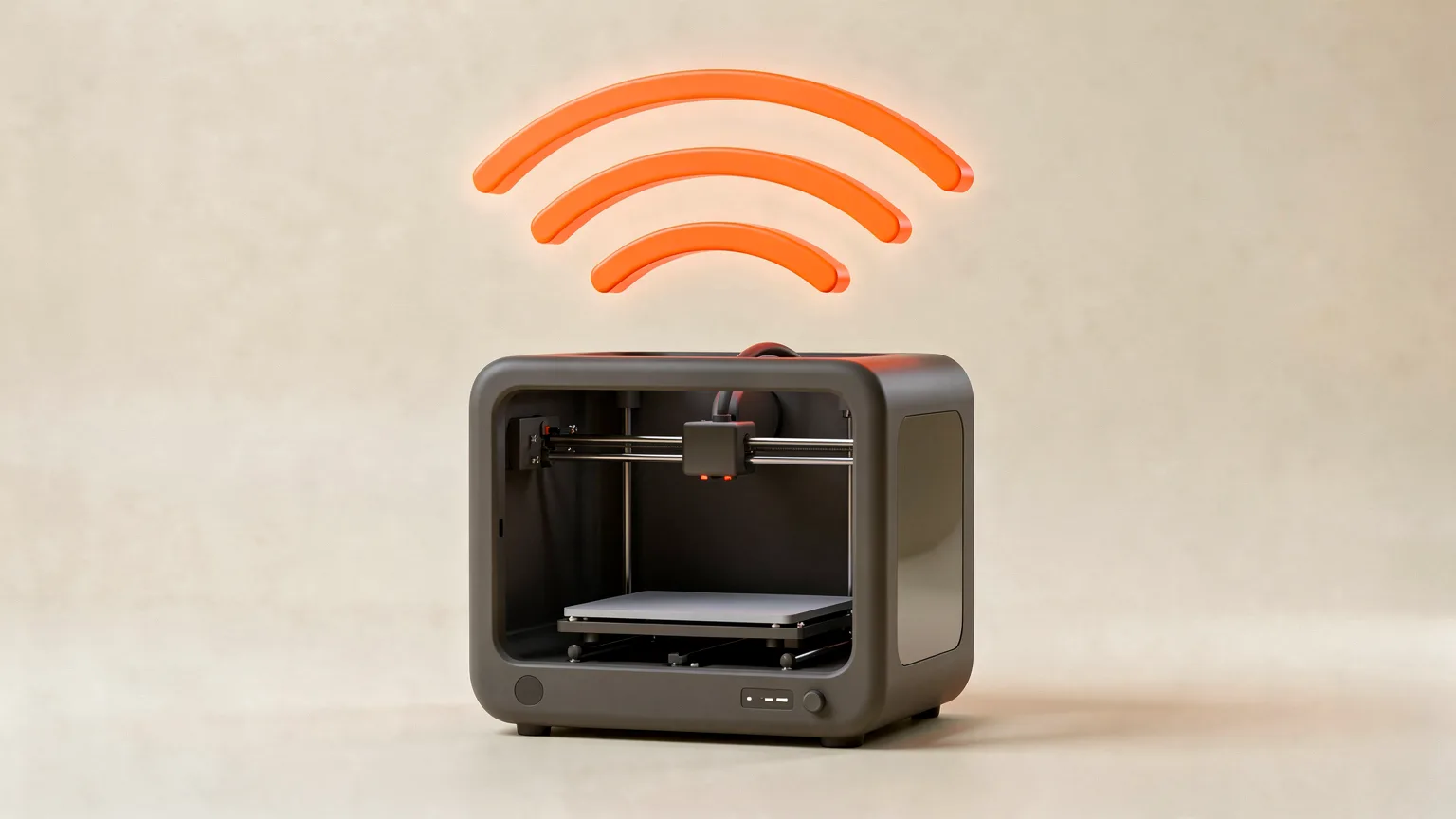
A 3D printer wifi not connecting is usually a band or signal problem, not a broken printer. Many printers only join 2.4 GHz networks, so a 5 GHz network never shows up. Check the band first, then read the printer's status message, then look at router limits and the IP address.
Research-based guide. The steps below follow Prusa's Knowledge Base and Creality's K2 help page. Other makers differ, and Nozzle Notes has not tested these fixes on a printer. Check your own maker's documentation for model-specific steps.
Why will my 3D printer not connect to wifi?
The most common documented cause is the wrong band. Prusa says the ESP wifi module in its printers works only on 2.4 GHz, so a 5 GHz-only network can produce a 'No AP' status. Creality says the same about its K2 and K2 Pro, which support only 2.4 GHz, while the K2 Plus supports both bands.
After the band, these are the causes the two makers name:
- Weak signal or interference.
- Incorrect credentials.
- Special characters in the network name (Prusa lists dash, underscore, apostrophe and dot).
- A router that has blacklisted the printer.
- A router at its connected-device limit.
- An IP address conflict, or a router that needs a manually set IP.
- On some Creality printers, a detached internal antenna.
The printer's status message tells you which of these to chase first, so read it before changing router settings.
Does a 3D printer need 2.4 GHz or 5 GHz wifi?
It depends on the model. Prusa and Creality both document 2.4 GHz as the supported band on the printers covered here, and Creality's K2 Plus is the exception that handles 5 GHz too. Treat 2.4 GHz as the safe default and check your manual before assuming 5 GHz works.
If your router broadcasts one network name for both bands, the printer may still fail to join. A practical test is to turn on your phone's hotspot, which Creality notes defaults to 2.4 GHz, and see whether the printer lists it. If the printer sees the hotspot but not your router, the problem is the router's band or settings. If it sees neither, suspect the printer's wifi module or antenna.
What do the wifi status messages mean?
Prusa documents the wifi states on its MK4/S, MK3.9/S, MK3.5/S, XL and MINI printers. A white wifi icon means connected, and a grey icon means wifi is active but not joined to an access point. The detailed state is under Settings, Network, Wi-Fi, Status.
| Status | What Prusa says it means | What to try |
|---|---|---|
| Connected | The printer is on the network. | Nothing to fix. |
| Link down | Reached the access point but has no IP address. Causes: weak signal, interference or no DHCP server. | Wait a short while, move closer, check the router's DHCP. |
| No AP | Not connected to any access point. Causes: weak signal, wrong credentials or compatibility, including 5 GHz-only networks. | Check the band, name and password. |
| ESP error | The wifi module and main board stopped communicating. The printer reboots the module automatically. | If it repeats, replug or reflash the module. |
| Gone | The module is unplugged or has no suitable firmware. | Check the module and its firmware. |
| Flash ESP | The module firmware is outdated or wrong. | Choose 'Setup Wi-Fi Module' in the same menu. |
On older Prusa MK3 printers with a Raspberry Pi, the screen can show 'ERR: NO IP'. Prusa says to wait up to five minutes, confirm a 2.4 GHz network is in range, and set up the SD card again if needed.
How do I fix a printer that has the right password but will not connect?
Creality's K2 help page covers this case: signal is normal and the password is correct, but the printer still cannot join. It lists five causes and fixes.
| Cause | Fix |
|---|---|
| The router has blacklisted the printer | Check the router's blacklist and remove the printer. |
| The router is unstable after long uptime | Restart the router. |
| The printer's IP was reassigned to another device | Restart the connection or resolve the IP conflict in the router. |
| The router has reached its device limit | Disconnect other devices or raise the limit. |
| The router needs a manually assigned IP | Set a static IP address. |
Prusa's printers get an address automatically (DHCP) by default and can use a static IP instead, which Prusa covers in a separate article. If a cluttered network is the likely culprit, the printer's spot matters too. Our guide to where to put a 3D printer covers placement, and a router several rooms away is a common reason for a weak link.
What if the printer sees the network but the signal is weak or keeps dropping?
Creality attributes weak signal, difficult connections and frequent disconnects on its K2 series to an internal wifi antenna that has come detached. Its fix is to open the display screen and reattach the antenna, following the images on its help page. Only do this if your printer is out of warranty or the maker's support tells you to, and unplug the printer first.
If the printer cannot see any network, including your phone's hotspot, Creality says the wifi module may be faulty and tells owners to contact customer service about replacing the module.
How do I enter wifi details correctly on a Prusa printer?
Prusa's printers offer the Wi-Fi Wizard under LCD Menu, Settings, Network, Wi-Fi. Its Network Connection page lists four methods: typing the credentials on the touchscreen keyboard, scanning for nearby networks and picking one, writing the credentials from the Prusa app over NFC, or loading a credentials file.
If the printer has not connected after eight minutes, Prusa says PrusaLink only supports a direct network name and password, not roaming networks. For the credentials file, it says to remove any spaces around the equals sign in prusa_printer_settings.ini and to avoid dash, underscore, apostrophe and dot characters in the network name. On MINI and MINI+ printers with firmware up to 4.4x, leave the key_mgmt=WPA row unchanged.
Can I skip wifi and use Ethernet instead?
On printers with a port, yes. Prusa's MK4S and related printers have an RJ45 Ethernet port. Connect a LAN cable, then choose ETH as the Active Interface under Settings, Network. It is also a clean test: if the cable works and wifi does not, the fault is in the wireless link rather than the network setup.
If a print stops partway for another reason, see why a 3D print stops halfway.
Which wifi problems are not a printer fault?
Some failures sit outside the printer. Creality's list of router-side causes (blacklisting, a freeze after long uptime, an IP conflict, a device limit, a manual IP requirement) and Prusa's 'no DHCP server' cause for Link down are all fixed in the router's own settings, not on the printer.
Once the printer is online, remote tools build on it. OctoPrint and Klipper setups use your network to reach the printer, and Bambu printers connect through Bambu Studio. If you are still stuck, the 3D printer problems guide lists other common faults, and the tools page has calculators if you are weighing up a different printer.
Quick checklist
- Confirm the network is 2.4 GHz, or test with a phone hotspot.
- Read the status message on the printer and look it up in the table above.
- Move the printer closer to the router for the test.
- Remove special characters from the network name if your maker warns about them.
- Restart the router, and check its blacklist and device limit.
- Look for an IP conflict or set a static IP.
- Try Ethernet if the printer has a port.
Frequently asked questions
Why will my 3D printer not connect to wifi?
The most common documented cause is the wrong band. Many printers have a wifi module that only works on 2.4 GHz, so a 5 GHz-only network never appears. Prusa states its ESP module supports 2.4 GHz and not 5 GHz-only networks, and Creality says its K2 and K2 Pro are 2.4 GHz only while the K2 Plus supports both. After the band, the next causes are weak signal, a wrong password, special characters in the network name, a router that has blacklisted the printer or reached its device limit, and an IP address conflict. Read the status message on the printer, because it usually narrows the problem to one of these.
Does a 3D printer need 2.4 GHz or 5 GHz wifi?
It depends on the model, so check your maker's documentation. Prusa's troubleshooting page says its printer wifi module works on 2.4 GHz and that 5 GHz-only networks cause a 'No AP' status. Creality says the K2 and K2 Pro support only 2.4 GHz, while the K2 Plus supports both 2.4 GHz and 5 GHz. Newer models may add 5 GHz, but 2.4 GHz is the safe default because it travels further through walls. If your router combines both bands under one network name, a printer that only knows 2.4 GHz may still fail to join, so a separate 2.4 GHz network is a useful test.
What does 'Link down' or 'No AP' mean on a Prusa printer?
Prusa defines them separately. 'No AP' means the printer is not connected to any access point, with weak signal, wrong credentials or a compatibility problem as the possible causes, including a 5 GHz-only network. 'Link down' means the printer reached the access point but has no IP address, which Prusa links to weak signal, interference or no DHCP server. Prusa also says a short 'Down' period can be normal, and that waiting often resolves it. You can see the detailed state in the printer menu under Settings, Network, Wi-Fi, Status. A white wifi icon on the screen means connected, and a grey icon means wifi is on but not joined to an access point.
How do I fix a printer that has the right password but will not connect?
Creality lists five causes for this case on its K2 troubleshooting page, each with a fix. The router may have blacklisted the printer, so remove it from the blacklist. The router may be unstable after long uptime, so restart it. The printer's IP address may have been reassigned to another device after a long disconnection, so restart the connection or resolve the conflict in the router. The router may have hit its connected-device limit, so disconnect other devices or raise the limit. Some routers need a manually assigned IP, so set a static IP. Prusa adds that special characters in the network name can cause trouble.
Sources

Founder and editor
Software engineer since 2009 and Head of Engineering by day, a maker who has owned several 3D printers, writing practical guides to 3D printers, filament and running costs, with every article saying what was and was not tested.
Keep reading
Bambu AMS Jam: How to Fix a Filament Jam
A Bambu AMS jam usually traces to the spool, a tangle, worn PTFE tubing or broken filament in the hub. Here is the order Bambu Lab's wiki suggests checking.
12 October 2026 · 7 min read
Heat Creep 3D Printer Jams: Causes and Fixes
What heat creep is, how to tell it from an ordinary clog, and the cooling, enclosure and settings fixes Prusa's documentation recommends.
11 October 2026 · 6 min read
3D Print Missing Details? Why Slicers Drop Small Features
A 3D print missing details usually means the slicer dropped features thinner than one extrusion line. Wall settings, a smaller nozzle or a thicker model bring them back.
11 October 2026 · 5 min read