How to Change Filament Mid-Print and Between Prints
Learn how to change filament between prints and mid-print: the pause, unload and load sequence, how to add M600 color changes in PrusaSlicer, and what to do when a spool runs out.
By Sepehr Sabbagh-pour · Published · 4 min read
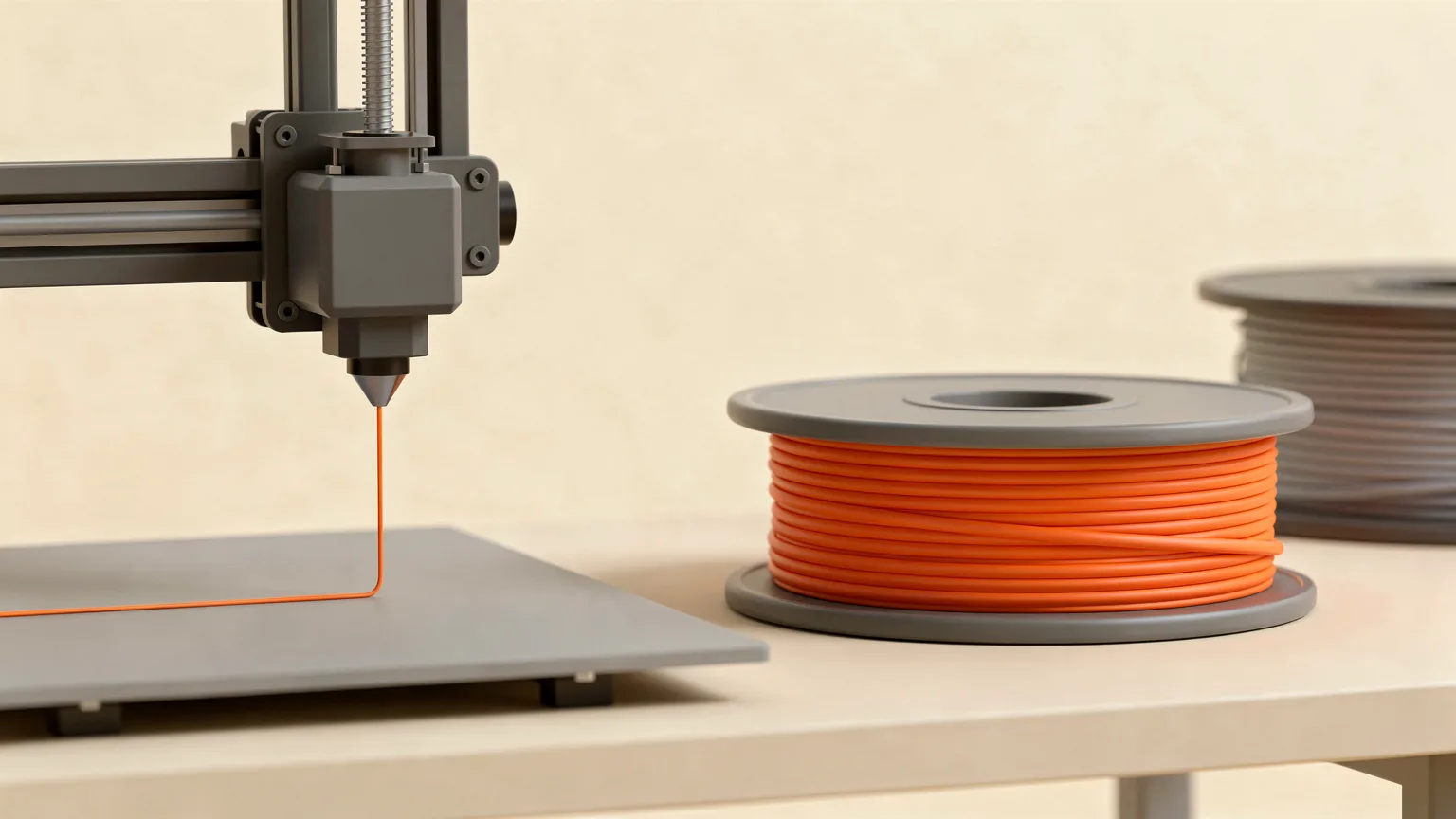
To change filament, pause the print or finish it, unload the old filament through the printer's menu, then load the new filament and confirm it extrudes cleanly. Bambu Lab's A1 wiki and Prusa's color change guide both describe this pause, unload, load sequence. Mid-print swaps need a pause command in the G-code.
How do you change filament mid-print?
Pause the print, unload the old filament, load the new one, then resume. Bambu Lab's A1 wiki says to pause the current task, remove the filament in the toolhead, and load the new filament.
- Pause. Use the pause button, or a pause or color change you added in the slicer (next sections).
- Unload. On the A1, tap Unload and the printer heats the hot end and cuts the filament (Bambu Lab).
- Remove it by hand. Follow the on-screen prompt and pull the filament out of the extruder promptly (Bambu Lab).
- Load. Push the new filament in until it stops, start Load, and confirm it extrudes (steps below).
- Resume. Continue from the screen once the new color or material is flowing.
The exact menus differ by printer. Prusa's pages do not describe the on-printer unload and load steps, so use your printer's own manual for those.
How do you change filament between prints?
Between prints it is the same unload and load sequence without the pause, and there is no part to protect. Wait for the previous print to finish, unload the old filament from the printer's filament menu, swap the spool, and load the new filament. If you are unsure which material to load next, see types of 3D printer filament.
Bambu Lab's wiki gives the A1 loading steps:
- Insert the filament into the PTFE tube and push it into the toolhead until it can no longer move forward.
- Click Filament on the printer screen, then Load.
- When the nozzle starts heating to 250 °C, push the filament into the toolhead again.
- Watch the nozzle to confirm the extruder is extruding smoothly, then select Continue (or Done) to finish. Select Retry if you are not sure it extruded.
After a swap, store the spool you removed properly. Our guides on how to store filament and how to dry filament cover keeping it print-ready.
How do you unload filament cleanly?
Use the printer's Unload function rather than pulling cold filament out, and pull it out while the hot end is hot. On the A1, Bambu Lab says the printer heats the hot end and cuts the filament, and you then remove the filament from the extruder by hand when prompted. If the nozzle temperature stays above 142 °C without dropping, Bambu Lab says filament is still in the extruder and the unload is not complete. Select Retry and remove it again.
How do you add a filament color change in PrusaSlicer?
Slice the model, drag the vertical layer slider on the right of the preview to the layer where the color should change, then left-click the orange plus icon. Right-click the plus and choose Add color change if you want to pick the preview color. Prusa's guide says the printer pauses automatically when it reads the M600 command in the G-code and prompts you to proceed with the filament change.
| What you want | PrusaSlicer action | What the printer does |
|---|---|---|
| Swap to another color | Orange plus icon, Add color change (M600) | Pauses and prompts you to change filament |
| Stop to insert something (magnets, nuts) | Right-click plus, Insert pause print (M601) | Pauses before that layer, shows your LCD message and beeps |
| Remove a change | Move the slider to that layer, click the grey cross | Nothing is added to the G-code |
Preview colors only affect how the model looks in the slicer and do not change the G-code, according to Prusa. Switch the legend to Color Print mode to see when each change happens, which helps you plan when to be at the printer. Prusa also says that if the prompt would come at an awkward time, you can set the beeper to Silent, Mute or Once in the printer's settings.
Can you mix filament types in one print?
Not safely. Prusa's color change guide says to always mix PLA with PLA, PETG with PETG and so on. Different materials need different nozzle temperatures, so changing the filament type mid-print is not what color change is designed for. Change color within one material, and start a new print for a different material. Prusa also notes that color change does not work with sequential printing.
What if the filament runs out mid-print?
Bambu Lab's wiki says that if the filament is used up during printing on the A1's external spool, you remove the empty spool from the bracket, install a new one, and follow the loading steps again. Before a long print, check the spool has enough left: see how long a spool of filament lasts and the print cost calculator for how much a job uses. If prints keep stopping for other reasons, read why a print stops midway.
When is it easier to use a multi-color system?
If you change colors often, a manual swap gets tedious. Systems that hold several spools do the swap for you; our explainers on multicolor 3D printing and the Bambu Lab AMS cover the options. For a manual swap, the pause-and-prompt workflow above is all you need.
Where do these steps come from?
The steps come from the maker pages listed under Sources: Bambu Lab's wiki for the A1 unload and load flow, and Prusa's Knowledge Base for adding M600 color changes and M601 pauses in PrusaSlicer. Menus and temperatures vary by printer and firmware, so treat these as the documented examples and check your own manual.
Frequently asked questions
How do you change filament mid-print?
Pause the print, unload the old filament, load the new filament, then resume. Bambu Lab's A1 wiki says to pause the current task, remove the filament in the toolhead, and load the new filament. On the A1, tapping Unload heats the hot end and cuts the filament, and you then pull it out of the extruder by hand when prompted. For a planned swap, add a color change in the slicer so the printer pauses itself: in PrusaSlicer that inserts an M600 command, and the printer prompts you to proceed with the filament change. Exact menus differ by printer, so check your own manual for the on-printer steps.
How do you change filament between prints?
Wait for the print to finish, unload the old filament from the printer's filament menu, swap the spool, and load the new filament. Bambu Lab's A1 wiki gives the loading steps: insert the filament into the PTFE tube and push it into the toolhead until it stops, choose Load on the screen, push the filament in again once the nozzle heats to 250 °C, and watch the nozzle to confirm smooth extrusion before selecting Continue. If you are unsure it extruded, select Retry and push again. Other printers use different temperatures and menus, so follow your manual.
How do you add a filament color change in PrusaSlicer?
Slice the model, drag the vertical layer slider on the right of the preview to the layer where the color should change, then left-click the orange plus icon. Right-click the plus and choose Add color change if you want to pick the preview color. According to Prusa's guide, the printer pauses automatically when it reads the M600 command in the G-code and prompts you to proceed with the filament change. To remove a change, move the slider to that layer and left-click the grey cross. Color change does not work with sequential printing.
Can you mix filament types in one print?
Not as a normal practice. Prusa's color change guide says to always mix PLA with PLA, PETG with PETG and so on, so a color change is meant for swapping colors within the same material. Different materials print at different nozzle temperatures, which is why switching type mid-print is not what the feature is designed for. If you want a different material, start a new print instead. Prusa also notes that color change does not work with sequential printing, where objects are printed one after another.
What if the filament runs out mid-print?
Bambu Lab's wiki says that if the filament is used up during printing on the A1's external spool, you remove the empty spool from the bracket, install a new one, and follow the loading steps again. In practice that means pausing, unloading any remaining filament as prompted, loading the new filament until it extrudes cleanly, and then continuing. Check how much filament a job will use before starting a long print, so the spool is big enough, and confirm the steps for your own printer in its manual.
Sources

Founder and editor
Software engineer since 2009 and Head of Engineering by day, a maker who has owned several 3D printers, writing practical guides to 3D printers, filament and running costs, with every article saying what was and was not tested.
Drafted with AI assistance, then edited and reviewed by Sepehr before it goes live. How we use AI.
Keep reading
How to 3D Print: Your First Print, Step by Step
Everything between the box and a finished first print, in the order to do it: set up, load filament, check the first layer…
 AI illustration
Why a 3D Print Stops Halfway and What to Check
A print can stop for several different reasons. Read the error message first, then check the filament, the hotend, the power and…
 AI illustration
How to Fix Gaps Between Walls and Infill
Gaps between the outer walls and the infill usually come from too little infill overlap or under-extrusion. Here is what to…