3D printing tolerances are the small differences between the size you design and the size the printer produces. To make parts fit, add a deliberate gap called clearance. Snapmaker's guide suggests 0.3 to 0.5 mm for loose fits and 0.1 to 0.2 mm for snug ones, then you confirm on your own printer.
This guide covers why printed dimensions drift, which clearances to start from, how to size holes and pegs, and how to calibrate your slicer so the numbers hold. The figures come from Snapmaker's tolerance guide and the OrcaSlicer wiki, not from our own test prints, so treat them as starting points to verify with a small test piece.
What are tolerance and clearance in 3D printing?
Tolerance is how far a printed dimension may differ from the designed one. Clearance is the intentional gap you design between two mating parts so they still fit despite that difference. Tolerance is something the printer gives you; clearance is something you choose in CAD.
Snapmaker's guide puts typical FDM tolerance at roughly 0.15 to 0.5 mm in either direction. That range is wide because it depends on the machine, material and settings. A part that is 0.2 mm off is normal for FDM, which is why a 0.0 mm gap between two printed parts almost never works.
Why do printed dimensions come out wrong?
Printed dimensions drift for several physical reasons, and Snapmaker lists the main ones:
- Thermal changes: plastic expands when extruded and contracts as it cools on the build plate.
- Layer squish: layers are compressed as they are laid down, which widens features.
- Vibration: fast printhead moves can shift where edges land.
- Material shrinkage: ABS and nylon shrink noticeably as they cool, while PLA and PETG are more stable.
- Uneven extrusion: blobs in corners ruin tight fits. See how to fix over-extrusion.
Warping and a flared first layer also change fit. The elephant's foot guide and the warping guide cover those two.
How much clearance should you leave between 3D printed parts?
Leave about 0.3 to 0.5 mm for loose, moving fits and 0.1 to 0.2 mm for snug fits, based on Snapmaker's recommendations for FDM. Press fits use roughly zero or a slight overlap, from 0.0 to minus 0.05 mm. These are starting values, and your printer may need more or less.
| Fit type | Clearance per side | Use for |
|---|---|---|
| Clearance (loose) | 0.3 to 0.5 mm | Hinges, sliding lids, parts that must move freely |
| Transition (snug) | 0.1 to 0.2 mm | Parts that locate firmly with slight friction |
| Interference (press) | 0.0 to -0.05 mm | Permanent joints that are not meant to come apart |
Source: Snapmaker, 3D Printing Tolerances Explained. Snapmaker does not state whether each value applies per side or across the whole gap, so confirm with a test print before a long job.
How do you size holes and pegs?
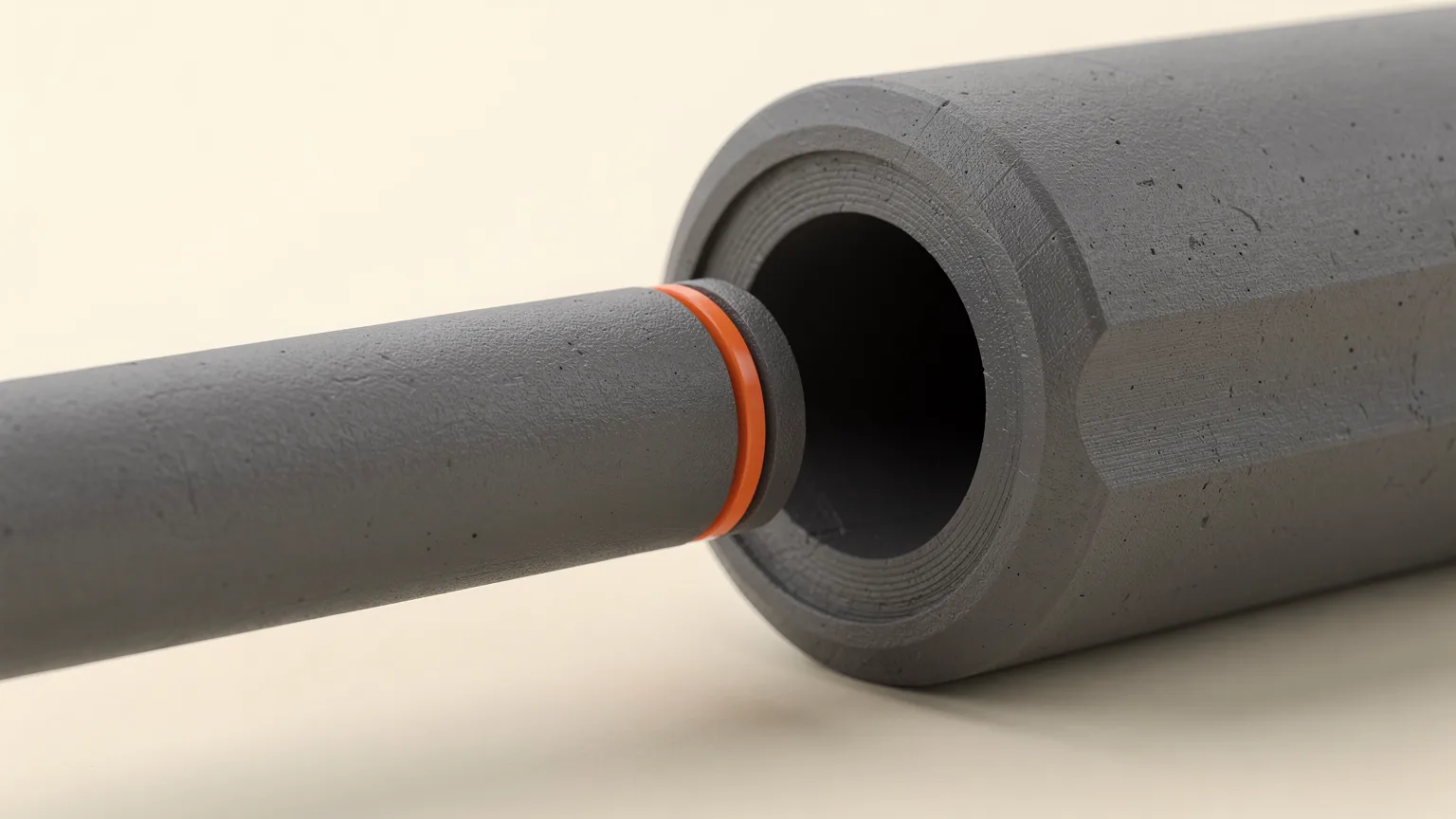
Design the hole slightly larger than the peg, then adjust from a test print. A hole and a peg of the same nominal size will not fit, because printed holes tend to come out smaller and printed outer edges tend to come out larger. Treat holes and outer dimensions as two separate corrections.
- Pick the fit type from the table and set the hole to the peg diameter plus the clearance.
- Print a small test with the hole and peg only, in the filament you will use for the real part.
- Check the fit by hand or with calipers.
- Change the clearance in CAD, or use the slicer compensation described below, and print again.
Keep holes in the same orientation as your final part, since orientation changes the result. If a hole must hold a screw or insert, see the heat set inserts guide, which covers the hole sizes makers publish for inserts. If parts are meant to be joined permanently, gluing 3D printed parts is more forgiving than a press fit.
How do you calibrate your slicer for accurate fits?
Print the Orca Tolerance Test, measure it, and adjust the X-Y hole and X-Y contour compensation settings until the fit is right. The OrcaSlicer wiki describes this as the way to handle the fact that each filament and printer combination produces different tolerances.
The test model is added from the plate's right-click menu with Add Handy Model. It has a base with six hexagonal holes at 0.0, 0.05, 0.1, 0.2, 0.3 and 0.4 mm of tolerance, plus a hexagon tester. The wiki's procedure is:
- Print the model.
- Check which holes accept a 6 mm Allen key or the printed hexagon tester.
- Measure the holes and the tester with calipers.
- Adjust the X-Y hole and X-Y contour compensation values.
- Repeat until the fit meets your needs.
OrcaSlicer's quality settings page explains the sign convention: positive values enlarge holes or contours and negative values shrink them, and the values should come from calibration rather than guesswork. It also lists Precise wall, which sets the overlap between the outer wall and its neighbor to zero for better size accuracy, and Polyholes, which turns circular holes into polygons to improve diameter accuracy. For the broader workflow, read OrcaSlicer calibration tools, OrcaSlicer quality settings and how to calibrate a 3D printer.
What else changes fit?
- Material: ABS and nylon shrink more than PLA and PETG, so give them a different clearance than PLA.
- Nozzle and line width: a wider line leaves less room for small features. See nozzle sizes explained.
- Layer height: it affects the vertical dimension, covered in layer height explained.
- Printer differences: the OrcaSlicer wiki notes that parts may fit differently from one printer to another even with the same filament and profile, so keep a separate set of values for each printer.
Rule of thumb. Start with 0.2 mm for a snug fit and 0.4 mm for a loose one, print a small test piece, and write down the numbers that worked for each printer and filament.