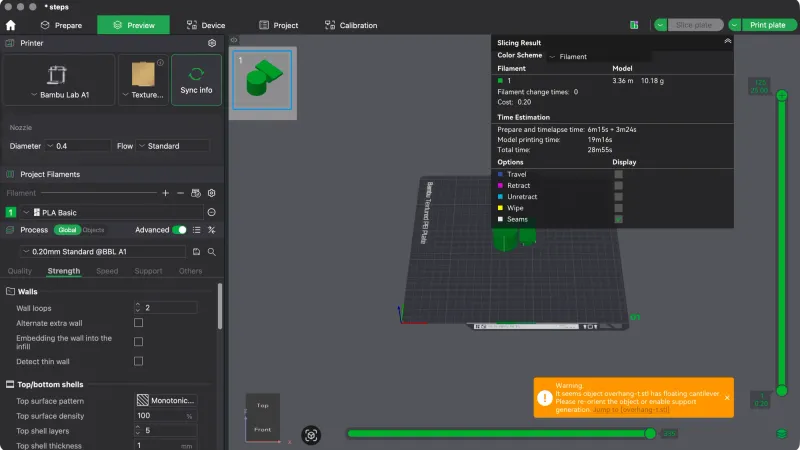
Bambu Studio supports are off until you tick Enable support on the Support tab. This lesson turns them on, compares the tree and normal types on one test plate, and reads the slicer's time and filament figures. We used version 02.08.02.61 on macOS with the A1 profile and no printer connected.
Where do you turn on supports in Bambu Studio?
Supports live on the Support tab of the Process panel, beside Quality and Strength from the previous lesson on quality and strength settings. Our plate held a cylinder and the small T shaped overhang-t.stl, sliced with 0.20mm Standard @BBL A1 and PLA Basic. At the defaults the Preview showed an estimated model printing time of 19m16s, 3.36 m and 10.18 g of filament, and a warning: It seems object overhang-t.stl has floating cantilever. Please re-orient the object or enable support generation.
With Advanced off, the Support tab has a short Support group: Enable support, Type, Threshold angle and On build plate only. Below it is a Filament for Supports group with Support/raft base and Support/raft interface, both set to Default. Everything except the tick box is greyed out until you tick Enable support.
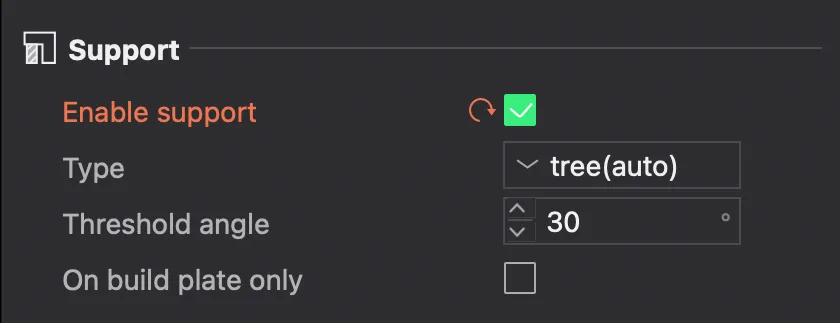
After ticking it, the label and tab name turned orange and the preset name gained an asterisk, the same changed setting cue the last lesson described. If you are new to the idea, supports explained covers why overhangs need them.
What is the difference between the support types?
Clicking the Type box opens a short list. It holds four entries, and the default in our profile was tree(auto).
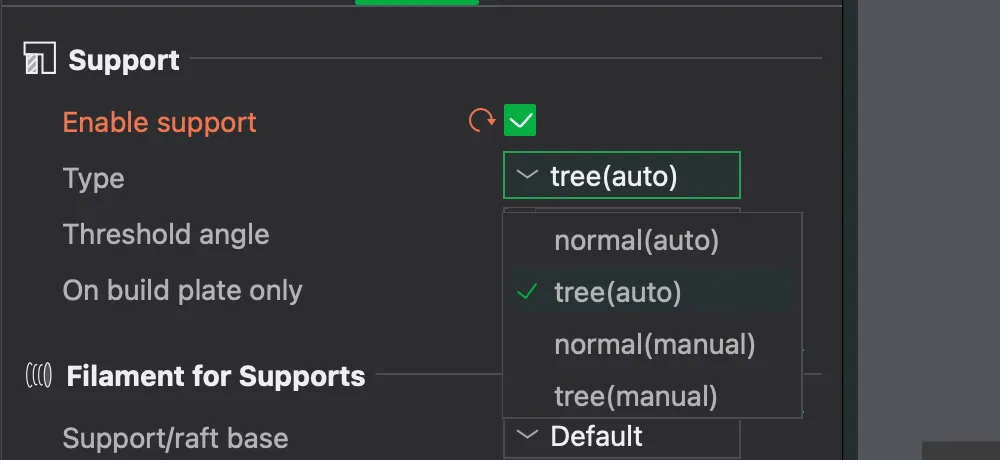
- normal(auto): grid style supports generated automatically under every area that exceeds the threshold angle.
- tree(auto): branching supports generated automatically, which reach the plate or the model with fewer contact points.
- normal(manual) and tree(manual): the same two styles, but only where you paint an enforcer. We read the word manual as meaning no automatic placement, and we did not slice a manual type, so check it on your own model.
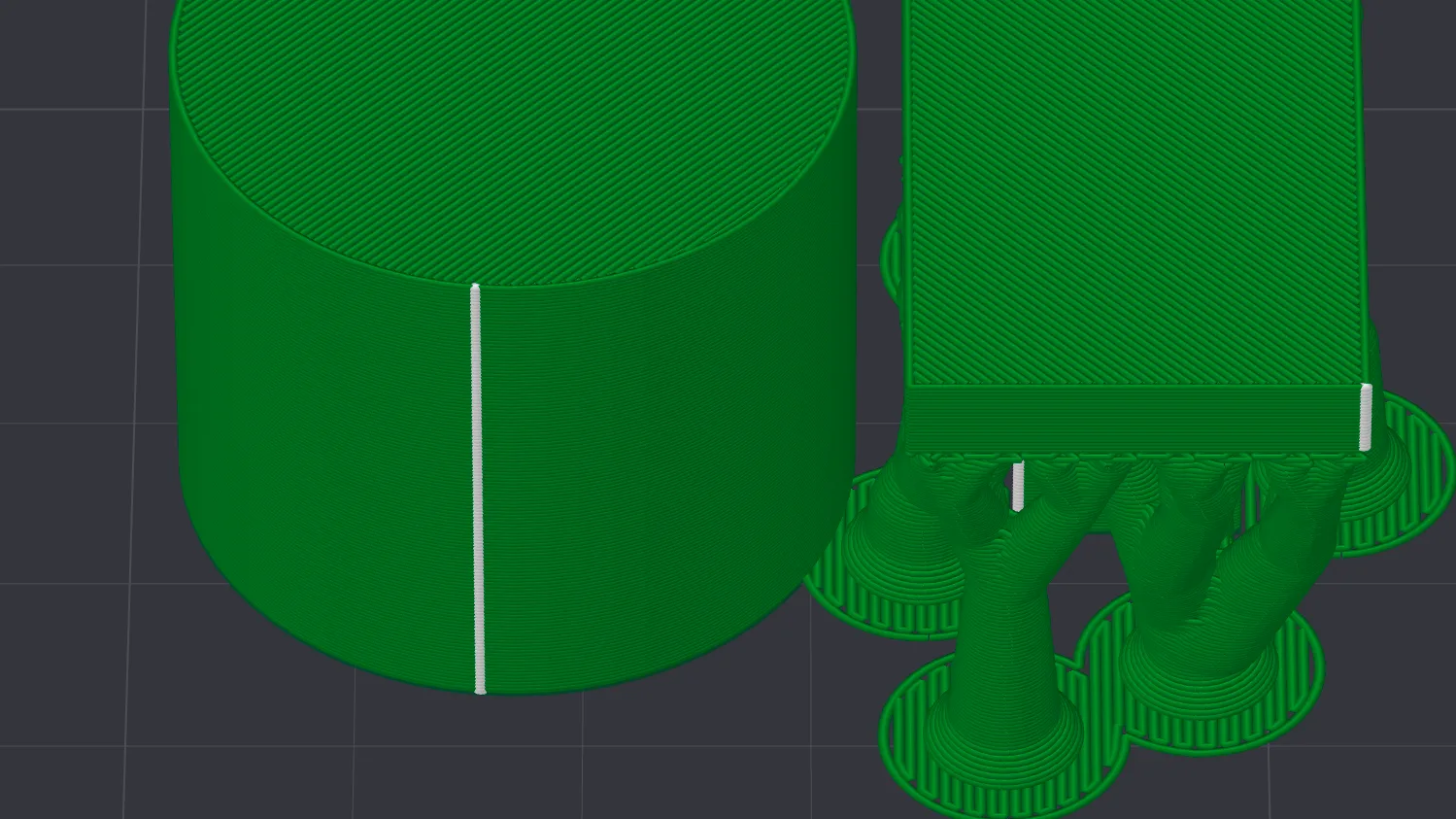
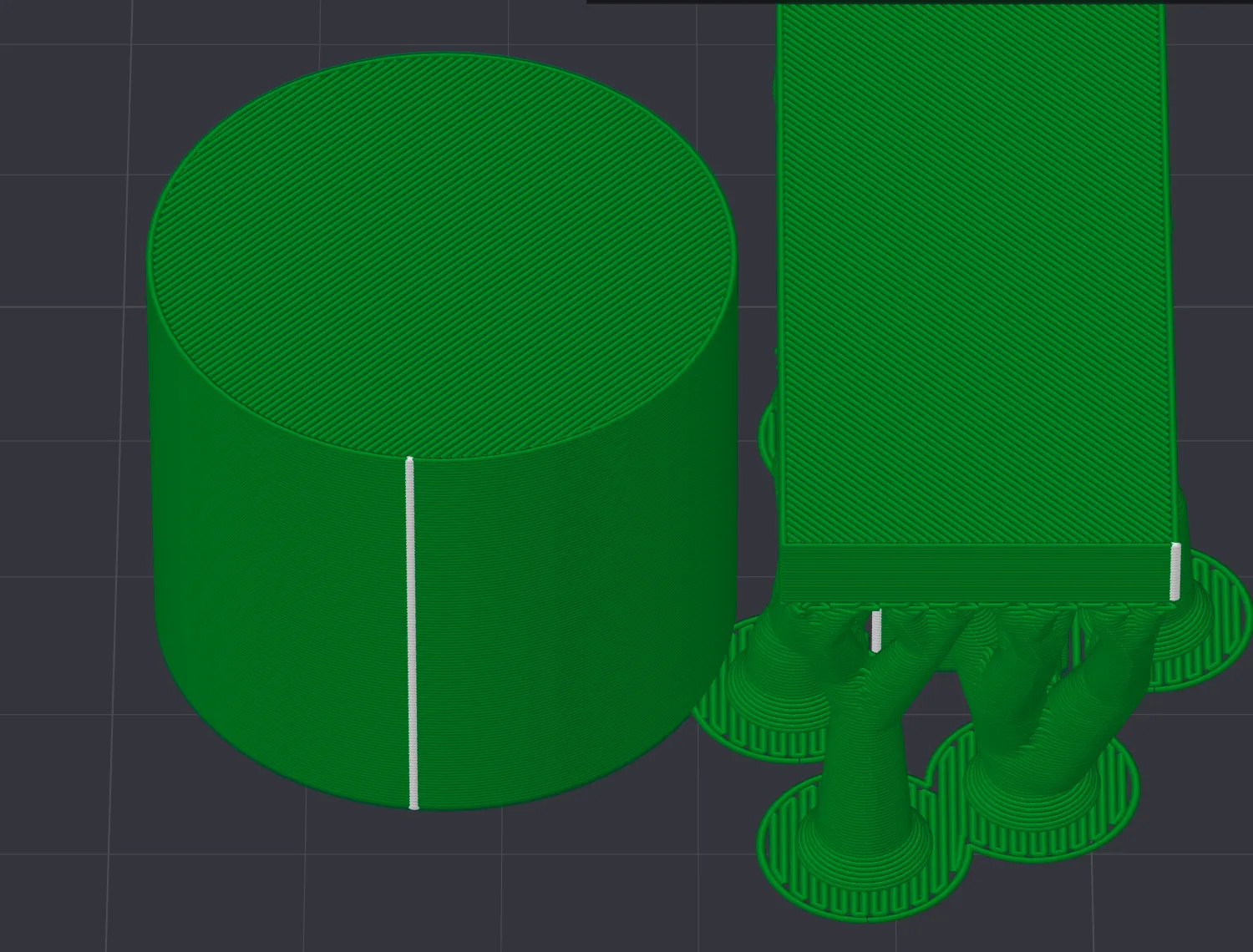
We sliced the plate with each of the two auto types by clicking Slice plate and reading the Slicing Result panel. The preview of tree(auto) shows thin branches that start on round bases on the plate and meet the underside of the T shaped part.
How much do supports change the slicer's estimate?
The Slicing Result panel gains Support and Total columns once supports exist. Here are the three runs, all with 30 degrees and Support/raft base and interface left at Default.
| Setting | Model printing time | Total time | Support filament | Total filament |
|---|---|---|---|---|
| Support off | 19m16s | 28m55s | none | 3.36 m, 10.18 g |
| tree(auto) | 29m2s | 38m41s | 0.70 m, 2.13 g | 4.06 m, 12.31 g |
| normal(auto) | 24m48s | 36m1s | 1.20 m, 3.65 g | 4.56 m, 13.82 g |
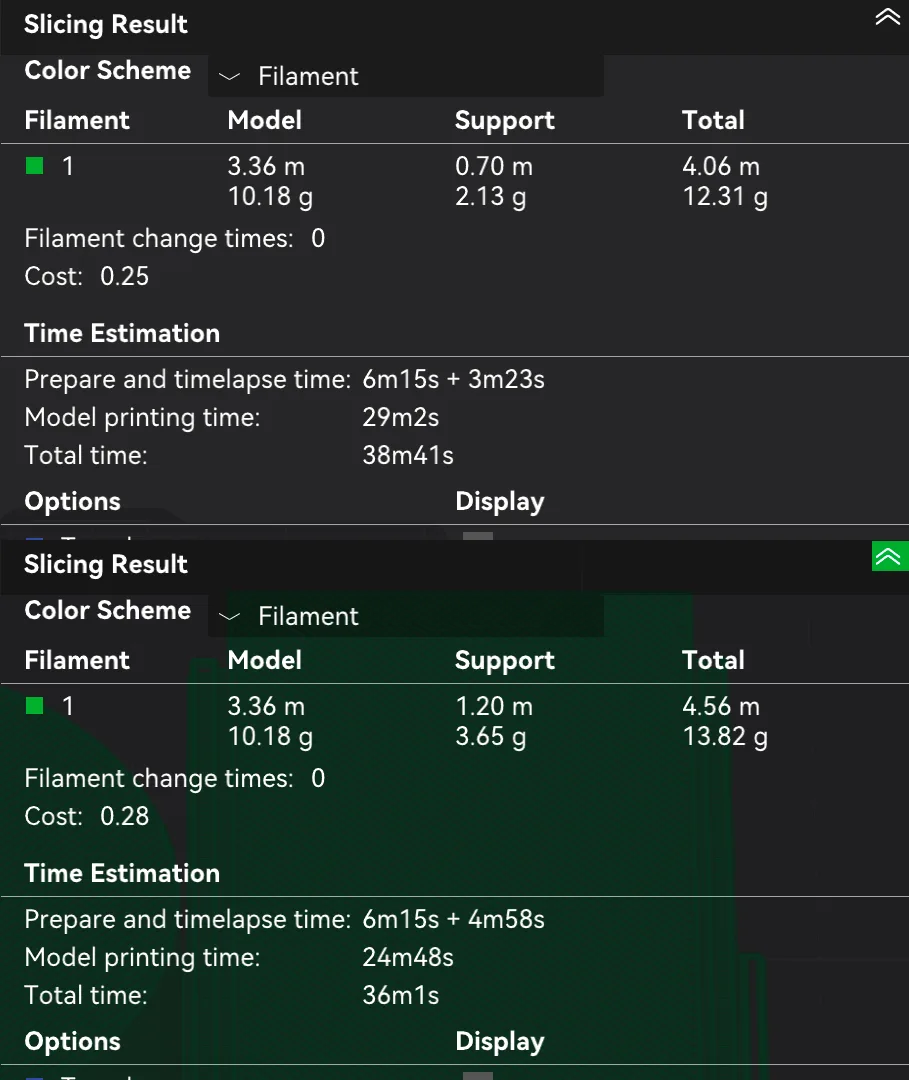
On this plate tree(auto) used about 1.5 g less support filament than normal(auto), yet its model printing time was about four minutes longer, so the lower filament figure did not mean a shorter estimate. The numbers come from one small plate, so they say little about your own models. These are slicer estimates only.
A second warning appeared once supports were on: Conflicts of gcode paths have been found at layer 1. Please separate the conflicting objects further (cylinder.stl and overhang-t.stl). We did not move the objects to test it, but it suggests the support footprint reached into the space beside the cylinder. Leaving more room between parts, as moving objects on the plate describes, is the likely fix. For the time cost of extra material, print speed versus quality is a useful companion.
What do threshold angle and On build plate only do?
Hovering over Threshold angle showed a link to a Bambu wiki page and the text "Support will be generated for overhangs whose slope angle is below this threshold." Our value was 30 degrees. A lower number means fewer supports and a higher number means more. We did not change it, so we have no estimate for other values.
Hovering over On build plate only showed "Don't create support on model surface, only on build plate". We ticked it with normal(auto) and sliced again. The result matched the earlier run exactly, 24m48s and 3.65 g of support, because the overhang on this plate sits above the build plate with nothing under it. The option matters when supports would otherwise land on another part of the model, and our test model does not show that.
Turning Advanced on added more rows. We saw Style (Default), Remove small overhangs (ticked) and Raft layers (0) in the main group. A further Advanced group showed Initial layer density 90 percent, Support wall loops -1, Top Z distance and Bottom Z distance 0.2 mm, Base pattern Default, Base pattern spacing 2.5 mm, Top and Bottom interface layers 2, Interface pattern Default and Top interface spacing 0.5 mm. We read the interface rows as the layers between a support and the model, but we left every one at its default and measured nothing about them. For a raft under the whole part, see brim vs raft vs skirt.
How does support painting work?
Select an object on the Prepare tab and click the Supports Painting icon in the toolbar. The tooltip reads "Supports Painting [L]". The view switched to a single object with a warning that only the object being edited is visible, and a panel appeared with these controls:
- Tool type: four icons for the brush shapes.
- On overhangs only tick box.
- Pen size 1.00, Highlight overhang areas 30.00 and Section view 0.00 sliders.
- Erase all painting button.
Hovering over the small keyboard icon listed the mouse controls. Left mouse button enforces supports, right mouse button blocks supports, Shift with the left button erases, Ctrl with the mouse wheel changes pen size, and Option with the mouse wheel changes the section view. A left drag on the model left a blue stroke, which we took to be an enforcer. We then clicked Erase all painting and the stroke disappeared, so nothing painted stayed in our project. The paint is also how you use the manual types, and a following lesson covers the seam painting tool beside it.
Reset and what we left unchanged
We reset the three changed rows with their orange arrows, which cleared the asterisk from the preset name, and sliced again. The estimate returned to 19m16s and 10.18 g. Next in the series is brim and seam settings.
Next lesson: Bambu Studio Brim and Seam: Settings Explained.