This Bambu Studio review comes from a hands on test of version 02.08.02.61 on macOS, the slicer from Bambu Lab. We worked through 11 lessons using a Bambu Lab A1 profile with a 0.4 nozzle. We own no Bambu printer, so we sliced and exported only. No part was printed.
What is Bambu Studio?
Bambu Studio is a slicer: the program that turns a 3D model into the G-code a printer follows. If that idea is new, read what is a slicer first. The project is published by Bambu Lab on GitHub, and it is the base that OrcaSlicer was forked from. We verified every menu name and number below in the running app, rather than assuming it matches Orca.
For a plain introduction, see Bambu Studio for beginners. This review is the verdict that sits on top of the lessons.
Do you need an account or a printer to use it?
No account, and no printer for slicing. The Setup Wizard has six steps and never asked us to log in. We unticked the Install Bambu Network plug-in box, and the app still reached Prepare with the Bambu Lab A1, 0.4 nozzle, PLA Basic and 0.20mm Standard @BBL A1 profiles. The Login button only warned us to install the network plug-in first. See our setup wizard lesson.
How does the interface feel?
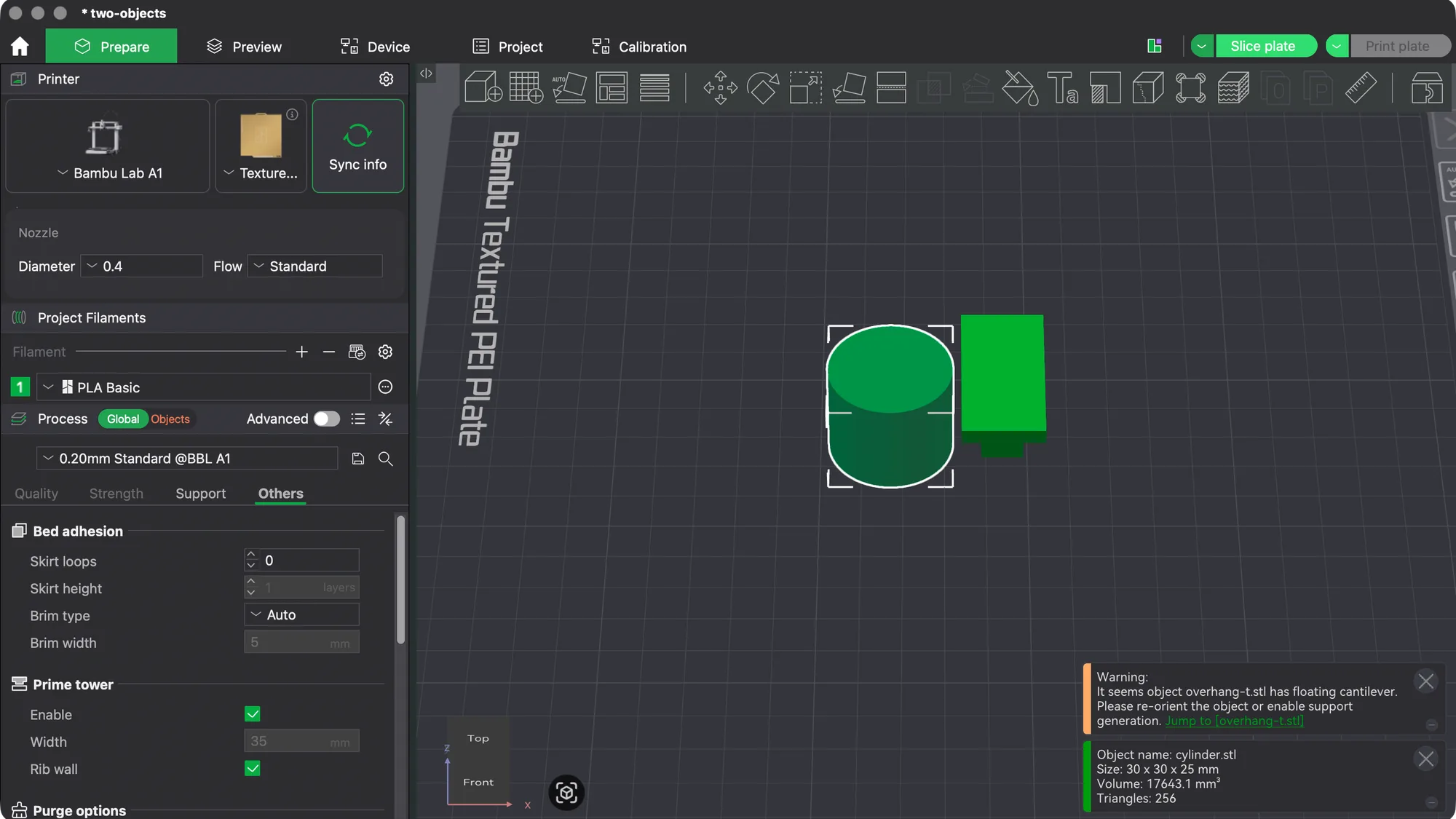
Tidy for a slicer with this many options. The window has a Home button and five tabs: Prepare, Preview, Device, Project and Calibration. The left panel stacks Printer, Project Filaments and Process, and a Global and Objects switch decides whether you edit the whole plate or single objects. Toolbar tooltips show one key shortcuts such as M, R, S, C, L and P. Our interface tour covers every part.
The Advanced switch adds a Speed tab and many more rows, so a newcomer can start with fewer settings. The app also warned us about a floating cantilever on our test part before we sliced, which is the kind of nudge a beginner needs.
What are Bambu Studio's strengths?
These are the things we confirmed, each with a lesson behind it, in course order.
- Importing and placing models. Cmd+I accepts 3mf, step, stl, obj and several other formats, and Move, Rotate and Scale open numeric panels. See import, move, scale and rotate.
- Clear quality and strength tabs. Changed values turn orange with a reset arrow. A 0.28 mm layer height took our estimate from 19m16s to 15m46s. See quality and strength settings and layer height explained.
- Supports with choice. Normal and tree types, each auto or manual, plus painting. Tree(auto) added 2.13 g and normal(auto) 3.65 g on our plate. See supports and supports explained.
- Brim and seam control. Six brim types and four seam positions, with seam painting on P. A 10 mm outer brim moved our estimate from 19m16s to 20m27s. See brim and seam.
- A readable Preview. The Slicing Result panel lists filament, cost and time, and Line Type shows what each colour is and how long it takes. See Preview and layers.
- Three export routes. Save Project, Export plate sliced file and Export G-code. The plate_1.gcode inside our .gcode.3mf matched the standalone G-code. See export and 3MF and STL vs 3MF vs G-code.
- Per object settings and modifiers. An object list gives each item its own tabs, with an orange lock that resets a value. See per object settings and modifiers.
What are the limits and what annoyed us?
Most of the limits come from having no printer. We list them so you are not surprised.
- Multi colour costs material. Adding a second filament took our plate from 10.18 g and 28m55s to 49.61 g and 3h43m. The prime tower showed 8.10 g and the Purge line 31.42 g. The Purging volumes dialog showed 238 mm3 for filament 1 to 2 and 258 mm3 for 2 to 1. Check this before you plan a colourful part. See filaments and AMS colour.
- Layer colour change was not confirmed. Hovering the plus on the Preview slider handle showed a time box, but our click added no marker. That may be our automation and not the app, so we cannot say how it behaves for you.
- Sync info needs a printer. With none connected it only said Printer not connected, so AMS sync is untested.
- The Calibration tab is thin without a printer. It lists only Flow Dynamics and Flow Rate, and clicking Manual Calibration produced no dialog and no model in our test. Temperature towers and retraction tests are not there. See the calibration tab lesson.
- Sending needs the plug-in. The Device tab prompted us to install the network plug-in, Send opened a dialog with an empty Printer list, and the Send button in Print plate was greyed out.
- Supports are off by default. A model with an overhang slices with a warning, not supports, until you tick Enable support.
What did we not test?
- Printing results. We did not print, so we say nothing about quality, strength or accuracy. Every figure here is a slicer estimate.
- The network plug-in, cloud and printer control. We installed nothing and logged in nowhere.
- AMS hardware. Colours were assigned in software only.
- The Calibration tests themselves. We could not reach the test models without a printer.
- Other platforms and printers. We used one Mac and one A1 profile.
How does it compare with Orca Slicer, Cura and PrusaSlicer?
Bambu Studio and OrcaSlicer share a lineage, so the layout feels close. Orca is the one with a broader Calibration menu and support for many printer brands, as described in our Orca Slicer review. Bambu Studio is the one built around Bambu Lab printers, with the A1 profile and AMS slots ready in the wizard. Our Cura review found a different, more guided feel, and our PrusaSlicer review covers the other relative of this family. For a side by side, see Cura vs Orca Slicer vs PrusaSlicer.
Is Bambu Studio worth using?
As software, yes, with the right expectations. It slices without an account, explains its estimates well, and gives you per object control without a steep climb. It suits owners of a Bambu Lab printer most, because Print, Send, AMS sync and the Calibration tab only pay off with one connected. It also suits anyone who wants to slice a file offline and inspect it in Preview. If you run other brands and want broad calibration tools, OrcaSlicer may fit better. We give no star rating, because without printing we cannot rate the result.
Where should you start? The 11 lesson course
These lessons are the evidence behind this review. Take them in order: