Bambu Studio per object settings let one model on the plate use different wall, infill or layer values from the rest. We tried them on macOS with the A1 profile and no printer, using a cylinder and a small T shaped object, and watched the slicer estimate move after each change. All figures are software estimates.
How do you switch to per object settings in Bambu Studio?
Our plate came from the previous lesson on filaments and colour: a cylinder and an overhang test shape on 0.20mm Standard @BBL A1 with PLA Basic. In the left panel the Process row has a small two position switch labelled Global and Objects. Global is the normal view with the Quality, Strength, Support and Others tabs.
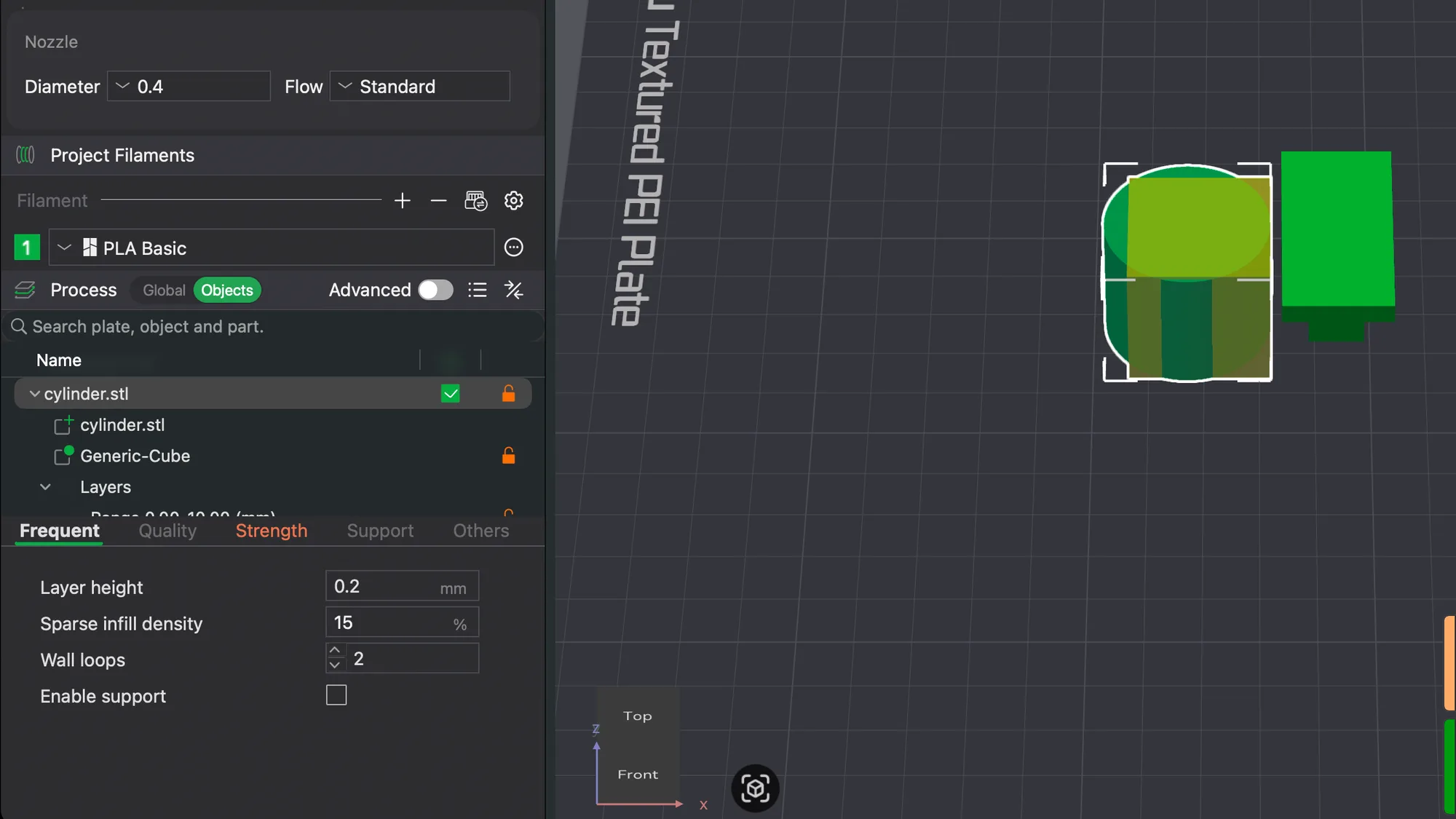
Clicking Objects replaced those tabs with a search box reading Search plate, object and part, and a list headed Name. The list showed Plate 1 with overhang-t.stl and cylinder.stl, each with a tick box, and an Outside group below. Selecting an object here also showed its own tabs under the list: Frequent, Quality, Strength, Support and Others. The Frequent tab held four settings: Layer height 0.2 mm, Sparse infill density 15%, Wall loops 2 and an Enable support tick box.
How do you override one setting on a single object?
Select cylinder.stl in the list and change a value in its Frequent tab. We typed 6 into Wall loops and pressed Tab, because Return did not commit the number for us. The label turned orange, a small orange lock appeared next to it, and the tab name Strength turned orange too. The row for cylinder.stl in the list also gained an orange lock. We then set Sparse infill density to 40 the same way.
The right click menu on an object also has Edit Process Settings. In our test it opened a small dialog reading Switch to per-object setting mode to edit process settings of selected objects, with a Don't show again box and OK. It simply puts you in Objects mode. We did not find a menu entry named Add settings in this version, so if you read older guides that mention one, look at the object tabs and Edit Process Settings instead.
One slip is worth sharing. Pressing Cmd+A while the field was not focused selected both objects, and the value we typed then went to both. Both rows showed locks. Clicking the lock beside Wall loops reset it, so the change was easy to undo. Check how many objects are selected before you type.
To learn how the settings themselves behave, see walls and perimeters explained and infill explained.
What does a per object override do to the estimate?
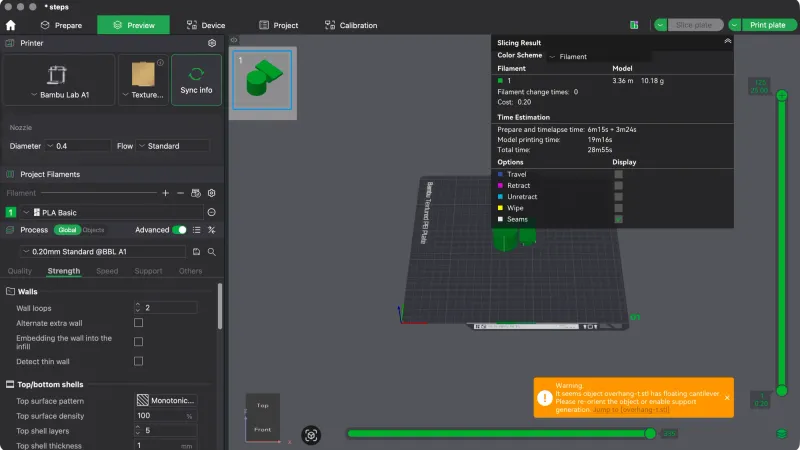
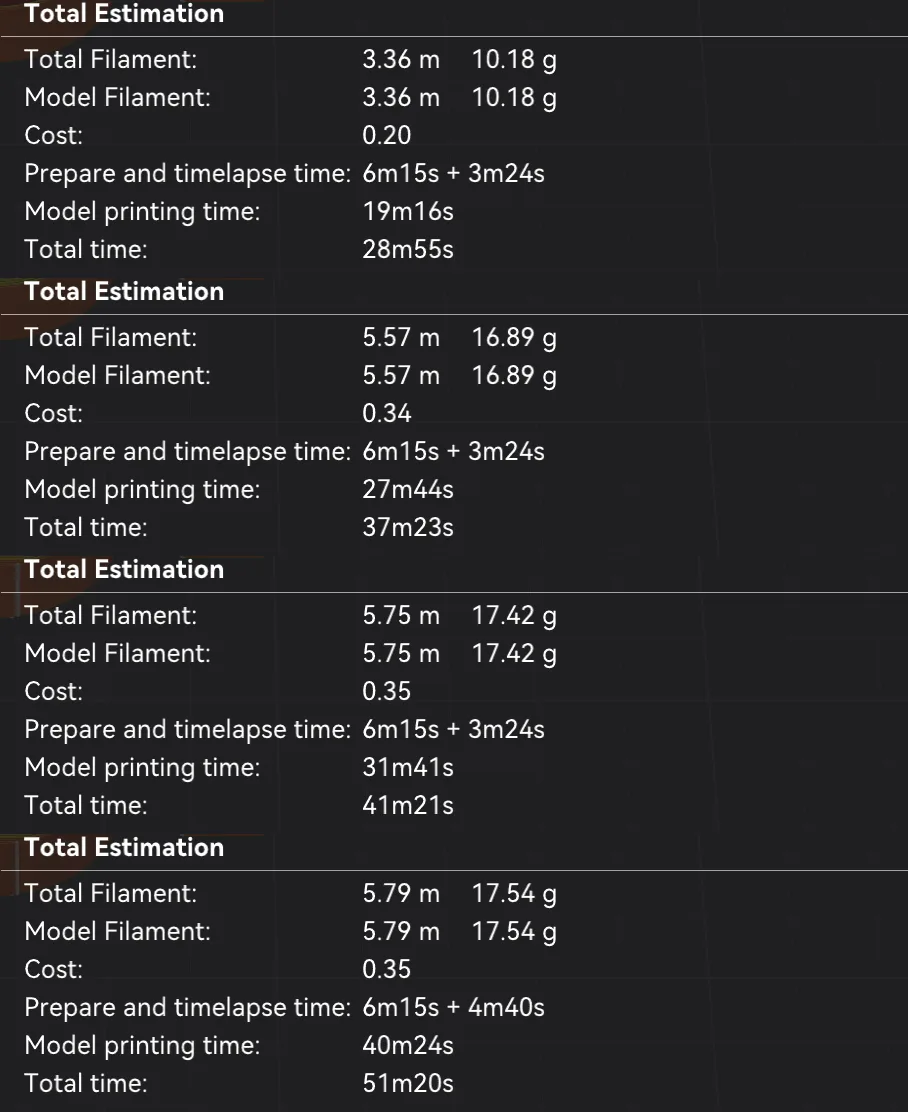
Before the override we sliced the plate and opened the Slicing Result panel in Preview, as covered in the Preview tab lesson. The baseline was 3.36 m and 10.18 g of filament, a cost of 0.20, model printing time 19m16s and total time 28m55s. With only the cylinder set to 6 wall loops and 40% infill we sliced again.
- Total filament rose to 5.57 m and 16.89 g, cost 0.34.
- Model printing time became 27m44s and total time 37m23s.
- Inner wall alone grew to 1.94 m and 5.88 g, and Sparse infill to 2.21 m and 6.70 g.
The T shaped object kept its global values, so the extra filament came from the one object we changed. The Prepare and timelapse line stayed at 6m15s plus 3m24s.
How do you add a modifier part?
Right click cylinder.stl in the list. Below the usual Delete entry the menu shows six items with small icons: Add part, Add negative part, Add modifier, Add support blocker, Add support enforcer and Height range Modifier. The first five open a submenu.
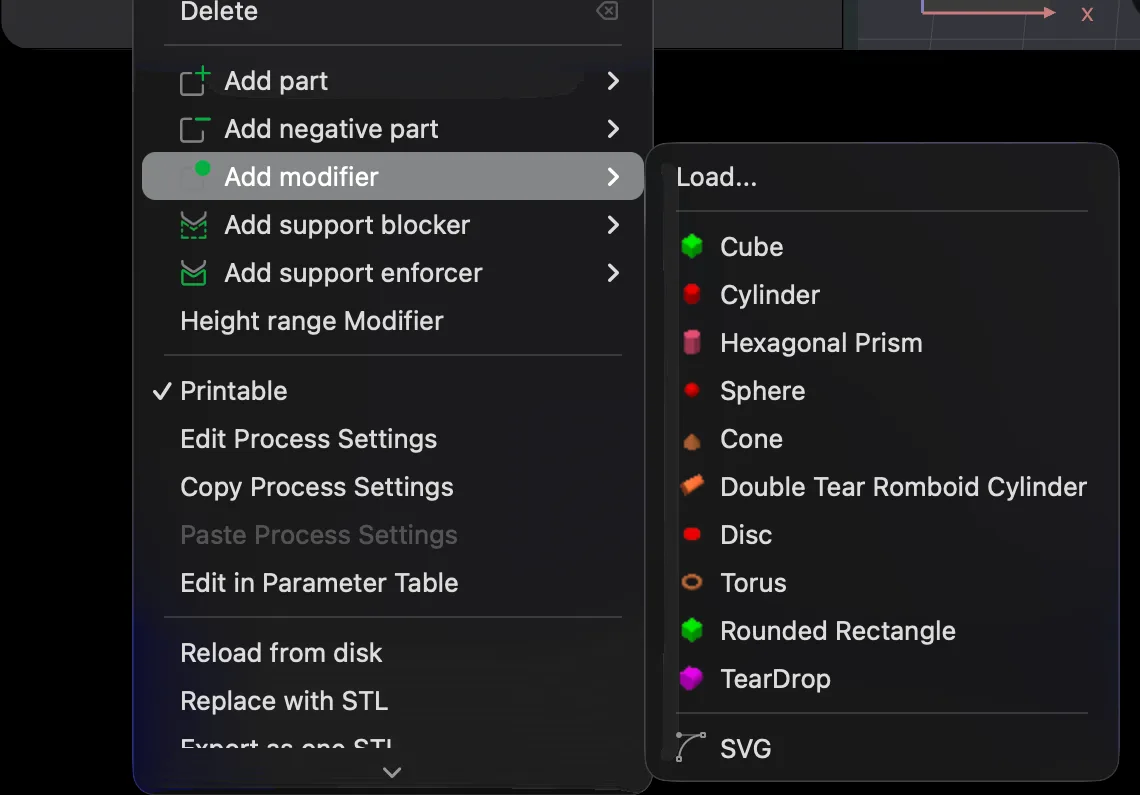
The Add modifier submenu began with Load... and then listed Cube, Cylinder, Hexagonal Prism, Sphere, Cone, Double Tear Romboid Cylinder, Disc, Torus, Rounded Rectangle and TearDrop, with SVG at the end. We chose Cube. A dialog titled Add Modifier said Switch to per-object setting mode to edit modifier settings, and we pressed OK. There is no slab entry in this list. We did not open the negative part, blocker or enforcer submenus, so we cannot say which shapes they offer.
Where does the modifier appear and how do you place it?
A child row named Generic-Cube appeared under cylinder.stl, beside another child that repeats the object's own name. The icons differ: the object part has a small green plus, and the modifier has a green dot. Our cube appeared as a translucent box on the plate, next to the cylinder and touching the other object's edge.
We dragged the box left with the mouse until it covered most of the cylinder footprint. A modifier only affects the region it overlaps, so position matters. We did not try the move tool's numeric fields.
How do you set values on a modifier?
With Generic-Cube selected, its tabs were shorter than the object's: Frequent, Strength and Others. Frequent held only Sparse infill density and Wall loops, both at the global values, 15 and 2. We set 40 and 6 and the locks turned orange.
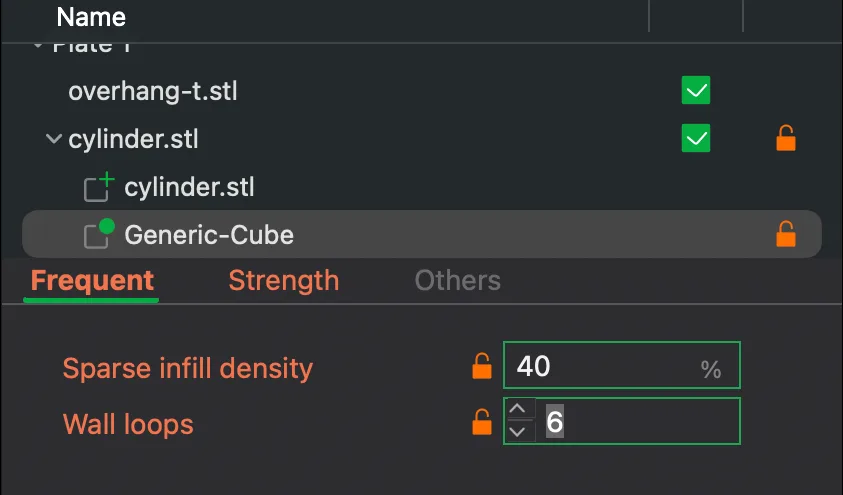
We sliced again with the cylinder back on global values and only the modifier carrying the override. The result was 5.75 m and 17.42 g, a cost of 0.35, model printing time 31m41s and total time 41m21s. That is more filament than our whole object override, which surprised us, and we did not work out why. Our guess is that the box reached further than the cylinder body, but we did not check it. Treat the figures as what the slicer reported.
What is the height range modifier?
Choosing Height range Modifier in the right click menu added a Layers group under the object with one child, Range 0.00-2.00 (mm). A Height Range panel appeared under the list with two number boxes, 0 to 2, and a grey slab showed on the plate for that band. Its tabs were Frequent, Quality, Strength and Others, and Frequent included Layer height, which the modifier lacked.
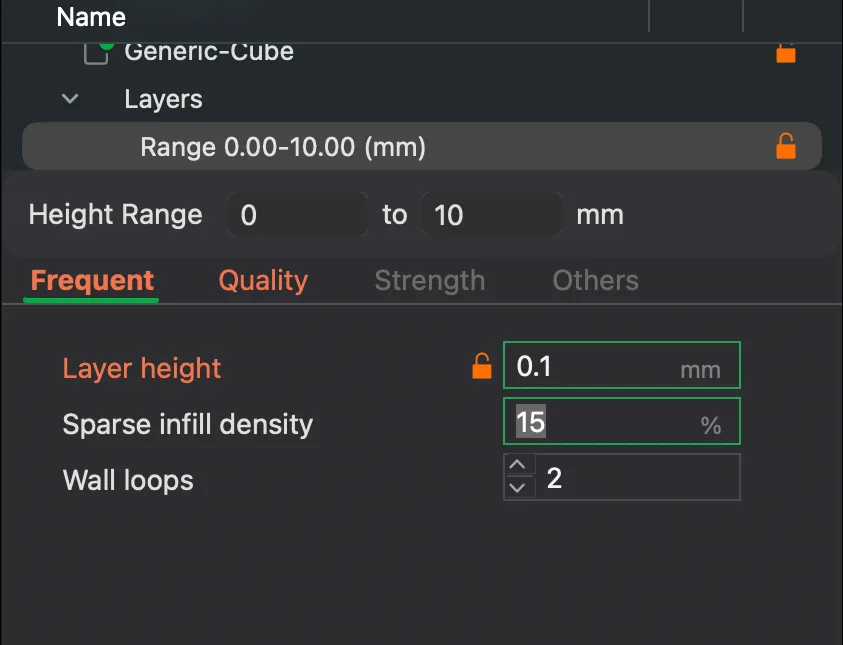
We changed the upper box to 10 so the label read Range 0.00-10.00 (mm), and set Layer height to 0.1. With the cube modifier still in place the slice came out at 5.79 m and 17.54 g, model printing time 40m24s and total time 51m20s. Filament barely moved, but the time rose by about 10 minutes, which fits the finer layers in the lower 10 mm. See layer height explained for why that happens.
What did we not test?
We did not use Add part, Add negative part, a support blocker or a support enforcer, so we cannot describe how they behave. We also skipped the Others tab, Copy and Paste Process Settings, Edit in Parameter Table, and the Support tab on a modifier. Nothing was printed and no printer was connected, so every number here is a slicer estimate for this one plate. If you want to see where supports could help, our supports explainer is a useful companion. Next up in the course is a lesson on the calibration tools.
Next lesson: Bambu Studio Calibration Tab: Flow Dynamics and Flow Rate.