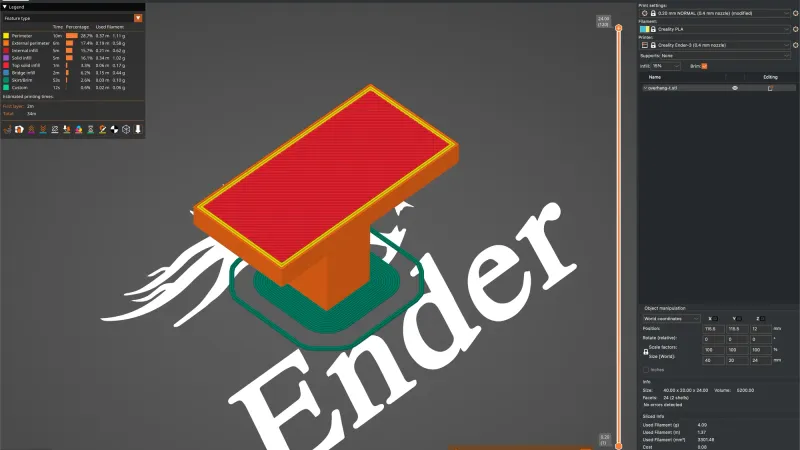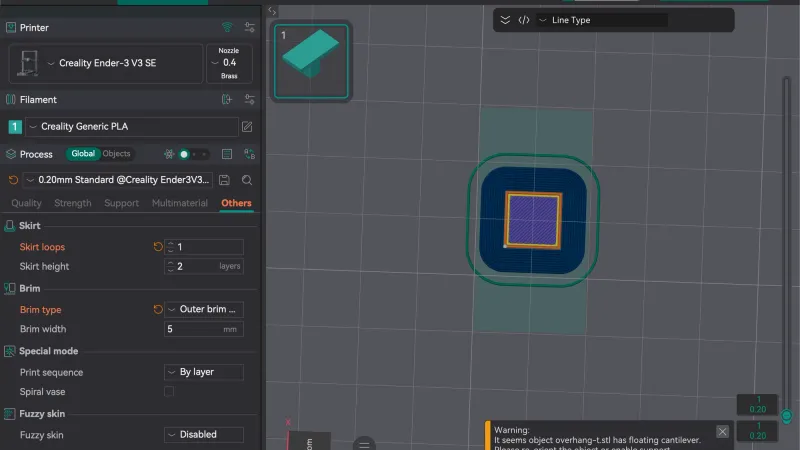
Bambu Studio puts the brim on the Others tab and the seam on the Quality tab. This lesson changes the brim type and width, adds a skirt, tries each seam position, and paints one seam by hand, reading the slicer estimate each time. We used version 02.08.02.61 on macOS with the A1 profile and no printer connected.
Where are the brim and skirt settings in Bambu Studio?
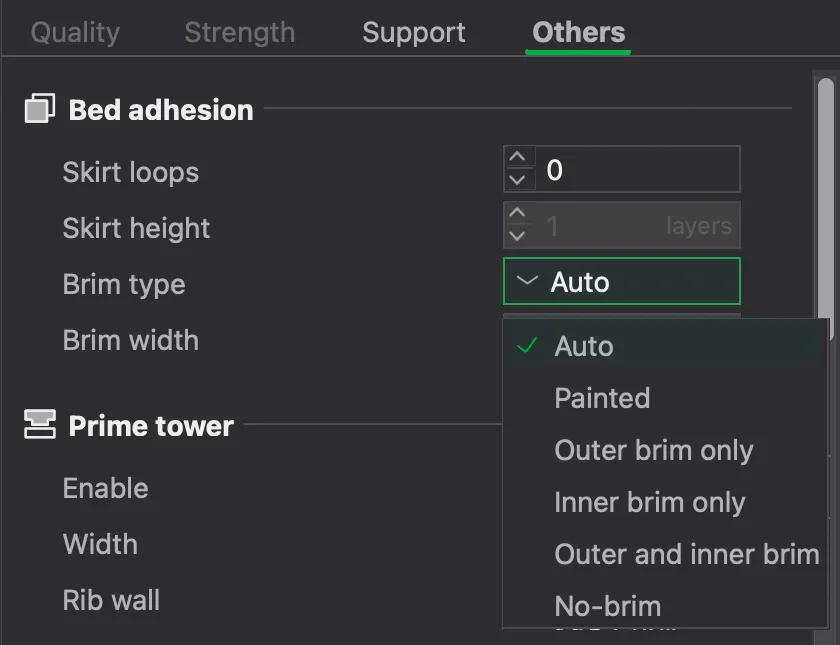
Open the Process panel on the Prepare tab and choose Others, which sits beside the Support tab from the previous lesson on supports. The first group is Bed adhesion. It holds four rows: Skirt loops (0 in our profile), Skirt height (greyed out at 1 layer), Brim type (Auto) and Brim width (greyed out at 5 mm). Our plate held the cylinder and the small T shaped overhang-t.stl, sliced with 0.20mm Standard @BBL A1 and PLA Basic.
Clicking the Brim type box opens a list of six entries: Auto, Painted, Outer brim only, Inner brim only, Outer and inner brim and No-brim.
A brim is a flat ring of extra filament around the base of a part. If the idea is new to you, brim vs raft vs skirt compares the three. Bambu's own wiki page on brims, which we opened, says a brim gives the print a bigger surface to stick to and is useful for tall and thin objects. It also lists Auto as the default brim type and Manual Brim as the alternative. We read Painted as the manual mode. We did not slice Painted, so check it on your own model.
What do the brim types do to the estimate?
We sliced the plate with each of the following and read the Slicing Result panel in Preview. The skirt stayed at 0 loops for these runs, and the seam was at its default.
| Setting | Model printing time | Total time | Filament |
|---|---|---|---|
| Auto (default) | 19m16s | 28m55s | 3.36 m, 10.18 g |
| No-brim | 19m16s | 28m55s | 3.36 m, 10.18 g |
| Outer brim only, 5 mm | 19m50s | 29m30s | 3.42 m, 10.35 g |
| Outer and inner brim, 5 mm | 19m51s | 29m30s | 3.42 m, 10.35 g |
| Outer brim only, 10 mm | 20m27s | 30m6s | 3.48 m, 10.55 g |
Two results are worth noting. First, Auto gave exactly the figures of No-brim, and the Preview showed no brim, so on this plate Auto decided none was needed. We did not test a taller or thinner part, where Auto may behave differently. Second, adding the inner brim to the outer one changed the estimate by one second and left the filament figure the same. Both parts are solid with no holes, so we saw no visible inner ring. A part with a hole through it would be a fairer test of that option.
Choosing a brim type made Brim width active. At 5 mm the outer brim added about 0.17 g, and at 10 mm about 0.37 g, on top of the 10.18 g baseline. The width row is greyed out again for No-brim.
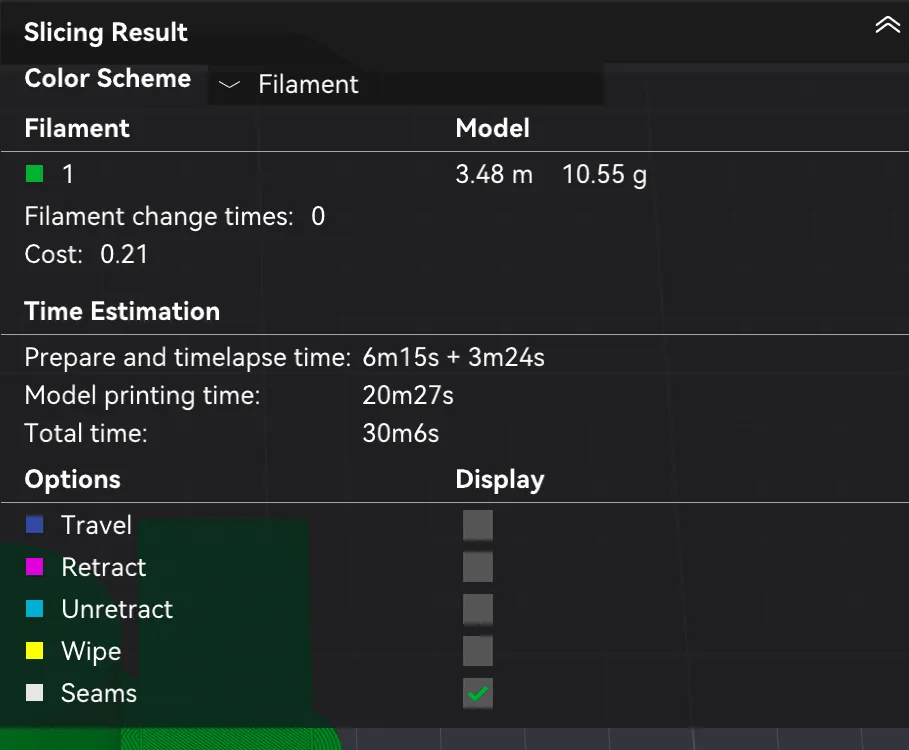
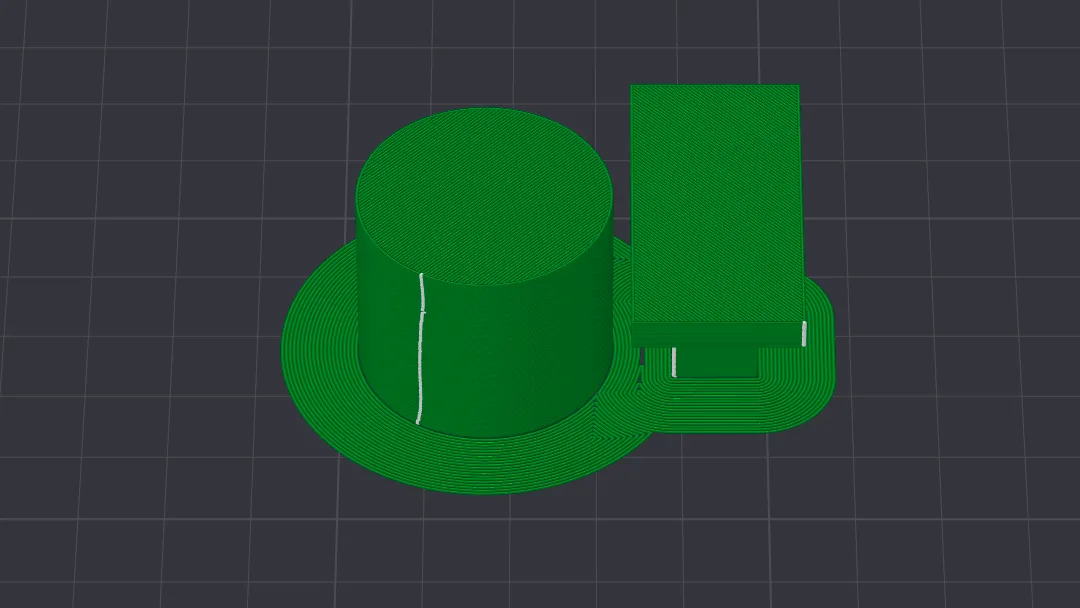
In Preview the brim shows as a flat green ring around the cylinder and around the foot of the T shaped part, hugging both outlines. That is the same extra filament the table counts, and these are slicer estimates only.
How does the skirt differ from a brim?
Skirt loops draws loops of filament near the part without touching it. We typed 2 into Skirt loops with the brim set to No-brim, clicked off the field to commit it (Return did not commit the number for us), and sliced again. Skirt height became active at 1 layer. The estimate went from 19m16s to 19m22s, and the filament from 10.18 g to 10.21 g. In Preview the skirt appears as a thin double outline running round both parts at a distance, which is quite unlike the wide brim ring. We read the skirt as a cheap loop that does not touch the part, unlike a brim, but we did not test what it does for adhesion.
How do you choose a seam position?
The seam is the line where each wall starts and ends. On the Quality tab, below Layer height, is a Seam group with one row, Seam position. Its list holds four entries: Nearest, Aligned, Back and Random. Our default was Aligned. For the full idea, see seam position explained.
In Preview, tick Seams under Options to see them as small white marks. Here are the four runs, each with a 2 loop skirt and No-brim.
| Seam position | Model printing time | Total time | What Preview showed |
|---|---|---|---|
| Aligned | 19m22s | 29m1s | One vertical white line down the front of the cylinder |
| Nearest | 19m17s | 28m55s | Seam marks near the lower left, with fewer visible |
| Back | 19m23s | 29m4s | No seam marks on the front of the cylinder |
| Random | 19m50s | 29m29s | Scattered white dots over the whole wall |
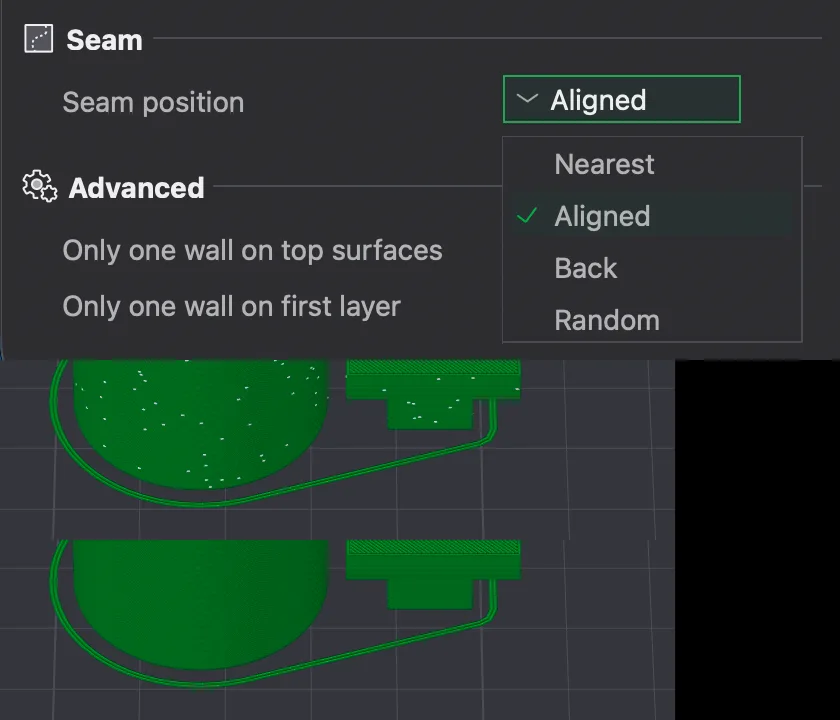
Aligned, Nearest and Back all landed within a few seconds of each other. Random added about 28 seconds to the model printing time, which we read as the cost of the nozzle travelling to many different start points. We cannot say how any of these look on a printed surface, because nothing was printed. The Back result matches its name, since the seam moved away from the side the camera faces.
How do you paint a seam by hand?
Select the cylinder on the Prepare tab and press P, or click the Seam painting icon. The tooltip on the icon reads "Seam painting [P]". The view switched to the single object with a return button at the top left, and a panel opened on the right with these controls:
- Brush shape: two icons, a circle and a sphere.
- Brush size (1.00) and Section view (0.00) sliders.
- Vertical and View: keep horizontal tick boxes, and a Rotate horizontally slider that stays greyed out until the second box is ticked.
- Erase all painting button.
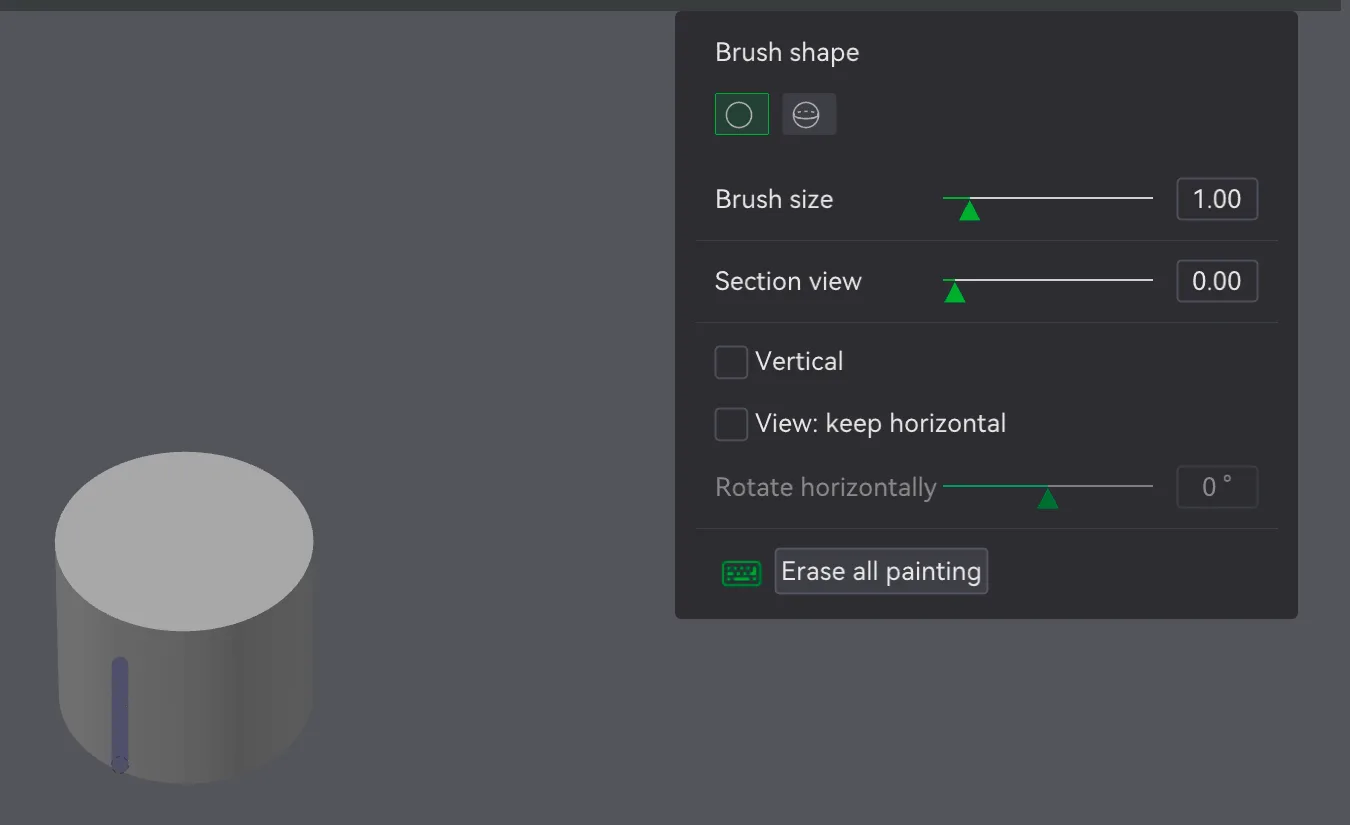
Hovering over the small keyboard icon listed the mouse controls. Left mouse button enforces a seam, right mouse button blocks a seam, Shift with the left button erases, Command with the mouse wheel changes the brush size and Option with the wheel changes the section view. We dragged the left button down the lower front of the cylinder and a blue stroke appeared. After clicking return and slicing with Seam position on Nearest, the estimate was 19m20s, and the seam line in Preview ran along the painted stroke. Painting a seam is the way to hide it on a rear or inner edge when the four presets do not put it there. The paint stays on the object, so use Erase all painting to clear it.
What did we leave unchanged?
We tested the types on one small plate, so the exact numbers say little about your own models. We did not slice the Painted or Inner brim only types, did not change the brim to object gap, and did not print anything. Next in the series is the Preview tab and its layer slider. For the time cost of extra material, print speed versus quality is a useful companion.
Next lesson: Bambu Studio Preview: Layers and Legend Explained.