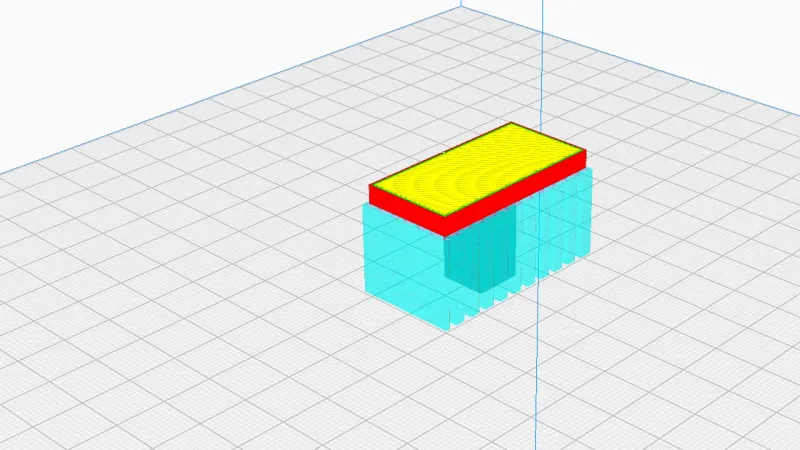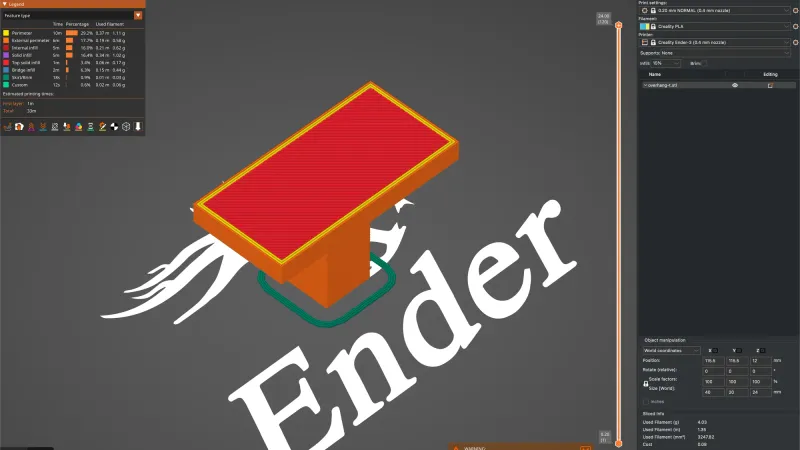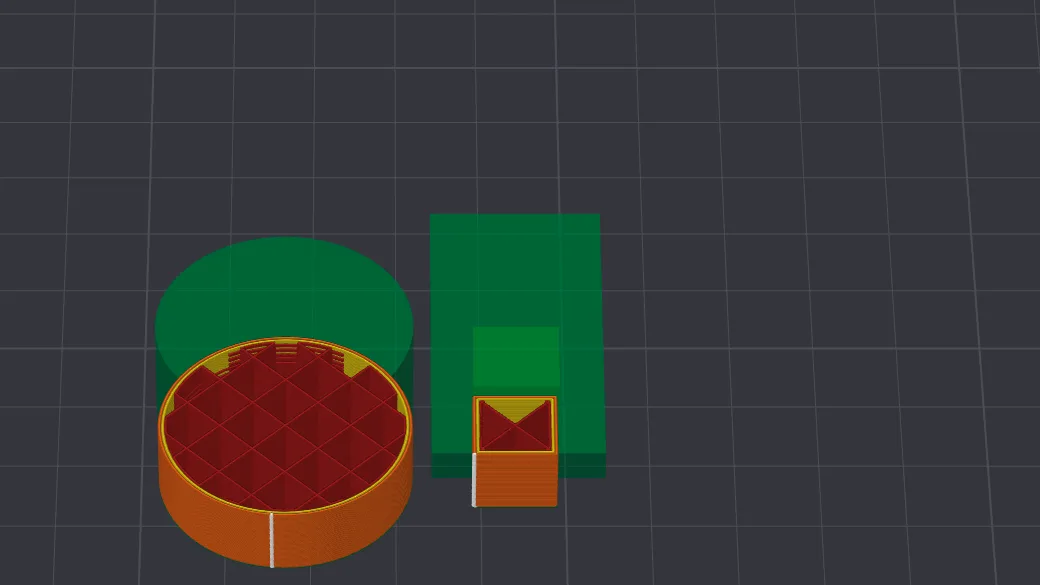
The Preview tab in Bambu Studio shows the sliced result layer by layer and puts the time and filament estimate next to it. This lesson slices a two object plate, drags the layer slider, reads the legend, switches colour schemes and shows travel moves. We used version 02.08.02.61 on macOS with the A1 profile and no printer connected.
How do you open the Preview tab in Bambu Studio?
On the Prepare tab, click Slice plate at the top right. When slicing finishes, Bambu Studio switches to Preview, the second tab in the top bar. You can also click the tab yourself. Our plate held the cylinder and the small T shaped overhang-t.stl with 0.20mm Standard @BBL A1 and PLA Basic, the same set up as the previous lesson on brim and seam.
The Slicing Result panel sits at the top of the view and starts collapsed. Click its small chevron at the right to open it. With the default Filament colour scheme it shows the filament used (3.36 m and 10.18 g), a Cost of 0.20, a Filament change times count of 0, then a Time Estimation block: Prepare and timelapse time of 6m15s + 3m24s, Model printing time of 19m16s and Total time of 28m55s. If the slicer itself is new to you, what is a slicer explains where these numbers come from.
What do the two sliders do?
The vertical slider on the right edge chooses the layer. Its top handle started at 125 with a label of 25.00, which is the layer number and the height in millimetres, and its bottom handle at 1 and 0.20. That matches a 25 mm tall part cut into 0.20 mm layers. We dragged the top handle down and it stopped at layer 46, 9.20 mm. A small box beside the handle also showed a time, 13m27s. We read that as an estimate for that point, but we did not confirm exactly what it measures.
Pressing the Down arrow key twice with the view focused moved the handle from 46 to 44, so one key press is one layer. We did not test the Left and Right keys.
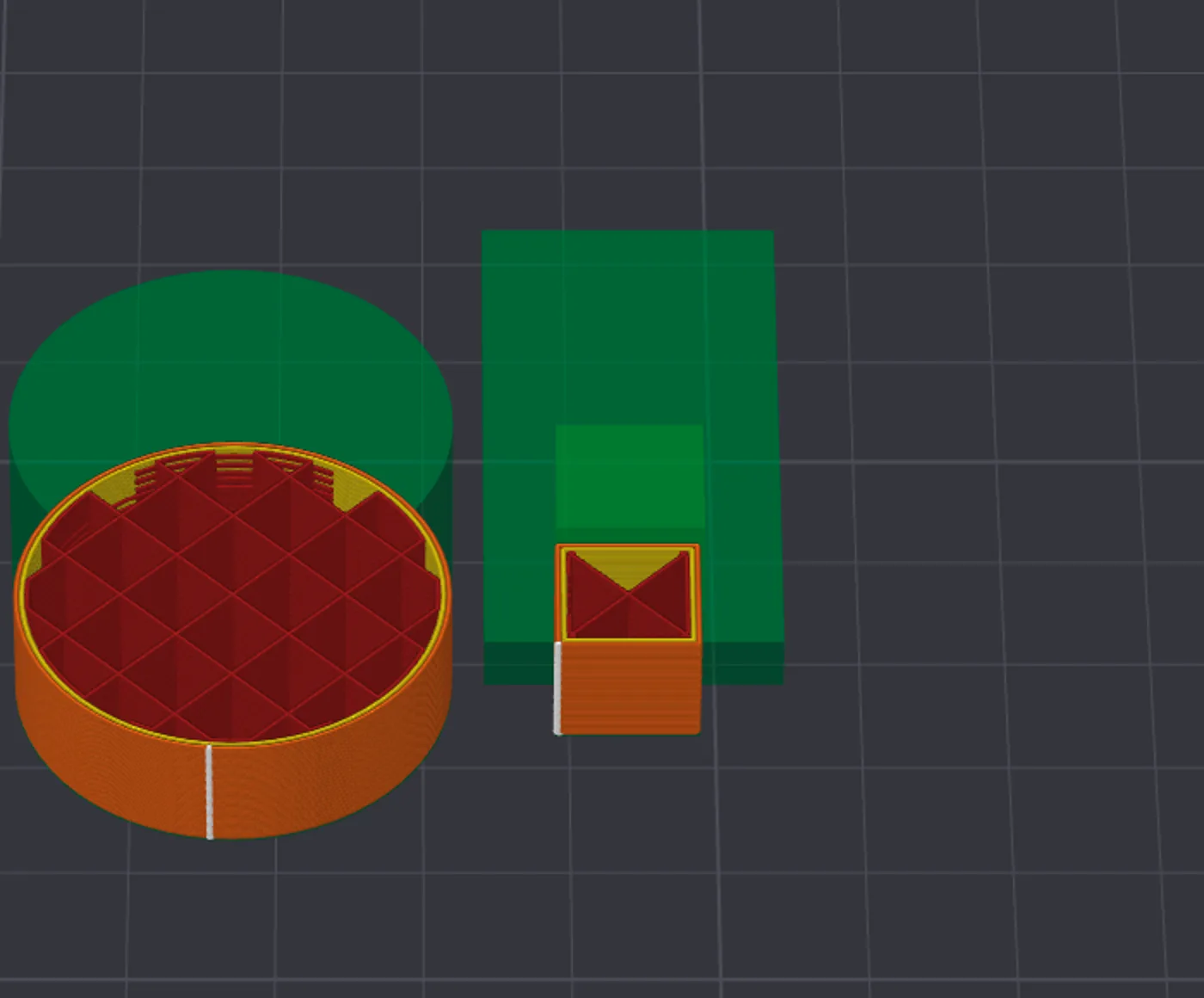
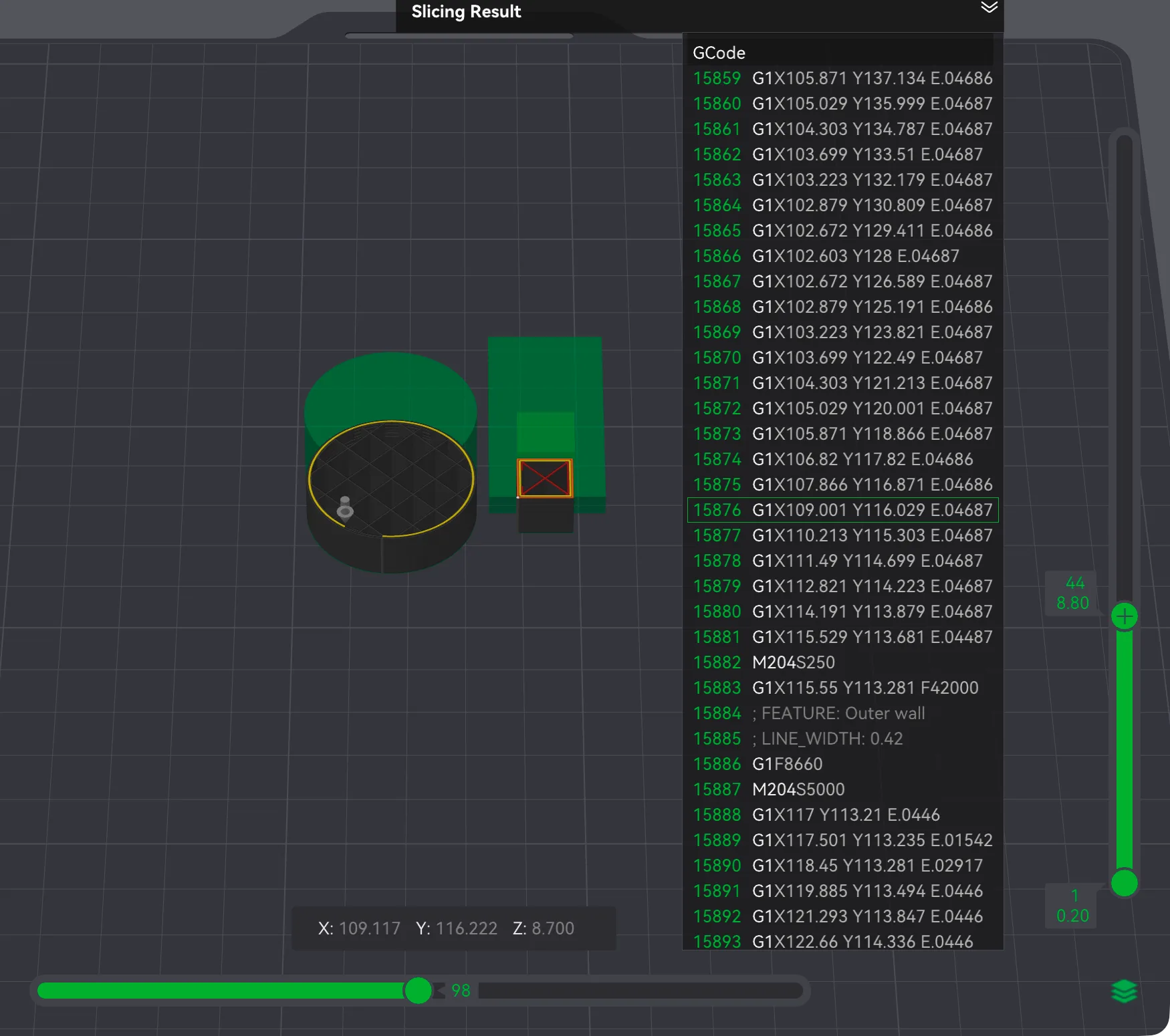
The horizontal slider along the bottom steps through the moves inside the layer you are on. At layer 44 its end value was 197 with travel hidden. Dragging its handle back to 98 did several things at once. A GCode panel opened on the right with numbered lines, a small nozzle marker appeared on the model at the current position, and a readout under the model gave X 109.117, Y 116.222 and Z 8.700. The highlighted line in the panel was a G1 move. This is a quick way to see exactly which part of the file a point on the model came from. Our guide to what is G-code explains those lines.
How do you read the line type legend?
Open the Color Scheme list at the top of the Slicing Result panel and choose Line Type. The panel becomes a table with a coloured swatch, a Time, a Percent, the Used filament and a Display tick box for every line type. For our plate it listed these rows:
| Line type | Time | Percent | Filament |
|---|---|---|---|
| Inner wall | 2m22s | 8.2% | 0.56 m, 1.69 g |
| Outer wall | 2m49s | 9.8% | 0.54 m, 1.65 g |
| Overhang wall | 23s | 1.4% | 0.01 m, 0.02 g |
| Sparse infill | 5m49s | 20.1% | 1.29 m, 3.92 g |
| Internal solid infill | 2m6s | 7.3% | 0.55 m, 1.68 g |
| Top surface | 35s | 2.0% | 0.12 m, 0.35 g |
| Bottom surface | 30s | 1.8% | 0.06 m, 0.17 g |
| Bridge | 1m36s | 5.6% | 0.21 m, 0.63 g |
| Gap infill | under 1s | under 0.1% | 0.00 m, 0.00 g |
| Custom | 6m7s | 21.2% | 0.02 m, 0.07 g |
| Travel | 6m26s | 22.3% | none listed |
Below those are Retract, Unretract, Wipe and Seams, which have swatches and tick boxes but no time. A Total Estimation block closes the panel with the same totals as before. Sparse infill is the biggest printing item at about 20 percent of the time, with Custom at about 21 percent and Travel at about 22 percent. We read Custom as the start of print routine rather than part of the model, since it used only 0.07 g, but we did not check that. For what the types mean, see infill explained and walls and perimeters explained.
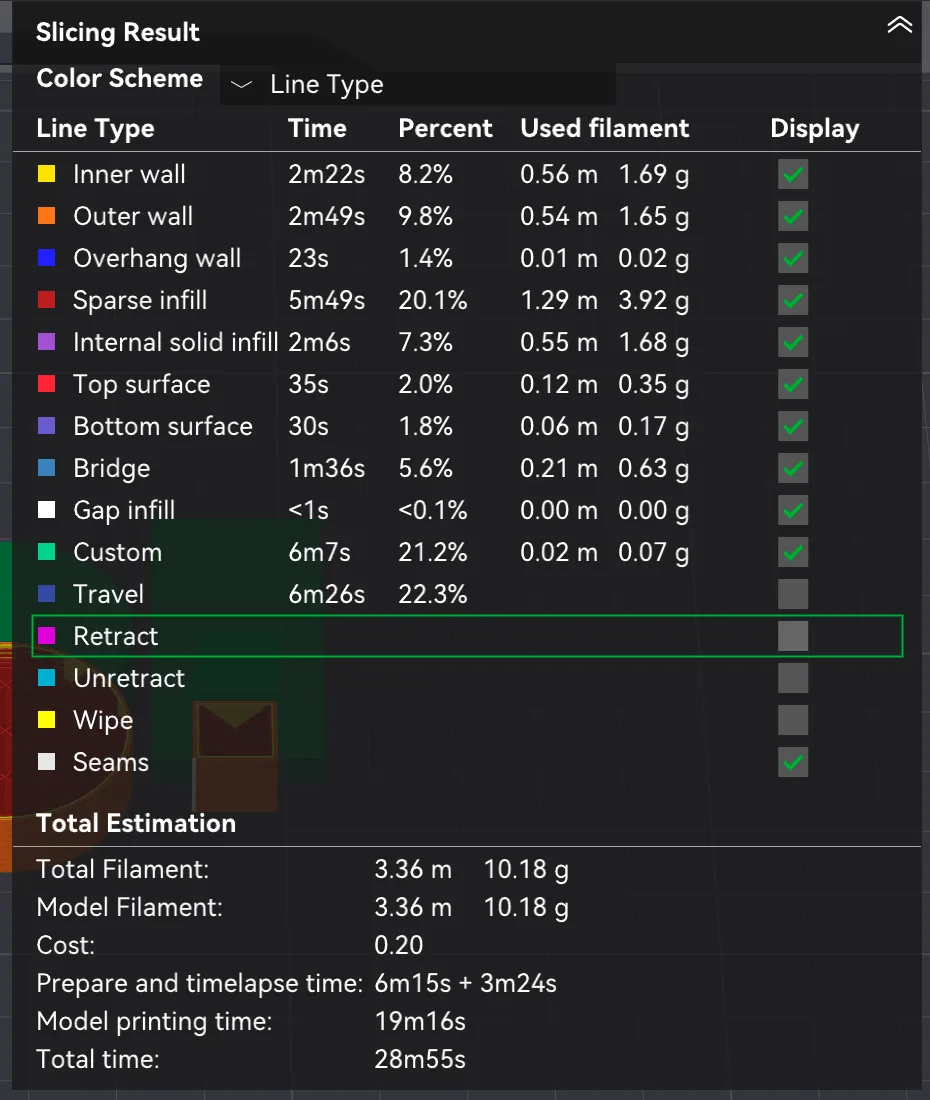
The Display tick boxes hide or show each type, so you can untick everything except one to inspect it. At layer 44 the Line Type colours showed orange outer walls, yellow inner walls, dark red sparse infill and a white seam line down the front of the cylinder.
Which colour schemes can you choose?
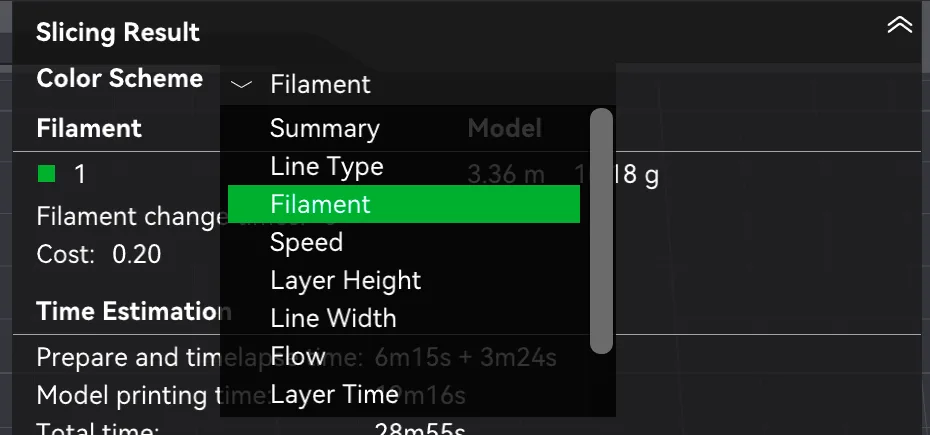
The Color Scheme list opened with these entries: Summary, Line Type, Filament, Speed, Layer Height, Line Width, Flow and Layer Time. It scrolls, and we also reached a Temperature entry. We opened four of them.
- Speed shows a ten step scale from 258 down to 10 mm/s, and the sliced layers came out yellow in our view.
- Layer Height listed two values, 0.40 and 0.20 mm. The layers in view were all magenta, the 0.20 colour.
- Flow shows volumetric flow rate in mm³/s, from 0.80 to 20.66, with the layers in view again yellow.
- Temperature listed a single value, 220 °C, so everything was one colour.
Speed and Flow are the ones to check when you change print speed settings, because a colour change shows where the slicer slows down or speeds up. We did not change any speed here, so we only report what the legends showed. The Layer Height scheme is more useful with variable layer height than with a fixed 0.20 mm profile, as in our case.
How do you show travel and retraction moves?
Travel, Retract, Unretract and Wipe all have unticked boxes by default. We ticked Travel and Retract in the legend. Dark blue lines appeared at once, many of them thin straight lines across the plate, plus a wide blue band running off the left side of the view that we did not investigate. A magenta mark appeared at the front of the cylinder, which is where the retract swatch colour is used. Those moves are the nozzle moving without extruding, and the 6m26s of Travel in the table is the cost of them. Retraction behaviour is covered in retraction settings explained. We unticked both afterwards to keep the view readable.
What did we not test?
We used one small plate with a single filament, so there were no filament changes and the Filament scheme showed only one colour. We did not test the Summary scheme in depth, the Line Width or Layer Time schemes, the Left and Right keys, or any multiple plate project. We also printed nothing, so every figure here is a slicer estimate. Next in the series is exporting and the 3MF file.
Next lesson: Bambu Studio Export: G-code, 3MF and Sliced Files.