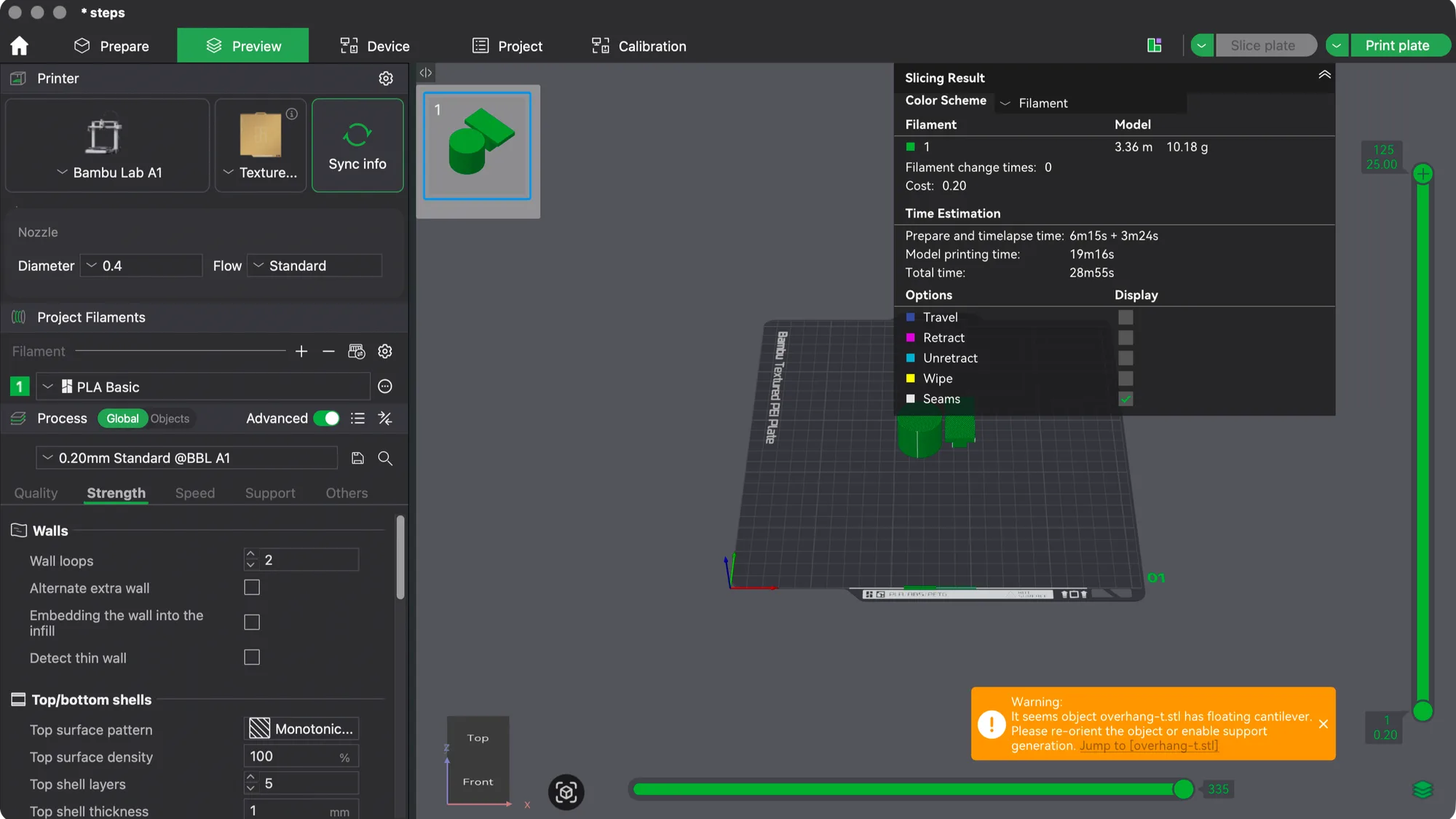
Bambu Studio print settings live in the Process panel at the left of the Prepare tab. This lesson goes through its Quality and Strength tabs, shows what the Advanced switch adds, and changes four values to see how the slicer's time and filament estimates move. We used version 02.08.02.61 on macOS with no printer connected.
Where are the print settings in Bambu Studio?
With the A1 profile from the setup wizard walkthrough, the left panel has Printer, Project Filaments and Process sections. The Process section starts with a Global and Objects switch, an Advanced switch and a preset drop-down. Ours read 0.20mm Standard @BBL A1 with PLA Basic selected as the filament.
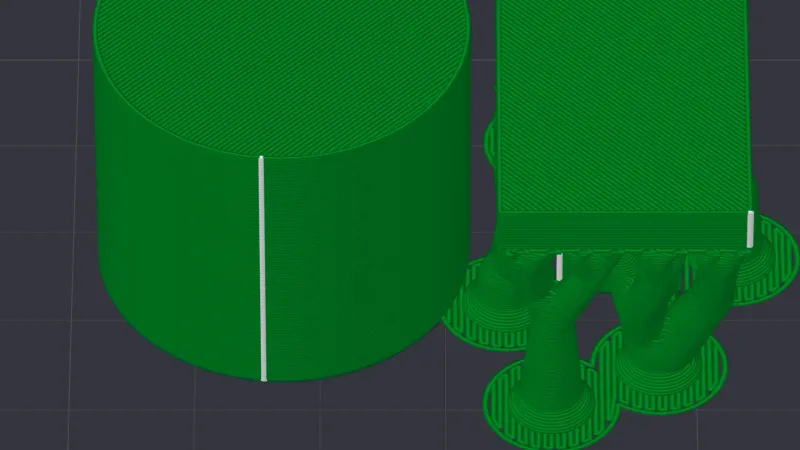
Below the preset sit tabs. With Advanced off we saw Quality, Strength, Support and Others. Global means a setting applies to everything on the plate. The Objects side is for per object overrides, which a later lesson covers. If you have not placed a model yet, importing, moving and scaling a model comes first. Our plate held a cylinder and the small T shaped overhang-t.stl, and we left support settings alone.
What is on the Quality tab, and what does Advanced add?
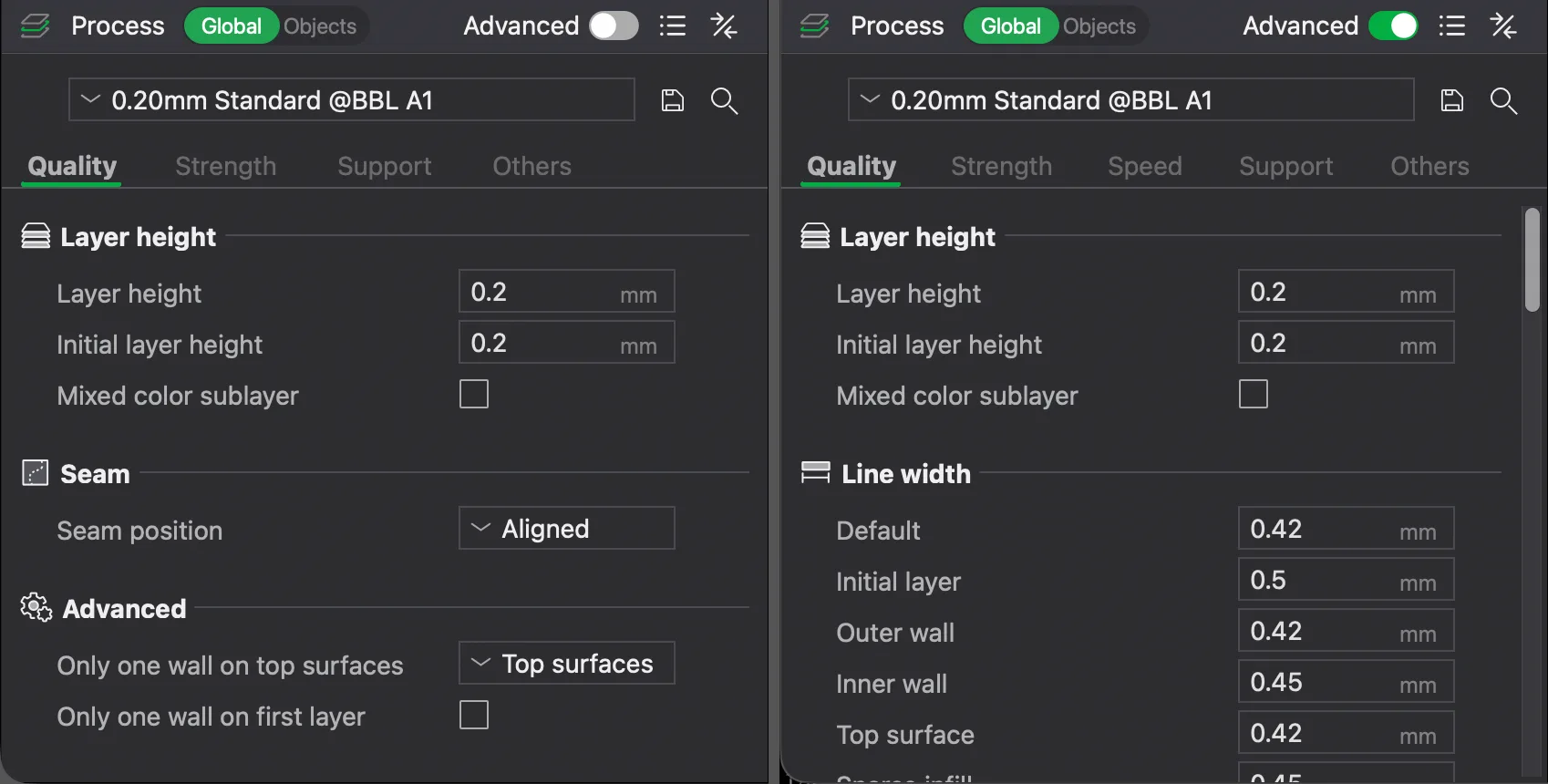
With Advanced off the Quality tab is short. It has a Layer height group with Layer height 0.2 mm, Initial layer height 0.2 mm and a Mixed color sublayer tick box. Below are a Seam group with Seam position set to Aligned, and a small Advanced group with Only one wall on top surfaces (set to Top surfaces) and Only one wall on first layer.
Hovering over Layer height showed the tooltip "This is the height for each layer. Smaller layer heights give greater accuracy but longer printing time." That matches what layer height explained describes in general terms.
Switching Advanced on added a Speed tab and a lot of rows. We scrolled the whole Quality tab and saw these groups, with the default value for each in our profile:
- Line width: Default 0.42, Initial layer 0.5, Outer wall 0.42, Inner wall 0.45, Top surface 0.42, Sparse infill 0.45, Internal solid infill 0.42 and Support 0.42, all in mm.
- Seam, extended: Seam placement away from overhangs (experimental), Smart scarf seam application (ticked), Scarf application angle threshold 155, Scarf steps 10, Scarf joint for inner walls (ticked) and Role-based wipe speed (ticked). Seam position explained covers the idea, and a later lesson covers seams in this app.
- Precision: Slice gap closing radius 0.049, Resolution 0.012, Arc fitting (ticked), X-Y hole compensation 0, X-Y contour compensation 0, Elephant foot compensation 0.075 and Precise Z height.
- Ironing with Ironing Type set to No ironing, and a Wall generator set to Classic.
- A longer Advanced group: Order of walls (inner/outer), Print infill first, Bridge flow 1, Thick bridges, Bridge counterbore holes, Smooth speed discontinuity area and Avoid crossing wall.
Most people never need the Precision rows. Leave them alone until a specific problem points to one.
How do walls and top and bottom shells work on the Strength tab?
The Strength tab starts with Walls. The main setting is Wall loops, set to 2. Hovering over it showed "Number of walls of every layer" and a link to a Bambu wiki page. Alternate extra wall and Embedding the wall into the infill are tick boxes, and Advanced adds Detect thin wall. For background, see walls and perimeters explained.
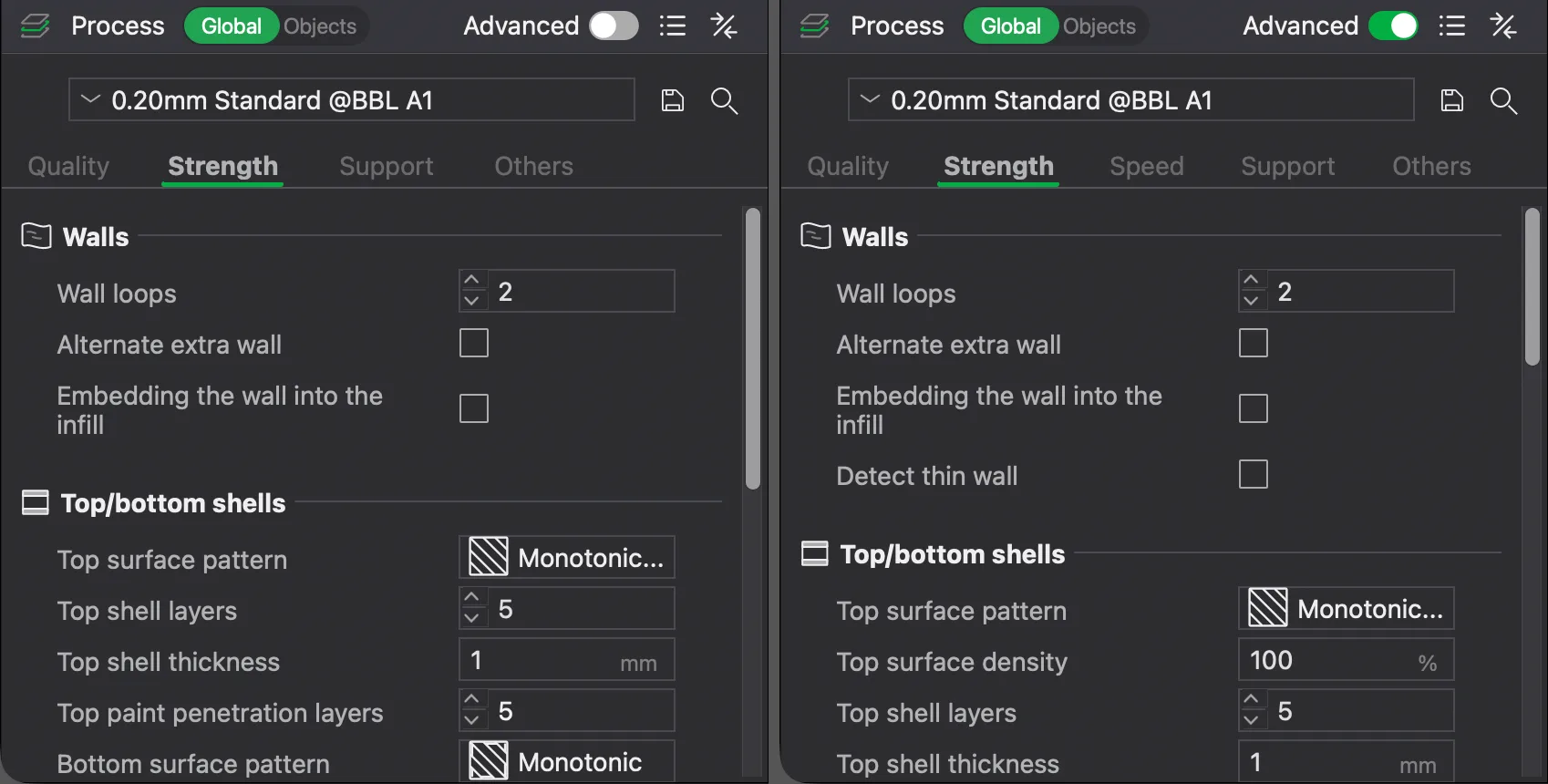
The Top/bottom shells group sets how solid the skin is. Our values were Top shell layers 5, Top shell thickness 1 mm, Bottom shell layers 3 and Bottom shell thickness 0 mm, with Monotonic patterns for the top and bottom surfaces. With Advanced on we also saw Top surface density 100 percent, Bottom surface density 100 percent and an Internal solid infill pattern of Rectilinear. The tab also lists Top paint penetration layers (5) and Bottom paint penetration layers (3), which we did not test.
How do you set sparse infill density and pattern?
Scroll down the Strength tab to Sparse infill. It showed Sparse infill density 15 percent, Fill multiline 1 and Sparse infill pattern Grid. These three rows were present with Advanced off. Advanced adds Length of sparse infill anchor (400%) and Maximum length of sparse infill anchor (20 mm or %), and a separate Advanced group with Infill/Wall overlap 15, Infill direction 45, Bridge direction 0, Minimum sparse infill threshold 15 mm2, Infill combination, Ensure vertical shell thickness and others.
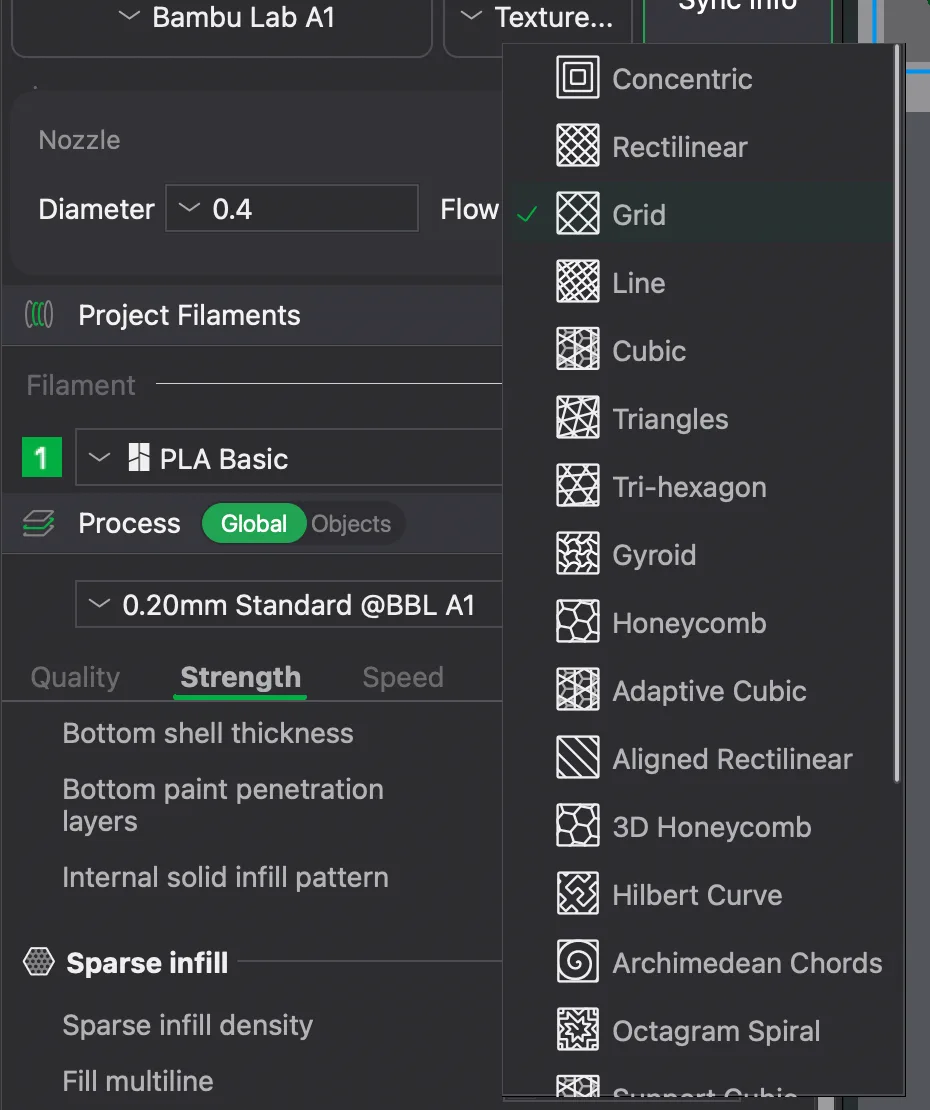
The list holds Concentric, Rectilinear, Grid, Line, Cubic, Triangles, Tri-hexagon, Gyroid, Honeycomb, Adaptive Cubic, Aligned Rectilinear, 3D Honeycomb, Hilbert Curve, Archimedean Chords, Octagram Spiral and more below. Infill explained describes how density and pattern trade strength against material.
To change a number, double-click the box, select the old value with Cmd+A, type the new one and click on empty panel space. In our test, Return alone did not commit it.
How much do these settings change the slicer's estimate?
We sliced the same plate five times, changing one setting from the 0.20mm Standard defaults each time and clicking Slice plate. We read the Slicing Result panel in Preview, which lists filament length and weight and the time estimate. Between runs we reset each change with its orange reset arrow, and the final run returned to 28m55s.
| Setting changed | Model printing time | Total time | Filament |
|---|---|---|---|
| None (defaults: 0.2 mm, 2 walls, 15% Grid) | 19m16s | 28m55s | 3.36 m, 10.18 g |
| Sparse infill density 30% | 23m27s | 33m7s | 4.42 m, 13.40 g |
| Sparse infill pattern Gyroid (at 15%) | 21m16s | 30m56s | 3.25 m, 9.85 g |
| Wall loops 4 | 22m29s | 32m8s | 4.15 m, 12.57 g |
| Layer height 0.28 mm | 15m46s | 24m27s | 3.51 m, 10.65 g |

Doubling infill from 15 to 30 percent added about four minutes and 3 g. Four wall loops cost a little less than that. Gyroid at the same density used slightly less filament than Grid yet took about two minutes longer in the estimate, so the lowest filament figure is not always the shortest time. The 0.28 mm layer height was the quickest, as the tooltip suggests, but the filament estimate rose slightly from 10.18 g to 10.65 g. We did not investigate why. These are estimates from one small test plate with PLA Basic, and the total time includes a prepare time that also changed between runs.
The slicer also warned that overhang-t.stl has a floating cantilever and suggested enabling support. We left support off for this lesson, so keep that in mind when comparing numbers. Print speed versus quality discusses these trade offs in more depth.
How can you tell which settings you have changed?
When we edited a value, its label and the tab name turned orange, an orange reset arrow appeared beside the value, and the preset name gained an asterisk, * 0.20mm Standard @BBL A1. Clicking the reset arrow restored the value and removed the asterisk. The disk icon beside the preset box is for saving changes as your own preset, which we did not try. The next lesson covers supports.
Next lesson: Bambu Studio Supports: Settings, Types and Painting.