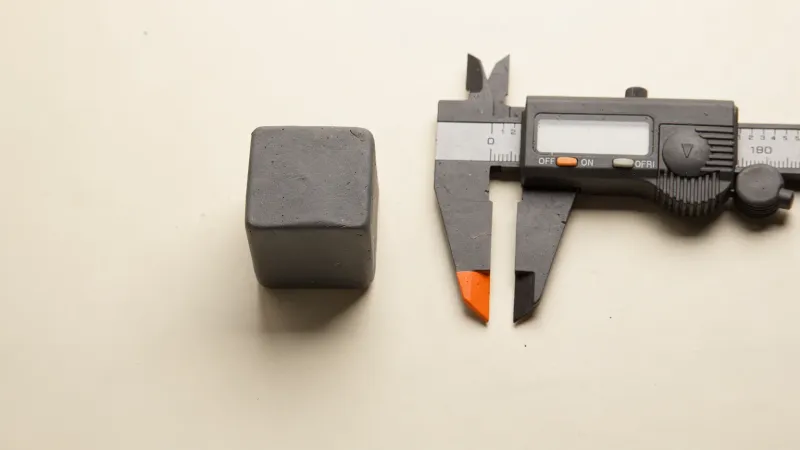
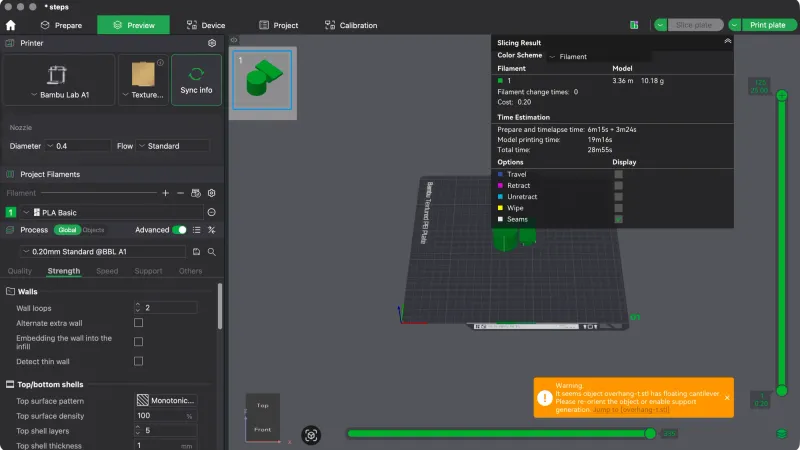
The Bambu Studio calibration tab is a short list, not a test menu. We opened it on macOS with the A1 profile and no printer connected and found two tests, Flow Dynamics and Flow Rate. This lesson covers what those pages say, which parts need a printer, and what you can honestly do without one. Nothing here was printed.
Where is the Calibration tab in Bambu Studio?
It is the last of the top tabs: Prepare, Preview, Device, Project and Calibration. Our plate came from the previous lesson on per object settings and modifiers, and switching tabs left it untouched. Clicking Calibration replaced the whole window with its own layout: a green bar reading No printer with a plus button, a left list, and a long page on the right.
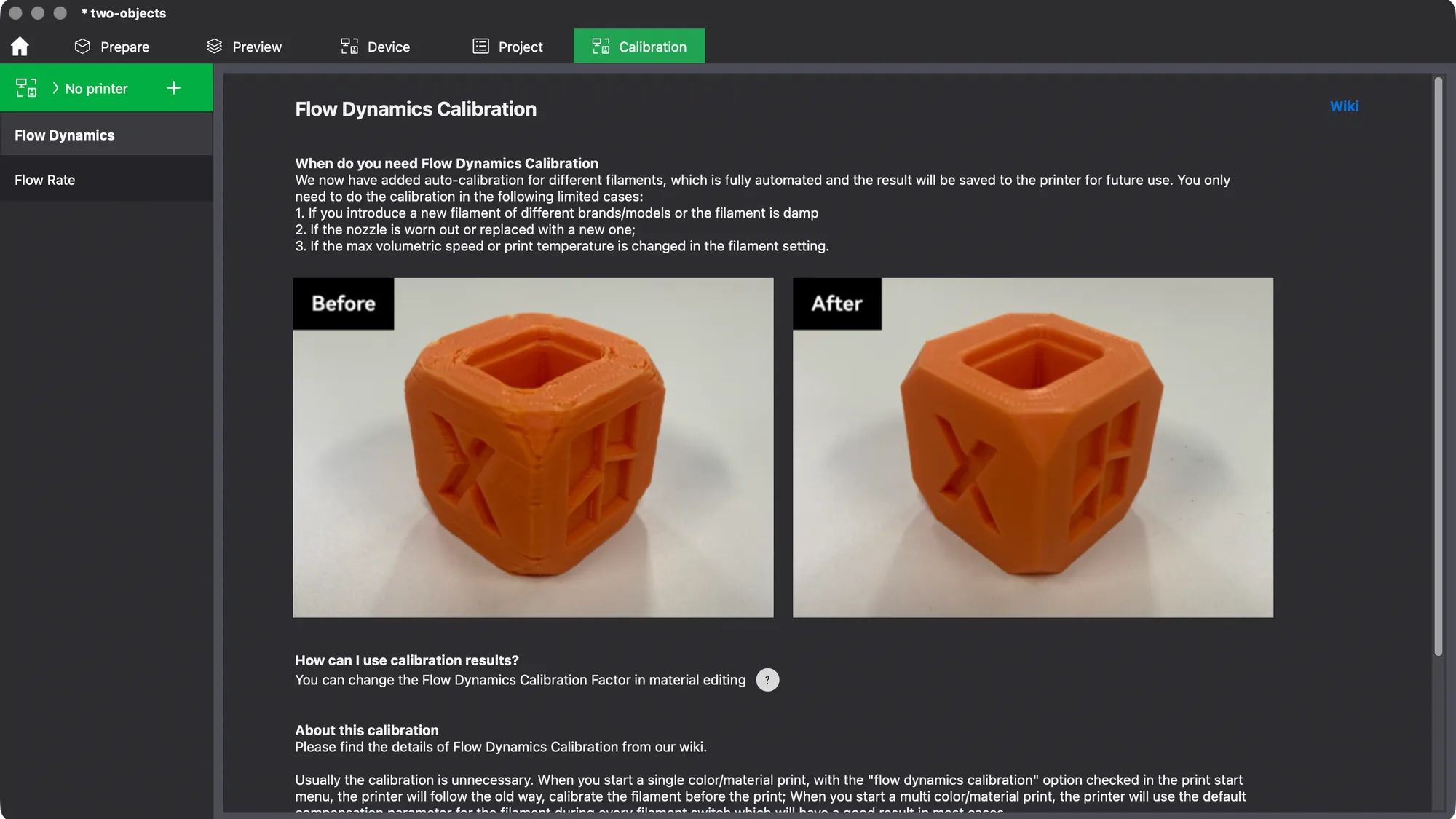
The left list had two entries only: Flow Dynamics and Flow Rate. We looked for a Calibration entry in the menu bar too. It has Apple, Bambu Studio, File, Edit, View, Window and Help, and the Help menu held Keyboard Shortcuts, Setup Wizard, Show Configuration Folder and the update items, but no test models. If you have used the Orca Slicer calibration menu, expect a much smaller list here.
What does the Flow Dynamics page say?
The page opens with a heading, When do you need Flow Dynamics Calibration, and says auto calibration for different filaments is automated and the result is saved to the printer. It lists three cases: a new filament of a different brand or model, or a damp one; a worn or replaced nozzle; and a changed maximum volumetric speed or print temperature in the filament setting.
Two Before and After photos of an orange cube follow, then a note that you can change the Flow Dynamics Calibration Factor in material editing. The About text says the calibration is usually unnecessary, because the printer calibrates the filament before a single colour print when the option is ticked in the print start menu. It also warns that poor bed adhesion can make results unreliable and that results have about 10 percent jitter in Bambu's own tests.
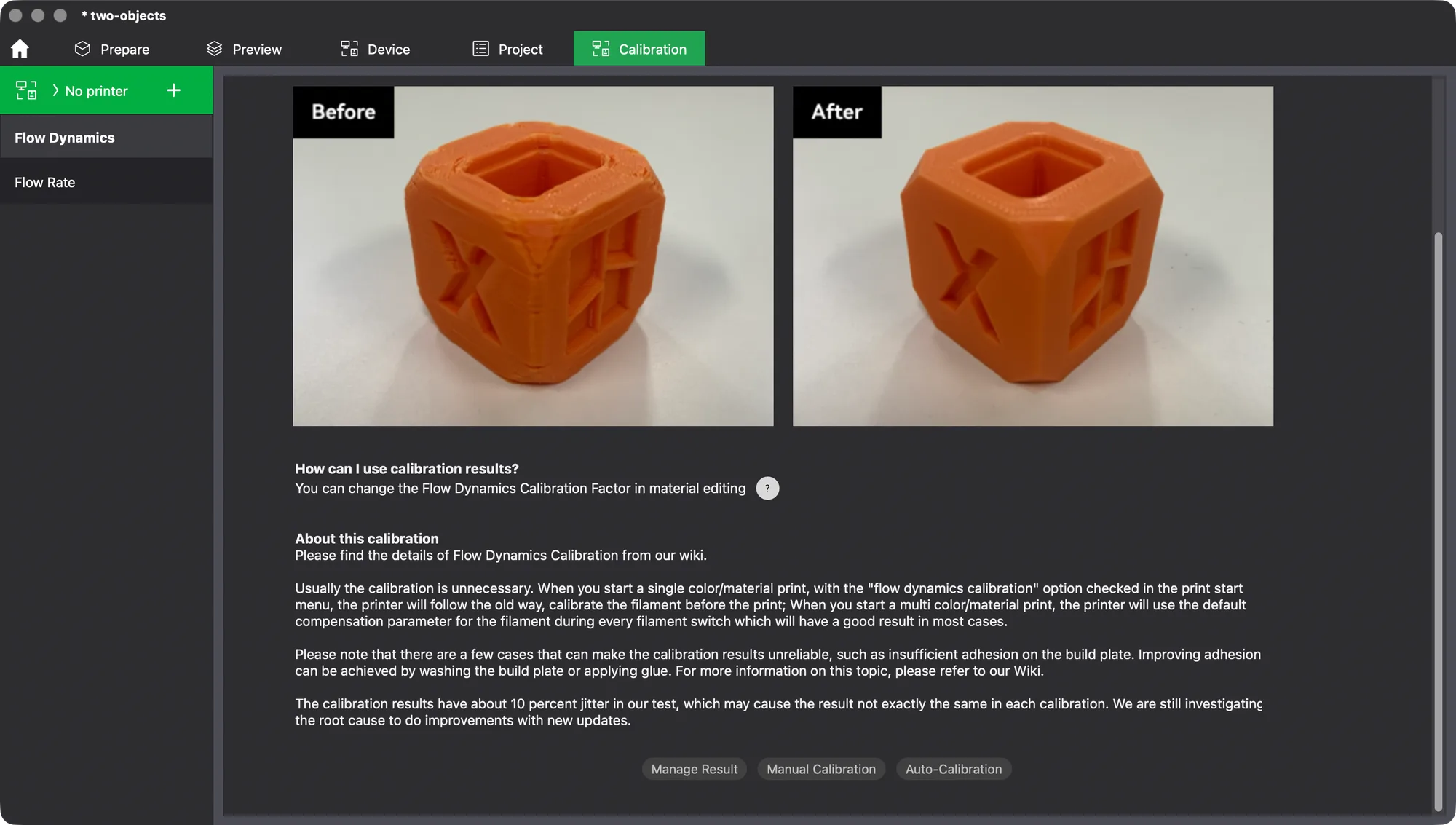
The buttons at the bottom are Manage Result, Manual Calibration and Auto-Calibration. We clicked Manual Calibration with no printer set up and nothing appeared. We did not click the other two, and we do not know what they show once a printer is added.
What does the Flow Rate page say?
Flow Rate Calibration is described as the next step after Flow Dynamics if extrusion problems remain. The page lists four: over extrusion with blobs or uneven thick layers, under extrusion with thin layers or gaps in the top layer, poor surface quality, and weak structure. A photo compares pink squares labelled Before: Over extrusion, After and Before: Under extrusion.
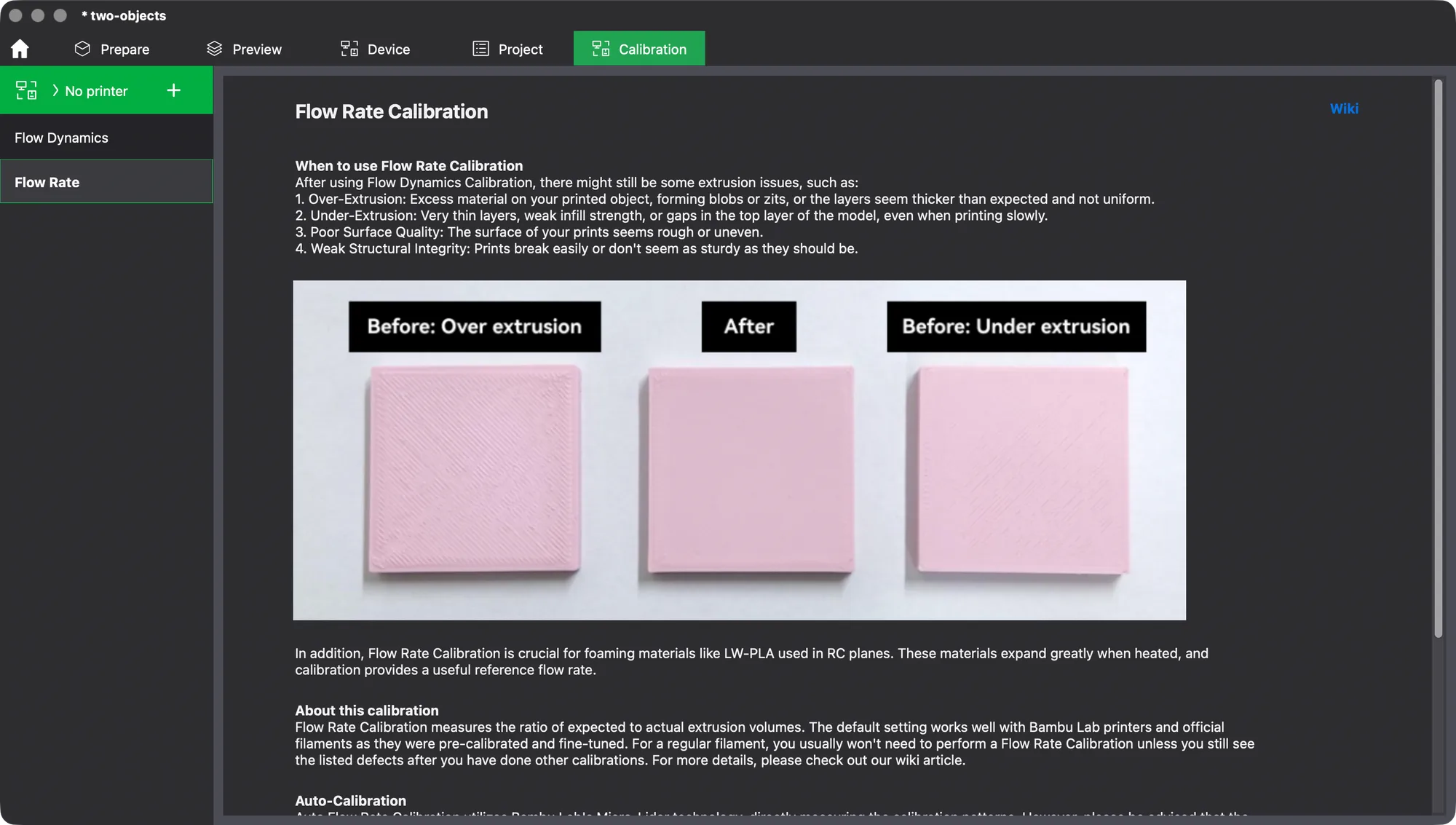
Lower down, the text says Flow Rate Calibration measures the ratio of expected to actual extrusion volumes. It adds that the default works well with Bambu Lab printers and official filaments because they were pre calibrated, so a regular filament usually does not need it unless you still see those defects. The page also mentions foaming filaments such as LW-PLA, where it gives a useful reference flow rate.
Which of these tests need a connected printer?
The Auto-Calibration section says Auto Flow Rate Calibration uses Bambu Lab's Micro-Lidar to measure the patterns directly, and warns that transparent, semi transparent, sparkly or highly reflective filaments may give poor results. That route needs a printer with that hardware. The page also carries a caution that Flow Rate Calibration is an advanced process for people who understand its purpose, and that incorrect use can lead to poor prints or printer damage.
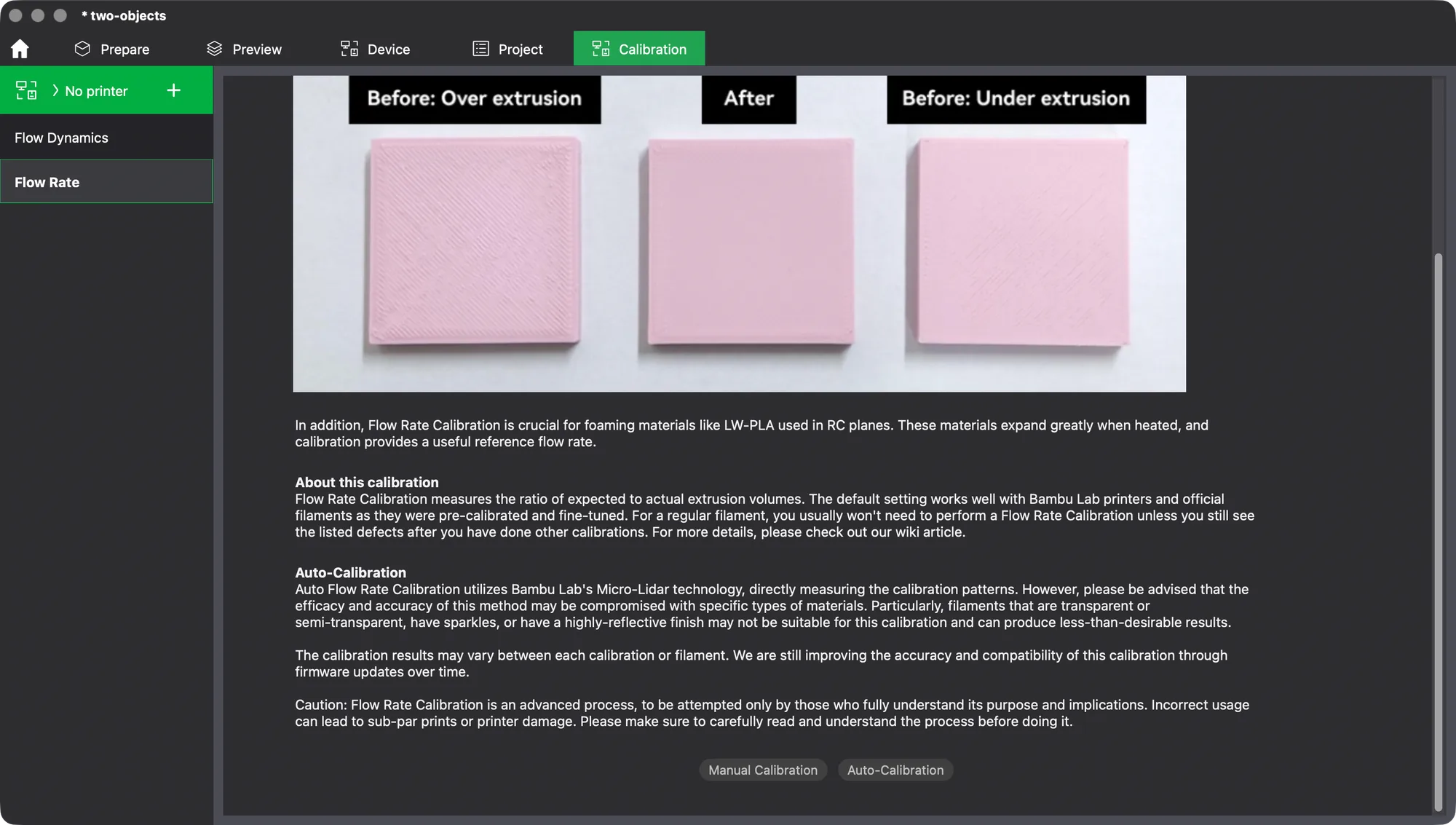
Both pages show a Manual Calibration button, and in our test, with the header reading No printer, it did nothing on either page. We cannot say whether a printer would be needed for the manual route to open its dialog, only that it did not respond here. The Device tab is where a printer would be connected, and we left that alone since it prompts for the network plug-in.
What can you do with this tab without a printer?
Honestly, read it. The pages are a plain guide to when each test is worth doing and what the buttons are for, and that is useful before you buy. We could not generate a test model in the Prepare view, so we have no plate preview or estimate for one. Ordinary slicing still works with a profile only, as shown in the Preview lesson.
For the settings these tests affect, retraction settings explained and print speed vs quality are useful, and how to calibrate a 3D printer covers the general idea. The next lesson in the course is a review of Bambu Studio.
What did we not test?
- Manage Result and Auto-Calibration buttons.
- Adding a printer with the plus button.
- The Wiki links and the question mark beside the factor note.
We never ran a calibration, so we cannot say how long either takes or what result it gives. The list could be longer with a printer connected, but we only saw two entries.
Next lesson: Bambu Studio Review: Hands On With Version 02.08.02.61.