Bambu Studio can export gcode, a sliced .gcode.3mf, a project 3MF, an STL or toolpaths as OBJ, and the File menu does not explain the difference. We ran each entry on a two object plate, then opened the files to see what they contain. This was version 02.08.02.61 on macOS with the A1 profile and no printer or account connected.
Which File menu entries save or export something?
Open the File menu. Above the Export entry it lists New Window, New Project, Open Project, Recent projects, Save Project, Save Project as, Show Project in Folder and Import. Below it come Publish to MakerWorld and Batch Preset Management. Export opens a submenu with eight entries:
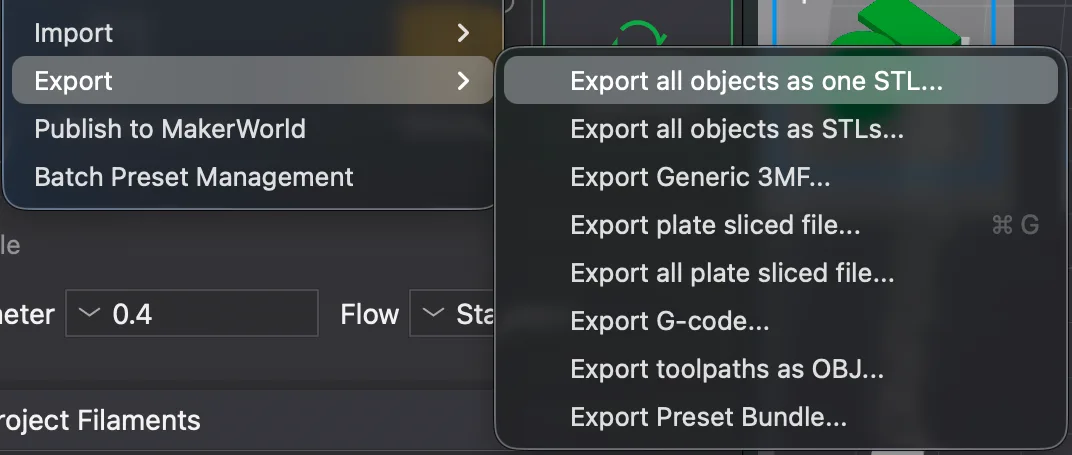
- Export all objects as one STL
- Export all objects as STLs
- Export Generic 3MF
- Export plate sliced file, shortcut Cmd+G
- Export all plate sliced file
- Export G-code
- Export toolpaths as OBJ
- Export Preset Bundle
We tried every entry except the second STL one and Preset Bundle. Our plate held the cylinder and the small T shaped overhang-t.stl with 0.20mm Standard @BBL A1 and PLA Basic, already sliced as in the previous lesson on the Preview tab. We sent every file to one folder inside our test area. When we opened Save Project as, the dialog started in the folder the model had been loaded from, so check the Where field before you save.
What does Save Project as write?
Choose Save Project as and give the file a name. Bambu Studio wrote two-objects.3mf at 31,378 bytes, and the window title changed from the old project name to two-objects. Afterwards the Save Project entry was greyed out in the menu, which we took to mean there was nothing new to save.
We listed the archive with unzip -l. A 3MF is a zip file. This one had 17 entries: two object model files under 3D/Objects, a model_settings.config, a project_settings.config of about 51 KB, five thumbnail PNGs and a few small config files. It had no G-code in it. The project_settings.config named the print preset as 0.20mm Standard @BBL A1 and the printer as Bambu Lab A1 0.4 nozzle. So a project file is for coming back and editing later. If you want to know how 3MF differs from the other two formats, STL vs 3MF vs G-code covers it.
Export Generic 3MF made a similar but smaller file, two-objects-generic.3mf, at 29,851 bytes with 14 entries. Its meshes sit in one 3dmodel.model of about 20.8 KB rather than separate object files. We did not open it in another program, so we cannot say how well other software reads it.
What is the difference between .gcode and .gcode.3mf?
After slicing, Export G-code opens a Save dialog titled Save G-code file as. The suggested name was overhang-t_PLA_28m55s. The pattern appears to be the first object name, the filament type and the total estimated time, and 28m55s matches our Preview estimate. The file was a text file of 1,129,295 bytes and 44,916 lines.
Its header starts with a line naming BambuStudio 02.08.02.61, then a line reading model printing time: 22m 40s; total estimated time: 28m 55s. Further down it lists total layer number 125, total filament length 3357.67 mm and total filament weight 10.18 g. The settings dump at the end includes layer_height = 0.2, nozzle_diameter = 0.4 and printer_model = Bambu Lab A1. The header's 22m 40s differs from the 19m16s model printing time we saw in Preview, and we did not work out why. If you want to read the lines themselves, what is G-code explains them.
Export plate sliced file opens Save Sliced file as with the default name two-objects.gcode.3mf. We saved it at 101,114 bytes. Inside the zip we found Metadata/plate_1.gcode, a plate_1.gcode.md5 checksum file, slice_info.config, project_settings.config and the thumbnails. When we extracted plate_1.gcode and compared it with the standalone .gcode, the two were byte for byte identical. The 3D folder held only a 1 KB 3dmodel.model and no object mesh files, so it is a sliced result and not a full project to edit.
The slice_info.config listed our two objects, the filament as PLA used 3.36 m and 10.18 g, and a prediction value of 1735, which is 28m55s in seconds. Export all plate sliced file did the same thing for the single plate we had. It wrote a 101,116 byte file with the same plate_1.gcode, and the name it suggested was the same as before, so we renamed it to avoid overwriting.
What did the export warning say?
The first export after slicing produced a window titled warnings with the text: there are warnings after slicing models, it seems object overhang-t.stl has floating cantilever, please re-orient the object or enable support generation. We had supports off on purpose, so this was expected. We clicked OK. A green Export successfully note with an Open Folder link appeared at the bottom of the view, above an orange Warning note with the same cantilever message and a Jump to link. Read these before you trust a file, because the export still went ahead.
What do STL and OBJ exports give you?
Export all objects as one STL merged both objects into two-objects.stl. It was a binary STL of 14,084 bytes with 280 triangles, which fits a 80 byte header, a 4 byte count and 50 bytes per triangle. We checked the arithmetic and it matched the file size exactly.
Export toolpaths as OBJ is different, since it exports the sliced paths and not the model. It wrote two-objects.obj at 12,619,024 bytes and a 404 byte two-objects.mtl. The OBJ comment said G-Code Toolpaths, with 167,006 vertex lines and 146,300 face lines. That is a lot of geometry for a small plate. We did not open it in a 3D program, so we only know what the text shows. This looks useful for rendering or inspection, not for printing.
What do Print plate and Send do without a printer?
Beside the green slice button there is a Print plate button with a small arrow. The arrow opens a list.
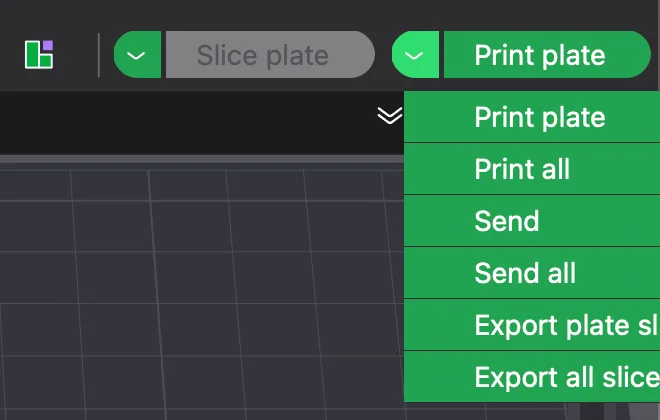
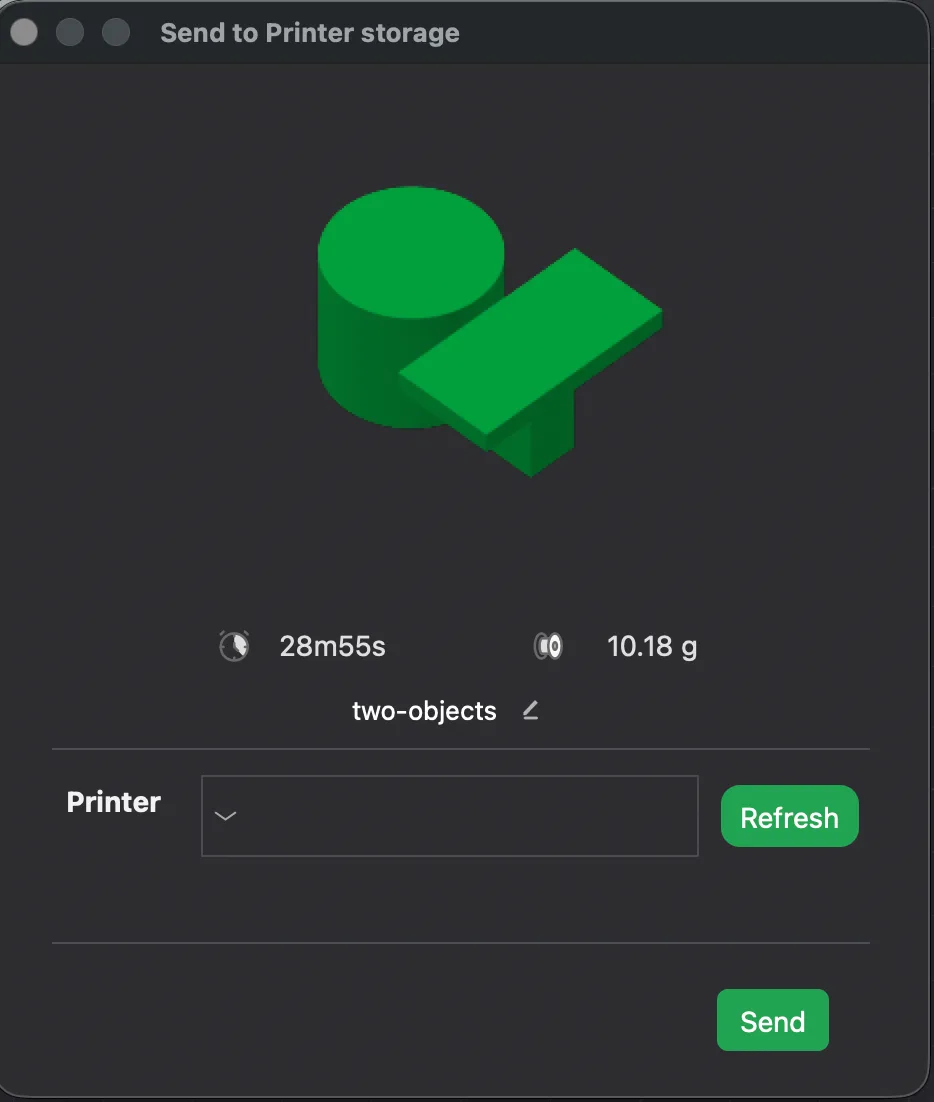
The list held Print plate, Print all, Send, Send all, Export plate sliced file and Export all sliced file. Choosing Send changed the main button's label to Send until we picked Print plate again. Clicking Send opened a Send to Printer storage dialog. It showed a thumbnail, 28m55s, 10.18 g and the name two-objects, with a Printer drop down that was empty, a Refresh button and a Send button.
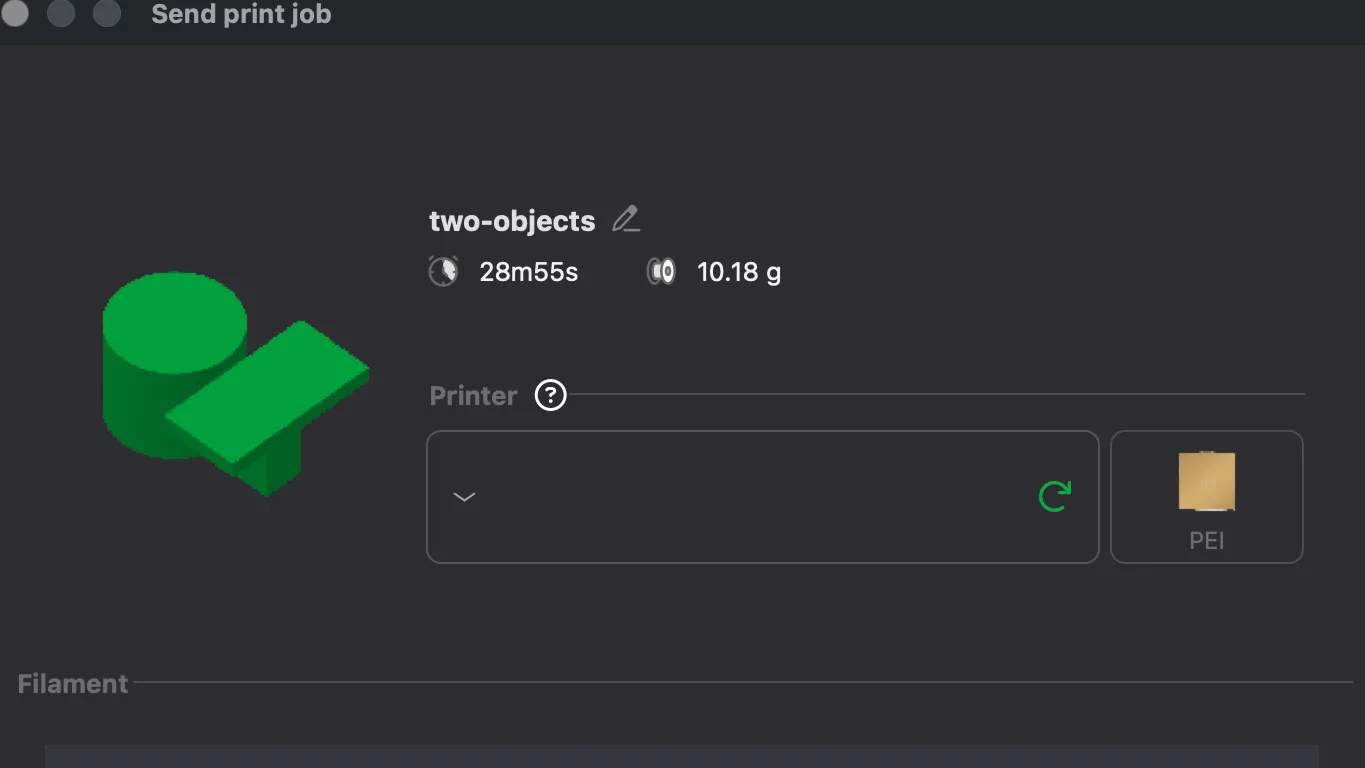
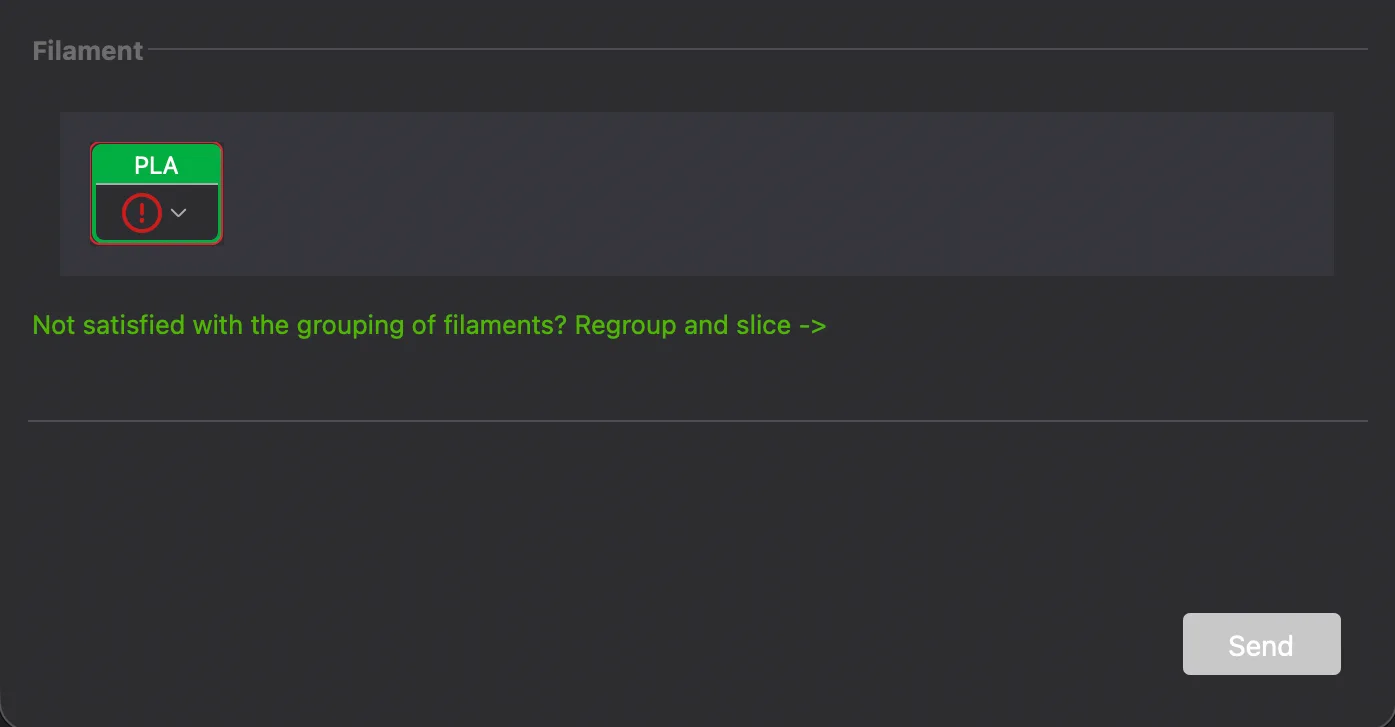
Clicking Print plate opened a Send print job dialog instead. It repeated the name and estimates, showed an empty Printer box with a refresh icon and a PEI plate tile, and listed one PLA filament slot with a red warning icon. A green line read Not satisfied with the grouping of filaments? Regroup and slice. The Send button at the bottom was greyed out.
Neither dialog asked us to log in or install the network plug-in, and we closed both with the window's red close button without sending anything. We cannot say what happens with a real printer on the network, since we have none. In this software only session the practical way to move a file is to export it and copy it yourself, which is why the next section matters.
Which export should you pick?
This is our reading of the files above, not a printer test. Use Save Project as when you want to edit later. Use Export plate sliced file when you want a sliced result with its thumbnails and checks in one file. Use Export G-code when a tool wants a plain text file. Use STL when another program needs the geometry. A slicer is the thing that makes the G-code in the first place, as what is a slicer explains. Next in the series is filaments and the AMS colour setup.
What did we not test?
We exported one plate only, so we did not see how multiple plates change the names or contents. We did not open the files in a printer, a G-code viewer or another slicer, and nothing was printed. We skipped Export all objects as STLs and Export Preset Bundle, and we did not test the Open Folder link. Every time and weight figure is a slicer estimate.
Next lesson: Bambu Studio Multicolor Printing: Filaments and Colour.