The Bambu Studio setup wizard runs the first time you open the app and picks your region, printer and filaments. This lesson walks through every page on macOS in version 02.08.02.61, with no login and no network plug-in. It is software only: we own no Bambu printer and none was connected.
What does the Bambu Studio setup wizard ask you?
It asks five things in a small window titled Setup Wizard that sits on top of the home screen: your login region, whether to join a data sharing program, which printers you own, which filaments you want listed, and whether to install the network plug-in. If you are new to slicers, what a slicer is explains the job this program does, and Bambu Studio for beginners covers downloading it.
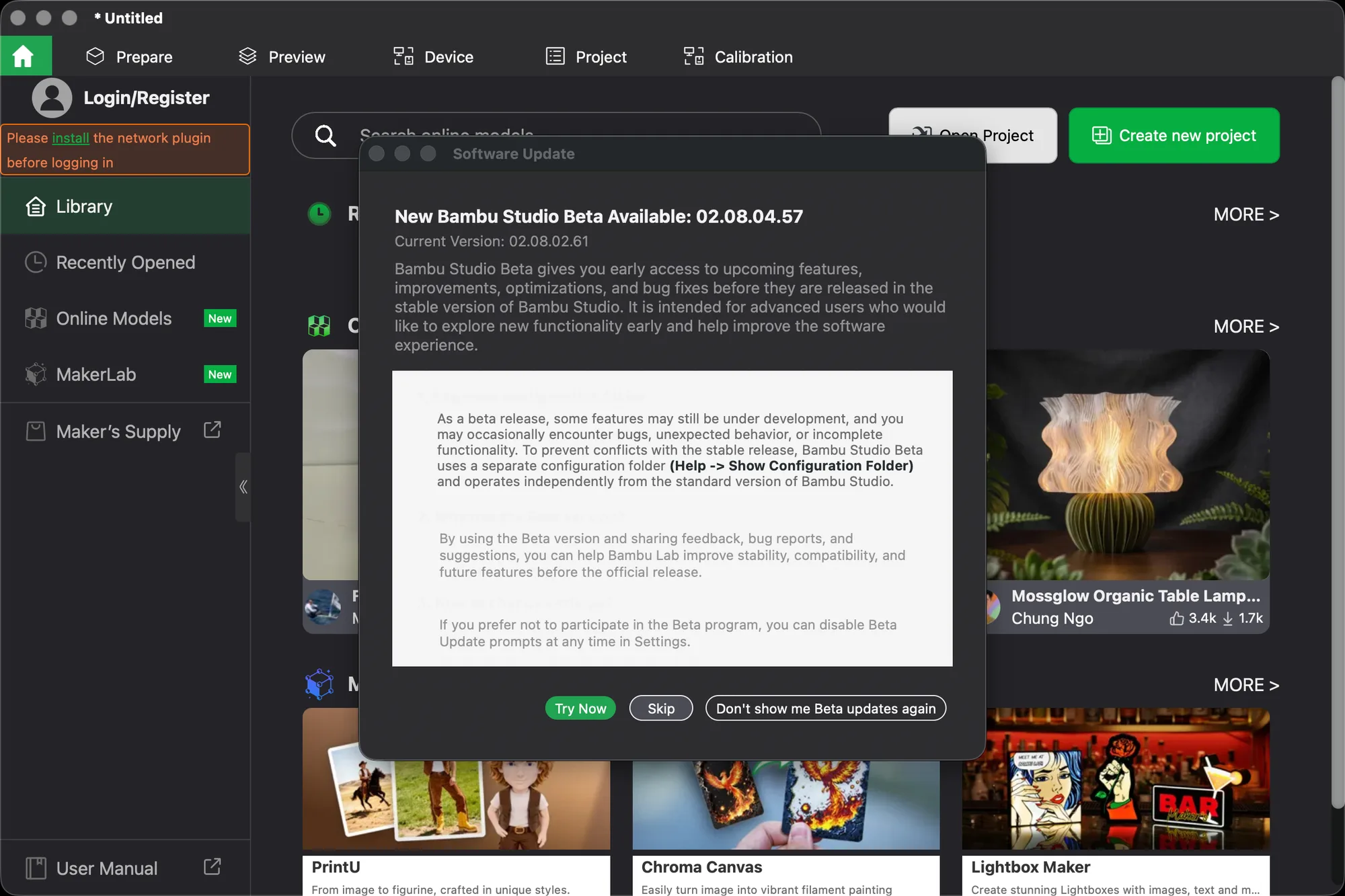
The first page reads Welcome to Bambu Studio and says it will be set up in several steps. There is one button, Get Started. Behind the wizard the home screen already shows a Login/Register button and an orange note, "Please install the network plugin before logging in". We ignored both, because nothing in this lesson needs an account.
1. Which login region should you choose?
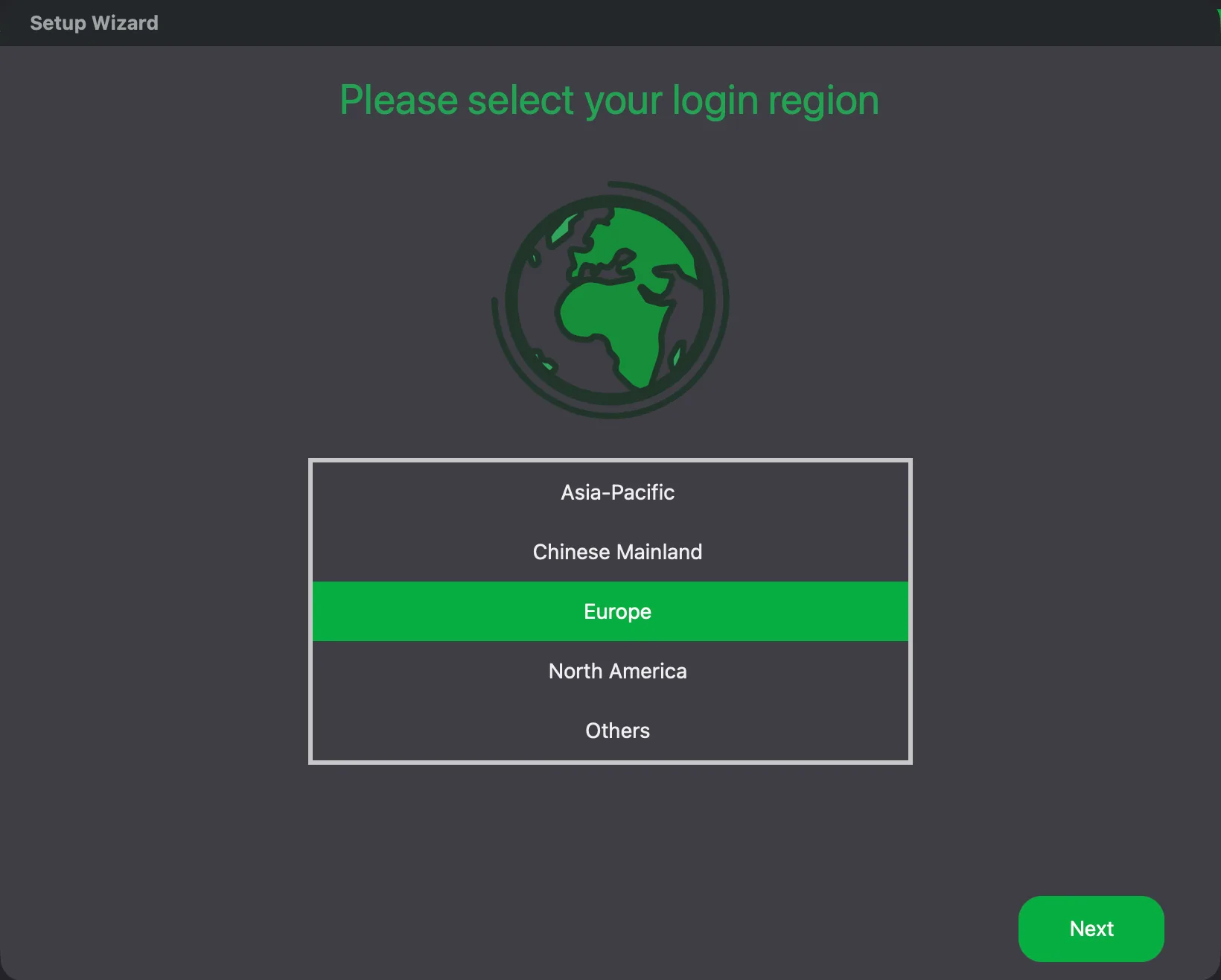
The second page is headed Please select your login region and lists five choices: Asia-Pacific, Chinese Mainland, Europe, North America and Others. Asia-Pacific was highlighted when the page opened, which is a default and not a guess about where you live. We chose Europe and pressed Next. The page talks about login, but we did not log in, and the choice did not stop us finishing the wizard.
The next page is titled Help improve 3D printing for everyone by joining our User Experience Improvement Program. It says that joining shares usage and performance data such as device information, settings, connectivity and print behaviour, that taking part is optional, and that you can leave at any time in Preferences > User Experience. It has Back, Skip and Join the Program buttons. We pressed Skip.
2. How do you choose your printer?
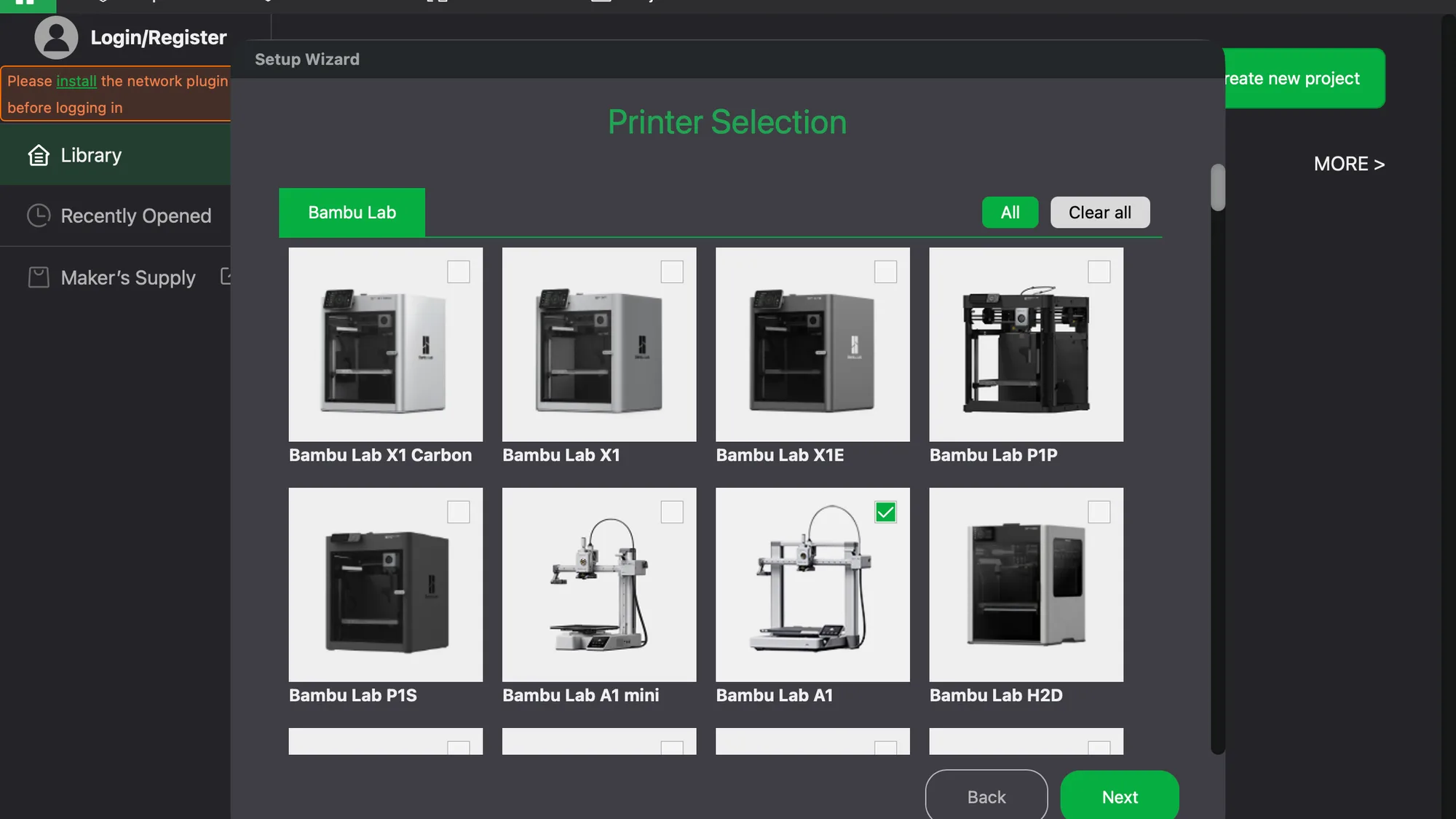
You do it on the Printer Selection page, which shows a tab for each maker with a photo and tick box for every model. The Bambu Lab tab came first, with All and Clear all buttons, and every Bambu model was ticked when it opened: X1 Carbon, X1, X1E, P1P, P1S, A1 mini, A1 and H2D, with more rows below. Other makers, including Anker and Anycubic further down the list, started unticked.
We pressed Clear all and ticked only Bambu Lab A1, then Next. Tick the machine you own, or the closest one if you own none.
3. What does the Filament Selection page do?
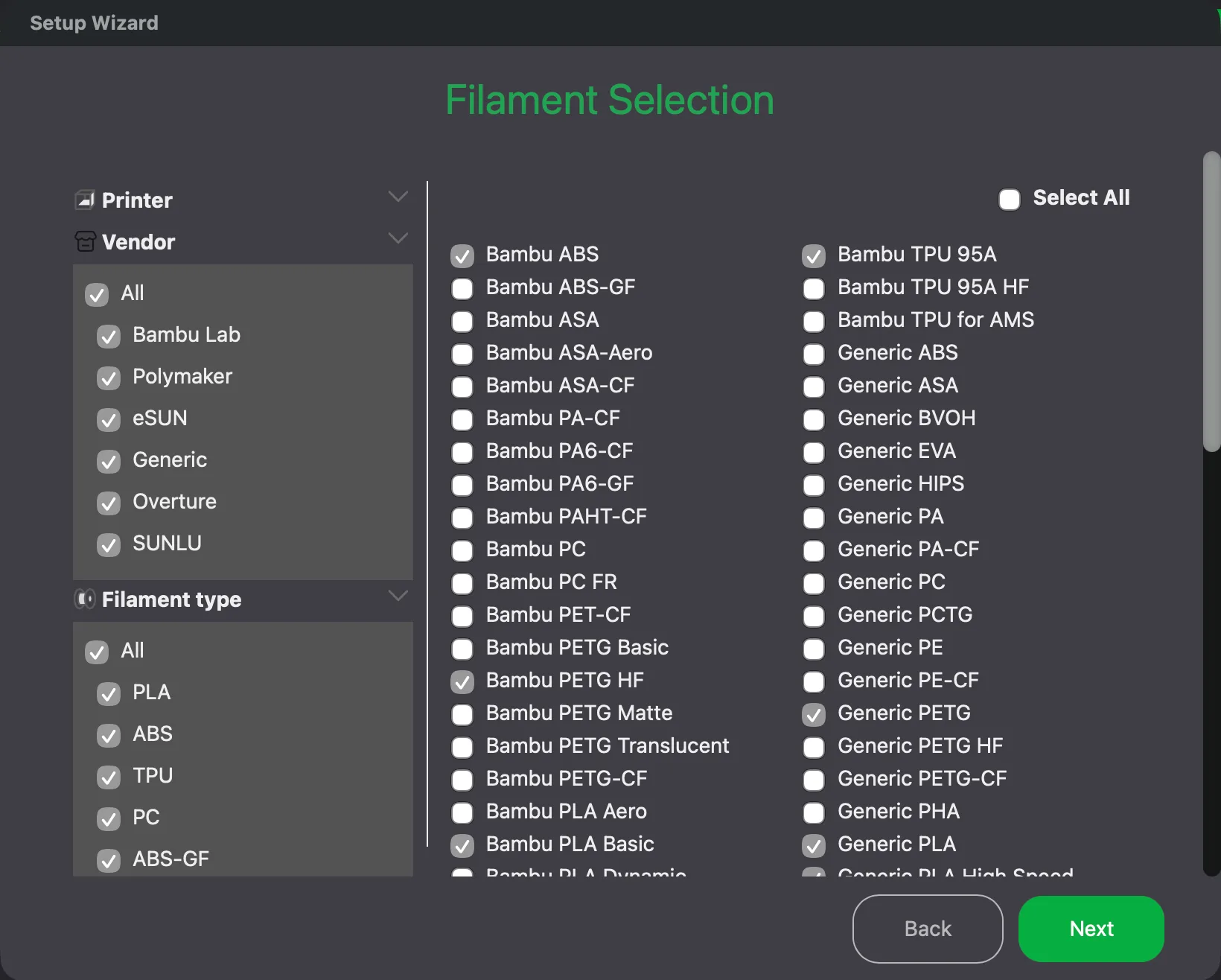
It decides which filament profiles appear in the drop-down on the main screen, so a short list is easier to scroll. The left side has filters for Printer, Vendor (Bambu Lab, Polymaker, eSUN, Generic, Overture and SUNLU) and Filament type (PLA, ABS, TPU, PC, ABS-GF and more). The right side lists profiles in two columns with a Select All box.
A sensible set was already ticked: Bambu ABS, Bambu TPU 95A, Bambu PETG HF, Bambu PLA Basic, Generic PETG and Generic PLA. Many others such as Bambu PLA Aero and Bambu PC were not. We kept the defaults and pressed Next.
4. Should you install the Bambu Network plug-in?
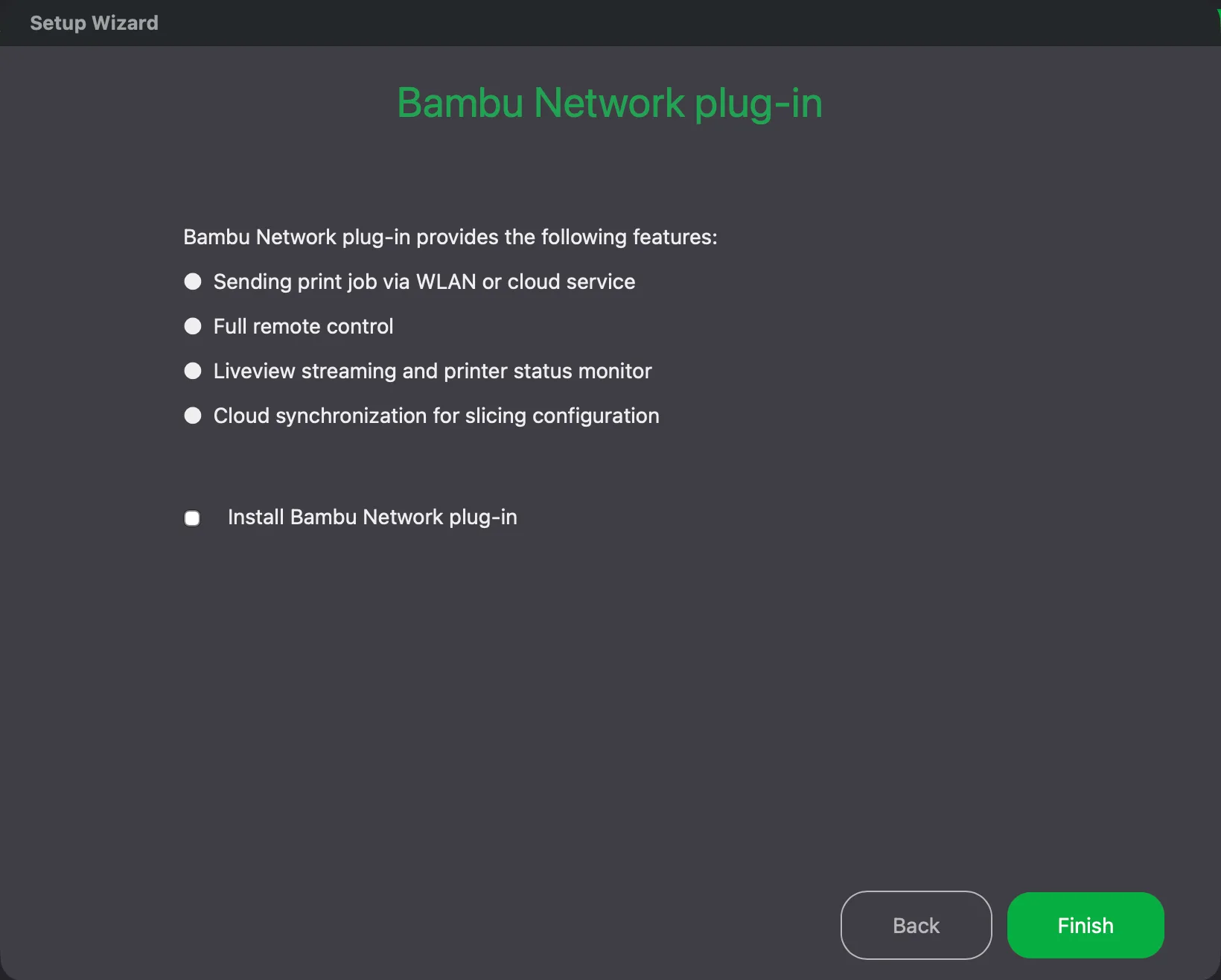
Not for slicing. The last page, Bambu Network plug-in, lists four things it provides: sending print jobs via WLAN or cloud service, full remote control, Liveview streaming and printer status monitor, and cloud synchronization for slicing configuration. All four are about talking to a real printer or an account. We have no printer connected, so we did not need them.
The Install Bambu Network plug-in box was ticked when the page opened. We unticked it and pressed Finish. The wizard let us finish without it, and the program still opened normally. The orange note on the home screen still asked us to install it before logging in.
5. What happens after you press Finish?
Three things can interrupt you, because the app checks online as soon as the wizard closes. On our run a Configuration update dialog offered a new preset package, BBL 2.8.0.6, with a note about updated machine start and end G-code for an A2L printer. We pressed Cancel, since it was not for the printer we picked.
Two Software Update dialogs followed, both announcing New Bambu Studio Beta Available: 02.08.04.57 against our current version 02.08.02.61. The text says a beta uses a separate configuration folder and that you can stop the prompts in Settings. Its buttons are Try Now, Skip and Don't show me Beta updates again. We pressed Skip on each, so we stayed on the stable version.
6. Check what you ended up with
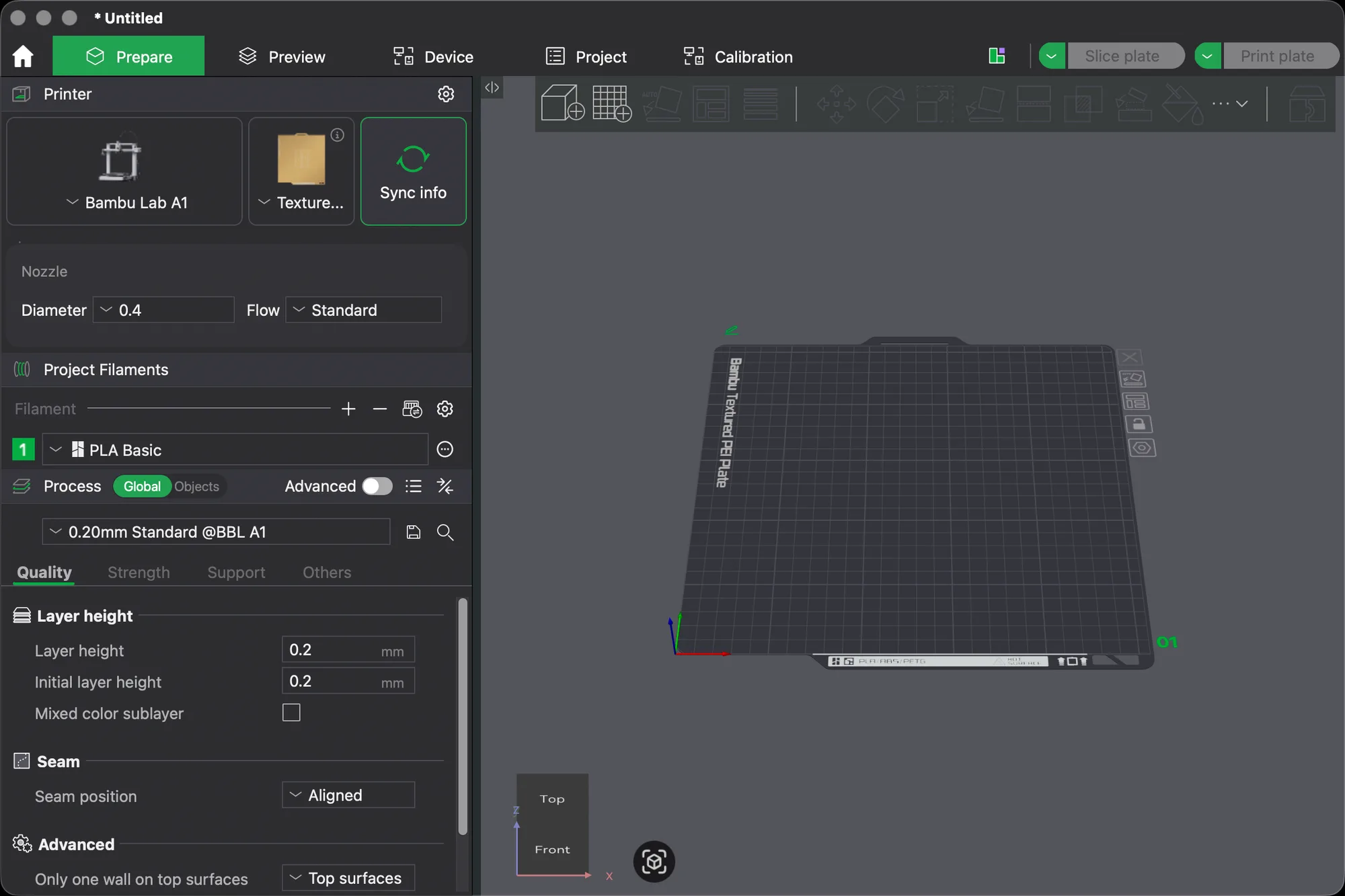
Open the Prepare tab. The title bar read "* Untitled", and a Calibration tab had appeared next to Project. The Printer card showed Bambu Lab A1 with a textured plate and a Sync info button. Below it the Nozzle box read Diameter 0.4 and Flow Standard, Project Filaments listed PLA Basic, and the Process panel read 0.20mm Standard @BBL A1 with the Advanced switch off. Layer height and initial layer height were both 0.2 mm; layer height explained shows what that number does.
The whole setup in short:
- Press Get Started, pick a login region and press Next.
- Press Skip on the User Experience Improvement Program page if you prefer not to share data.
- Press Clear all and tick only your printer.
- Keep the default filaments, untick Install Bambu Network plug-in and press Finish.
- Cancel or skip any update dialogs and check the Printer, Filament and Process cards on Prepare.
The next lesson, the Bambu Studio interface tour, goes through the rest of the window. To compare this program with the others, see Cura vs OrcaSlicer vs PrusaSlicer.
Next lesson: Bambu Studio Interface Tour: Tabs, Toolbar and Panels.