Bambu Studio course
A free, step-by-step Bambu Studio course. Each lesson covers one job, from the setup wizard and the interface to print settings, supports, previewing, exporting and multi-colour projects, and every step is run in the real app and captured in screenshots before it is published. No account or printer is needed.
- Made by
- Bambu Lab, published on GitHub
- Account needed
- No, for slicing and exporting
- Version tested
- 02.08.02.61 on macOS
- Lessons
- 11, plus a hands-on review
Who is this Bambu Studio course for?
Owners and future owners of a Bambu Lab printer who want to learn the slicer made for it, and anyone curious about the program OrcaSlicer was forked from. The lessons run on the A1 profile, so they suit the A1 family best, though the workflow carries over to other Bambu printers.
What do you need to start?
A computer and the download from Bambu Lab. You do not need a printer or an account to slice. Printing, sending files, AMS sync and the calibration tests need a printer or the network plug-in, which this course does not cover.
What will you learn in the Bambu Studio course?
- Work through the Setup Wizard without logging in or installing the network plug-in
- Learn the Prepare, Preview, Device, Project and Calibration tabs and the Simple and Advanced switch
- Import a model and move, rotate, scale and lay it on a face
- Change layer height, walls and infill, and read how each change moves the slicer estimate
- Add supports, a brim and seam settings
- Read the Preview legend and export G-code and 3MF files
- Add a second filament, set per object settings and modifiers, and see what the Calibration tab offers
How were these lessons made?
Every lesson was run step by step in the real program, and each screenshot is our own. We tested Bambu Studio 02.08.02.61 on macOS, with a Bambu Lab A1 0.4 mm profile. We own no Bambu printer, so everything is sliced and exported only; nothing was printed. Times, weights and costs shown are the slicer's estimates. See how we test for what that label means.
Start here: the review
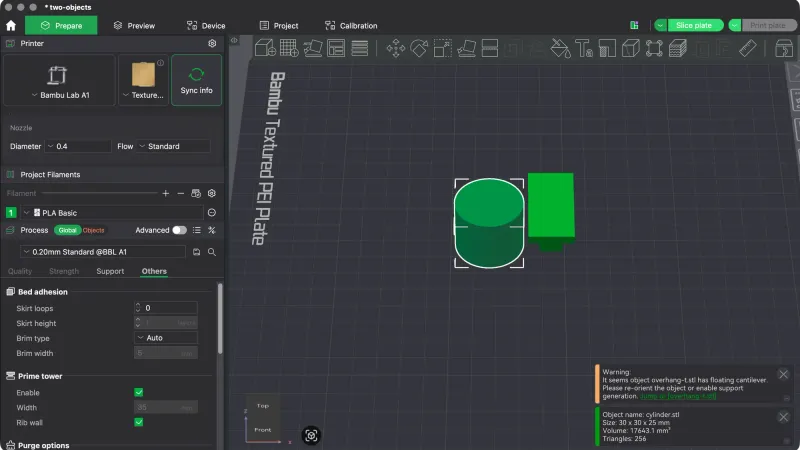 Bambu Studio Review: Hands On With Version 02.08.02.61A hands on Bambu Studio review built from an 11 lesson test of version 02.08.02.61 on macOS with an A1 profile: strengths, limits, what we could not test and who should use it.
Lessons
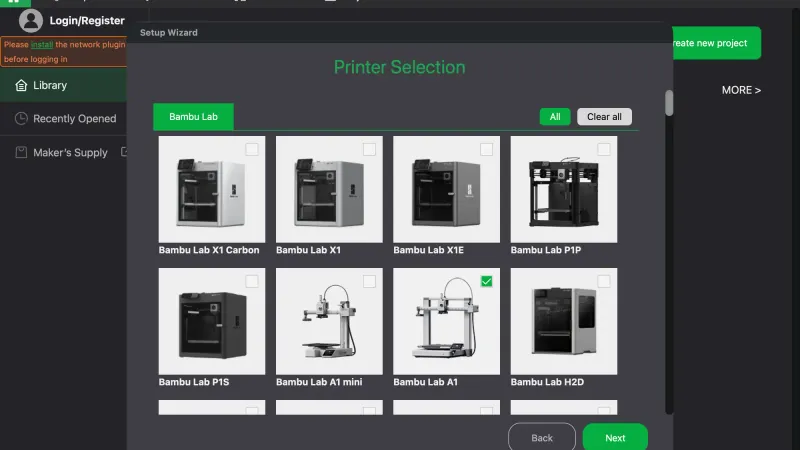 Bambu Studio Setup: The First Launch WizardEvery page of the Bambu Studio Setup Wizard on macOS, with no login and no network plug-in, ending on a Bambu Lab A1 profile ready to slice.
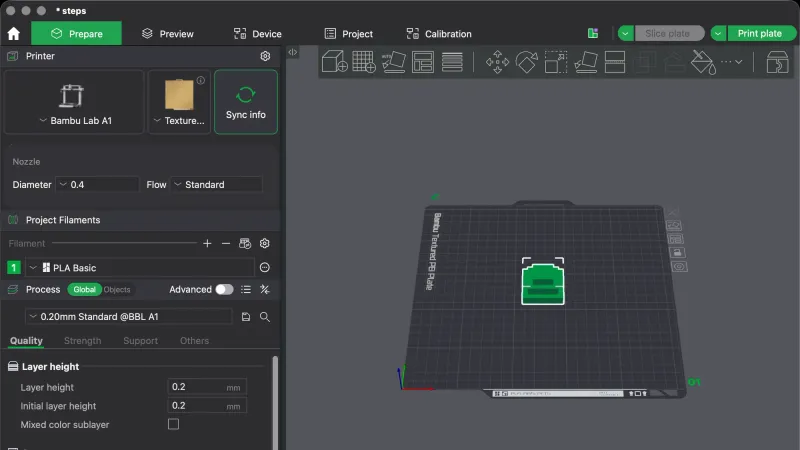 Bambu Studio Interface Tour: Tabs, Toolbar and PanelsLearn what each part of the Bambu Studio window does on macOS: the Home, Prepare, Preview, Device, Project and Calibration tabs, the left settings panel, the toolbar and the slice buttons.
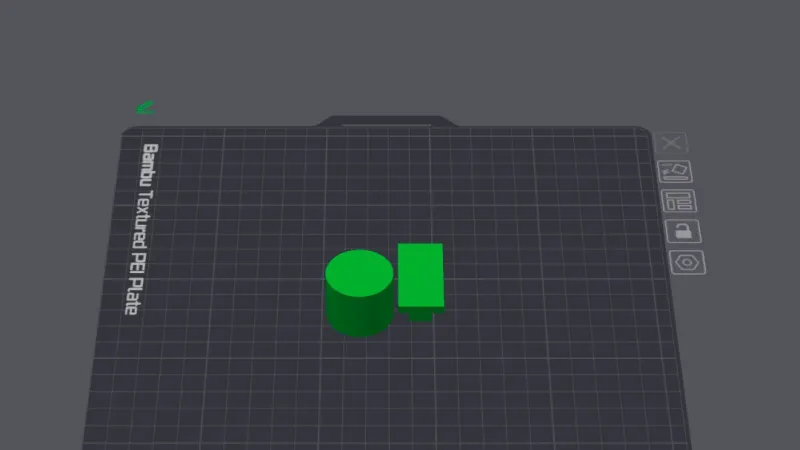 Bambu Studio Import Models: Move, Rotate and ScaleLearn how to import models in Bambu Studio on macOS, select them, then move, rotate, scale, lay on a face, arrange and cut, with the exact panels and numbers we saw.
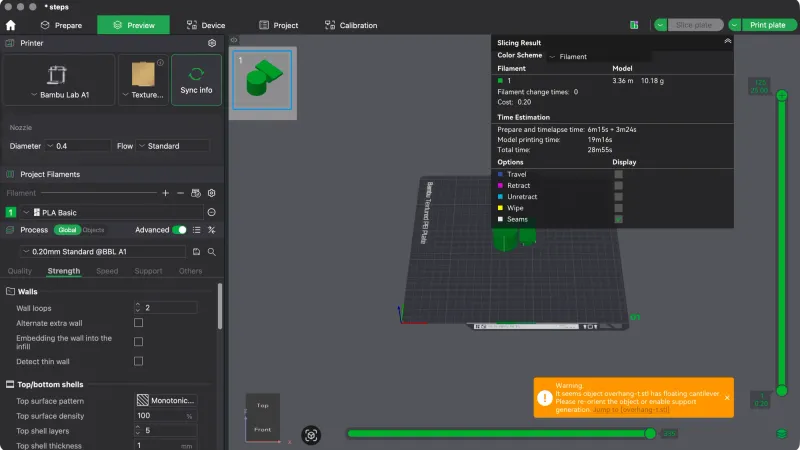 Bambu Studio Print Settings: Quality and Strength TabsLearn the Quality and Strength tabs of the Bambu Studio Process panel: layer height, walls, shells, infill density and pattern, the Advanced switch, and how each change moved the slicer estimate.
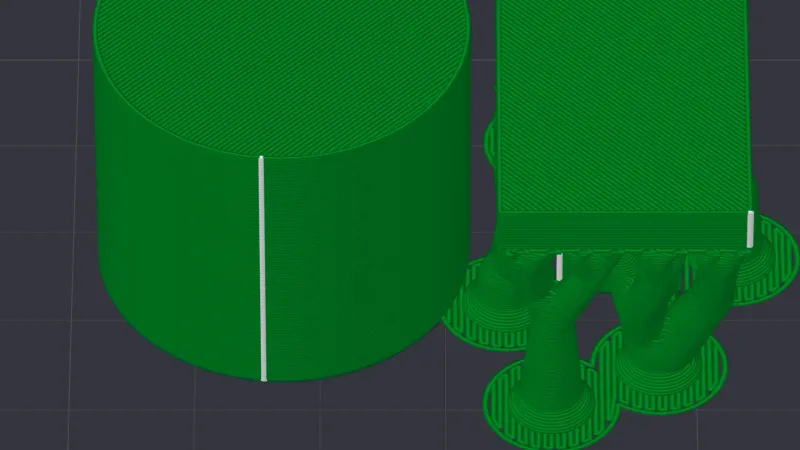 Bambu Studio Supports: Settings, Types and PaintingWalk through the Support tab in Bambu Studio: enabling support, tree versus normal types, threshold angle, on build plate only, support painting, and how each type moved the slicer estimate.
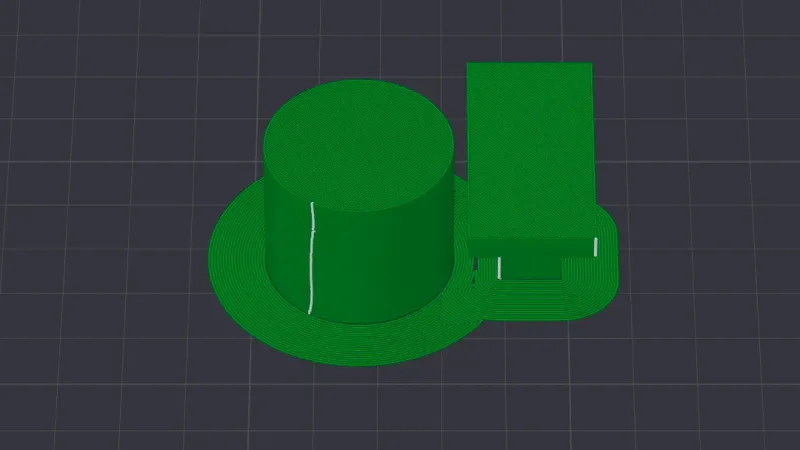 Bambu Studio Brim and Seam: Settings ExplainedWalk through bed adhesion and seam settings in Bambu Studio: skirt loops, the six brim types, brim width, the four seam positions and seam painting, with the slicer estimate for each change.
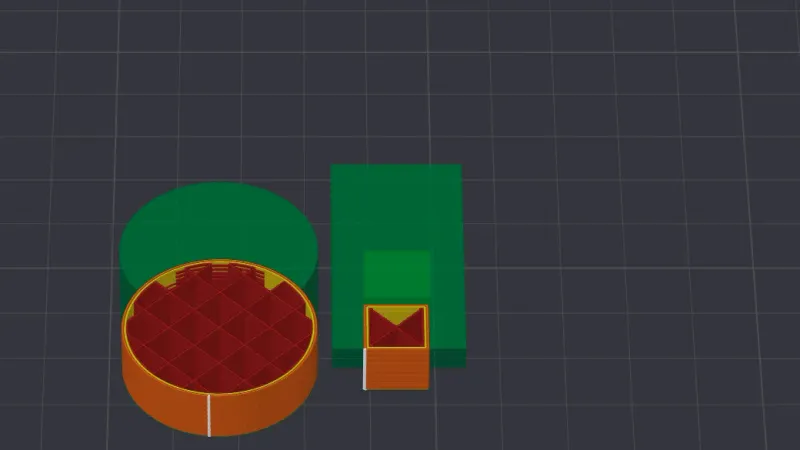 Bambu Studio Preview: Layers and Legend ExplainedA step by step look at the Preview tab in Bambu Studio: the two sliders, the line type legend, the colour schemes, travel and retract moves, and the slicer estimate for time, filament and cost.
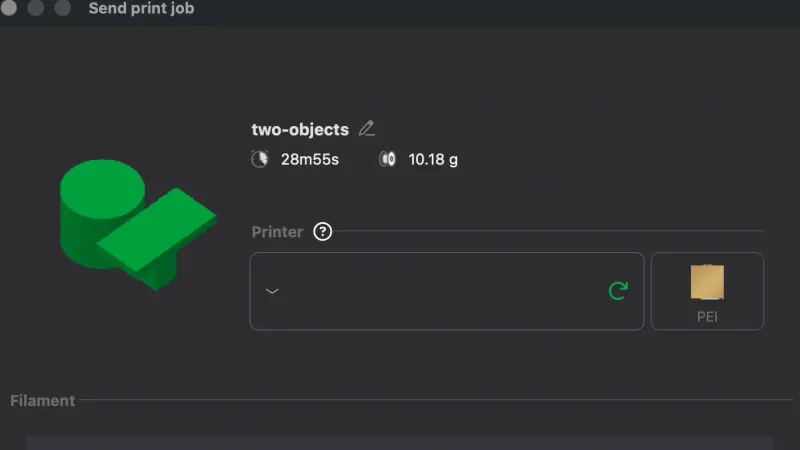 Bambu Studio Export: G-code, 3MF and Sliced FilesWe saved a project and ran every useful Export entry in Bambu Studio, then opened the files to see what is inside. Includes what the Print plate and Send buttons do when no printer or account is connected.
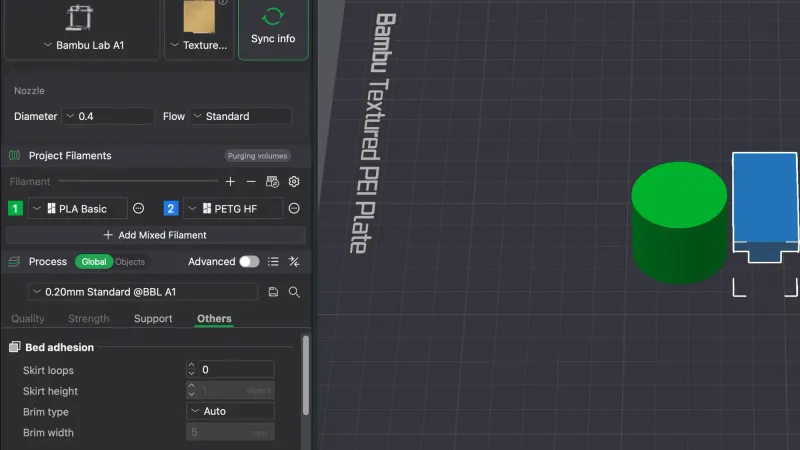 Bambu Studio Multicolor Printing: Filaments and ColourWe added a PETG HF slot beside PLA Basic in Bambu Studio, coloured it blue, assigned an object to it and sliced. The estimate went from 10.18 g to 49.61 g, and we show where the extra went. Also covers Sync info with no printer.
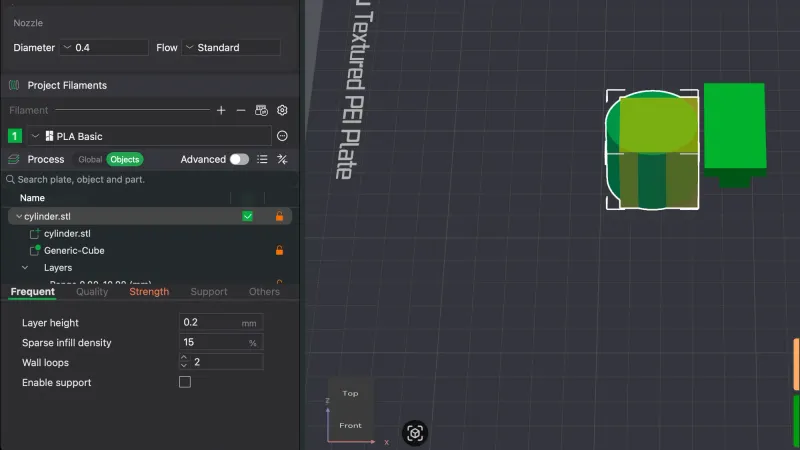 Bambu Studio Per Object Settings and ModifiersWe overrode wall loops and infill on one object in Bambu Studio, added a cube modifier and a 0 to 10 mm height range, and compared four slicer estimates against the 10.18 g baseline. Menu names and lock icons are all from the running app.
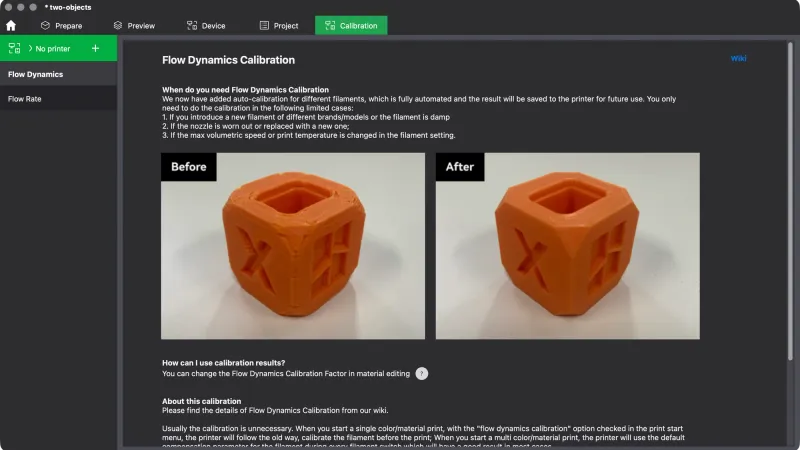 Bambu Studio Calibration Tab: Flow Dynamics and Flow RateWe opened the Calibration tab in Bambu Studio 02.08.02.61 with no printer connected. It listed two tests, Flow Dynamics and Flow Rate, and their buttons did nothing without a printer. Here is what the pages say.
Frequently asked questions
Do I need a Bambu Lab account or printer to use Bambu Studio?
Not to slice. In our test the Setup Wizard never asked us to log in, and we unticked the network plug-in install box, yet the app reached the Prepare tab with the A1 profile. Slicing, Preview and exporting files all worked. Print, Send, AMS sync and the calibration tests need a printer or the plug-in.
Is Bambu Studio only for Bambu Lab printers?
It is made for them, and its printer list starts with every Bambu Lab model ticked. The wizard also lists other makers, such as Anker and Anycubic, which start unticked. The lessons use an A1 profile, so we cannot say how well other makers work. If you use a non Bambu printer, compare the other slicer courses.
What is the difference between Bambu Studio and OrcaSlicer?
OrcaSlicer is a fork of Bambu Studio, and the two share much of their layout. We checked every menu name in the running app rather than assuming they match. Orca adds things such as a larger Calibration menu, while Bambu Studio has two calibration tests that need a printer. See the review and the comparison article for details.
Where should I start?
Start with the first launch setup lesson, then the interface tour. They show every screen of the wizard and every part of the window. If you are still choosing a slicer, read the hands-on review first. The lessons run in order from setup to calibration, with supports, previewing and exporting in between.
Learning a different slicer?
- OrcaSlicer courseFrom installing OrcaSlicer to supports, calibration and advanced settings, one short lesson at a time.
- UltiMaker Cura courseFrom the first-launch wizard to supports, materials and plugins, one short Cura lesson at a time.
- PrusaSlicer courseFrom the Configuration Wizard to supports, modifiers and the Cut tool, one short PrusaSlicer lesson at a time.