OrcaSlicer course
A free, step-by-step OrcaSlicer course. Each lesson covers one job, from installing the program and choosing a printer profile to supports, speed and calibration, and every step is run in the real app and captured in screenshots before it is published.
- Price and licence
- Free, open source (AGPL-3.0)
- Platforms
- Windows, macOS and Linux
- Version tested
- 2.4.2 on macOS
- Lessons
- 14, plus a hands-on review
Who is this OrcaSlicer course for?
Anyone who wants a free slicer with a lot of depth: new users choosing their first slicer, Bambu Lab owners looking for an alternative, and people who want built-in calibration tests, per object settings and variable layer height. The early lessons assume you have never opened a slicer; the later ones cover the Advanced and Expert modes.
What do you need to start?
A computer and the free download. You do not need a printer, an account or any plug-in to follow along, because every lesson stops at the slice and the file.
What will you learn in the OrcaSlicer course?
- Get through the setup wizard and pick a printer and filament profile without guessing
- Find your way around the tabs, toolbar and the Printer, Filament and Process panels
- Import a model, then move, rotate, scale and lay it on a face
- Choose layer height, walls, infill and speed, and see how each change moves the slicer estimate
- Add supports, a brim or skirt, and place the seam
- Read the Preview tab layer by layer, and run the built-in calibration tests
- Save a project and export G-code, then use variable layer height, per object settings and colour changes
How were these lessons made?
Every lesson was run step by step in the real program, and each screenshot is our own. We tested OrcaSlicer 2.4.2 on macOS, with a Creality Ender-3 V3 SE profile. Everything is sliced and exported only; nothing was printed. Times, weights and costs shown are the slicer's estimates. See how we test for what that label means.
Start here: the review
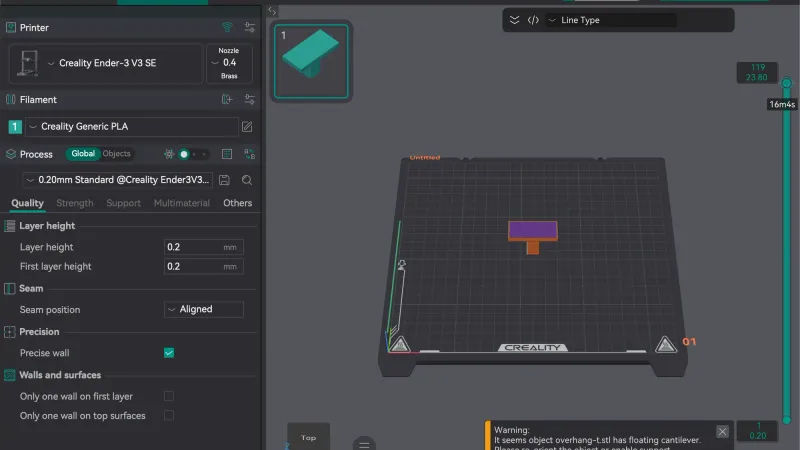 Orca Slicer Review: Hands On With Version 2.4.2A hands on Orca Slicer review built from a 14 lesson test of version 2.4.2 on macOS: the strengths, the rough edges, what we skipped and who should use it.
Lessons
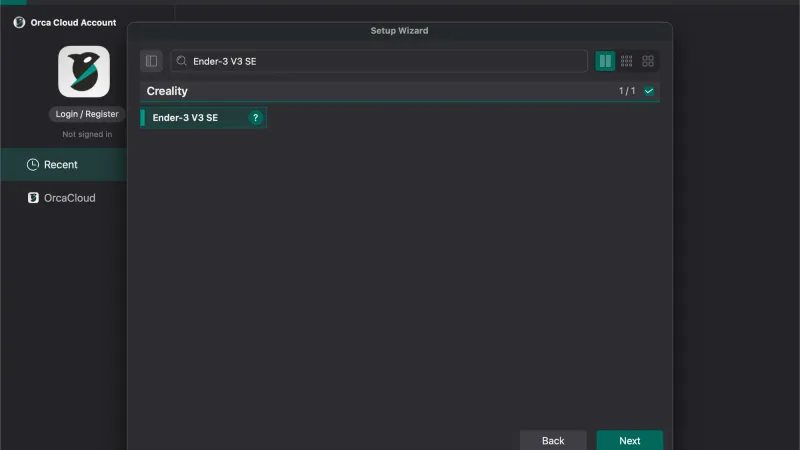 OrcaSlicer Setup Wizard: First Launch WalkthroughA step-by-step walkthrough of the OrcaSlicer setup wizard on first launch: login region, printer and filament selection, stealth mode, plugins and the update prompt.
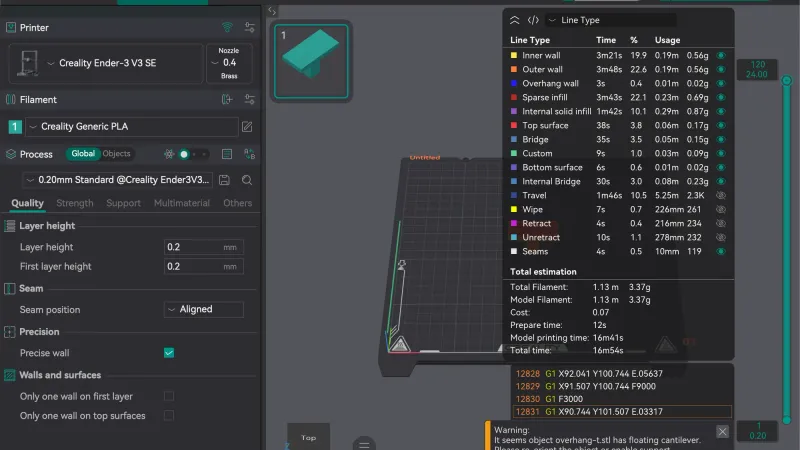 Orca Slicer Interface Tour: Tabs, Toolbar, PanelsLearn what every part of the OrcaSlicer window does: the Home, Prepare, Preview, Device and Project tabs, the left settings panel, the toolbar shortcuts and the Preview estimates.
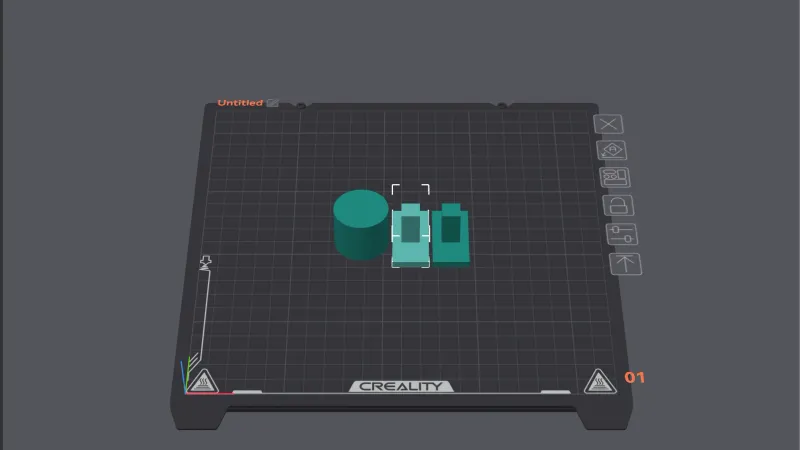 Orca Slicer Import Model: Move, Scale, Rotate, ArrangeA step by step OrcaSlicer lesson: import an STL, select it, then move, rotate and scale it with the numeric fields, lay it on a face, auto orient, arrange several objects, add an instance and delete.
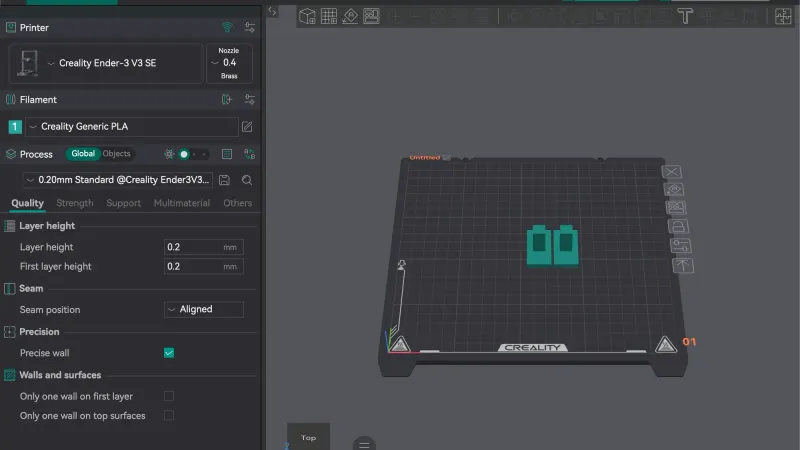 Orca Slicer Layer Height and Quality SettingsA step by step OrcaSlicer lesson on the Quality tab: layer height, first layer height, what switching the Process preset changes, how the Slice plate estimate moves, and how the reset arrow works.
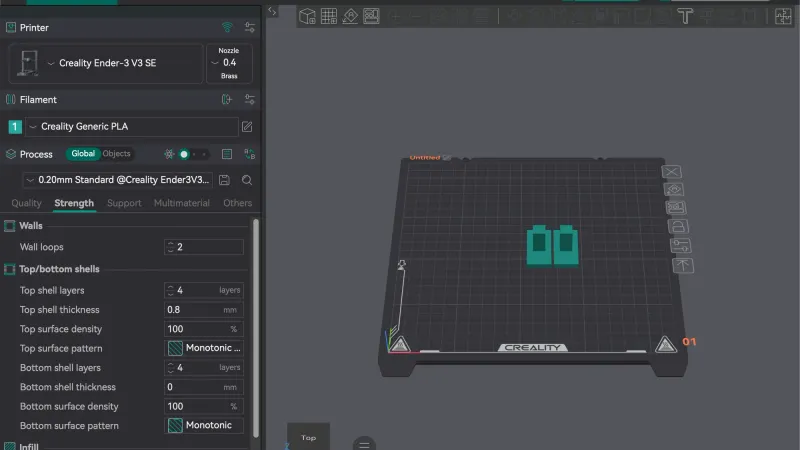 Orca Slicer Infill Settings: Walls, Infill and Top LayersA step by step OrcaSlicer lesson on the Strength tab: wall loops, top and bottom shell layers, sparse infill density and pattern, and how each change moves the slicer estimate on the same plate.
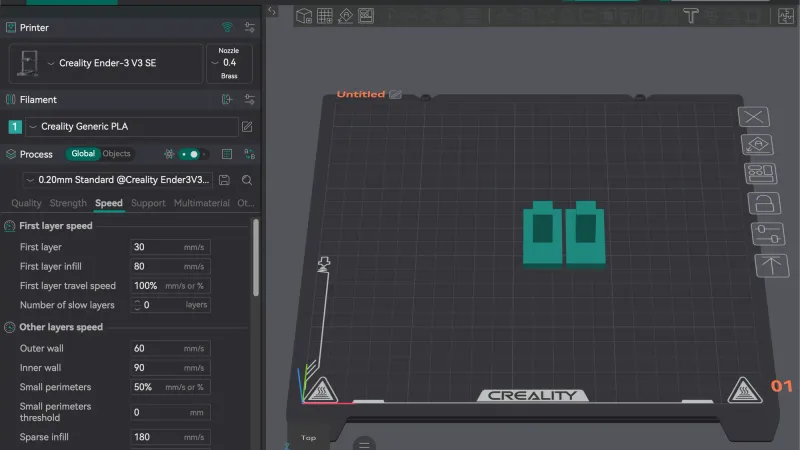 Orca Slicer Advanced Mode: Unlock Speed and More SettingsA step by step OrcaSlicer lesson on the option mode slider: what Simple, Advanced and Expert show, every group on the Speed tab with its real defaults, and how outer wall speed moves the slicer estimate.
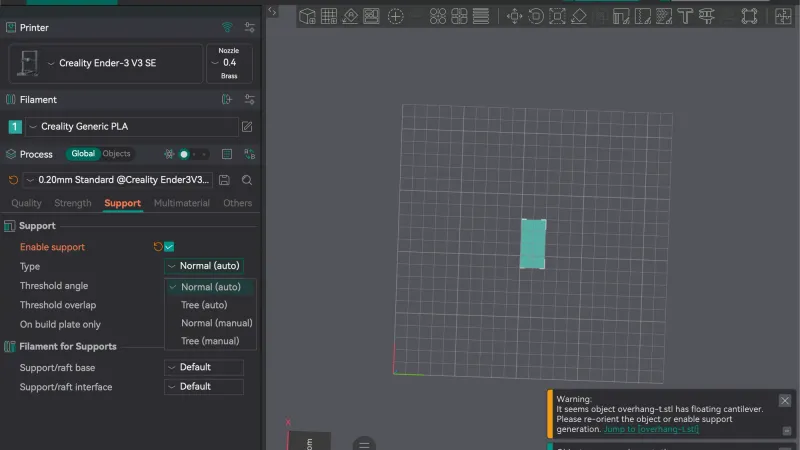 Orca Slicer Supports: Enable, Tune and Paint ThemA step by step OrcaSlicer lesson on supports: the floating cantilever warning, every field on the Support tab with its tooltip, what the Preview shows, and Support Painting.
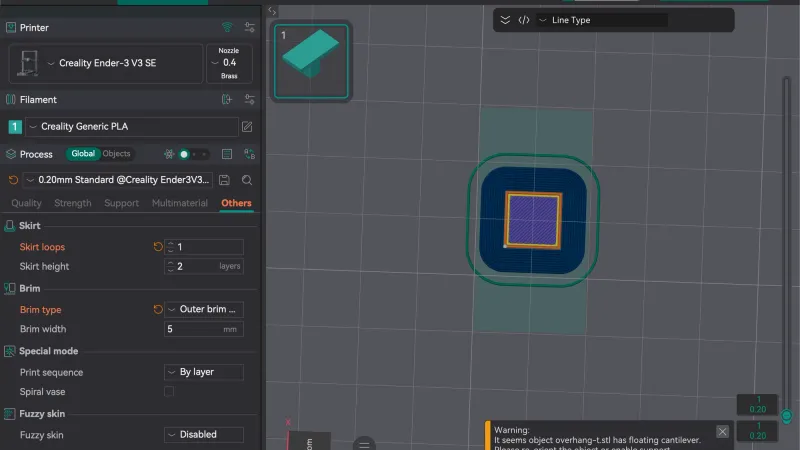 Orca Slicer Brim, Skirt and Seam SettingsA step by step OrcaSlicer lesson on the Others tab skirt and brim fields, how they look in Preview, the slicer estimate change, and the Seam position and Seam painting tools.
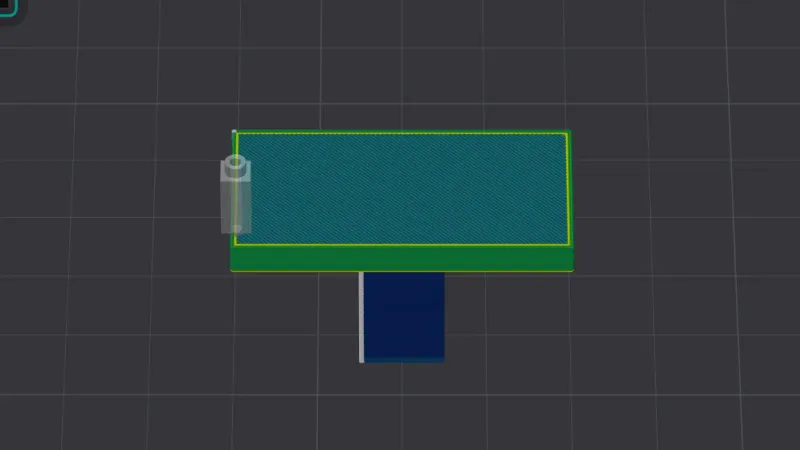 Orca Slicer Preview: Read Layers, Colours and StatsA step by step OrcaSlicer lesson on slicing, the Preview tab, both sliders, the colour legend, the View type options, the estimate tables and the G-code window.
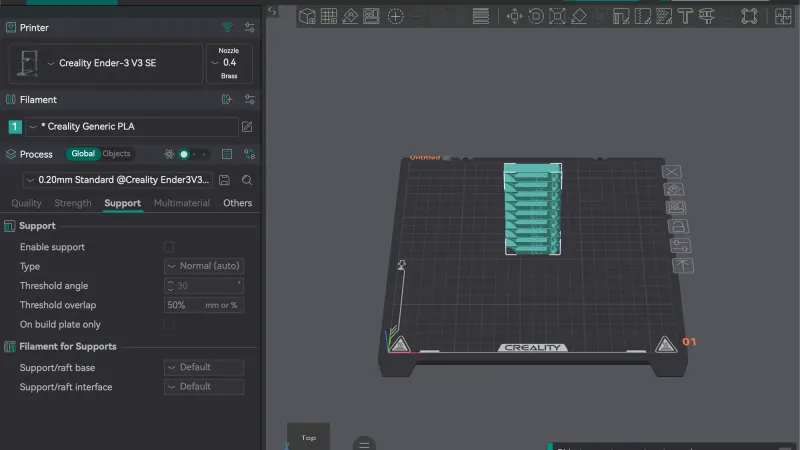 Orca Slicer Calibration Menu Tests, ExplainedWalk through every entry in the OrcaSlicer Calibration menu, read the fields in each dialog, and see what the Temperature tower does to your plate and settings.
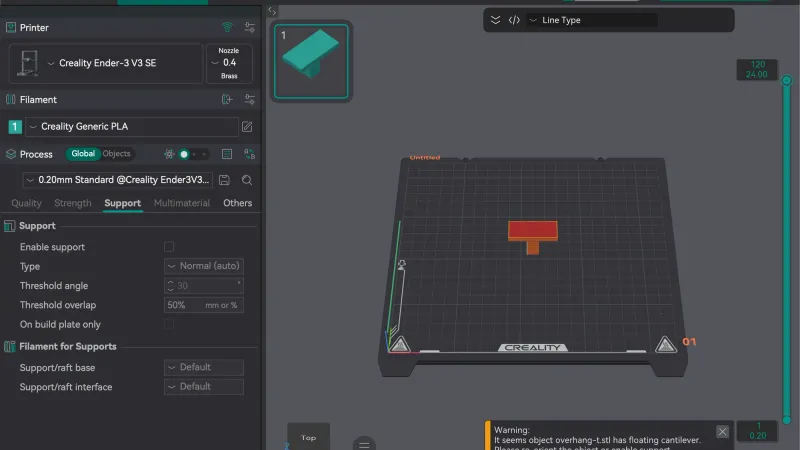 Orca Slicer Export Gcode: Save Projects and FilesSlice a plate, export G-code, save a 3MF project and export an STL in OrcaSlicer 2.4.2, with the real menu names and a look at the files each one creates.
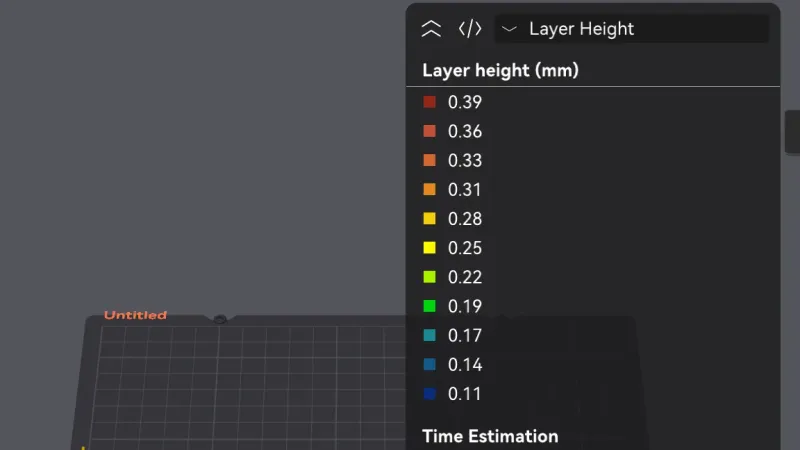 Orca Slicer Variable Layer Height Tool: Smooth CurvesOpen the Variable layer height tool in OrcaSlicer 2.4.2, press Adaptive and Smooth on a curved dome, then compare layer count and time in the slicer estimate.
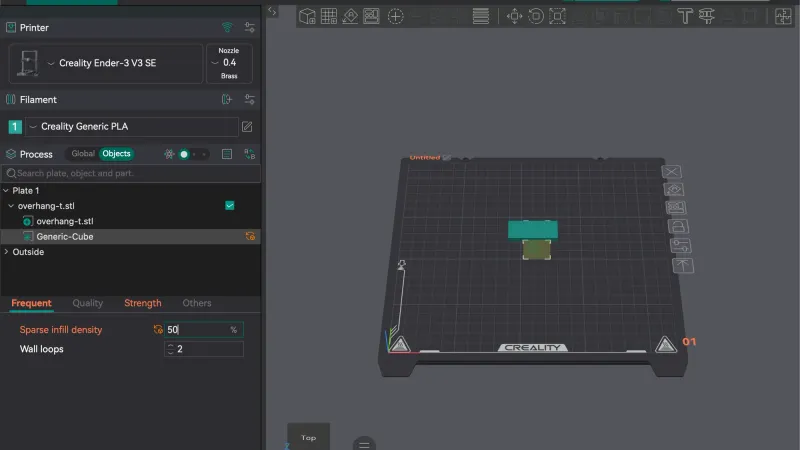 Orca Slicer Per Object Settings and ModifiersSwitch OrcaSlicer 2.4.2 to Objects mode, read the right click menu, add a Cube modifier with higher infill and compare the slicer estimate against the global setting.
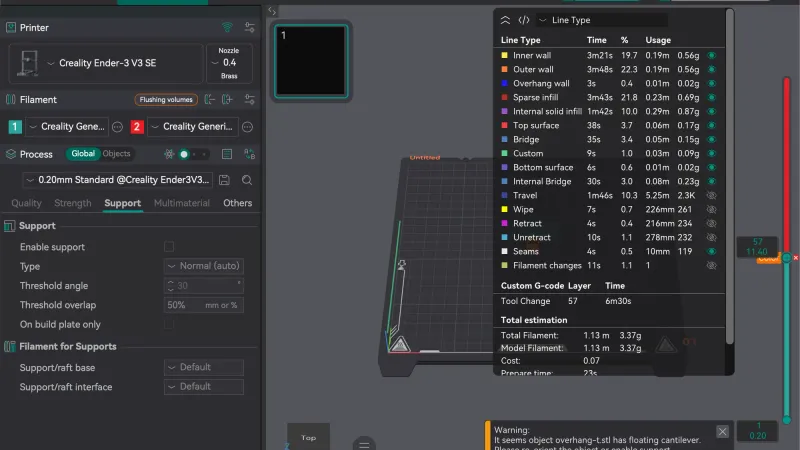 Orca Slicer Filament Settings and Colour ChangesChoose a filament in OrcaSlicer 2.4.2, read its Material settings, add a second filament, assign it to an object and add a colour change at a layer in Preview.
Frequently asked questions
Is OrcaSlicer really free?
Yes. The project is open source under the AGPL-3.0 licence and its GitHub page lists no price. In our test the setup wizard never asked for payment, and the optional cloud login was not needed to slice. The project accepts donations, but nothing in the slicer is locked behind them.
Do I need a printer to follow the OrcaSlicer lessons?
No. Every lesson was run without a connected printer. You can import a model, change settings, slice, preview and export G-code on any computer. A printer only matters when you send the file to it. We sliced and exported only, so the course makes no claims about print quality.
Which lesson should I start with?
If you have just installed it, start with the setup wizard lesson, then the interface tour. If you are still deciding between slicers, read the hands-on review first, then the three way comparison of Cura, Orca Slicer and PrusaSlicer. The lessons are ordered from basic to advanced, so each builds on the one before.
Were the lessons tested on Windows or Linux?
No. Every screenshot and step comes from OrcaSlicer 2.4.2 on macOS. Menu names and settings are the same on other systems for the most part, but keyboard shortcuts use Cmd on a Mac where Windows and Linux use Ctrl, and some dialogs look different.
Learning a different slicer?
- UltiMaker Cura courseFrom the first-launch wizard to supports, materials and plugins, one short Cura lesson at a time.
- PrusaSlicer courseFrom the Configuration Wizard to supports, modifiers and the Cut tool, one short PrusaSlicer lesson at a time.
- Bambu Studio courseFrom the first-launch setup to supports, multi-colour filaments and per-object settings, one short Bambu Studio lesson at a time.