PrusaSlicer course
A free, step-by-step PrusaSlicer course. Each lesson covers one job, from the Configuration Wizard and the interface to print settings, supports, profiles and the advanced tools, and every step is run in the real app and captured in screenshots before it is published.
- Price and licence
- Free, open source (AGPL-3.0)
- Platforms
- Windows and macOS installers, Linux via Flathub
- Version tested
- 2.9.6 on macOS
- Lessons
- 11, plus a hands-on review
Who is this PrusaSlicer course for?
People who want a slicer with a short list of settings on day one and a very long one later. The Beginner, Normal and Expert modes hide or show settings, and the program supports FDM and mSLA printers from Prusa and other makers. It is a good fit if you like precise tools such as the Cut tool, modifiers and variable layer height.
What do you need to start?
A computer and the free download. You do not need a printer or an account, because the Prusa Account login in the wizard is optional and every lesson stops at the slice and the exported file.
What will you learn in the PrusaSlicer course?
- Complete the Configuration Wizard and choose a printer and filament profile
- Learn the Plater, the settings tabs and the three modes
- Import, move, rotate, scale and arrange models
- Choose layer height, perimeters, infill and the other basics
- Add supports, a brim or skirt, and control the seam
- Use the Preview and the layer slider, then export G-code
- Manage filament and printer profiles, and use variable layer height, modifiers and the Cut tool
How were these lessons made?
Every lesson was run step by step in the real program, and each screenshot is our own. We tested PrusaSlicer 2.9.6 on macOS, with the Creality Ender-3 0.4 mm profile. Everything is sliced and exported only; nothing was printed. Times, weights and costs shown are the slicer's estimates. See how we test for what that label means.
Start here: the review
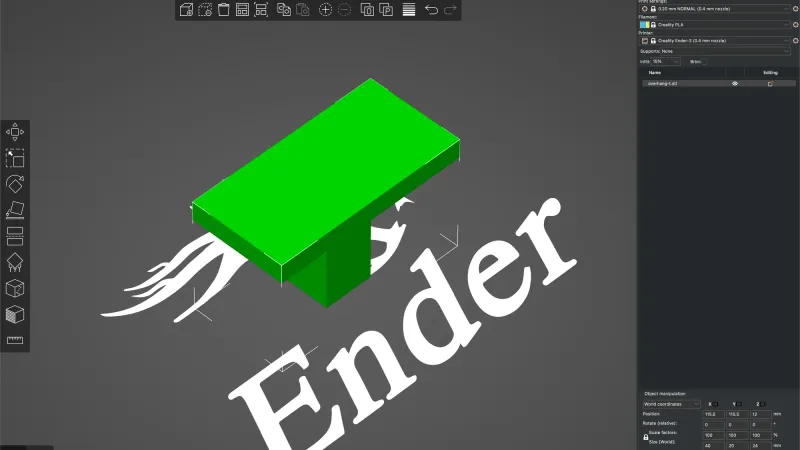 PrusaSlicer Review: Hands On With Version 2.9.6A hands on PrusaSlicer review built from an 11 lesson test of version 2.9.6 on macOS: the strengths, the rough edges, what we did not test and who should use it.
Lessons
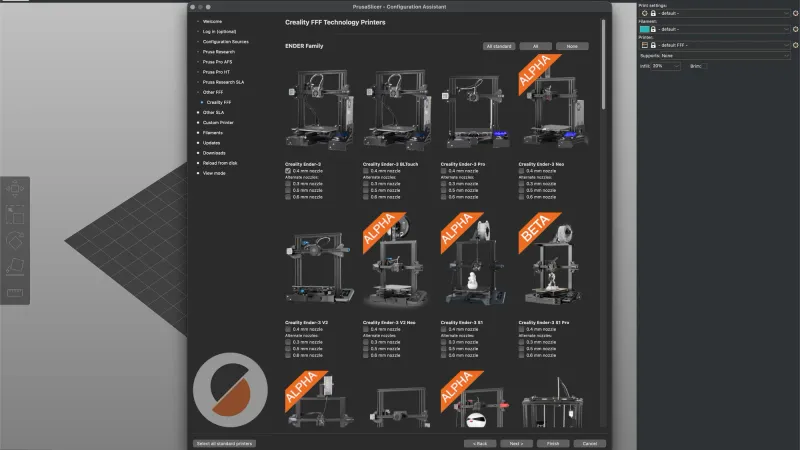 PrusaSlicer Configuration Wizard: First Launch WalkthroughEvery page of the PrusaSlicer Configuration Assistant on a fresh install of 2.9.6: sources, Creality printer, filaments, updates, downloads and view mode.
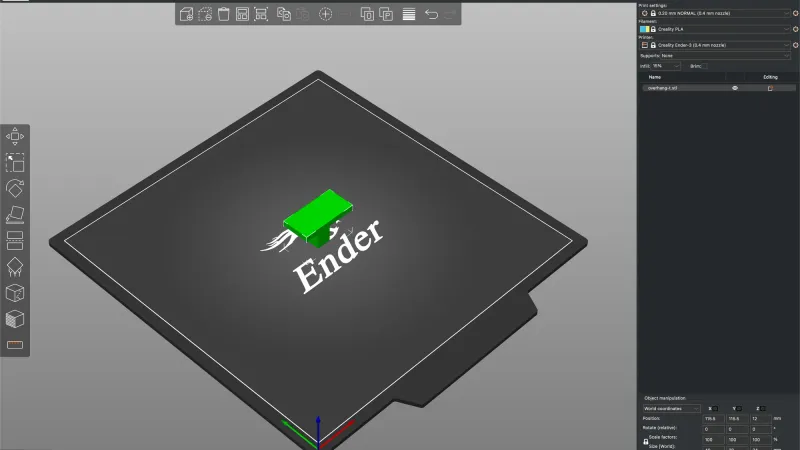 PrusaSlicer Interface Tour: Plater, Tabs and SidebarLearn where everything lives in PrusaSlicer 2.9.6: the tab bar, the three modes, the sidebar, toolbar and tool column tooltips, the 3D and Preview switch and the menu bar.
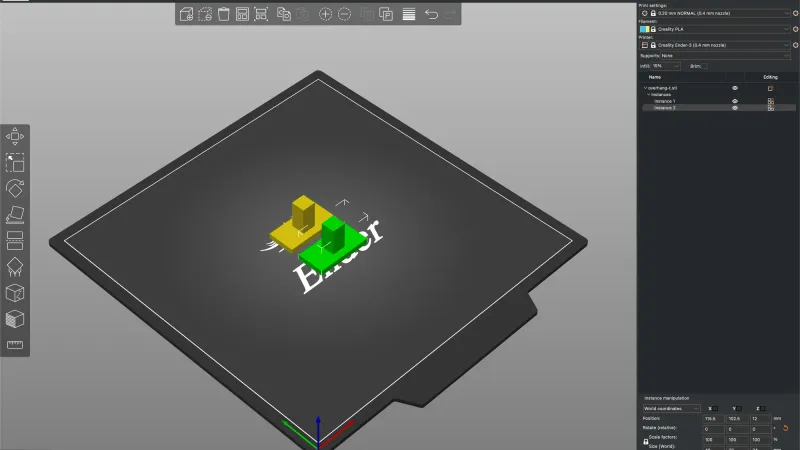 PrusaSlicer Import Model: Place, Resize and Turn PartsImport a model into PrusaSlicer 2.9.6 with Cmd+I, then position it with the Object manipulation fields and the M, S, R and F tools, add instances, arrange the bed, delete and undo.
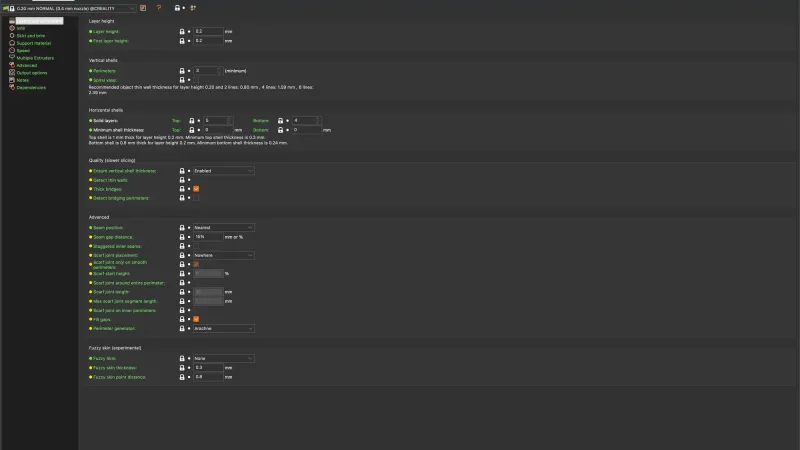 PrusaSlicer Print Settings: Layers, Walls and InfillA tested tour of the PrusaSlicer Print Settings tab: which pages each mode shows, the layers, perimeters and infill options, what the lock and dot icons mean, and how each change moves the slicer estimate.
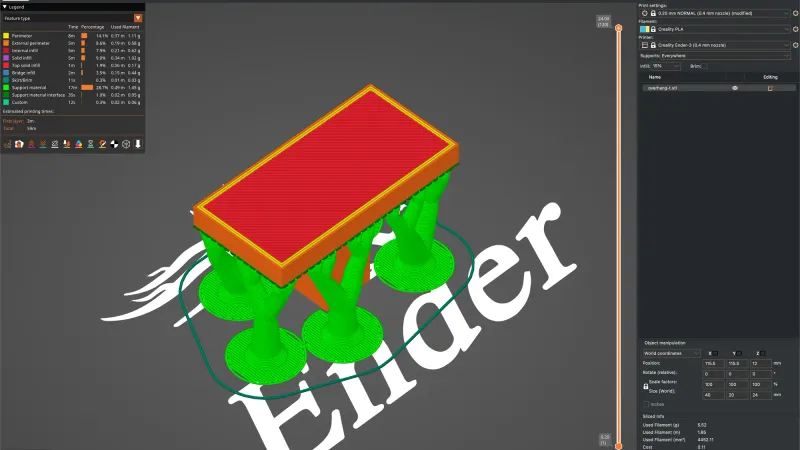 PrusaSlicer Supports: Enable, Organic and Paint-OnA tested PrusaSlicer supports lesson: every option on the Support material page with its tooltip, the sidebar Supports combo, three support styles compared by slicer estimate, and the Paint-on supports tool.
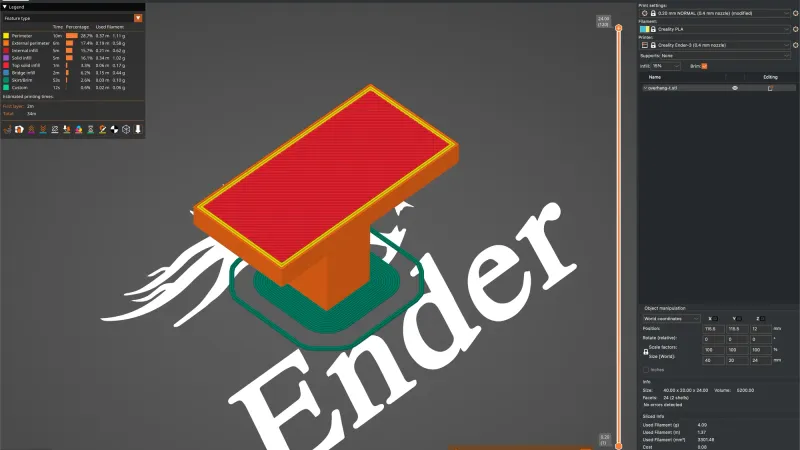 PrusaSlicer Brim, Skirt and Seam Position ExplainedA tested PrusaSlicer brim lesson: every option on the Skirt and brim page with its tooltip, a slicer estimate for no skirt, skirt and brim, the Seam position list and the Seam painting tool.
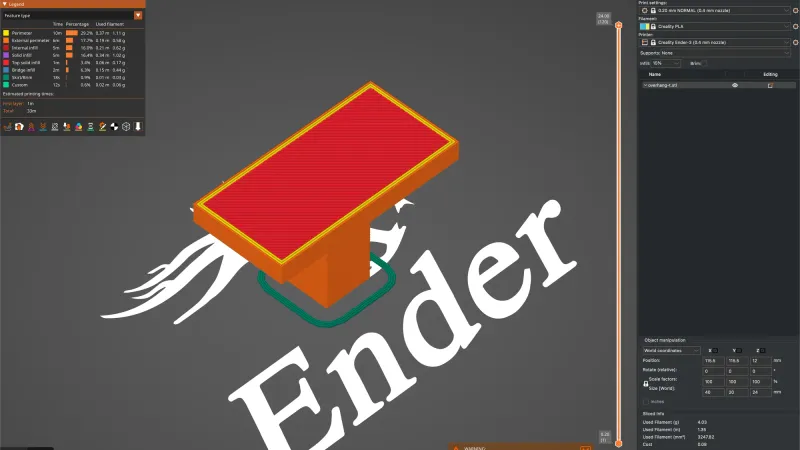 PrusaSlicer Preview: Layers, Sliders and View TypesA tested PrusaSlicer Preview lesson: slicing, the vertical and horizontal sliders, Jump to height, all thirteen view types, the legend and its toggles, Sliced Info and the camera keys.
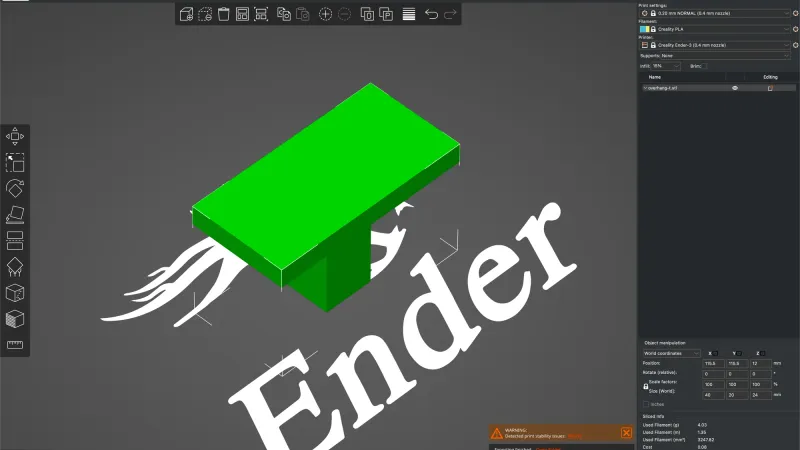 PrusaSlicer Export Gcode: Files, Projects and ConfigA tested PrusaSlicer export lesson: the Export G-code button, the Save dialog and its suggested name, every File menu export entry, and a look inside the G-code, 3MF, STL, OBJ and config files.
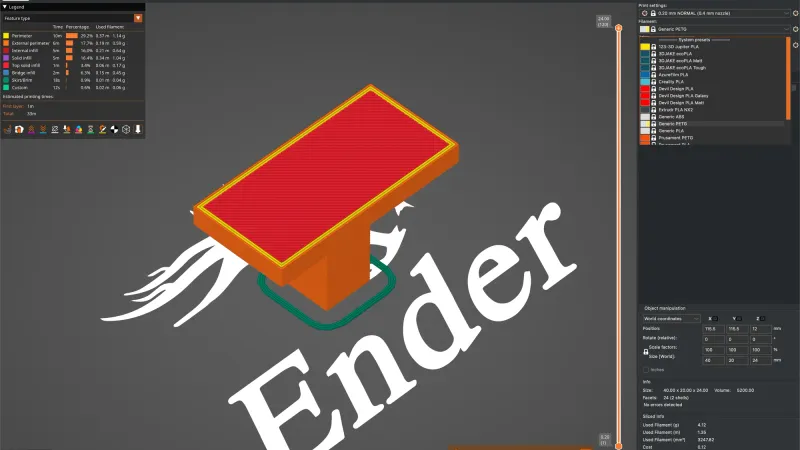 PrusaSlicer Filament Profiles and Printer SettingsA tested look at PrusaSlicer filament profiles and the Ender-3 printer profile: every page of the Filament and Printer tabs, real default values, the Compare Presets window, and how a user preset is saved and deleted.
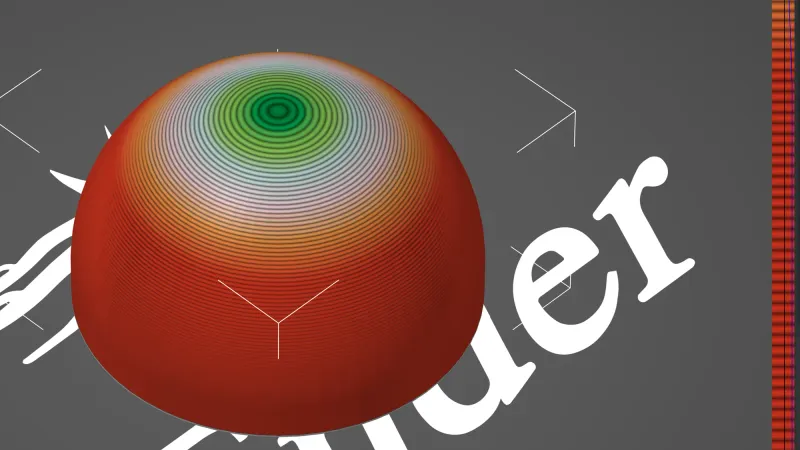 PrusaSlicer Variable Layer Height and ModifiersA tested walk through PrusaSlicer variable layer height, the object list Add settings menu, a sphere modifier with its own infill and a height range, with slicer estimates for each change on a dome.
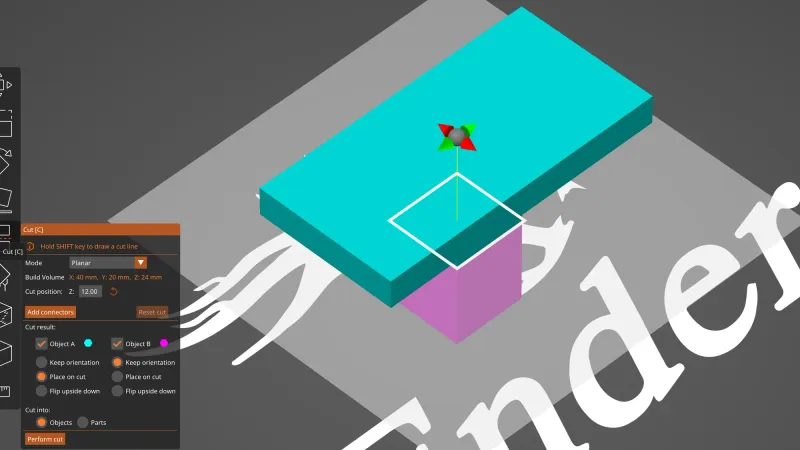 PrusaSlicer Cut Tool and Advanced ToolsA tested walk through the PrusaSlicer cut tool, its Plug, Dowel and Snap connectors, the Measure gizmo, Place on face, Split and the paint-on fuzzy skin gizmo, all on one small test part.
Frequently asked questions
Is PrusaSlicer free?
Yes. PrusaSlicer is open source under the AGPL-3.0 licence and its GitHub page states no price. Nothing in our setup asked for payment, and the Prusa Account login in the wizard is optional. It is made by Prusa Research but works with printers from other makers too.
Do I need a Prusa printer to use PrusaSlicer?
No. We used a Creality Ender-3 profile, found on the Other FFF page of the wizard. Non Prusa printers are listed there by maker. There was no profile for our exact Ender-3 V3 SE, so we used the closest real entry, and you should check any profile against your own machine before trusting it.
What are the Beginner, Normal and Expert modes?
They control how many settings you see. Beginner shows the essentials, Normal adds more, and Expert shows everything. Each setting carries a coloured dot showing which mode it belongs to. The lessons say which mode a setting appears in, and the interface tour explains the mode button.
Which lesson should I read first?
Begin with the first launch wizard lesson, then the interface tour. If you want to compare slicers first, read the hands-on review and the Cura vs Orca Slicer vs PrusaSlicer comparison. The lessons build from basic settings up to the Cut tool and other advanced features.
Learning a different slicer?
- OrcaSlicer courseFrom installing OrcaSlicer to supports, calibration and advanced settings, one short lesson at a time.
- UltiMaker Cura courseFrom the first-launch wizard to supports, materials and plugins, one short Cura lesson at a time.
- Bambu Studio courseFrom the first-launch setup to supports, multi-colour filaments and per-object settings, one short Bambu Studio lesson at a time.