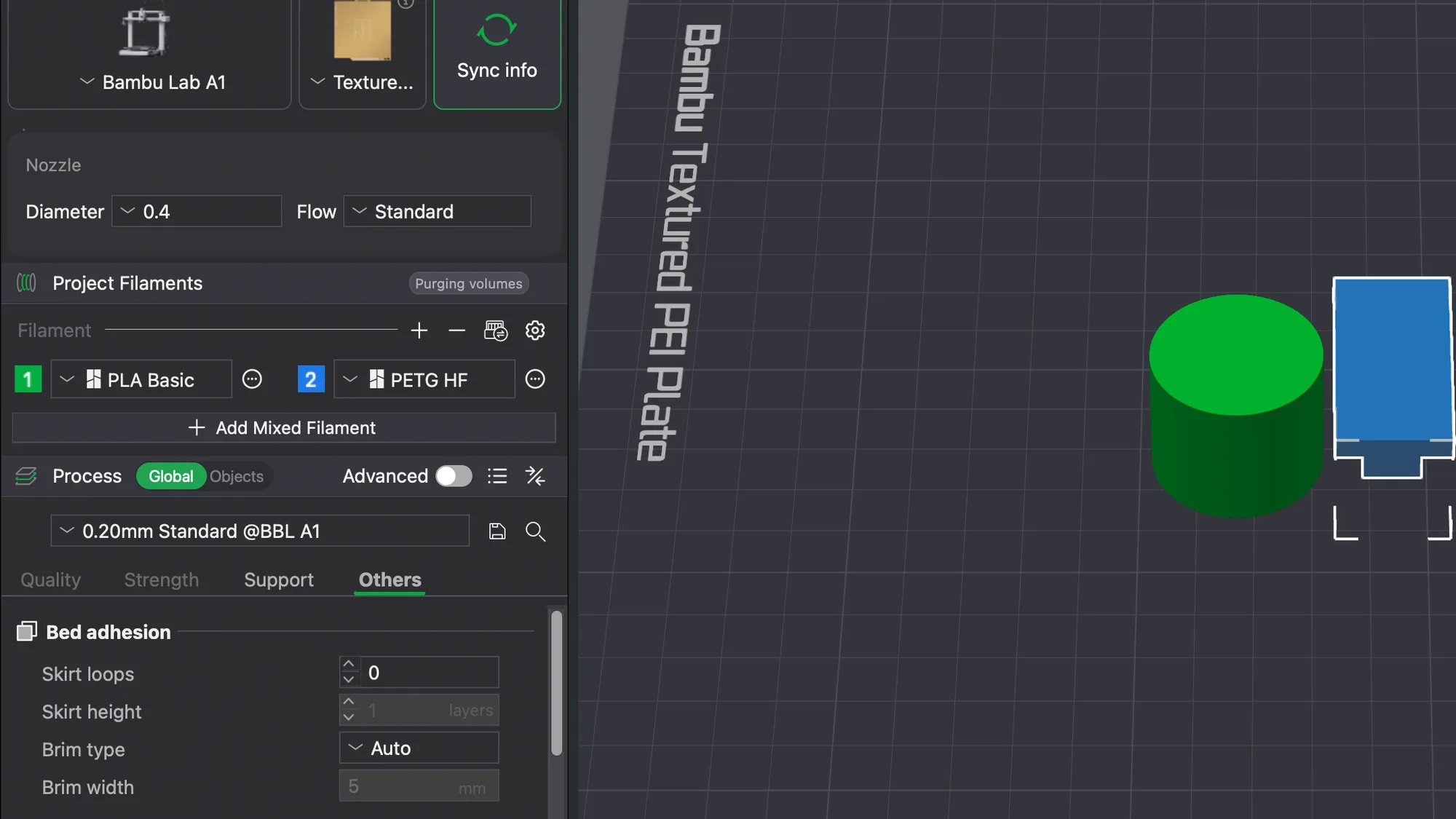
Bambu Studio multicolor printing starts in the Project Filaments panel, where you add slots, choose presets and set colours. We tried this on macOS with the A1 profile and no printer connected, using a two object plate, and compared the slicer estimate before and after. These are software figures only.
How do you add a second filament in Bambu Studio?
Our plate came from the previous lesson on exports: a cylinder and a small T shaped object on 0.20mm Standard @BBL A1. Under Project Filaments there was one slot, number 1, set to PLA Basic. A row above it holds four icons: a plus, a minus, a small table icon and a gear.
Clicking the plus added slot 2, also PLA Basic, next to slot 1 in the same row. Two other things appeared at the same time. A grey Purging volumes button showed beside the panel title, and an Add Mixed Filament button appeared under the slots. The minus button removed slot 2 again, and the panel went back to a single slot. We did not try Add Mixed Filament.
How do you choose a filament preset?
Each slot has a drop down. Opening the one for slot 2 showed a short menu headed System presets with two vendors, Bambu and Generic, plus an entry named Add/Remove filaments at the bottom. Bambu opened a list that included PLA Basic, PLA Matte, PLA Pure, PETG HF, ABS, PLA Silk, Support For PA/PET, TPU 95A and further entries below that we did not scroll to. These are the presets the wizard installed for our A1, so your list may differ if you chose other filaments during first launch setup.
We chose PETG HF. The slot label changed to PETG HF straight away. For help picking a real material, our Bambu filament guide covers the common ones, and we have not printed any of them here.
How do you change a filament colour?
Click the small number tile at the left of a slot, not the drop down. A colour dialog opened showing a yellow square with #FFFF00 and the caption Bambu PETG HF, which is the preset's default colour. Below it was an Official Filaments section with 14 swatches in two rows, a dashed + More Colors button, and Cancel and OK.
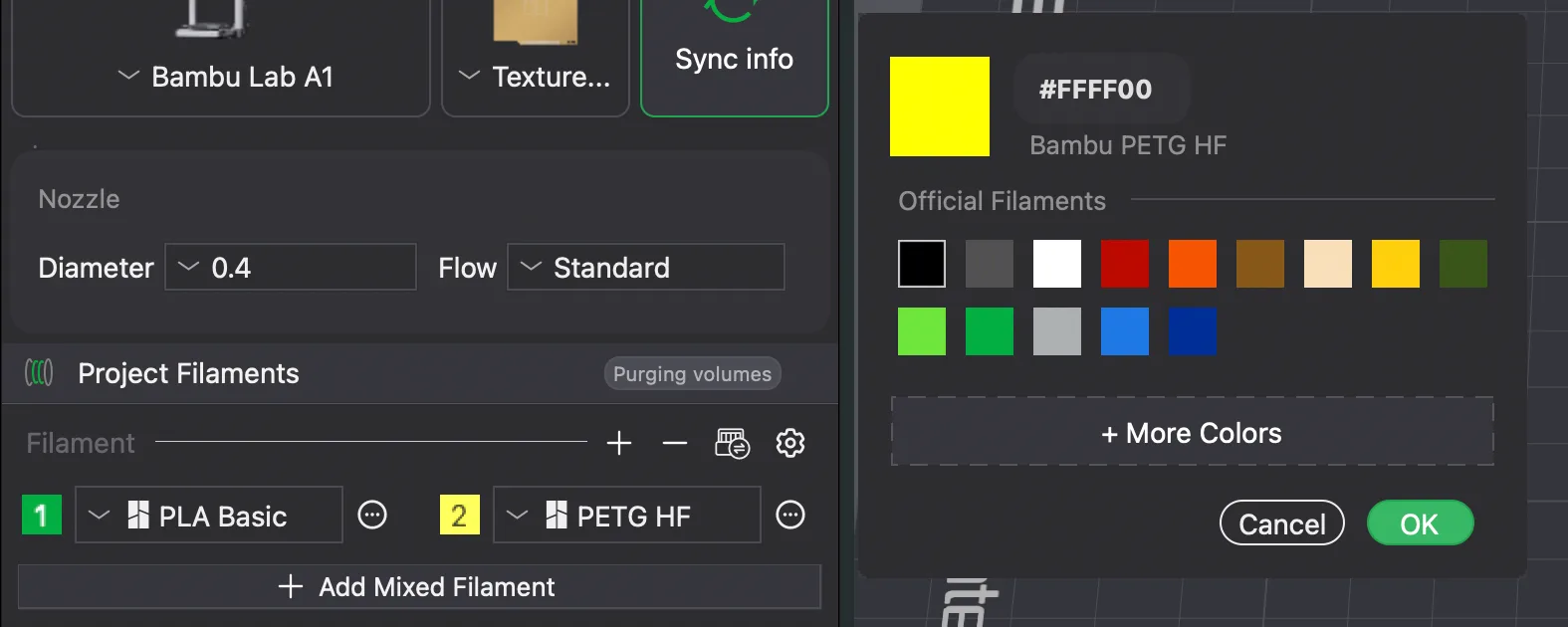
We picked a blue swatch and pressed OK. The tile for slot 2 turned blue. The colour is a label for the preview and for the slicer, so it does not change how the filament is sliced. We did not open More Colors.
How do you assign a filament to an object?
In the Prepare view, right click the object and scroll to the bottom of the menu. The last entry is Change Filament, with a small arrow. Its submenu listed 1 Bambu PLA Basic and 2 Bambu PETG HF with the slot colours beside them.
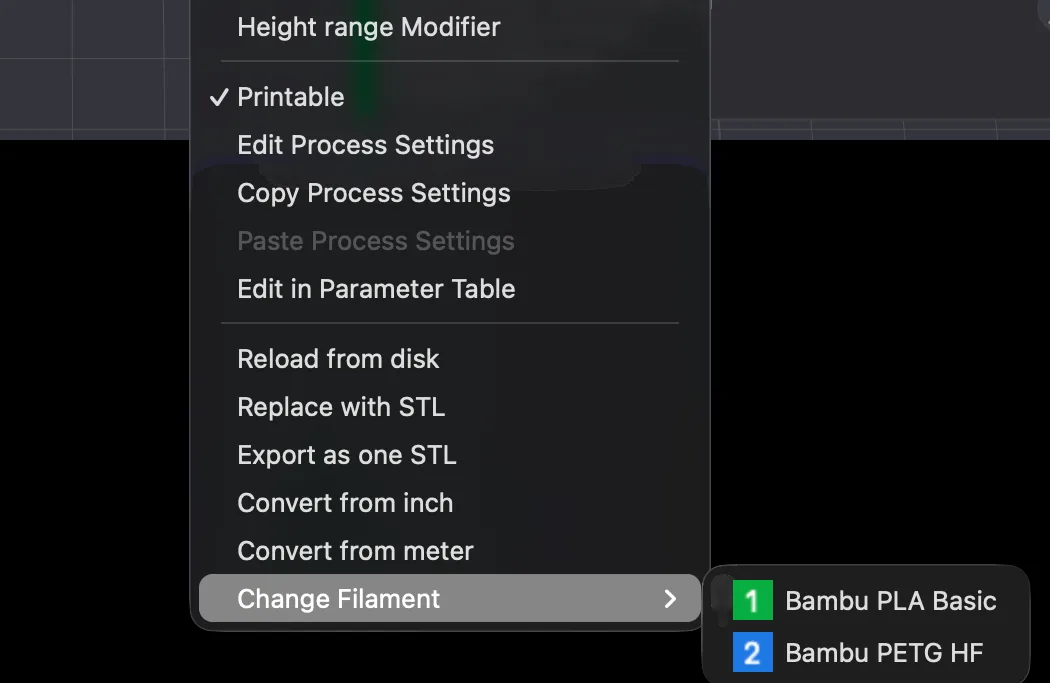
We clicked slot 2 for the T shaped object. It turned blue on the plate, and the cylinder stayed green because it still used slot 1. Two other changes showed up. A ghost tower with green and blue bands appeared to the right of the objects, which we took to be the prime tower. A warning also read: PLA and PETG filaments detected in the mixture. Adjust parameters according to the Wiki to ensure print quality, with a Click Wiki for help link. We did not follow the link, and the warning did not stop slicing.
What does a second filament do to the estimate?
After pressing Slice plate we opened the Slicing Result panel in Preview, as described in the Preview tab lesson. With one filament the plate showed 3.36 m and 10.18 g, a Cost of 0.20 and a Total time of 28m55s. With the two slot setup it showed this.
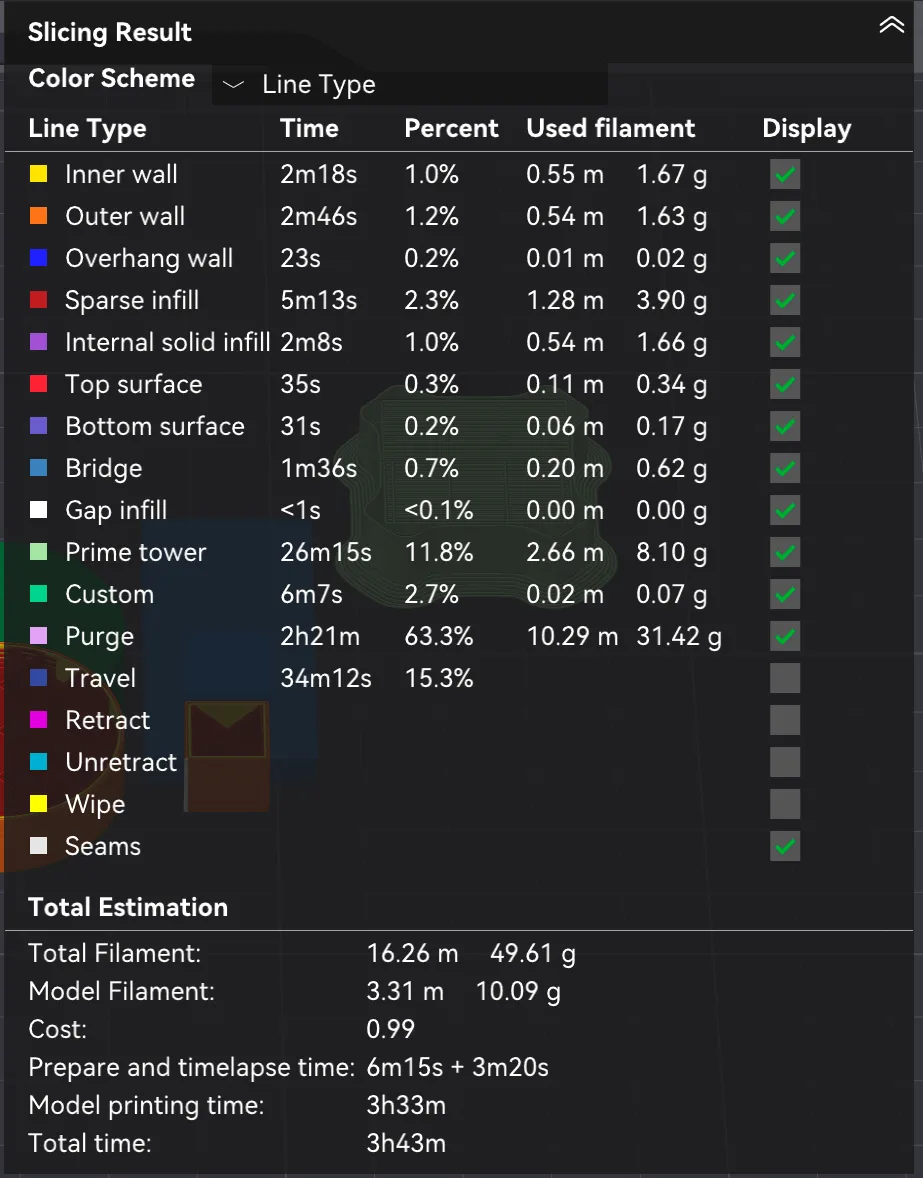
- Total filament: 16.26 m and 49.61 g, against 10.18 g before.
- Model filament: 3.31 m and 10.09 g, so the model itself barely changed.
- New rows: Prime tower at 2.66 m and 8.10 g, and Purge at 10.29 m and 31.42 g.
- Cost: 0.99, up from 0.20. Total time: 3h43m, up from 28m55s, with a Purge time of 2h21m in the table.
The purge time looks very large for a small plate and we did not work out why, so read it as what the slicer reported and not as advice. The lesson we take from it is that switching filament has a cost on top of the model. Our objects are small, so the fixed overhead dominates, and a bigger part would shrink the share. In our estimate, an object that can be made in one filament is much cheaper to slice than one split in two. We also left the unused slot 2 in place earlier and saw no change in the estimate, so an empty slot costs nothing in the figures.
What are the purging volumes?
The Purging volumes button in the panel title opens a dialog named Purging volumes for filament change. Its note says Studio re-calculates the volumes whenever the filament colours or filaments change, and that you can turn this off in Preferences. A Re-calculate button sits above a small from and to table.
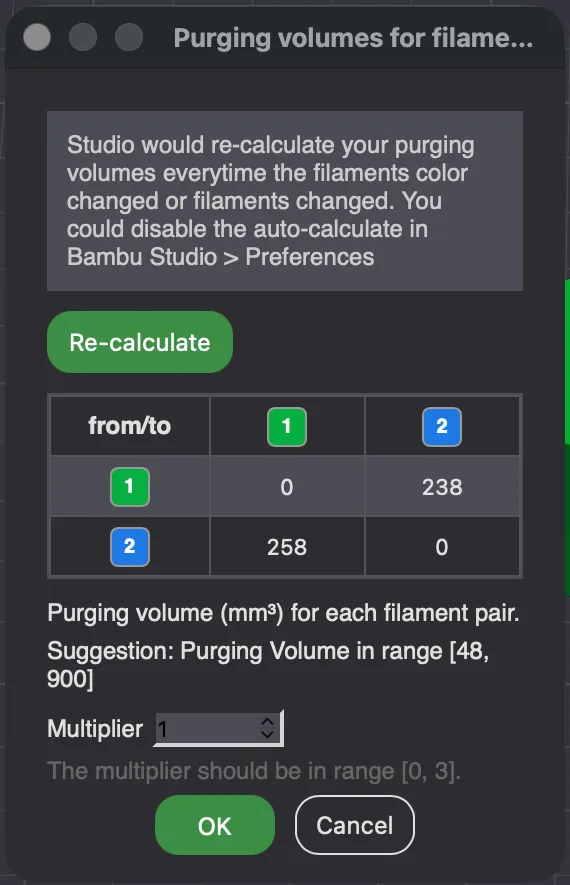
For our pair the table read 238 for 1 to 2 and 258 for 2 to 1, with 0 on the diagonal. A caption explained the unit as cubic millimetres of purge per filament pair and gave a suggested range of 48 to 900. Below that a Multiplier box, which accepts 0 to 3, scales every value. We left it at 1 and pressed Cancel, so we do not know how the multiplier changes the estimate.
What does Sync info do without a printer?
The Sync info button sits at the top of the left panel beside the printer and plate tiles. On a real setup it is meant to copy the printer's loaded filaments into the project, but we have no printer and no account, so we could only test the empty case. Clicking it opened a Sync printer information dialog with a warning icon and the text: Printer not connected. Please go to the device page to connect A1 before syncing. The buttons were Go to Device Page and Later. We pressed Later and nothing changed in our slots. We cannot say what a successful sync does to your presets or colours. Our AMS explainer covers the hardware side.
What about a colour change on one layer?
Bambu Studio can also change colour at a chosen layer from the vertical slider in Preview, so one filament slot can be swapped mid part. We could not complete this in our test. Hovering the plus on the top slider handle showed a small time box, 13m10s at layer 44, but clicking it with our automation added no marker and changed none of the totals, even with two slots. Right clicking the handle opened a short menu with Add Pause, Add Custom G-code and Jump to Layer. We therefore cannot report a colour change estimate and we have not described the result. Treat that feature as untested here.
What did we not test?
We did not connect a printer, an AMS or an account, and nothing was printed. We did not open Add Mixed Filament, the table icon, the gear, the Wiki link, More Colors or the preference that disables automatic purge calculation. Mixing PLA and PETG produced a warning, and whether that pairing suits a real machine is outside what we can show. If you are new to the file side of this, STL vs 3MF vs G-code explains what gets saved. All numbers are slicer estimates.
Next lesson: Bambu Studio Per Object Settings and Modifiers.