To import models in Bambu Studio, press Cmd+I or the Add button on the Prepare tab and pick a file. This lesson covers that, then moving, rotating and scaling the model with the toolbar and typed values. We used version 02.08.02.61 on macOS with no printer connected.
How do you import models in Bambu Studio?
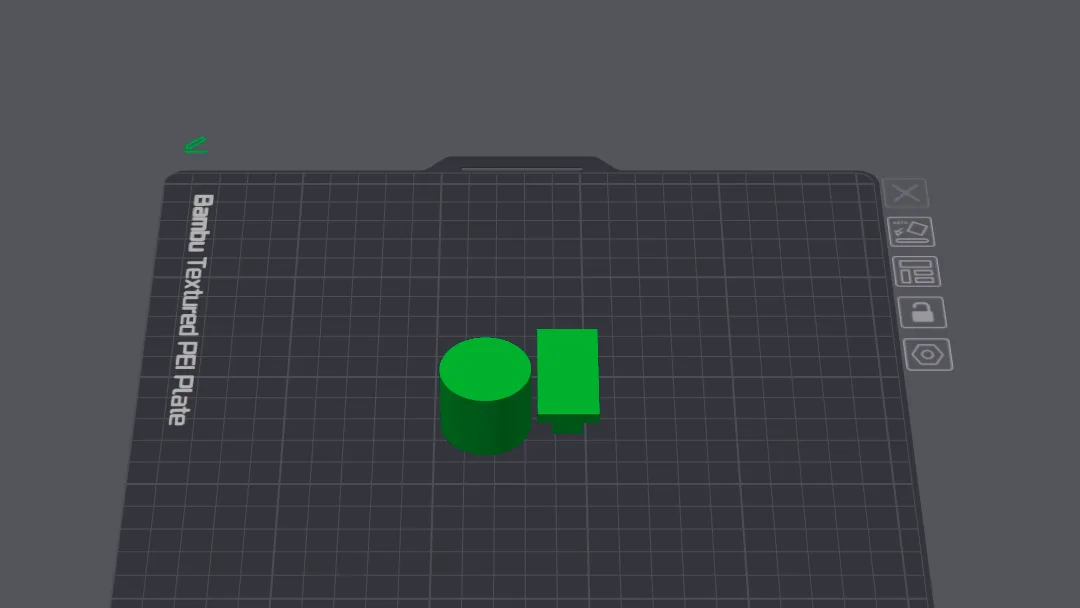
We started on an empty Prepare plate with the Bambu Lab A1 profile from the setup wizard walkthrough. The Add button at the far left of the toolbar shows the tooltip "Add [command+I]", so the shortcut and the button do the same thing.
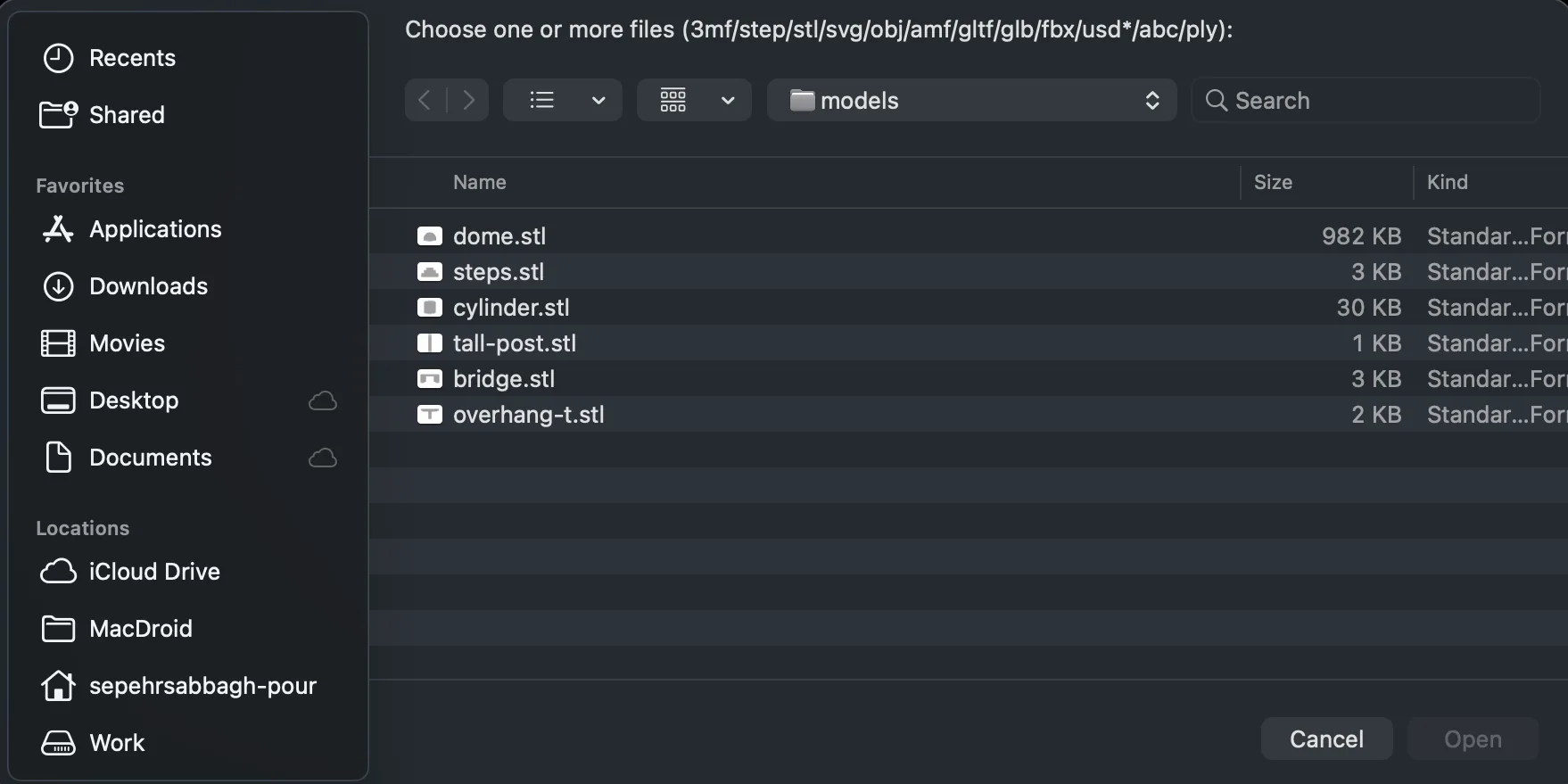
The macOS file picker opened with the prompt "Choose one or more files (3mf/step/stl/svg/obj/amf/gltf/glb/fbx/usd*/abc/ply):". It remembered our last folder, and the Open button stays greyed out until you choose a file. We double-clicked overhang-t.stl, a small T shaped test model, and it appeared in the middle of the plate with a white outline and corner brackets, meaning it was selected.
A panel at the bottom right gave its details: Object name overhang-t.stl, Size 40 x 20 x 24 mm, Volume 5200 mm3 and Triangles 24. Check that size first. A model that arrives far too big or too small is usually a units problem in the file. If you are unsure which file type to pick, STL vs 3MF vs G-code explains the differences. We did not test dragging a file onto the window, so we cannot say how that behaves.
How do you move a model on the plate?
With the model selected, press the Move button, which shows the tooltip "Move [M]". A panel opened with a World coordinates drop-down and a Position row with X, Y and Z boxes in millimetres. Our model read X 128.00, Y 128.00 and Z 12.00. That is the plate centre on the A1, and Z is half the 24 mm height because the position marks the centre of the model.
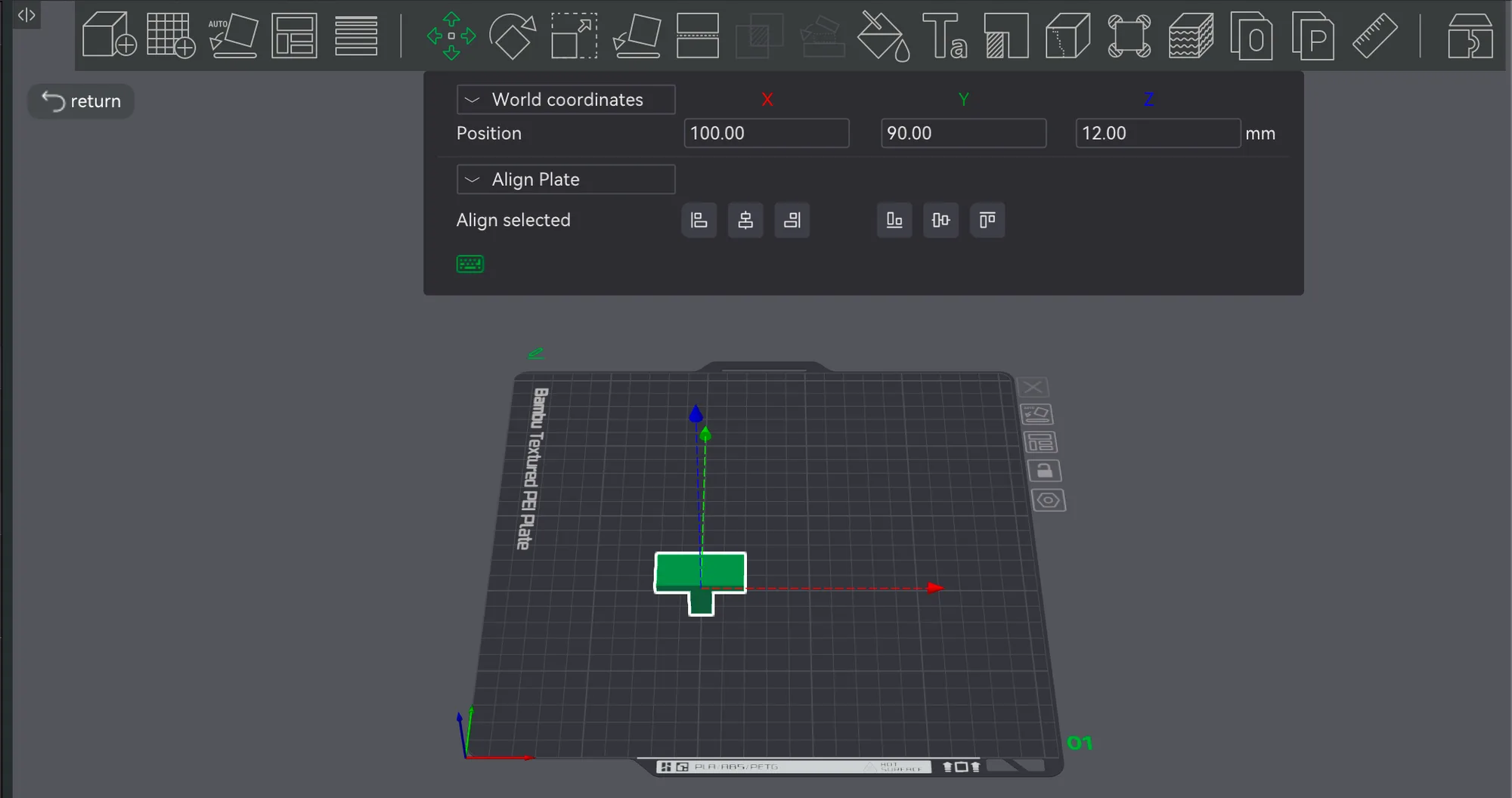
- Double-click the X box, select its contents with Cmd+A and type 100.
- Do the same in the Y box with 90.
- Click on empty panel space to apply the value.
The model slid left and toward the front of the plate. Pressing Return on its own did not visibly apply our Y value, so we clicked outside the box each time. You can also drag the red X and green Y arrows on the model. Below Position is an Align Plate drop-down and an Align selected row of six buttons; we saw them but did not use them, because they matter once you have several objects.
How do you rotate a model?
Press Rotate, tooltip "Rotate [R]". The panel has a World coordinates label and two rows in degrees: Rotate (relative) and Rotate (absolute), each with X, Y and Z boxes. Coloured rings appear around the model, and you can drag them to turn it by hand.
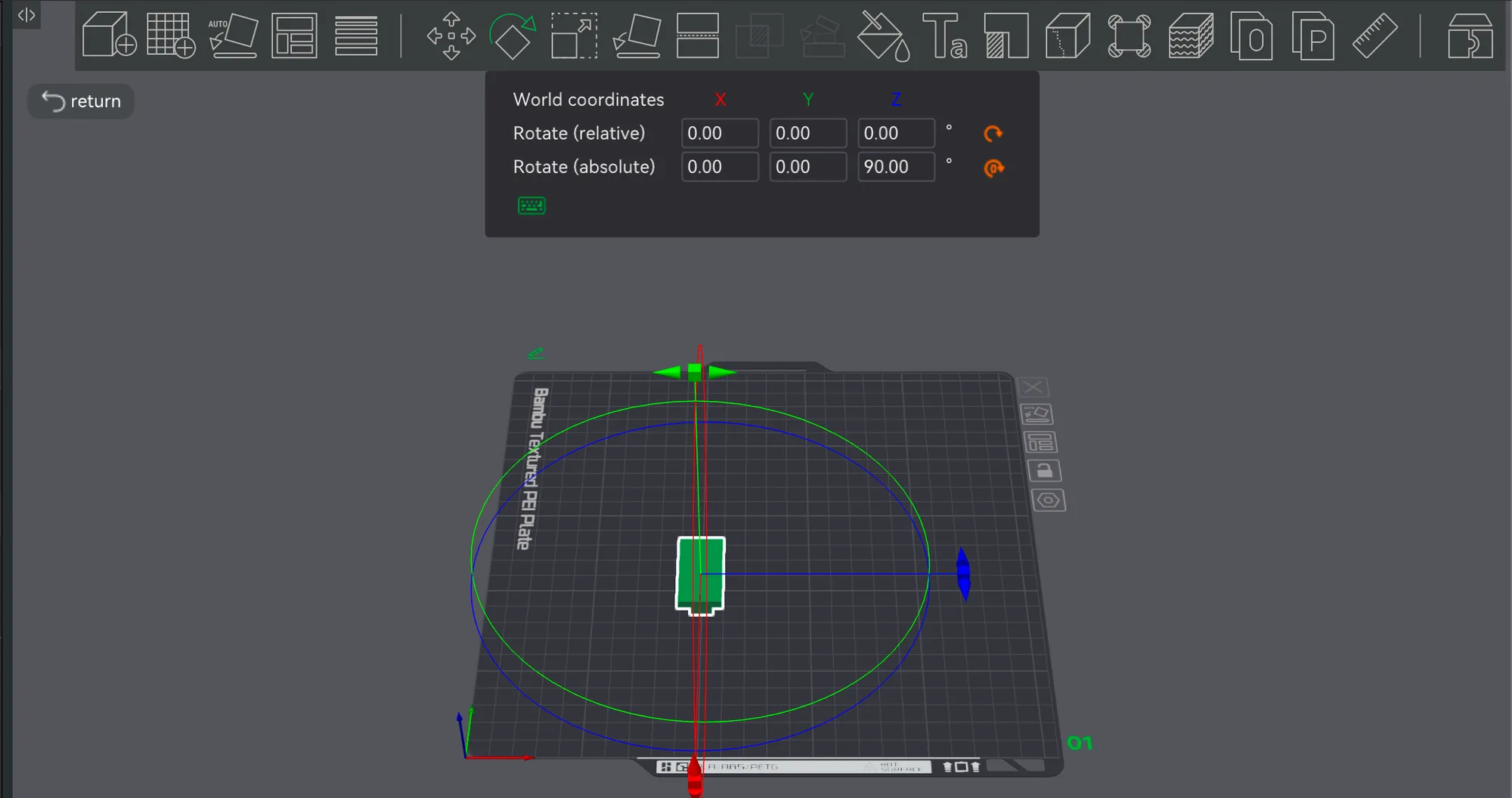
We typed 90 into the relative Z box and clicked away. The model turned a quarter turn on the plate, the absolute Z box read 90.00 and the relative boxes went back to 0.00. Two orange icons appeared at the right of the rows. Hovering over the lower one showed "Reset current rotation to real zeros."
We then typed 30 into relative X. The absolute row afterwards read X 0.00, Y -30.00, Z 90.00, so the app re-expresses combined turns in its own axes. Do not be surprised if the numbers you read back differ from the ones you typed. Clicking the lower reset icon returned all three absolute values to 0.00 and the model to its original pose.
How do you scale a model, and what does uniform scale do?
Press Scale, tooltip "Scale [S]". The panel has a Scale row in percent and a Size row in millimetres, each with X, Y and Z boxes, and a uniform scale tick box that was ticked by default. Our model showed 100.00 percent and 40.00, 20.00 and 24.00 mm.
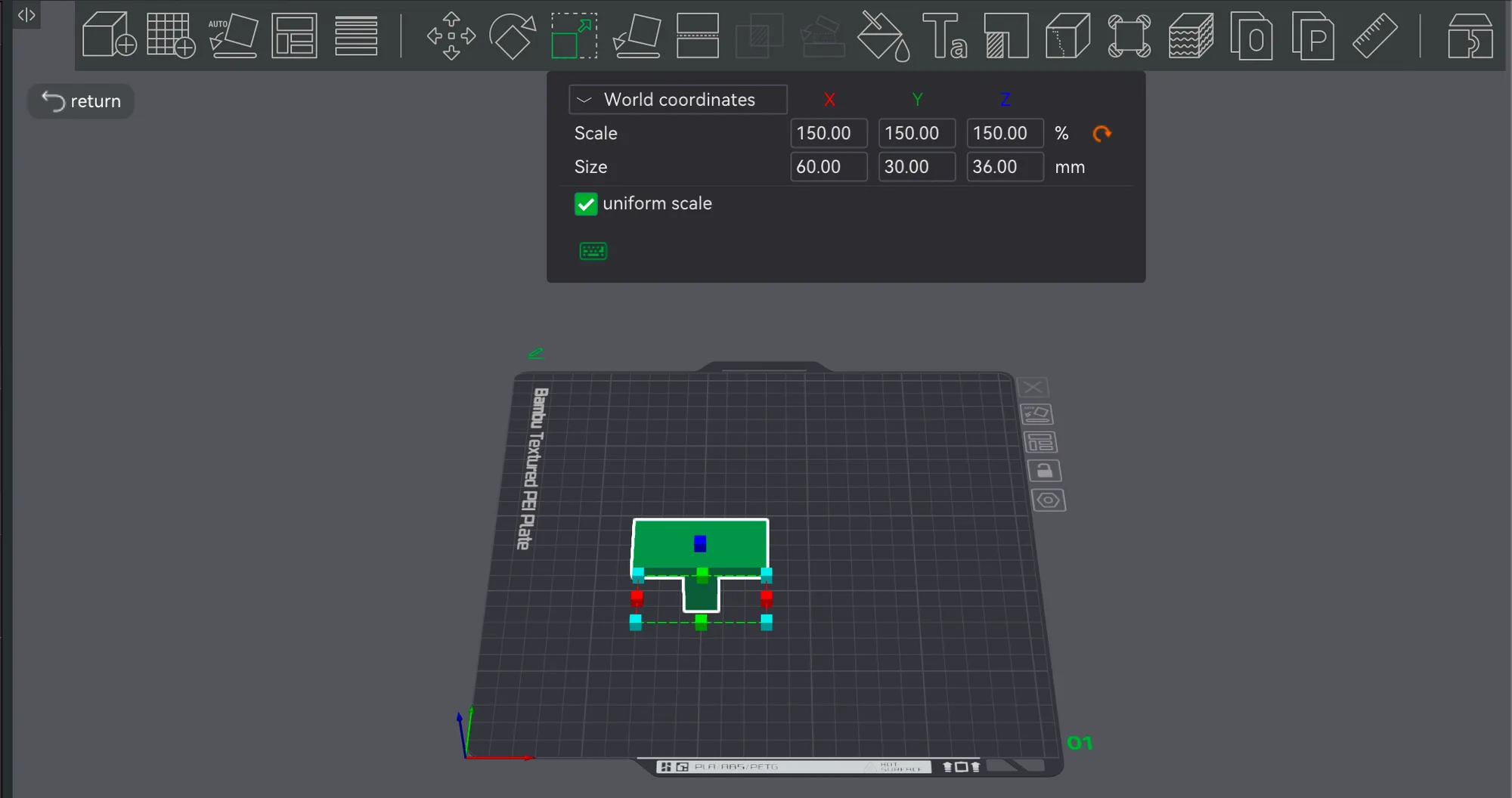
We typed 150 into the X scale box. With uniform scale ticked, all three scale boxes read 150.00, the size became 60.00, 30.00 and 36.00 mm, and the bottom right panel gave a volume of 17550 mm3 against 5200 before. That is the 3.375 times you expect from 1.5 cubed, and it is a reminder that scaling up uses far more filament than the percentage suggests. An orange arrow appeared beside the scale values; clicking it put everything back to 100 percent and 40 x 20 x 24 mm.
Untick uniform scale to stretch one axis only. Typing a Size in millimetres works the same way, which is handy when a part must be an exact width. Slicer estimates for time and filament in what a slicer does change with every scale you apply.
What do Lay on Face, Arrange and Cut do?
These three sit on the same toolbar. We tried each on the test models and report only what we saw.
- Lay on Face (tooltip "Lay on Face [F]"). Its panel shows Mode with two tick boxes, Convex hull (ticked) and Triangular facet. Moving the pointer over the model highlights a face in light green, and clicking it turns the model so that face rests on the plate. We tilted the model first, used the tool, and the Rotate panel afterwards read 0.00, 180.00 and 90.00, so the tool had flipped it. We reset the rotation to carry on.
- Arrange (tooltip "Arrange all objects [A], Arrange objects on selected plates [Shift+A]"). The button opens a panel with a Spacing slider, with the note "0 means auto spacing.", then three tick boxes: Auto rotate for arrangement (off), Allow multiple materials on same plate (on) and Align to Y axis (on). Below are Arrange and Reset buttons.
- Cut (tooltip "Cut [C]"). The panel has Mode set to Planar, Rotation, Movement and Height boxes (Height read 12.00), an Add connectors button, and After cut options for ObjectA and ObjectB such as Keep orientation, Place on cut and Flip, plus a Cut to parts tick box and Perform cut and Reset buttons. A warning said "Only the object being edited is visible." We did not press Perform cut.
For Arrange we imported cylinder.stl (30 x 30 x 25 mm) as a second object, moved the T to X 40 and Y 200 near a plate corner, then pressed A on the keyboard. Both objects gathered near the middle of the plate. The T also came out turned 90 degrees (the Rotate panel read Z 90.00 and its size 20 x 40 x 24 mm), and we did not isolate why. One practical note: after using the Arrange panel, clicks on objects did not select them until we clicked empty plate space and then double-clicked the object.
The right-click menu on a selected model also listed Fill bed with copies, Clone, Simplify Model, Mesh boolean, Scale to print volume, Center, Align/Distribute, Split, Mirror and Delete. Scale to print volume is a quick fix for a model that is too big for the A1 plate.
A quick routine for placing a model
- Press Cmd+I, choose the file and check the size in the bottom right panel.
- Use Scale first, because it changes the footprint. Keep uniform scale ticked unless you need to stretch one axis.
- Use Rotate or Lay on Face to choose which side faces down.
- Use Move or Arrange to place it, then slice.
Back to the window layout in the Bambu Studio interface tour if any panel name is unfamiliar. The same ideas apply in OrcaSlicer, which started as a fork of Bambu Studio. The next lesson covers quality and strength settings.
Next lesson: Bambu Studio Print Settings: Quality and Strength Tabs.