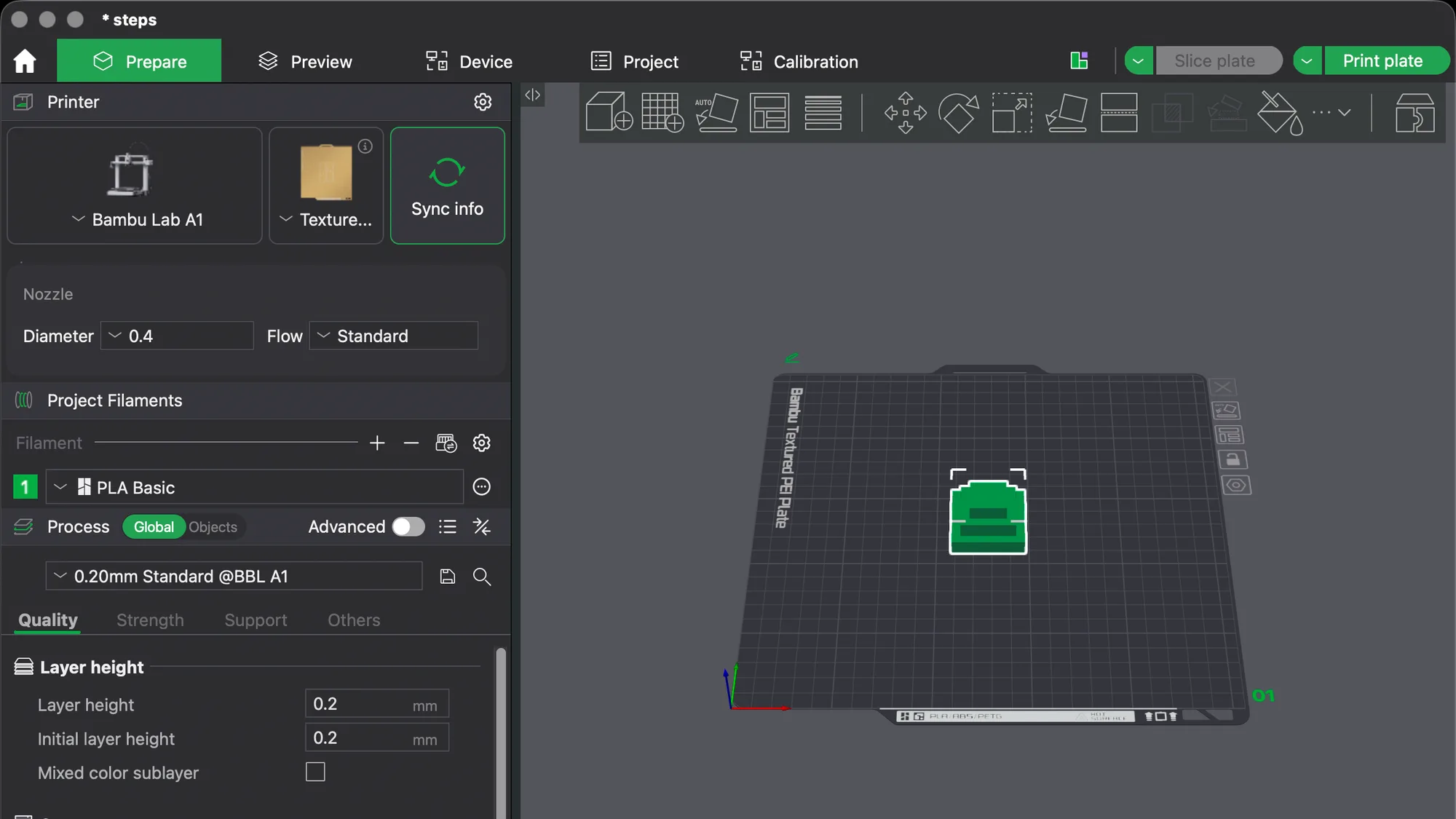
The Bambu Studio interface has a Home button and five tabs across the top: Prepare, Preview, Device, Project and Calibration. This tour covers each tab, the left panel, the toolbar and the slice buttons in version 02.08.02.61 on macOS. It is software only: we own no Bambu printer and none was connected.
What are the tabs in Bambu Studio?
A house icon on the far left opens Home, and the five named tabs follow it. We opened each one without logging in. If you have not run the first-launch wizard yet, start with the Bambu Studio setup wizard walkthrough.
- Home has a Login/Register button, a search box labelled "Search online models", and Open Project and Create new project buttons. Below sit Recently Opened, Online Models and MakerLab sections. The left menu lists Library, Recently Opened, Online Models, MakerLab and Maker's Supply, with a User Manual link at the bottom.
- Prepare is where you load a model, pick settings and slice.
- Preview shows the sliced result layer by layer, with estimates.
- Device is for monitoring a printer. With no network plug-in it opened a small dialog, "Please Install network plug-in before log in", with an Install Network Plug-in button. We closed it without installing.
- Project read "Please add the project information" with a green Add button.
- Calibration shows "No printer" at the top left, a menu with Flow Dynamics and Flow Rate, and an explanation page headed Flow Dynamics Calibration.
What is in the left panel on the Prepare tab?
The left panel has three stacked sections: Printer, Project Filaments and Process.
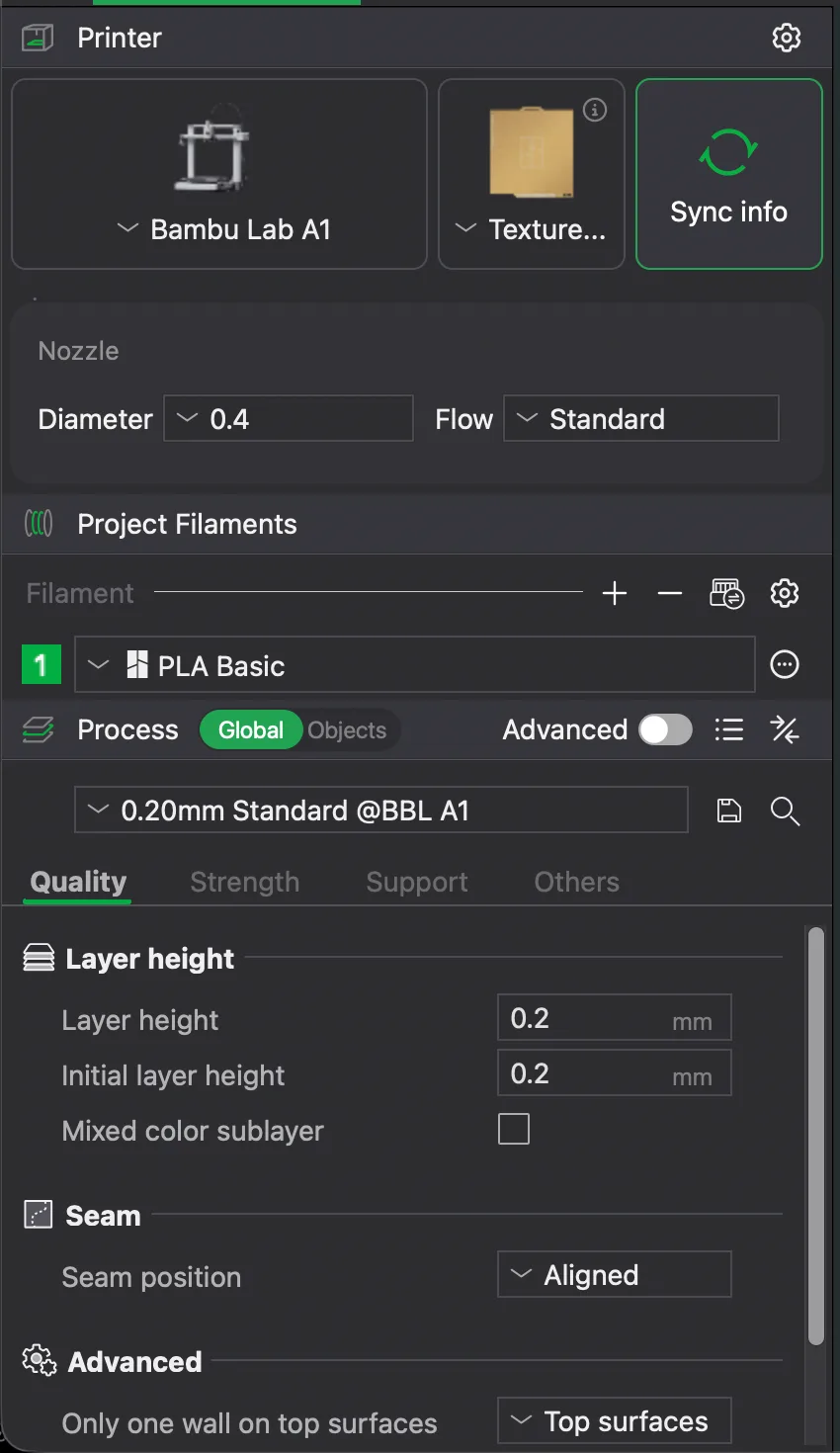
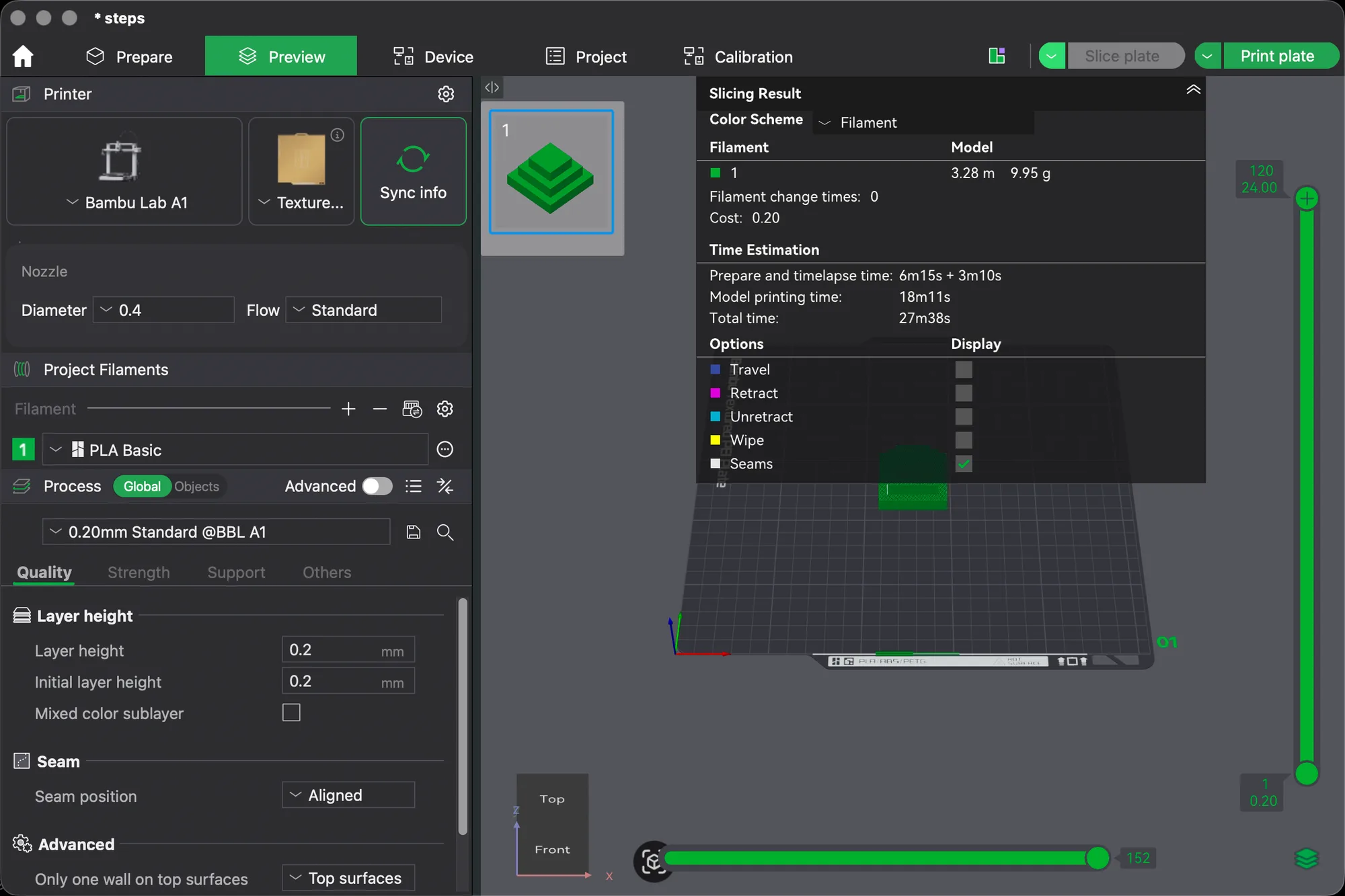
- Printer shows three tiles: the printer name (Bambu Lab A1), the build plate type (a textured plate, with a small info icon) and a Sync info button. Below is a Nozzle box with Diameter 0.4 and Flow Standard. A gear icon at the right of the header opens printer settings.
- Project Filaments lists each filament slot with a number tile and a preset, here PLA Basic. Plus and minus icons next to the Filament label add and remove slots.
- Process holds the slicing settings. A Global and Objects switch sits beside the heading, then the Advanced switch, and below them the preset drop-down, here 0.20mm Standard @BBL A1, with a save icon and a search icon.
Under the preset are tabs. With Advanced off they read Quality, Strength, Support and Others. The Quality tab opens on Layer height, Initial layer height and Seam position. Layer height explained shows what the 0.2 mm figure does.
How do the Simple and Advanced switch and the Objects mode work?
The Advanced switch hides or reveals settings. When we turned it on, the tab row changed from four tabs to five: Quality, Strength, Speed, Support and Others, and the Quality tab gained a Line width group with Default 0.42 mm, Initial layer 0.5 mm and Outer wall 0.42 mm. We turned it off again to keep the lesson simple.
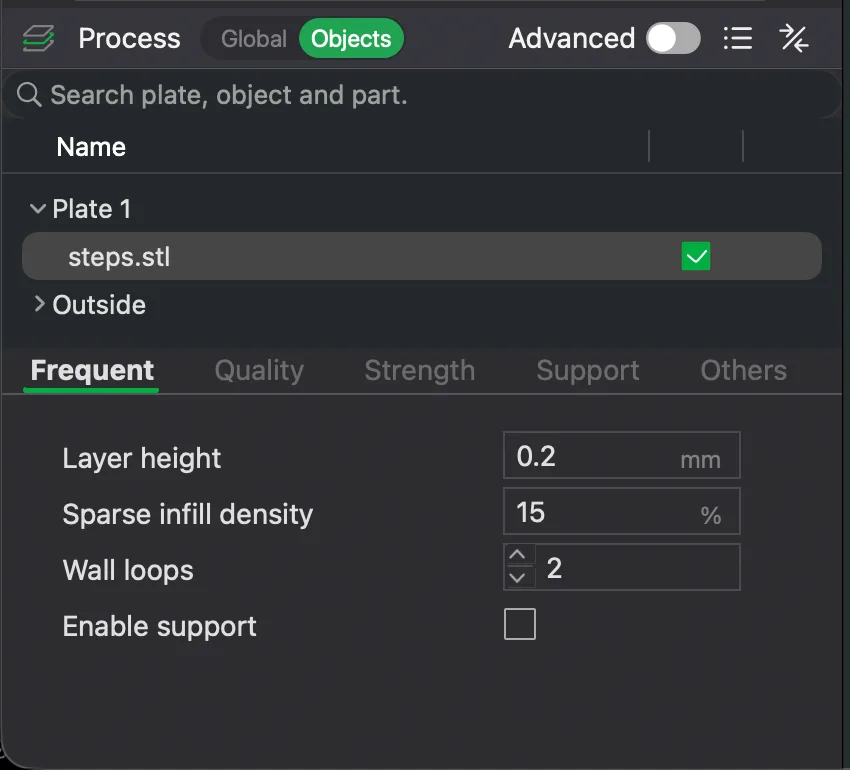
The Global and Objects switch changes what you are editing. With a model loaded, pressing Objects replaced the settings list with an object list. It has a search box ("Search plate, object and part."), a Name column, Plate 1, our steps.stl with a tick box, and an Outside group. Below it a short tab row reads Frequent, Quality, Strength, Support and Others. Frequent showed Layer height 0.2 mm, Sparse infill density 15%, Wall loops 2 and an Enable support box, unticked.
What does each toolbar button do?
The toolbar runs along the top of the plate. Many buttons are greyed out until you load a model, and each shows its name and shortcut when you hover over it. These are the tooltips we saw, from the left:
| Button | Tooltip text | What it does |
|---|---|---|
| Add | Add [command+I] | Import a model file |
| Add Plate | Add Plate | Add another build plate |
| Auto Orient | Auto Orient | Turn the model into a better print orientation |
| Arrange | Arrange all objects [A], Arrange objects on selected plates [Shift+A] | Lay objects out on the plate |
| Variable layer height | Variable layer height | Change layer height along the model |
| Move, Rotate, Scale | Move [M], Rotate [R], Scale [S] | Transform the selected object |
| Lay on Face | Lay on Face [F] | Put a chosen face flat on the bed |
| Cut | Cut [C] | Slice a model into pieces |
| Mesh Boolean | Mesh Boolean [B] | Combine meshes; needs at least two objects or parts |
| Assemble | Assemble [Y] | Needs at least two volumes |
| Color Painting | Color Painting [N] | Paint colours onto the model |
| Overview | Overview | Button at the far right of the toolbar |
The three dots with an arrow open a second row, and a tooltip on it reads "Click to Collapse" when open. Those tools were Text shape [T], Supports Painting [L], Seam painting [P], Brim Ears [E], Fuzzy skin Painting [H], Split to Objects, Split to Parts and Measure [U].

Four small icons sit at the right edge of the plate. Two had tooltips we could read in full: "Arrange objects on current plate" and "Lock current plate". The one above them started "Auto orient objects on curren" before the window edge cut it off. The eye icon's tooltip began "Customize current", also cut off, so we did not open it. These are the same actions as the toolbar versions, aimed at the current plate.
What do the slice buttons and Preview tab show?
Slice plate sits at the top right, next to a green drop-down arrow. The arrow opened a list with Slice all and Slice plate. Beside it is Print plate, greyed out until the plate is sliced. Its drop-down listed Print plate, Print all, Send, Send all, then two export entries, Export plate sliced file and Export all sliced file, whose text was cut off at the window edge. We never sent or printed anything.
We pressed Slice plate with the 0.20mm Standard preset, and the app jumped to Preview by itself. Print plate lit up. The Slicing Result panel listed filament 1 at 3.28 m and 9.95 g, cost 0.20, and these times:
- Prepare and timelapse time: 6m15s + 3m10s
- Model printing time: 18m11s
- Total time: 27m38s
It also had a Color Scheme drop-down (Filament) and Display tick boxes for Travel, Retract, Unretract, Wipe and Seams, with only Seams ticked. A vertical slider on the right ran from layer 1 at 0.20 mm up to layer 120 at 24.00 mm, and a horizontal slider at the bottom read 152. These are slicer estimates, not printed results; what a slicer is explains where they come from.
A quick routine for using the window
- Stay on Prepare. Check the Printer, Project Filaments and Process panels.
- Press Add (Cmd+I) and pick a model. Use Move, Rotate and Scale if needed.
- Switch Global to Objects only when one object needs its own settings.
- Press Slice plate and read the estimates in Preview.
The same layout idea appears in the OrcaSlicer interface tour, and Cura vs OrcaSlicer vs PrusaSlicer compares all the main programs. The next lesson covers importing, moving, scaling and rotating a model.
Next lesson: Bambu Studio Import Models: Move, Rotate and Scale.